


方法介绍:
通过调用“Python.exe”程序,执行脚本文件。所以,本方式要求电脑上已经安装了Python,拥有程序Python.exe程序。
现在,有如下py脚本:Add.py
import sys

def Add(a,b):
    return a+b

if __name__=='__main__':
    X = int(sys.argv[1])
    Y = int(sys.argv[2])
    ret = Add(X,Y)
    print(ret)
然后,设计C#窗口程序,界面如下:
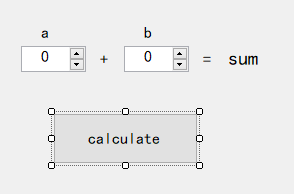
后端C#代码如下(只截取关键代码):
        private void button1_Click(object sender, EventArgs e)
        {
            try
            {
                string path = @"G:\MyCodeList\CSharpPython\CSharpPython\bin\Debug\Add.py"; // *.py文件路径,不要有空格或中文
                if (!File.Exists(path)) return;

                // 两个输入参数
                int a = Convert.ToInt32(this.numericUpDown1.Text);
                int b = Convert.ToInt32(this.numericUpDown2.Text);

                // 进程启动信息
                ProcessStartInfo start = new ProcessStartInfo();
                start.FileName = @"E:\Program Files (x86)\Microsoft Visual Studio\Shared\Python37_64\python.exe"; // Python.exe,程序。可以配置环境变量,从而只使用程序名称
                start.Arguments = $"{path} {a} {b}";  // 启动程序时的输入参数,参数间使用一个空格,py代码文件路径,不要有“中文和空格”。
                start.UseShellExecute = false;
                start.RedirectStandardOutput = true;
                start.RedirectStandardInput = true;
                start.RedirectStandardError = true;
                start.CreateNoWindow = true; // 不显示界面

                // 启动进程
                var pp = new Process();
                pp.StartInfo = start;
                pp.Start();

                // 执行后输出结果
                using (var progressTest = Process.Start(start))
                {
                    progressTest.ErrorDataReceived += Pp_ErrorDataReceived;
                    // 异步获取命令行内容
                    progressTest.BeginOutputReadLine();
                    // 为异步获取订阅事件
                    progressTest.OutputDataReceived += new DataReceivedEventHandler(outputDataReceived);
                }

            }
            catch (Exception e1)
            {
                MessageBox.Show(e1.Message);
            }
        }

        public void outputDataReceived(object sender, DataReceivedEventArgs e)
        {
            if (!string.IsNullOrEmpty(e.Data))
            {
                this.Invoke(new Action(() =>
                {
                    this.label5.Text = e.Data; // SUM结果
                }));
            }
        }

        private void Pp_ErrorDataReceived(object sender, DataReceivedEventArgs e)
        {
            var ed = e.Data;
        }
以上,即可;运行如下图:
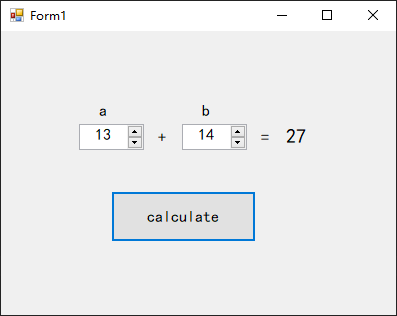
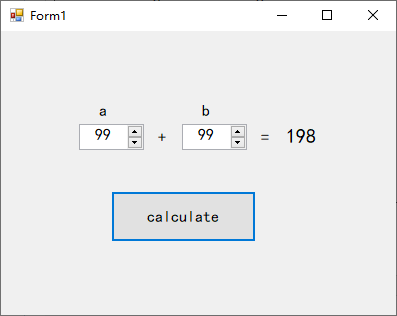
此内容由惯性聚合(RSS阅读器)自动聚合整理,仅供阅读参考。 原文来自 — 版权归原作者所有。