




项目Git地址: https://github.com/openatx/uiautomator2
使用pip进行安装, 注意因为uiaotumator2还在开发中需要加上--pre来安装最新的版本
pip install --upgrade --pre uiautomator2
也可以使用源码来进行安装
git clone https://github.com/openatx/uiautomator2
pip install -e uiautomator2
安装pillow库, 截屏功能会需要用到这个库
电脑连接上一个手机或多个手机, 确保adb已经添加到环境变量中,执行下面的命令会自动安装本库所需要的设备端程序:uiautomator-server 、atx-agent、openstf/minicap、openstf/minitouch
执行之前需要确保adb service开启了
执行上面的指令能看到连接的设备id就可以
# init 所有的已经连接到电脑的设备
python -m uiautomator2 init
如果没有开启adb service会提示以下错误, 开启adb service服务就好了
socket.error: [Errno 61] Connection refused
安装提示success即可, 注意安装的过程中手机上会有提示是否安装, 要手动确认下
基于浏览器技术开发的weditor UI查看器, 安装方法
启动方式:
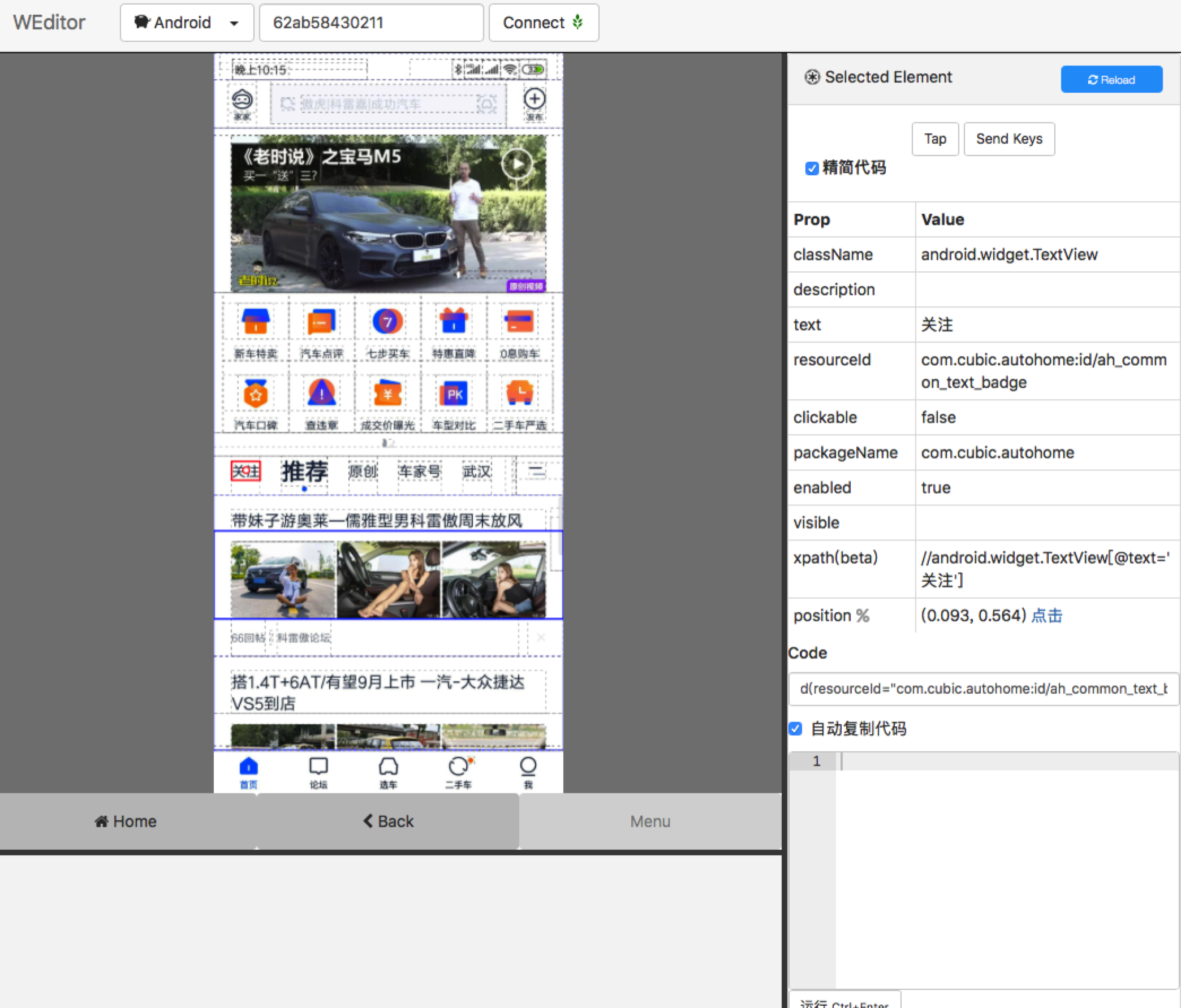
会自动打开浏览器,输入设备的ip或者序列号,点击Connect成功后,点击刷新。
鼠标选择控件,可以在右边看到对应的属性值
如果手机和电脑处于同一个局域网, 可以使用如下方式通过手机ip建立连接
import uiautomator2 as u2

d = u2.connect('10.234.12.104')
print d.info
其中'10.234.12.104'是手机的IP地址, 可以通过adb指令获得: adb shell ifconfig | grep Mask
运行结果如下:
{u'displayRotation': 0, u'displaySizeDpY': 829, u'displaySizeDpX': 393, u'screenOn': True, u'displayWidth': 1080, u'productName': u'lotus', u'currentPackageName': u'com.miui.home', u'sdkInt': 27, u'displayHeight': 2150, u'naturalOrientation': True}
如果手机与电脑有通过USB连接, 可以使用如下方式建立连接
import uiautomator2 as u2

d = u2.connect('62ab58430211')
print d.info
其中'62ab58430211'是手机的SN, 可以使用adb指令获得: adb devices
运行结果如下:
{u'displayRotation': 0, u'displaySizeDpY': 829, u'displaySizeDpX': 393, u'screenOn': True, u'displayWidth': 1080, u'productName': u'lotus', u'currentPackageName': u'com.miui.home', u'sdkInt': 27, u'displayHeight': 2150, u'naturalOrientation': True}
如果配置了手机指定端口监听TCP/IP连接, 比如
可以通过指定端口建立连接
import uiautomator2 as u2

d = u2.connect('10.234.12.104:5555')
print d.info
这个方法在我的机器上python2.7会报错, 可能要在3.0以上
注: 下面的$device_ip代表手机IP
python -m uiautomator2 init
python -m uiautomator2.cli install $device_ip https://example.org/some.apk
python -m uiautomator2 clear-cache
python -m uiautomator2 app-stop-all $device_ip
python -m uiautomator2 screenshot $device_ip screenshot.jpg
python -m uiautomator2 healthcheck $device_ip
import uiautomator2 as u2

d = u2.connect('10.234.12.104')
d.debug=True
print d.info
运行结果:
23:17:15.628 $ curl -X POST -d '{"params": {}, "jsonrpc": "2.0", "id": "eaacec696e5911b38ea35b652f5a0d54", "method": "deviceInfo"}' 'http://10.234.12.104:7912/jsonrpc/0'
23:17:15.856 Response (228 ms) >>>
{"jsonrpc":"2.0","id":"eaacec696e5911b38ea35b652f5a0d54","result":{"currentPackageName":"com.miui.home","displayHeight":2150,"displayRotation":0,"displaySizeDpX":393,"displaySizeDpY":829,"displayWidth":1080,"productName":"lotus","screenOn":true,"sdkInt":27,"naturalOrientation":true}}
<<< END
{u'displayRotation': 0, u'displaySizeDpY': 829, u'displaySizeDpX': 393, u'screenOn': True, u'displayWidth': 1080, u'productName': u'lotus', u'currentPackageName': u'com.miui.home', u'sdkInt': 27, u'displayHeight': 2150, u'naturalOrientation': True}
设置元素操作等待时间, 单位: 秒
d.implicitly_wait(10.0)
d(text="小米体检").click()
print("wait timeout", d.implicitly_wait())
第一步为设置全局元素操作等待时间, 第二步点击文本"小米体检", 如果10秒内"小米体检还没有出现则会 raise UiObjectNotFoundError
这是设置会影响的操作有: click, long_click, drag_to, get_text, set_text, clear_text等
只支持从网络链接安装
d.app_install('http://some-domain.com/some.apk')
d.app_start("com.example.hello_world") # start with package name
# equivalent to `am force-stop`, thus you could lose data
d.app_stop("com.example.hello_world")
# equivalent to `pm clear`
d.app_clear('com.example.hello_world')
# stop all
d.app_stop_all()
# stop all app except for com.examples.demo
d.app_stop_all(excludes=['com.examples.demo'])
print d.app_info("com.examples.demo")
# save app icon
img = d.app_icon("com.examples.demo")
img.save("icon.png")
# push to a folder
d.push("foo.txt", "/sdcard/")
# push and rename
d.push("foo.txt", "/sdcard/bar.txt")
# push fileobj
with open("foo.txt", 'rb') as f:
    d.push(f, "/sdcard/")
# push and change file access mode
d.push("foo.sh", "/data/local/tmp/", mode=0o755)
d.pull("/sdcard/tmp.txt", "tmp.txt")

# FileNotFoundError will raise if the file is not found on the device
d.pull("/sdcard/some-file-not-exists.txt", "tmp.txt")
adb_shell已经废弃,现在使用shell.
默认的超时为60s, 我们试试用shell命令发送pwd指令
output, exit_code = d.shell("pwd", timeout=60)
print output
print exit_code
输出:
也可以这样写
output = d.shell('pwd').output
exit_code = d.shell('pwd').exit_code
参数可以以list的形式使用,我们试试
output, exit_code = d.shell(['ls', '-l'])
print output
print exit_code
r = d.shell("logcat", stream=True)
# r: requests.models.Response
deadline = time.time() + 10 # run maxium 10s
try:
    for line in r.iter_lines(): # r.iter_lines(chunk_size=512, decode_unicode=None, delimiter=None)
        if time.time() > deadline:
            break
        print("Read:", line.decode('utf-8'))
finally:
    r.close() # this method must be called
sess = d.session("com.netease.cloudmusic") # start 网易云音乐
sess.close() # 停止网易云音乐
with d.session("com.netease.cloudmusic") as sess:
    sess(text="Play").click()
sess = d.session('com.ganji.android.haoche_c', attach=True)
time.sleep(5)
sess.close()
# When app is still running
sess(text="Music").click() # operation goes normal

# If app crash or quit
sess(text="Music").click() # raise SessionBrokenError
# other function calls under session will raise SessionBrokenError too
# When app is still running
sess(text="Music").click() # operation goes normal

# If app crash or quit
sess(text="Music").click() # raise SessionBrokenError
# other function calls under session will raise SessionBrokenError too
结果:
{u'displayRotation': 0, u'displaySizeDpY': 829, u'displaySizeDpX': 393, u'screenOn': True, u'displayWidth': 1080, u'productName': u'lotus', u'currentPackageName': u'com.miui.home', u'sdkInt': 27, u'displayHeight': 2150, u'naturalOrientation': True}

Process finished with exit code 0
print(d.window_size())
# device upright output example: (1080, 1920)
# device horizontal output example: (1920, 1080)
#3. Get current app info
运行结果:
{'activity': u'com.ganji.android.haoche_c.ui.main.MainActivity', 'package': u'com.ganji.android.haoche_c'}

Process finished with exit code 0
sess = d.session('com.ganji.android.haoche_c')
time.sleep(5)
print d.wait_activity('com.ganji.android.haoche_c.ui.main.MainActivity')
d.screen_on() # turn on the screen
d.screen_off() # turn off the screen
print d.info.get('screenOn')
d.press("home") # press the home key, with key name
d.press("back") # press the back key, with key name
d.press(0x07, 0x02) # press keycode 0x07('0') with META ALT(0x02)
之前支持的key有以下这些:
home
back
left
right
up
down
center
menu
search
enter
delete ( or del)
recent (recent apps)
volume_up
volume_down
volume_mute
camera
power
更多key可以查看: Android KeyEvnet
d.unlock()
# This is equivalent to
# 1. launch activity: com.github.uiautomator.ACTION_IDENTIFY
# 2. press the "home" key
d.double_click(x, y)
d.double_click(x, y, 0.1) # default duration between two click is 0.1s
d.long_click(x, y)
d.long_click(x, y, 0.5) # long click 0.5s (default)
d.swipe(sx, sy, ex, ey)
d.swipe(sx, sy, ex, ey, 0.5) # swipe for 0.5s(default)
d.drag(sx, sy, ex, ey)
d.drag(sx, sy, ex, ey, 0.5) # swipe for 0.5s(default)
# swipe from point(x0, y0) to point(x1, y1) then to point(x2, y2)
# time will speed 0.2s bwtween two points
d.swipe((x0, y0), (x1, y1), (x2, y2), 0.2)
多用于九宫格解锁,提前获取到每个点的相对坐标(这里支持百分比), 更详细的使用参考这个帖子 使用u2实现九宫图案解锁
这个接口属于比较底层的原始接口,感觉并不完善,不过凑合能用。注:这个地方并不支持百分比
d.touch.down(10, 10) # 模拟按下
time.sleep(.01) # down 和 move 之间的延迟,自己控制
d.touch.move(15, 15) # 模拟移动
d.touch.up() # 模拟抬起
click, swipe, drag操作支持按比例操作, 比如
意思是长按屏幕中心
可能的方向有
natural or n
left or l
right or r
upsidedown or u (can not be set)
d.set_orientation('l') # or "left"
d.set_orientation("l") # or "left"
d.set_orientation("r") # or "right"
d.set_orientation("n") # or "natural"
# freeze rotation
d.freeze_rotation()
# un-freeze rotation
d.freeze_rotation(False)
# take screenshot and save to a file on the computer, require Android>=4.2.
d.screenshot("home.jpg")

# get PIL.Image formatted images. Naturally, you need pillow installed first
image = d.screenshot() # default format="pillow"
image.save("home.jpg") # or home.png. Currently, only png and jpg are supported

# get opencv formatted images. Naturally, you need numpy and cv2 installed first
import cv2
image = d.screenshot(format='opencv')
cv2.imwrite('home.jpg', image)

# get raw jpeg data
imagebin = d.screenshot(format='raw')
open("some.jpg", "wb").write(imagebin)
# get the UI hierarchy dump content (unicoded).
xml = d.dump_hierarchy()
选择当前窗口中的UI控件, 例如
# Select the object with text 'Clock' and its className is 'android.widget.TextView'
d(text='Clock', className='android.widget.TextView')
支持以下这些选择参数, 详细可以参考UiSelector Java doc
text, textContains, textMatches, textStartsWith
className, classNameMatches
description, descriptionContains, descriptionMatches, descriptionStartsWith
checkable, checked, clickable, longClickable
scrollable, enabled,focusable, focused, selected
packageName, packageNameMatches
resourceId, resourceIdMatches
index, instance
# get the children or grandchildren
d(className="android.widget.ListView").child(text="Bluetooth")
# get siblings
d(text="Google").sibling(className="android.widget.ImageView")
# get the child matching the condition className="android.widget.LinearLayout"
# and also its children or grandchildren with text "Bluetooth"
d(className="android.widget.ListView", resourceId="android:id/list") \
 .child_by_text("Bluetooth", className="android.widget.LinearLayout")

# get children by allowing scroll search
d(className="android.widget.ListView", resourceId="android:id/list") \
 .child_by_text(
    "Bluetooth",
    allow_scroll_search=True,
    className="android.widget.LinearLayout"
  )
child_by_description is to find children whose grandchildren have the specified description, other parameters being similar to child_by_text.
child_by_instance is to find children with has a child UI element anywhere within its sub hierarchy that is at the instance specified. It is performed on visible views without scrolling.
See below links for detailed information:
getChildByDescription, getChildByText, getChildByInstancegetChildByDescription, getChildByText, getChildByInstanceAbove methods support chained invoking, e.g. for below hierarchy
<node index="0" text="" resource-id="android:id/list" class="android.widget.ListView" ...>
  <node index="0" text="WIRELESS & NETWORKS" resource-id="" class="android.widget.TextView" .../>
  <node index="1" text="" resource-id="" class="android.widget.LinearLayout" ...>
    <node index="1" text="" resource-id="" class="android.widget.RelativeLayout" ...>
      <node index="0" text="Wi‑Fi" resource-id="android:id/title" class="android.widget.TextView" .../>
    </node>
    <node index="2" text="ON" resource-id="com.android.settings:id/switchWidget" class="android.widget.Switch" .../>
  </node>
  ...
</node>
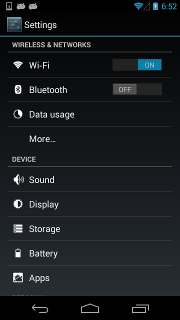
To click the switch widget right to the TextView 'Wi‑Fi', we need to select the switch widgets first. However, according to the UI hierarchy, more than one switch widgets exist and have almost the same properties. Selecting by className will not work. Alternatively, the below selecting strategy would help:
d(className="android.widget.ListView", resourceId="android:id/list") \
  .child_by_text("Wi‑Fi", className="android.widget.LinearLayout") \
  .child(className="android.widget.Switch") \
  .click()
我们可以使用相对位置来辅助获取控件: left、right、top、bottom.
d(A).left(B), selects B on the left side of A.d(A).right(B), selects B on the right side of A.d(A).up(B), selects B above A.d(A).down(B), selects B under A.所以上面的例子可以改为:
## select "switch" on the right side of "Wi‑Fi"
d(text="Wi‑Fi").right(className="android.widget.Switch").click()
有时候我们会遇到屏幕上有多个控件的属性一样,这个时候就可以使用instance属性来获取其中一个控件
d(text="Add new", instance=0) # which means the first instance with text "Add new"
另外还提供了以下API功能
# get the count of views with text "Add new" on current screen
d(text="Add new").count

# same as count property
len(d(text="Add new"))

# get the instance via index
d(text="Add new")[0]
d(text="Add new")[1]
...

# iterator
for view in d(text="Add new"):
    view.info  # ...
Notes: when using selectors in a code block that walk through the result list, you must ensure that the UI elements on the screen keep unchanged. Otherwise, when Element-Not-Found error could occur when iterating through the list.
d(text="Settings").exists # True if exists, else False
d.exists(text="Settings") # alias of above property.

# advanced usage
d(text="Settings").exists(timeout=3) # wait Settings appear in 3s, same as .wait(3)
print d(text="Settings").info
输出:
{ u'contentDescription': u'',
u'checked': False,
u'scrollable': False,
u'text': u'Settings',
u'packageName': u'com.android.launcher',
u'selected': False,
u'enabled': True,
u'bounds': {u'top': 385,
            u'right': 360,
            u'bottom': 585,
            u'left': 200},
u'className': u'android.widget.TextView',
u'focused': False,
u'focusable': True,
u'clickable': True,
u'chileCount': 0,
u'longClickable': True,
u'visibleBounds': {u'top': 385,
                    u'right': 360,
                    u'bottom': 585,
                    u'left': 200},
u'checkable': False
}
d(text="Settings").get_text()  # get widget text
d(text="Settings").set_text("My text...")  # set the text
d(text="Settings").clear_text()  # clear the text
x, y = d(text="Settings").center()
# x, y = d(text="Settings").center(offset=(0, 0)) # left-top x, y
# click on the center of the specific ui object
d(text="Settings").click()

# wait element to appear for at most 10 seconds and then click
d(text="Settings").click(timeout=10)

# click with offset(x_offset, y_offset)
# click_x = x_offset * width + x_left_top
# click_y = y_offset * height + y_left_top
d(text="Settings").click(offset=(0.5, 0.5)) # Default center
d(text="Settings").click(offset=(0, 0)) # click left-top
d(text="Settings").click(offset=(1, 1)) # click right-bottom

# click when exists in 10s, default timeout 0s
clicked = d(text='Skip').click_exists(timeout=10.0)

# click until element gone, return bool
is_gone = d(text="Skip").click_gone(maxretry=10, interval=1.0) # maxretry default 10, interval default 1.0
# long click on the center of the specific UI object
d(text="Settings").long_click()
# notes : drag can not be used for Android<4.3.
# drag the UI object to a screen point (x, y), in 0.5 second
d(text="Settings").drag_to(x, y, duration=0.5)
# drag the UI object to (the center position of) another UI object, in 0.25 second
d(text="Settings").drag_to(text="Clock", duration=0.25)
d(text="Settings").swipe("right")
d(text="Settings").swipe("left", steps=10)
d(text="Settings").swipe("up", steps=20) # 1 steps is about 5ms, so 20 steps is about 0.1s
d(text="Settings").swipe("down", steps=20)
d(text="Settings").gesture((sx1, sy1), (sx2, sy2), (ex1, ey1), (ex2, ey2))
# notes : pinch can not be set until Android 4.3.
# from edge to center. here is "In" not "in"
d(text="Settings").pinch_in(percent=100, steps=10)
# from center to edge
d(text="Settings").pinch_out()
# wait until the ui object appears
d(text="Settings").wait(timeout=3.0) # return bool
# wait until the ui object gone
d(text="Settings").wait_gone(timeout=1.0)
The default timeout is 20s. see global settings for more details
# fling forward(default) vertically(default)
d(scrollable=True).fling()
# fling forward horizontally
d(scrollable=True).fling.horiz.forward()
# fling backward vertically
d(scrollable=True).fling.vert.backward()
# fling to beginning horizontally
d(scrollable=True).fling.horiz.toBeginning(max_swipes=1000)
# fling to end vertically
d(scrollable=True).fling.toEnd()
# scroll forward(default) vertically(default)
d(scrollable=True).scroll(steps=10)
# scroll forward horizontally
d(scrollable=True).scroll.horiz.forward(steps=100)
# scroll backward vertically
d(scrollable=True).scroll.vert.backward()
# scroll to beginning horizontally
d(scrollable=True).scroll.horiz.toBeginning(steps=100, max_swipes=1000)
# scroll to end vertically
d(scrollable=True).scroll.toEnd()
# scroll forward vertically until specific ui object appears
d(scrollable=True).scroll.to(text="Security")
# set delay 1.5s after each UI click and click
d.click_post_delay = 1.5 # default no delay

# set default element wait timeout (seconds)
d.wait_timeout = 30.0 # default 20.0
>> d.jsonrpc.getConfigurator()
{'actionAcknowledgmentTimeout': 500,
 'keyInjectionDelay': 0,
 'scrollAcknowledgmentTimeout': 200,
 'waitForIdleTimeout': 0,
 'waitForSelectorTimeout': 0}

>> d.jsonrpc.setConfigurator({"waitForIdleTimeout": 100})
{'actionAcknowledgmentTimeout': 500,
 'keyInjectionDelay': 0,
 'scrollAcknowledgmentTimeout': 200,
 'waitForIdleTimeout': 100,
 'waitForSelectorTimeout': 0}
为了防止客户端程序响应超时,waitForIdleTimeout和waitForSelectorTimeout目前已改为0
这种方法通常用于不知道控件的情况下的输入。第一步需要切换输入法,然后发送adb广播命令,具体使用方法如下
d.set_fastinput_ime(True) # 切换成FastInputIME输入法
d.send_keys("你好123abcEFG") # adb广播输入
d.clear_text() # 清除输入框所有内容(Require android-uiautomator.apk version >= 1.0.7)
d.set_fastinput_ime(False) # 切换成正常的输入法
d.send_action("search") # 模拟输入法的搜索
显示Toast
d.toast.show("Hello world")
d.toast.show("Hello world", 1.0) # show for 1.0s, default 1.0s
获取Toast
# [Args]
# 5.0: max wait timeout. Default 10.0
# 10.0: cache time. return cache toast if already toast already show up in recent 10 seconds. Default 10.0 (Maybe change in the furture)
# "default message": return if no toast finally get. Default None
d.toast.get_message(5.0, 10.0, "default message")

# common usage
assert "Short message" in d.toast.get_message(5.0, default="")

# clear cached toast
d.toast.reset()
# Now d.toast.get_message(0) is None
停止UiAutomator守护服务
https://github.com/openatx/uiautomator2/wiki/Common-issues
因为有atx-agent的存在,Uiautomator会被一直守护着,如果退出了就会被重新启动起来。但是Uiautomator又是霸道的,一旦它在运行,手机上的辅助功能、电脑上的uiautomatorviewer 就都不能用了,除非关掉该框架本身的uiautomator。下面就说下两种关闭方法
方法1:
直接打开uiautomator app(init成功后,就会安装上的),点击关闭UIAutomator
方法2:
d.service("uiautomator").stop()

# d.service("uiautomator").start() # 启动
# d.service("uiautomator").running() # 是否在运行
此内容由惯性聚合(RSS阅读器)自动聚合整理,仅供阅读参考。 原文来自 — 版权归原作者所有。