





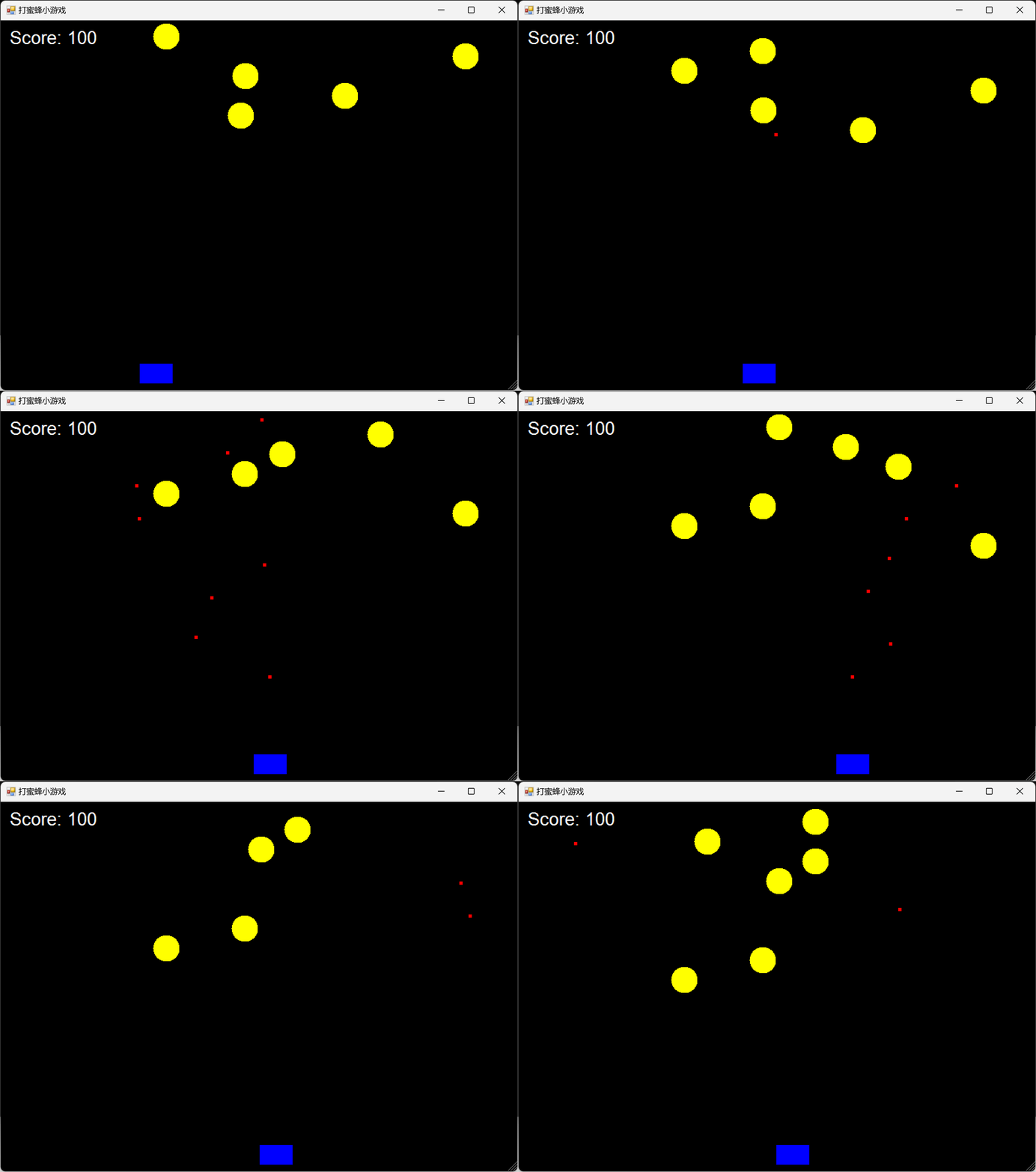
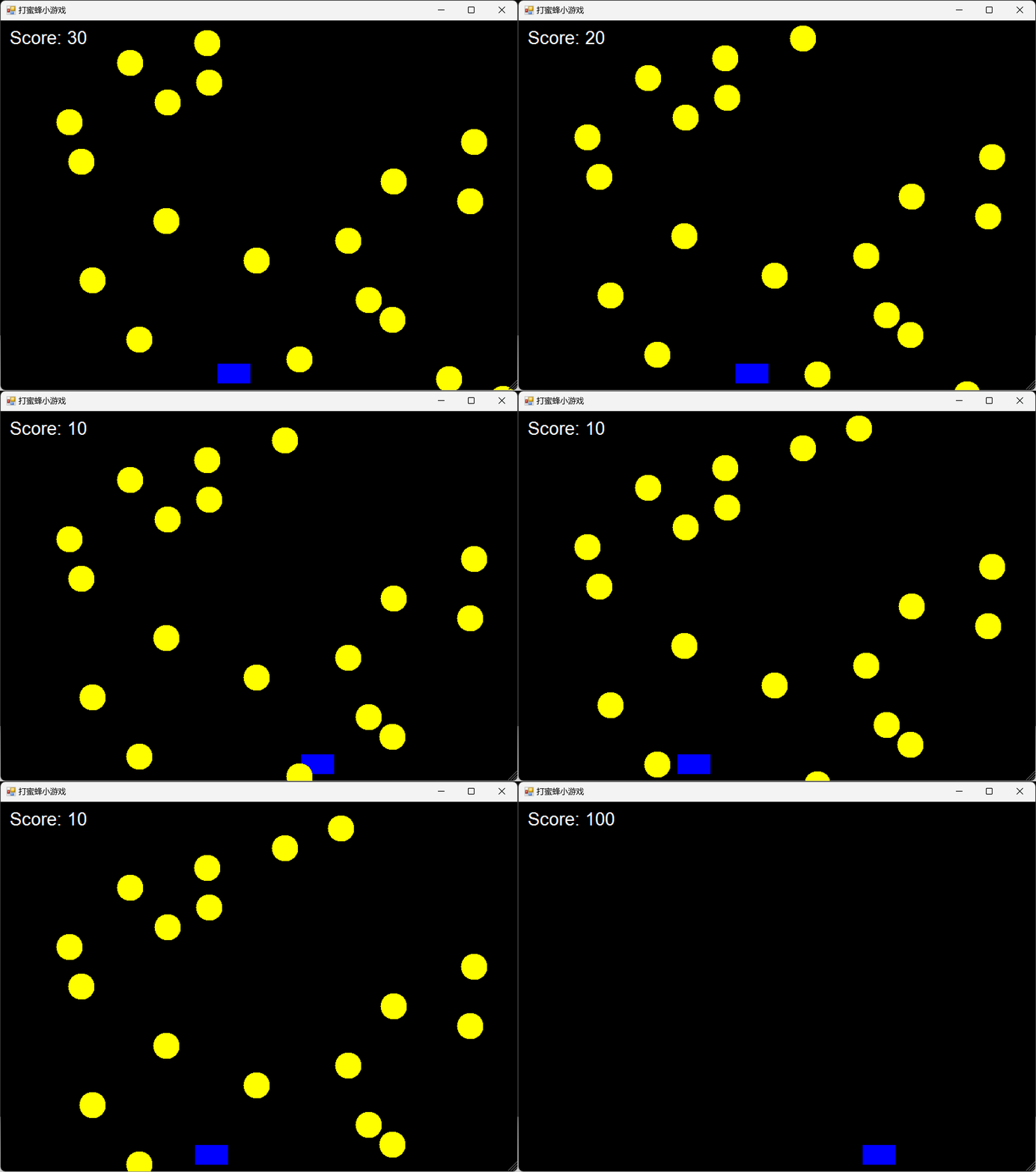
可以看到,虽然非常抽象简单,但是基础游戏框架已经搭建,游戏机制完善,就缺美工了,哈哈~~~~
【首先】
Powershell不是用来开发游戏的,但是没人规定不能开发。因为它可以调取windows下的程序集,比如 .net framework。因此我们可以猜想,只要能开启一个实时刷新的窗口,就可以在窗口内绘制图形和文字。至于实时刷新的窗口如何实现,则需要调取程序集,如下:
Add-Type -AssemblyName System.Drawing
Add-Type -AssemblyName System.Windows.Forms
Drawing 负责绘制任务
WindowsForm负责管理窗口
然后关键的操作是,设计一个定时器,让其不断地触发,不断地让其绘制新的图形。
# 定时器用于控制游戏更新,每秒触发 60 次(约 16.67 毫秒)
$timer = New-Object System.Windows.Forms.Timer
$timer.Interval = 16.67
然后设计定时器触发事件
$timer.Add_Tick({
  //  ...
})
在定时器触发事件中写上这句:
$form.Invalidate()即让每次触发时,让窗体重新paint一次,因此,需要定义窗体的 Paint 事件处理程序
$form.Add_Paint({
    // ...
})
剩下的就是交互动画设计基础了,三部曲 【初始化 - 更新 - 绘画】
【程序】
# 加载必要的程序集
Add-Type -AssemblyName System.Drawing
Add-Type -AssemblyName System.Windows.Forms

# 创建窗体
$form = New-Object System.Windows.Forms.Form
$form.Text = "打蜜蜂小游戏"
$form.Size = New-Object System.Drawing.Size(800, 600)
$form.BackColor = [System.Drawing.Color]::Black
$form.StartPosition = "CenterScreen"
$form.KeyPreview = $true

# 启用双缓冲以减少闪烁
$doubleBufferProperty = $form.GetType().GetProperty("DoubleBuffered", [System.Reflection.BindingFlags]::NonPublic -bor [System.Reflection.BindingFlags]::Instance)
$doubleBufferProperty.SetValue($form, $true, $null)

# 定义飞机
$planeWidth = 50
$planeHeight = 30
$planeX = ($form.ClientSize.Width - $planeWidth) / 2
$planeY = $form.ClientSize.Height - $planeHeight - 10

# 定义蜜蜂
$beeSize = 40
$bees = New-Object System.Collections.Generic.List[object]
$beeFallSpeed = 0.5

# 定义子弹
$bulletSize = 5
$bullets = New-Object System.Collections.Generic.List[object]
$bulletSpeed = 10

# 定义计分板,初始分数设为 100
$score = 100
$font = New-Object System.Drawing.Font("Arial", 20)
$brush = New-Object System.Drawing.SolidBrush([System.Drawing.Color]::White)

# 定时器用于控制游戏更新,每秒触发 60 次(约 16.67 毫秒,设为 17 毫秒)
$timer = New-Object System.Windows.Forms.Timer
$timer.Interval = 17
$beeSpawnCounter = 0

# 重置游戏的函数
function ResetGame {
    $script:planeX = ($form.ClientSize.Width - $planeWidth) / 2
    $script:bees.Clear()
    $script:bullets.Clear()
    $script:score = 100
    $script:beeSpawnCounter = 0
}

# 定时器的 Tick 事件处理程序
$timer.Add_Tick({
    param($sender, $e)
    try {
        $script:beeSpawnCounter++
        Write-Host "定时器触发,当前计数: $beeSpawnCounter"  # 调试信息,显示定时器触发及计数情况

        # 控制蜜蜂每秒生成 1 只
        if ($beeSpawnCounter % 60 -eq 0) {  # 每秒触发 60 次,每 60 次生成 1 只蜜蜂
            $beeX = Get-Random -Minimum 0 -Maximum ($form.ClientSize.Width - $beeSize)
            $bees.Add(@{
                X = $beeX
                Y = 0
            })
            Write-Host "生成蜜蜂,X: $beeX, Y: 0"  # 调试信息,显示蜜蜂生成信息
        }

        # 更新蜜蜂位置
        for ($i = $bees.Count - 1; $i -ge 0; $i--) {
            $bee = $bees[$i]
            $bee.Y += $beeFallSpeed
            if ($bee.Y -ge $form.ClientSize.Height) {
                $bees.RemoveAt($i)
                # 蜜蜂到达画面底部,扣 10 分
                $script:score = [Math]::Max(0, $score - 10)
            }
        }

        # 更新子弹位置
        for ($i = $bullets.Count - 1; $i -ge 0; $i--) {
            $bullet = $bullets[$i]
            $bullet.Y -= $bulletSpeed
            if ($bullet.Y -lt 0) {
                $bullets.RemoveAt($i)
            }
        }

        # 检查子弹是否击中蜜蜂
        for ($i = $bullets.Count - 1; $i -ge 0; $i--) {
            $bullet = $bullets[$i]
            for ($j = $bees.Count - 1; $j -ge 0; $j--) {
                $bee = $bees[$j]
                if ($bullet.X -lt $bee.X + $beeSize -and $bullet.X + $bulletSize -gt $bee.X -and
                    $bullet.Y -lt $bee.Y + $beeSize -and $bullet.Y + $bulletSize -gt $bee.Y) {
                    $bees.RemoveAt($j)
                    $bullets.RemoveAt($i)
                    break
                }
            }
        }

        # 检查蜜蜂是否碰撞到飞机(不做得分和消失处理)
        foreach ($bee in $bees) {
            if ($bee.Y + $beeSize -ge $planeY -and $bee.X + $beeSize -ge $planeX -and $bee.X -le $planeX + $planeWidth) {
                # 不做任何处理,蜜蜂继续下落
            }
        }

        # 检查分数是否为 0,为 0 则重置游戏
        if ($score -eq 0) {
            ResetGame
        }

        $form.Invalidate()
    }
    catch {
        Write-Host "定时器 Tick 事件处理出错: $_"
        Write-Host $_.ScriptStackTrace
    }
})

# 窗体的 MouseMove 事件处理程序,用于通过鼠标控制飞机位置
$form.Add_MouseMove({
    param($sender, $e)
    $newX = $e.X - $planeWidth / 2
    if ($newX -ge 0 -and $newX + $planeWidth -le $form.ClientSize.Width) {
        $script:planeX = $newX
    }
})

# 窗体的 MouseClick 事件处理程序,用于通过鼠标点击发射子弹
$form.Add_MouseClick({
    param($sender, $e)
    $bullets.Add(@{
        X = $planeX + $planeWidth / 2 - $bulletSize / 2
        Y = $planeY
    })
})

# 窗体的 Paint 事件处理程序,用于绘制游戏元素
$form.Add_Paint({
    param($sender, $e)
    $graphics = $e.Graphics

    # 绘制飞机
    $graphics.FillRectangle([System.Drawing.Brushes]::Blue, $planeX, $planeY, $planeWidth, $planeHeight)

    # 绘制蜜蜂
    foreach ($bee in $bees) {
        $graphics.FillEllipse([System.Drawing.Brushes]::Yellow, $bee.X, $bee.Y, $beeSize, $beeSize)
    }

    # 绘制子弹
    foreach ($bullet in $bullets) {
        $graphics.FillRectangle([System.Drawing.Brushes]::Red, $bullet.X, $bullet.Y, $bulletSize, $bulletSize)
    }

    # 绘制计分板
    $graphics.DrawString("Score: $score", $font, $brush, 10, 10)
})

# 窗体关闭事件处理程序,用于清空数据缓存
$form.Add_FormClosing({
    param($sender, $e)
    ResetGame
    Write-Host "数据缓存已清空"
})

# 启动定时器
$timer.Start()

# 显示窗体
$form.ShowDialog()PS:
注意程序健壮性,添加异常捕获,注意数据的冗余,即时清空消除。
【最后】
可以看到,Powershell可以开发游戏,这只是象征性尝试,我们还是关注它擅长的领域。不过,这次尝试让笔者很开心,因为即使不借助任何软件或程序开发框架也能开发应用,想想就很酷 😍!~!··· ···
此内容由惯性聚合(RSS阅读器)自动聚合整理,仅供阅读参考。 原文来自 — 版权归原作者所有。