








WPF默认是跟随系统DPI变化(缩放与布局)而缩放窗体的;
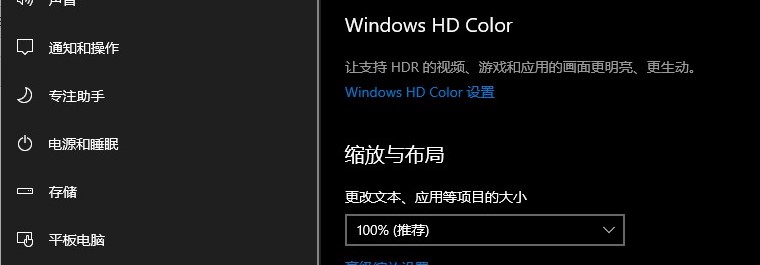
微软把它称为默认DPI感知,当DPI发生变化时WPF感知到后缩放窗体,介绍链接:设置进程的默认 DPI 感知 (Windows) - Win32 apps | Microsoft Learn
如果我们不希望窗体被缩放,而是让窗体使用显示器DPI该怎么办呢?
首先修改app.manifest,如下xml改到对应的xml
  <application xmlns="urn:schemas-microsoft-com:asm.v3">
    <windowsSettings>
      <dpiAware xmlns="http://schemas.microsoft.com/SMI/2005/WindowsSettings">true/pm</dpiAware>
      <dpiAwareness xmlns="http://schemas.microsoft.com/SMI/2016/WindowsSettings">PerMonitorV2</dpiAwareness>
      <longPathAware xmlns="http://schemas.microsoft.com/SMI/2016/WindowsSettings">true</longPathAware>
    </windowsSettings>
  </application>
然后在主窗体创建前执行一次如下代码就可以阻止所有窗体跟随系统缩放。
//TypeUtil -> https://www.cnblogs.com/RedSky/p/18215093
TypeUtil.InvokeMethod(null,
    TypeUtil.GetType("PresentationCore", "System.LocalAppContext"), "DefineSwitchDefault",
    new Type[] { typeof(string), typeof(bool) },
    new object[] { "Switch.System.Windows.DoNotScaleForDpiChanges", true });
var v = TypeUtil.GetType("WindowsBase", "MS.Win32.NativeMethods+PROCESS_DPI_AWARENESS").GetEnumValues().GetValue(0);
TypeUtil.SetProperty(null, typeof(HwndTarget), "ProcessDpiAwareness", v);
TypeUtil.SetProperty(null, typeof(HwndTarget), "AppManifestProcessDpiAwareness", v);
但是之后Window的DpiChanged就不会起作用了,如果想要监听DPI变化可以重写窗体OnSourceInitialized,使用如下方法:
protected override void OnSourceInitialized(EventArgs e)
{
    var aa = (HwndSource)HwndSource.FromDependencyObject(this);
    aa.AddHook(new HwndSourceHook(HwndTargetFilterMessage));
    base.OnSourceInitialized(e);
}
private IntPtr HwndTargetFilterMessage(IntPtr hwnd, int msg, IntPtr wParam, IntPtr lParam, ref bool handled)
{
    IntPtr result = IntPtr.Zero;
    //WindowMessage: https://referencesource.microsoft.com/#WindowsBase/Base/MS/Internal/Interop/NativeValues.cs
    result = HandleMessage((WindowMessage)msg, wParam, lParam);
    if (result != IntPtr.Zero)
        handled = true;

    return result;
}
internal IntPtr HandleMessage(WindowMessage msg, IntPtr wparam, IntPtr lparam)
{
    IntPtr result = IntPtr.Zero;
    switch (msg)
    {
        case WindowMessage.WM_DPICHANGED:
            Debug.WriteLine("WindowMessage.WM_DPICHANGED");
            break;
        case WindowMessage.WM_DPICHANGED_AFTERPARENT:
            Debug.WriteLine("WindowMessage.WM_DPICHANGED_AFTERPARENT");
            break;
    }
    return result;
}
此内容由惯性聚合(RSS阅读器)自动聚合整理,仅供阅读参考。 原文来自 — 版权归原作者所有。