


The .pptx file format, a cornerstone of modern presentations, is widely used by individuals and businesses alike. Introduced with Microsoft PowerPoint 2007, it has become the standard format for storing and sharing presentations. However, few people understand what goes on behind the scenes of a .pptx file. By unraveling its structure, we gain insights into its flexibility, adaptability, and the technological advancements that make it so valuable.
A .pptx file is a presentation file format based on the Office Open XML (OOXML) standard. Unlike the older .ppt binary format, .pptx files are essentially ZIP-compressed folders containing multiple files and directories. This architecture allows for improved compression, enhanced security, and better compatibility with other applications.
The move from .ppt to .pptx was motivated by the need for a more modern, open standard that could support a broader range of content types and integrate more seamlessly with other applications. As a result, .pptx files offer numerous benefits, such as reduced file size, easier data recovery, and increased opportunities for customization and automation.
The .pptx file format is structured using the Open XML standard, which represents documents in a modular fashion. When you open a .pptx file with a file extraction tool (like WinZip or 7-Zip), you’ll see a collection of folders and files. Here’s a breakdown of the primary components:
ppt/: Contains the core presentation data, including slides, media, and layouts.docProps/: Holds the document properties, like title, author, and metadata._rels/: Contains relationships between the various parts of the document, such as links to images or slide layouts.[Content_Types].xml: An XML file that defines the MIME types for all parts of the .pptx file, helping applications understand how to handle different components.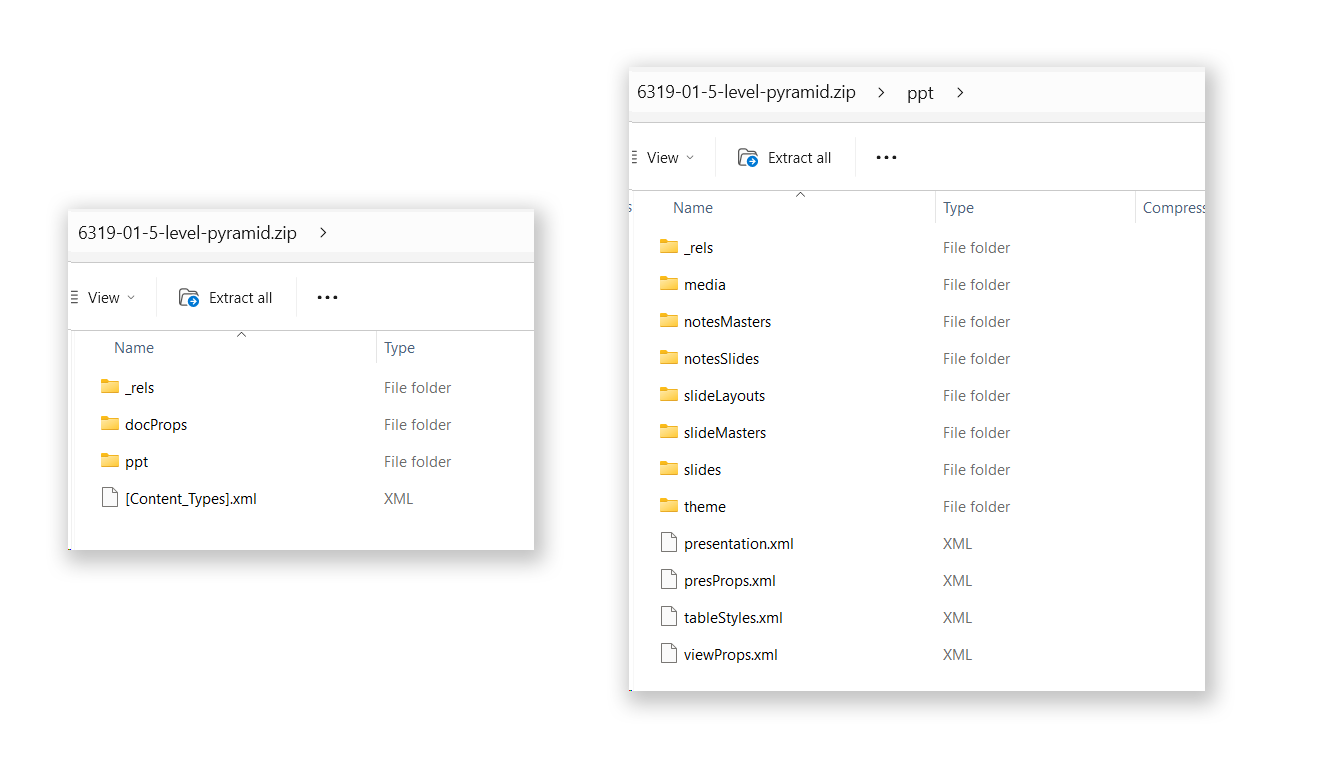 The internals of a .pptx file
Each folder within the .pptx file serves a specific purpose, contributing to the presentation’s overall structure and functionality:
Slides (ppt/slides): This folder contains individual slide files, named sequentially (e.g., slide1.xml, slide2.xml). Each slide file contains the content of that particular slide, defined in XML format.
Media (ppt/media): All multimedia content—images, audio, and video—used in the presentation is stored here. The media files are linked to their respective slides via relationship files.
Themes (ppt/theme): This folder defines the visual style of the presentation, including colors, fonts, and effects. Each theme file (theme1.xml, theme2.xml, etc.) specifies the design settings applied to the slides.
Slide Layouts (ppt/slideLayouts): Contains predefined layouts used by the slides. Slide layouts control the positioning of text, images, and other objects on a slide, allowing for consistent design throughout the presentation, which is essential to designing effective company brand presentations.
Slide Masters (ppt/slideMasters): The slide master files manage the default settings and slide layouts for slides. They ensure that any changes made to the master (e.g., font changes or logo placements) are automatically reflected across all slides that use that master.
Embedded Objects (ppt/embeddings): Details about embedded objects, such as linked Excel sheets, charts, or other documents. These objects are encapsulated within the presentation and can be edited directly from PowerPoint.
Comments and Annotations (ppt/comments): Metadata related to comments and annotations made by reviewers or collaborators. This can include text, author details, timestamps and other metadata in PowerPoint.
Let’s understand how PowerPoint animations and transitions are coded in a .pptx. Both are defined using XML elements within the slide files.
Animations are coded using specific XML tags within each slide file (e.g., slide1.xml). The primary tags used are <p:anim>, <p:par>, and <p:seq>, which specify the type of animation (like “fade” or “fly in”), the target elements (such as text boxes or images), and the timing or sequence. Animations can be triggered automatically or manually and may involve complex sequences or parallel actions, all controlled by these XML structures.
Transitions, which control how one slide changes to the next, are defined with the <p:transition> element in each slide file. This element specifies the transition effect (e.g., “fade,” “wipe”), the speed (spd), the direction (dir), and whether the slide advances automatically (advTm) or on a mouse click. For example, a fade transition with medium speed might be coded as <p:transition spd="medium"><p:fade /></p:transition>, providing a seamless flow between slides.
By understanding these XML elements, developers and advanced users can programmatically modify or create custom animations and transitions, to make interactive presentations beyond the default capabilities of PowerPoint.
Internally, .pptx files use XML (Extensible Markup Language) to define the structure and content of the presentation. Each part of the presentation—slides, themes, media—is stored as a separate XML file. Relationships between these parts are managed through relationship files (found in the _rels folder), which link, for example, a slide to a specific image in the media folder or to a specific layout in the slideLayouts folder.
This modularity allows PowerPoint to efficiently read, write, and render presentations. It also makes it possible for other software programs to manipulate .pptx files programmatically, enabling advanced features like automated slide generation, content extraction, and customized presentation building.
While .pptx is the most widely used format for presentations, other formats offer different features and compatibilities:
.pptx format is part of the broader OOXML standard, specifically the PresentationML subformat. The main difference is that PresentationML can refer to presentations stored in alternative XML structures or components outside the .pptx ZIP format, offering more flexibility for developers working with XML data directly..pptx, which is tightly integrated with Microsoft’s ecosystem, ODP offers better compatibility with open-source tools but may lack some advanced features and formatting options available in .pptx..ppt format was binary and did not use XML or ZIP compression, making it less flexible and harder to customize programmatically. While still supported by modern software, .ppt is considered outdated and less secure compared to .pptx.Understanding the anatomy of a .pptx file has several advantages:
.pptx structure can help automate tasks like generating presentations from databases, converting presentations to other formats, or extracting specific content programmatically..pptx file becomes corrupted, understanding its internal structure can aid in recovery. You might manually extract the contents, identify the damaged components, and attempt to repair them..pptx files, allowing for unique customizations beyond the default capabilities of PowerPoint.There are many practical applications for understanding the anatomy of a .pptx file:
.pptx files..pptx file, or replace content in bulk, which is useful in scenarios like updating company branding or translating a presentation.The .pptx file format is the standard that Microsoft uses to enhance how we create, share, and manipulate presentation content. By understanding the structure and internal workings of a .pptx file, users and developers can unlock new possibilities for customization, automation, and troubleshooting, ultimately making the most out of their presentation software.
此内容由惯性聚合(RSS阅读器)自动聚合整理,仅供阅读参考。 原文来自 — 版权归原作者所有。