





by Juli Clover
Over the years, the iPhone's operating system has gotten complicated. Apple adds new features with every version of iOS, and many of them aren't always obvious, leading to hidden iPhone capabilities you might not be aware of.
The tips below assume that you have iOS 26 or later installed.
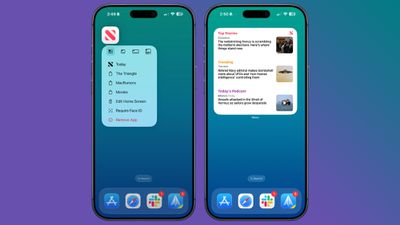
You can turn most app icons into widgets right from the iPhone's Home Screen. Just long press on an app icon, and select one of the squares from the top to choose a widget size. It works with any Apple or third-party app that has a widget option. Long press again and select the top left icon with four squares to turn it back into a standard app icon.
See Where You've Been
In the Maps app, you can look back at your location history to see places that you've visited. It's useful if you've been on a weekend trip, found a great restaurant, and want to remember where it was the next time you visit.
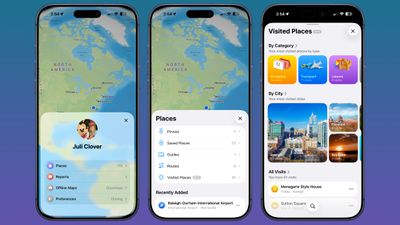
You can get to this feature by opening up the Maps app, tapping on your profile, selecting Places, and then choosing Visited Places. Places are organized by category like leisure or shopping, and by city.
You can clear your history by scrolling down to the bottom of the interface, or select a period of time for visits to be kept. Go to Settings > Maps > Location > Visited Places to turn it off entirely.
Set Custom Vibrations
You probably know you can set custom sounds for people that call or text, but you can also do the same thing for vibration patterns if you keep your iPhone on silent all the time, as civilized people do.
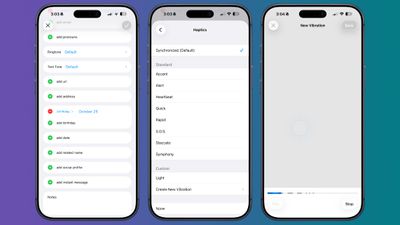
Important people you message can each have a different vibration pattern, so you know who is texting without having to look at your phone.
To set a vibration pattern for someone, open up the Contacts app and select them. Tap Edit in the upper right corner, then tap on Text Tone or Ringtone. Tap on Haptics and then select Create New Vibration. From there, you can use taps and presses to make your own vibration patterns.
Customize Your Lock Screen Buttons
Your Lock Screen buttons don't have to open up the Flashlight and the Camera app. You can set them to any Control Center option, including those from third-party apps.
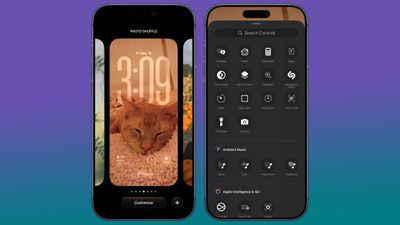
To do so, go to the Lock Screen and long press. Tap on Customize if you want to edit your current wallpaper and Lock Screen, or the "+" button to make a new one. From there, tap on the "-" button on the apps at the left or right of the screen to remove them, and then tap on "+" to choose something new to add.
Back Tap Gestures
Back Tap has been around for a long time, but it's easy to forget it exists. You can use it to set a tap on the back of the iPhone to do whatever you want, from snapping a screenshot to activating the flashlight. It even works with Shortcuts you've created.
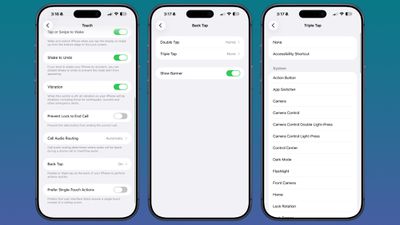
Go to Settings > Accessibility > Touch and then scroll down to Back Tap to set it up. You can set actions for a double tap or a triple tap.
Screenshot a Webpage
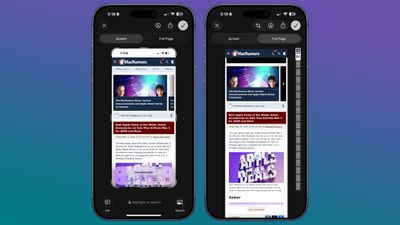
When you press the side button and volume buttons to take a screenshot, the default is a capture of what's currently on your display. If you want to screenshot a whole webpage or a PDF, there is a way to do it. Take the screenshot as normal, then tap it (if you have full-screen previews off). Select "Full Page" at the top of the interface, and then choose where to save your extra long screenshot.
Hide Apps
If you have apps that you don't want to show up on the Home Screen, you can hide them one by one by long pressing and tapping the Face ID option, or you can hide a whole app page at once. To hide an app page, long press on the Home Screen to enter jiggle mode.
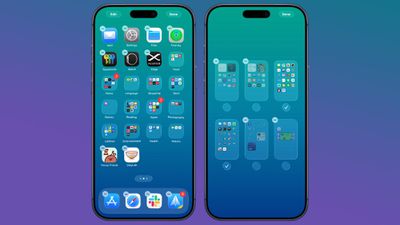
Tap on the dots at the bottom of the display, and then select the app page you want to hide from view. Apps hidden this way don't show up in the Hidden folder in the App Library. You can still find them through Spotlight Search and they're visible in their appropriate App Library category. To unhide a page, follow the same steps and tap the checkbox to bring it back.
Quick Set a Timer
If you add the Timer option to Control Center, you can long press on it to get an easy slider that lets you select an amount of time you want to set it for.
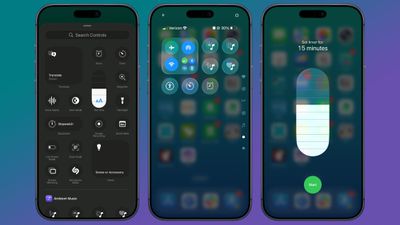
In Control Center, tap the "+" button and then choose Add a Control. Select the Timer icon to add it to Control Center. Long press on the timer, choose an amount of time from the slider, and then tap Start. Times range from two hours to one minute.
Remove Photos Location Data
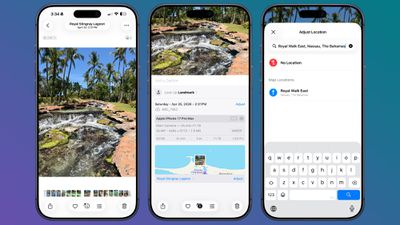
If you're sending a photo to someone, you might want to remove metadata like location first. To do so, select an image in the Photos app, swipe up, and tap on Adjust Location. From there, you can choose No Location.
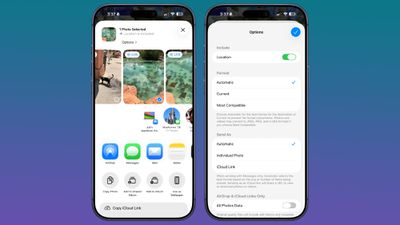
Alternatively, when you go to share a photo, you can turn off metadata there. Select a photo, and tap on the Share button. Tap on Options, and toggle off Location.
You can use timers to control how long music, podcasts, audiobooks, and other media play for, which is useful if you only want to listen for a short period at night.
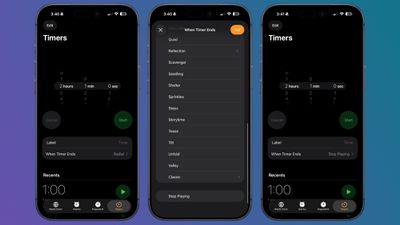
In the Clock app, tap on Timers. Set a time period, and then tap on the When Timer Ends option. Scroll down and select Stop Playing. When your timer goes off, any media you have playing will stop.
More Tips
Have a favorite iPhone tip that most people don't know about? Let us know in the comments below.