惯性聚合 高效追踪和阅读你感兴趣的博客、新闻、科技资讯
阅读原文 在惯性聚合中打开

推荐订阅源

Google DeepMind News
F
Fortinet All Blogs
量子位
G
Google Developers Blog
J
Java Code Geeks
N
Netflix TechBlog - Medium
博客园 - 聂微东
宝玉的分享
宝玉的分享
Cyber Security Advisories - MS-ISAC
月光博客
月光博客
The Cloudflare Blog
Apple Machine Learning Research
爱范儿
爱范儿
雷峰网
雷峰网
M
MIT News - Artificial intelligence
T
Tailwind CSS Blog
V
Visual Studio Blog
阮一峰的网络日志
阮一峰的网络日志
博客园 - 三生石上(FineUI控件)
Microsoft Azure Blog
aimingoo的专栏
aimingoo的专栏
Martin Fowler
Martin Fowler
有赞技术团队
有赞技术团队
T
The Blog of Author Tim Ferriss

博客园 - 比特飞流

ubuntu 实现远程登录 Ubuntu安装Lamp jquery 中each退出循环和跳出循环 javascript 对话框 时间 Delphi 解析HTML 小雨的矩阵 数数游戏 银行排队机 纸牌游戏 逆波兰表达式 表达式求值 摆渡车 几种排序算法 Cena评测系统在win10中测评cpp程序 素数算法 动态规划 树状数组 数论
远程Ubantu Mysql安装 + 本地Windows Navicat连接
比特飞流 · 2026-01-18 · via 博客园 - 比特飞流

安装过程

Mysql安装配置过程

  • Mysql在ubantu安装直接使用apt命令安装
sudo apt-get install mysql-server mysql-client -y
  • 启动mysql服务
sudo systemctl start mysql
  • 使用root用户登录mysql,并新增用户用于远程登录 (未找到root密码见问题1
use mysql;
create user 'lichao'@'%' identified by '123456';
grant all privileges on *.* to 'lichao'@'%'; # 赋了所有权限
flush privileges;
exit
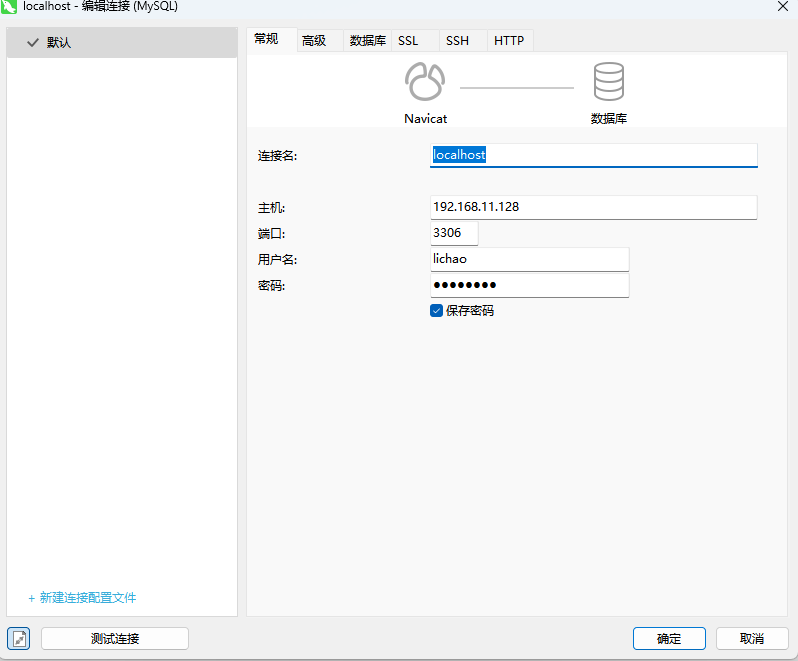
  • 在官网下载Navicat版本,建立连接.(建立连接失败报错2002 - Can't connect to server on ***.***.***.***见问题2)

image-20240606114740013

FAQ

问题1:

  • 在ubantu中使用命令mysql -uroot -p登录进mysql报错

image-20240606111745200

解决:访问文件/etc/mysql/debian.cnf,使用默认提供的系统用户密码登录,然后修改root账号密码
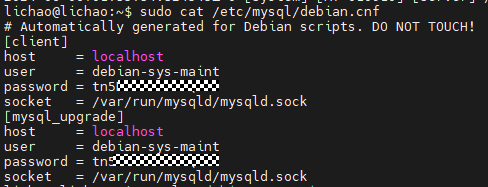
image-20240606113512630

  • 修改root用户密码
use mysql;
update user set plugin='mysql_native_password' where user='root';
flush privileges;
alter user 'root'@'localhost' identified by '123456'; # 密码设置为123456
flush privileges;
exit
  • 重启mysql服务使配置生效
sudo systemctl restart mysql

问题2:

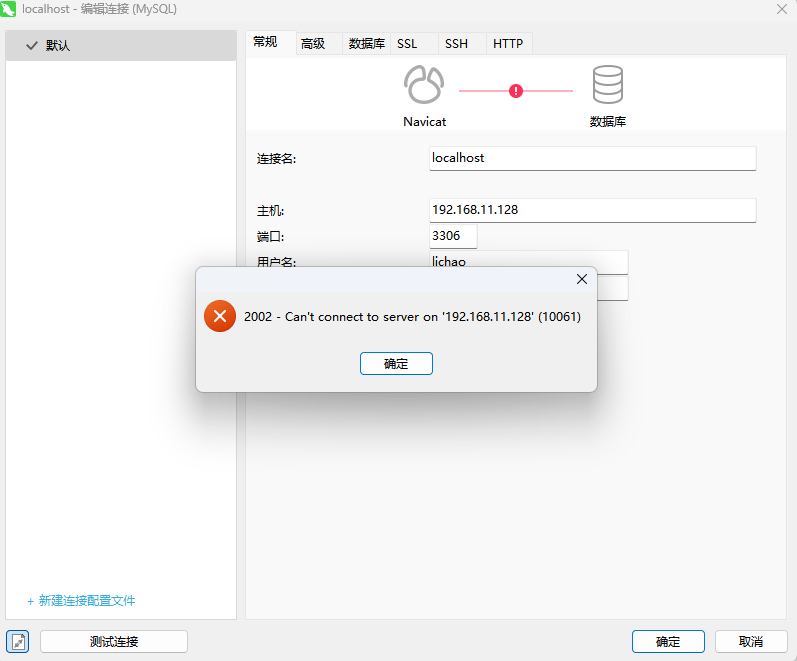
  • 使用navicat连接远端服务器显示连接失败

image-20240606140415871

解决:

  • 在windows端使用telnet命令查看端口是否可访问,经检查,端口访问失败
telnet 192.168.11.128 3306

image-20240606140616386

  • 检查ubantu端口配置,第二行显示监听端口为0.0.0.0,证明端口可正常访问
netstat -an|grep 3306

image-20240606140804911

  • 打开mysql的配置文件,检查监听端口,发现绑定ip为127.0.0.1,将其修改为0.0.0.0
sudo vim /etc/mysql/mysql.conf.d/mysqld.cnf
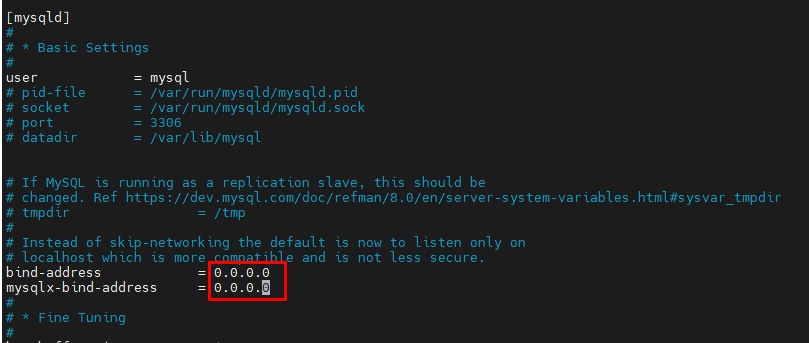
image-20240606141315390