








1
Im new to Linux, so far I have used Ctrl+Alt+F3 couple of times, basically like using Window’s Task Manager to kill something when im totally frozen and cant open terminal.
But Is it possible to remap these hotkeys?
Those are some combination keys that I often like to use in gaming/utility softwares
sure. normally you’d set this in your desktop environment or window manager. in KDE’s settings, for example.
You are probably better off using a different key-combo to kill an app like Ctrl+q, which is Linux native and honored by a lot of apps. You can make something more explicit like Ctrl+Alt+q, which the compositor will use to sigterm (or sigkill) the app.
Ctrl+Alt+Fn is used to switch tty, and is a lifesaver if you run into a partial hang: switching to a new tty allows you to safely shut down your PC, reboot, log into another user or use another desktop environment at the same time. I use this feature a lot. If you can’t switch to a new tty, then your system has truly hung and needs a hard reboot/reset.
4
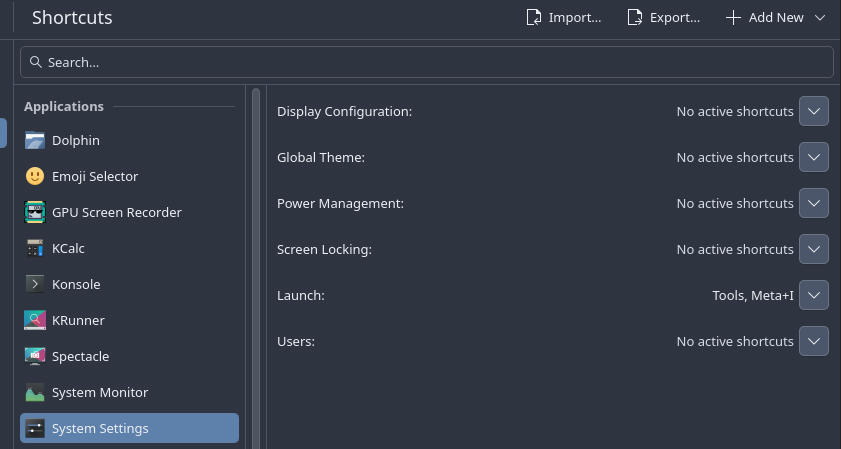
Here? I dont see any TTY keys to remap to
meow 5
Thanks, thought its just CTRL+W for apps and CTRL+SHIFT+W for terminals
But regarding the CTRL+ALT+FN keys, they are not possible to remap?
like making them harder to activate, like with CTRL+ALT+SUPER+FN instead
Well, your desktop environment might be configured for those key-combos, and it depends on the app / terminal, but Ctrl+q is pretty much standard. For example, Foot uses Ctrl+q to exit as does FreeTube.
If you know the process’s name you can use pkill or killall to end that process from the terminal.
Personally, I’d avoid mapping Ctrl+Alt+Fn to sigterm / sigkill. Accessing a new tty is useful and if you use multiple desktop environments, you will need to add your key binds to each of them for consistency.
As a 30 year Windows user, who has switched full-time to Linux in 2023, I’d recommend learning more about Linux and its own keyboard shortcuts. There are already key-combos that do what you want. When in Rome, do as the Romans do.
cscs 7
Hello and welcome,
I would highly suggest not remapping Ctrl+Alt+F# from the standard “seat” or TTY selection that it is.
You will also not find it currently configured in your desktop settings or similar .. it is “lower” than that.
If you want to see more about it then you might start with the ArchWiki;
But I will stress again that you probably do not want to remap those.
-
For killing the current window Alt+F4, which was standard on windoze, is here too. If needed you may add another shortcut here like Ctrl+Shift+Q.
( Which I do to not interfere with the common Ctrl+Q used by apps themselves. ) -
For getting an interactive sniper - click to kill window - you can enable it in shortcuts for Window Management > Kill Window. It may already be set for Meta+Ctrl+Esc.
( Semi-related: Meta+Esc is likely set to System Monitor ) -
The command-line equivalent of the previous click to kill window would be something like;
qdbus6 org.kde.KWin /KWin killWindow
( I have this aliased tokkill) -
The
kill,pkillkillallcommands are all useful and have slightly different purpose.;- pkill will try to kill things based on name.
- killall will kill all instances.
- kill is the classic and accepts process IDs.
You can also send certain signals.
kill -15 151415will politely kill that process.kill -9 151415will murder that process without question.
-
If we need to find process or other info there are some other useful tools.
ps auxwill get you a huge output.
But you can also restrict it, ex;ps aux | grep firefox
You can also search with something likeps -fC firefox- pgrep is related to pkill above and can be used like
pgrep firefox
Of course most or all of these can be further investigated by using their --help options or man pages (ex; man pgrep).