



Chris has been working in security for 30 years, mainly doing penetration testing in both consulting and corporate environments. Chris is the author of the Nikto web scanner, founder of the RVAsec conference, and has been involved in many OSS projects and community efforts.

Espanso is a powerful cross-platform and open-source text replacement (or text expander) tool. At a simple level: it replaces what you type with something else. For example, imagine typing three characters and having your full email address magically appear? Microsoft Word’s autocorrect and smart completion on phones can do a few of these things, but with Espanso, it can be quite powerful when combined with advanced features such as running shell commands.
This blog focuses on using Espanso on Linux (shell commands) for the purposes of assisting with a penetration tester’s common tasks, although it can be used for just about anything.
While some of our work might become automated using LLMs, a lot of grunt work will never die. Sending emails, writing commands, getting your external IP address—heck, even typing your phone number or mailing address—are an inefficient waste of time. In addition, a text expander will cut down on errors from typos and reduce the overall number of mistakes.
Espanso has installation packages for Windows, macOS, and Linux on their website. It can also be installed manually using the source code located on GitHub. After installation, the program uses a configuration file and a match file; both are YAML and easily updated for your needs.
By default, Espanso doesn’t need much configuration to operate successfully. The matches are where the money is, so to speak.
The base.yaml file, located in the Espanso config directory, contains the match-and-replace rules. You can also add your own YAML files to make management of the rules easier.
The project’s extensive documentation explains how to locate this file on your system, but Espanso itself contains a handy shortcut which will open the file with your default editor. The command below will open the file for editing:
espanso editThe basic idea is that it will match a text string that you type, known as a trigger, and replace it with something else. A simple example of this is:
- trigger: ":me"
    replace: "Chris"
In almost any location on my system, if I type :me then Espanso will replace it with Chris.
As in the default Espanso examples, I tend to use a colon before triggers as it’s not a common pattern in English. If you’re in camp vim like me, just be careful and don’t clobber things you’ll need!
The previous example only saves me 5 characters of typing and isn’t really that useful. But writing out my entire signature is really useful, so I have this (well, very close to this at least):
  - trigger: ":me"
    replace: "Chris Sullo | [email protected] | 555-867-5309"
I have simple replacements for my phone number, address, email address, and others. Even with the most basic usage, Espanso can save you time. But with some additional features, it can get much more powerful.
An important note about YAML: whitespace matters (like Python 😔). If you aren’t comfortable with the format, simply copy and edit existing lines to retain the indentation.
Espanso can use internal variables to make matching a little more dynamic without resorting to full shell commands. The example below replaces the {{time}} value with the current hour and minute.
  - trigger: :now
    replace: It's {{time}}
    vars:
      - name: time
        type: date
        params:
          format: "%H:%M"
When I type :now it is replaced with It’s 15:53.
If you write the same email a lot—for example, a penetration test start notification—you could add this to Espanso and have it prompt you for the recipient’s name, then spell out your text. The Espanso team has an example of this:
- trigger: :greet
    form: |
      Hey [[name]],
      Happy Birthday!
Now, anywhere I type :greet Espanso will open this dialog:
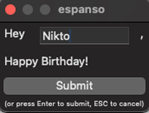
And then will output the complete text:
Hey Nikto,
Happy Birthday!
The command can have multiple [[]] strings and each will have a field in the dialog box.
The prompt is handy, but I don’t really like dialog boxes. Fortunately, Espanso can use regular expressions in the trigger and capture the contents that you type as a variable. Extending the documentation’s example, we can pass a name directly when typing.
  - regex: :greet\((?P<person>.*)\)
    replace: "Hey {{person}},\nHappy Birthday!"
To use this, I can now type :greet(Nikto) and it will take the value passed and replace it in the output, which will look like:
Hey Nikto,
Happy Birthday!
You can pass multiple values if they have unique names, such as “person” in the example above.
Another powerful feature of Espanso is the ability to run shell commands. While as security people, we should be wary of letting programs call out to a shell, in this case we can control the input and output to keep it safe and make life easier. (Let’s not talk about how this is basically a keylogger, ok? You can look at the source code and watch network traffic if you like!).
Here’s one I frequently to add my external IP address to documents, etc.
  - trigger: :myip
    replace: "{{output}}"
    vars:
      - name: output
        type: shell
        params:
          cmd: "curl ifconfig.me"
When I type :myip now, it will make a curl request to the http://ifconfig.me/ website, which returns only the source IP address.
Another shell command use case (I find using the shell easier than learning Espanso’s internal variables) is to write email subjects for status reports.
  - trigger: :ps
    replace: "Pentest Status: {{output}}"
    vars:
      - name: output
        type: shell
        params:
          cmd: "date '+%B %d, %Y'"
Now, when I open a new email, I put the cursor in the subject line and type :ps to write it out:
Pentest Status: April 15, 2025Another handy one is encoding—base64 encode anything anywhere with a combination of a regex matcher and a shell command.
  - regex: :b64\((?P<val>.*?)\)
    replace: "{{output}}"
    vars:
      - name: output
        type: shell
        params:
          cmd: "echo '{{val}}' | base64 | tr -d '\n'"
Now, no matter where I am in Burp, command line, or wherever, I can type :b64(text) and get my replaced version back like dGV4dAo=.
Espanso can be used for a ton of things. Common usage for me includes:
In fact, there is a dedicated web site to share uses, such as my new favorite, :dadjoke. Nick Aliferopoulos has even shared a collection of pentest commands & strings.
Espanso has a lot of features not covered here, such as full word replacements (fix your typos automatically in any app!). A handy one for me, because I always mistype it, is:
  - trigger: namp
    replace: nmap
    word: true
So, now I can use the nmap scanner and not the namp one that doesn’t exist. Note the word: true element ensures that it’s the full word “namp” and not, say, when I’m writing to NAMPA about some curious mold I found in the fridge.
Using global variables can also aid in building complex workflows—there is a ton of functionality built into this simple-seeming program.
Diving further into these features, you can customize and automate to your heart’s content and save yourself a lot of time. If you add a lot of replacements, you can even split them up into different YAML files for easier management.
Happy :replacements!
Ready to learn more?
Level up your skills with affordable classes from Antisyphon!
Available live/virtual and on-demand

此内容由惯性聚合(RSS阅读器)自动聚合整理,仅供阅读参考。 原文来自 — 版权归原作者所有。