


Follow us on LinkedIn, X, Bluesky
Release date: July 1, 2026
Downloads: Windows: x64 Arm64 | Mac: Universal Intel silicon | Linux: deb rpm tarball Arm snap
Welcome to the 1.127 release of Visual Studio Code. This release brings agents that can build and test web apps in the browser, safer per-site browsing, and new ways to keep busy agent sessions organized.
Browser tools for agents: Let agents open pages, take screenshots, and click through to validate their own work, now generally available.
Per-site browser permissions: Grant pages access to the camera, location, devices, and more, with a prompt for each site.
Agent sessions: Group related sessions and drag and drop to arrange a busy Agents window.
Chat input banners: Act on failing CI checks and incoming pull request comments without leaving the conversation.
Subagent credits: Hover over a subagent to see the cost of the work it handled.
Happy Coding!
VS Code is rolling out gradually to all users. Use Check for Updates in VS Code to get the latest version immediately.
To try new features as soon as possible, download the nightly Insiders build, which includes the latest updates as soon as they are available.
The Agents window is a dedicated companion window optimized for exploring, iterating on, and reviewing agent sessions across projects and machines. This release brings new ways to organize the sessions list and keep a busy list of sessions manageable.
When you run several agent sessions at once, the sessions list can grow quickly and become hard to scan. You can now organize the sessions list into groups to keep related sessions together. Create your own custom groups, and collapse group headers to tidy up the list and focus on what matters.
Each group also offers quick actions: you can start a new session directly in a group, or mark all of its sessions as done with one action.
The sessions list now supports drag and drop to further organize your sessions:
When a coding agent session has an open pull request, the Agents window displays a banner directly above the chat input, letting you act on failing checks and incoming feedback right where you're working. Each banner provides a single action to fix or view the issue without leaving your conversation:
Getting started with agents can be daunting if you're not sure what they can do for you. Onboarding tours are now available in the Agents window to help you get up to speed quickly. These guided walkthroughs highlight key capabilities and show you how to make the most of working with agents, helping you discover the best ways to delegate tasks and stay productive from day one.
We're experimenting with these tours to find the most helpful way to introduce new users to the experience.
When reviewing an agent's changes, pointing it at the exact code you want changed should be effortless. You can now leave feedback directly from the editor gutter: hovering over a line reveals an Add Feedback glyph in the gutter, and selecting it drops a comment on that line, making it quicker to direct an agent to a specific spot in the code.
This release also brings a round of polish to the agent feedback experience, with refinements to the feedback input, hover behavior, and overall visual consistency.
Creating a pull request from the Agents window used to produce generic titles and descriptions that often needed manual editing. The Create Pull Request button now uses the session context to generate the pull request title and description, resulting in more accurate and descriptive pull requests that better reflect the work done in the session.
Multi-chat sessions let you run several chats within a single agent host Copilot session. This release builds on that foundation with the following improvements.
Create new chats from the + New Chat button in the session header. Once more than one chat is open, a tab strip appears with a trailing + to add more. Closing a chat with the X on its tab hides it rather than discarding it—bring it back from the Conversations dropdown, where each chat has a checkbox to show or hide it. To permanently remove a chat, open its tab context menu and select Delete Chat.
Previously, the session only reflected the active chat's activity, making it hard to tell whether peer chats were still working or what they had changed. Progress and file changes are now aggregated across all chats: the session shows as in-progress whenever any chat is working, each tab surfaces its own progress, and the session header Changes pill reflects the combined edits from every peer chat.
When you fork a conversation in a multi-chat session, the fork now creates a new peer chat in the same session instead of a brand-new top-level session. The forked chat inherits the conversation up to the fork point, runs independently from its siblings, and gets an auto-generated title. Single-chat and non-agent-host sessions keep the existing behavior of forking into a new session.
The row of actions under the session title now renders consistently as uniform, compact secondary button pills. A Workspace pill shows the workspace icon (cloud, folder, or worktree depending on the workspace kind) and label, with long names truncated. The Changes pill (N files +X -Y) reads and opens the session's default changeset, keeping its count and the multi-file diff it opens in agreement for both Copilot and agent-host providers.

When you open a session in the Agents window, keyboard focus now lands in the chat input, ready for you to start typing immediately, even when the session has editors open or a Changes view that loads. Highlighting entries in the sessions list with the keyboard does not move focus until you actually open a session.
Setting: sessions.layout.autoCollapseSessionsSidebar
On a narrow window, showing the editor, side panel, and sessions sidebar at once leaves little room to work. When enabled, the Agents window automatically hides the sessions sidebar when the window is narrow and both the editor and side panel are open, and shows it again when there is room. It respects a manual close and suspends the behavior when multiple sessions are shown at once.
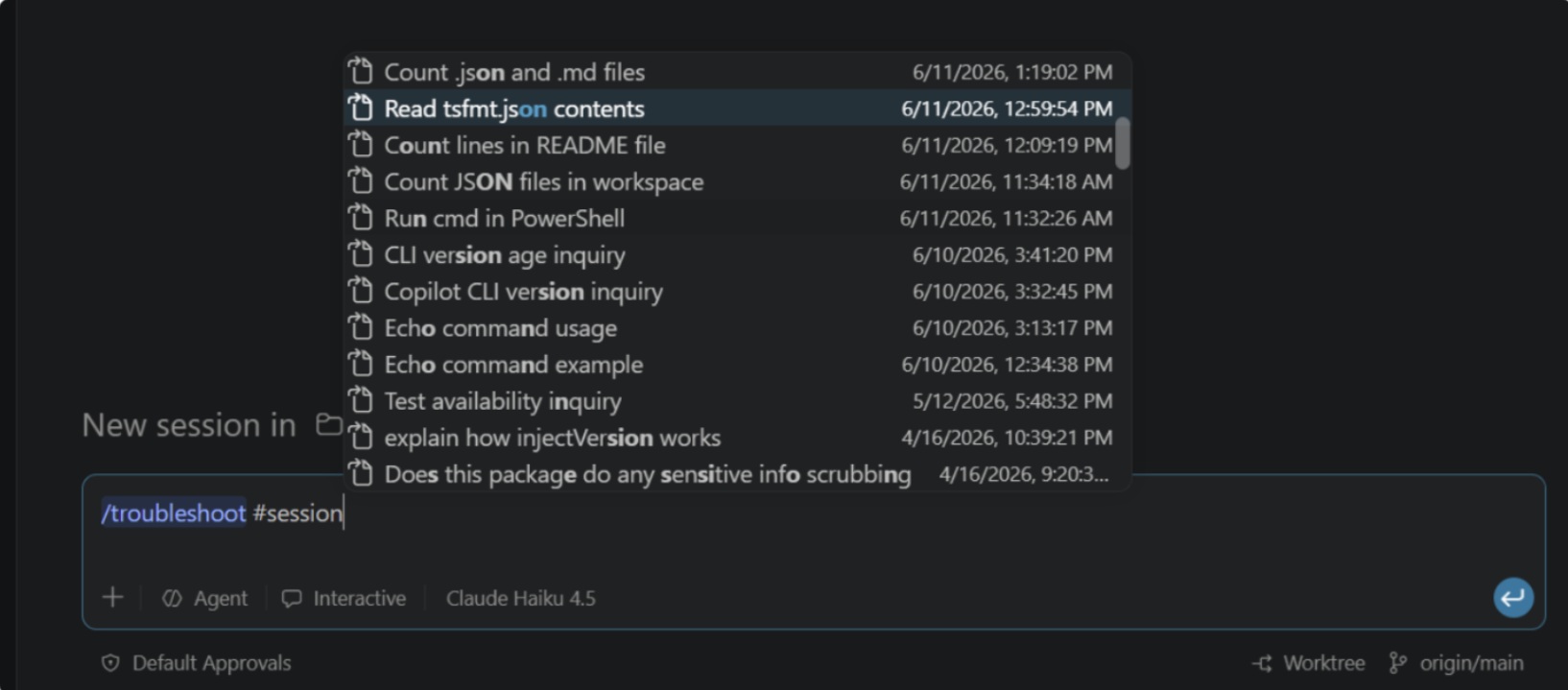
The troubleshoot skill, invoked with the /troubleshoot command, helps diagnose chat issues by analyzing chat session logs and surfacing insights into the agent's behavior. Use it to investigate why custom instructions are ignored or why responses are slow.
In this release, you can use /troubleshoot to diagnose agent host sessions, including local and remote sessions. In the Agents window, type /troubleshoot in the chat input followed by #session, select the session you want to troubleshoot, and add a question or description of the issue you're experiencing.
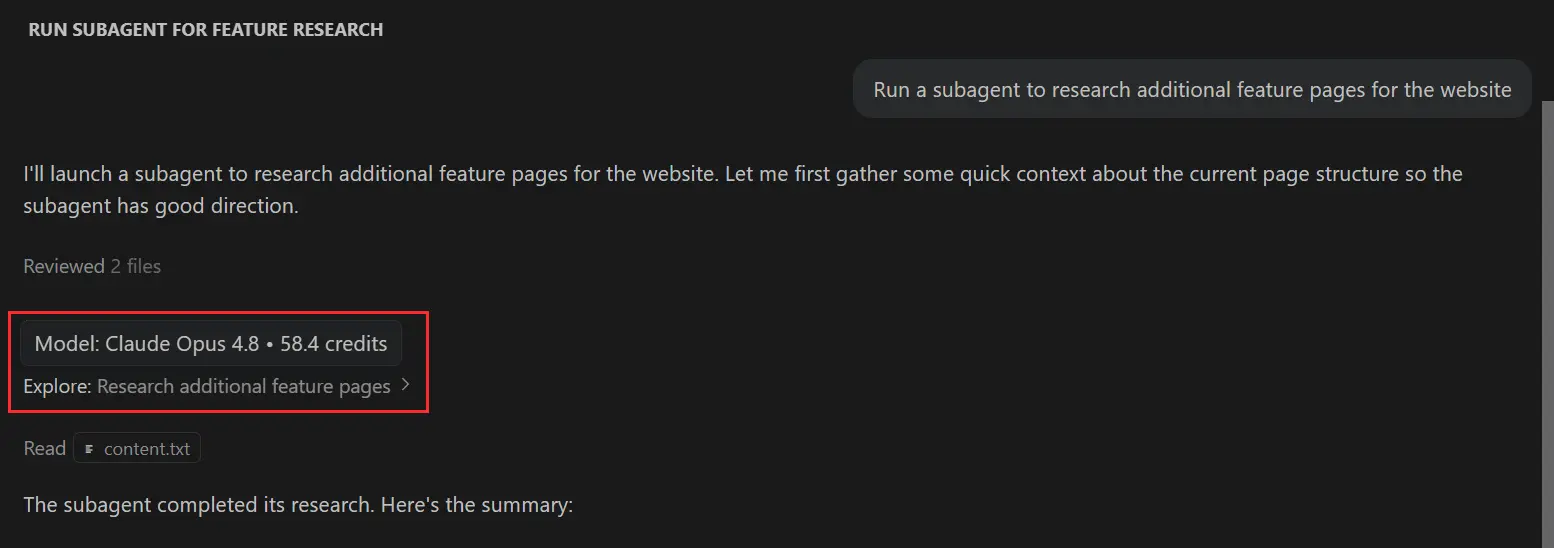
When an agent delegates work to a subagent, it can be difficult to know the cost of the delegated work. To make this more transparent, you can now hover over a subagent section in the chat response to see the AI credits used by that subagent.
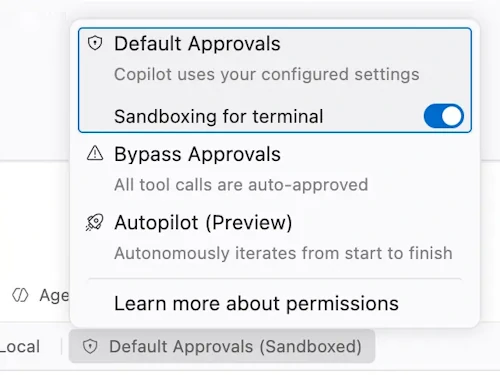
Approving every agent-invoked terminal command quickly becomes tedious. Starting with this release, we're rolling out sandboxing for terminal commands on macOS and Linux: commands run with network access blocked and filesystem access restricted, letting the agent work with fewer prompts.
The agent only asks for approval when a command needs to elevate and run outside the sandbox. To learn more, see Agent sandboxing.
You can turn this off via the Permissions drop-down:
Model providers can contribute models for the VS Code chat experience via an extension. By using an extension, providers can give you faster support for new models and capabilities than a built-in provider could offer.
Ollama now has an official VS Code extension, which is the recommended way to use local Ollama models in chat.
As a result, the built-in Ollama provider is now deprecated. If you're using the built-in provider to run local models with Bring Your Own Key (BYOK), install the official extension and remove the built-in provider to continue using your Ollama models without interruption. The following video shows how to remove the deprecated provider.
The integrated browser now supports per-site permissions. This enables pages to use more web APIs, including:
When a page requests a permission, VS Code prompts you to allow or deny the request, as you would expect in a traditional browser.
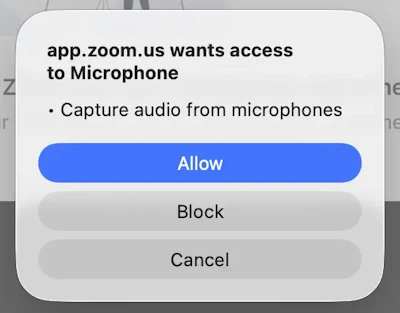
Manage permissions for the current site from the Site Permissions browser menu item.
Setting: workbench.browser.enableChatTools This setting is managed at the organization level. Contact your administrator to change it.
Browser tools let an agent open pages in the integrated browser, read content and console errors, take screenshots, and select, type, and navigate to verify its own work, all without an external MCP server. After several milestones in preview, browser tools are generally available and enabled by default.
A big thank you to everyone who ran the preview, filed issues, and shared feedback. Your testing directly shaped the per-session tab isolation, the explicit page-sharing controls, and the permission model that ship in this release.
Ask an agent to build and validate a web app, or follow the step-by-step Build and test web apps with browser agent tools guide to see the closed build-test-fix loop in action. For the full reference, see Browser tools for agents.
Administrators can govern browser tools through enterprise policy: disable them entirely with the BrowserChatTools policy, or restrict which domains agent tools can reach with agent network filtering (ChatAgentNetworkFilter plus allow and deny domain lists). See Configure AI settings for your organization.
Administrators can now deliver managed GitHub Copilot settings from a JSON file on disk, in addition to the native MDM channels and the account-based enterprise settings file.
This gives organizations a straightforward way to apply policies on machines that aren't enrolled in a device management solution, or where provisioning a file through existing tooling (such as a configuration management system or imaging pipeline) is simpler than authoring native MDM payloads.
VS Code reads a managed-settings.json file from a well-known per-OS location. This file is honored only when MDM or account-based enterprise settings are not present.
/Library/Application Support/GitHubCopilot/managed-settings.json/etc/github-copilot/managed-settings.json%ProgramFiles%\GitHubCopilot\managed-settings.jsonThe file contains a JSON object using the same schema an administrator authors through GitHub.com, for example:
{
  "permissions": {
    "disableBypassPermissionsMode": "disable"
  },
  "enabledPlugins": {
    "plugin@marketplace": false
  }
}
To learn more, see GitHub's documentation on Enterprise managed client settings.
None
Contributions to vscode:
provideLanguageModelChatResponse on chat stop PR #319098handleEndOfLifetime supersededBy tracking for inline completions PR #320143Contributions to node-pty:
Contributions to our issue tracking:
We really appreciate people trying our new features as soon as they are ready, so check back here often and learn what's new.
If you'd like to read release notes for previous VS Code versions, go to Updates on code.visualstudio.com.
此内容由惯性聚合(RSS阅读器)自动聚合整理,仅供阅读参考。 原文来自 — 版权归原作者所有。