惯性聚合 高效追踪和阅读你感兴趣的博客、新闻、科技资讯
阅读原文 在惯性聚合中打开

推荐订阅源

C
Check Point Blog
GbyAI
GbyAI
奇客Solidot–传递最新科技情报
奇客Solidot–传递最新科技情报
U
Unit 42
美团技术团队
NISL@THU
NISL@THU
C
Cisco Blogs
SecWiki News
SecWiki News
N
Netflix TechBlog - Medium
Forbes - Security
Forbes - Security
Cloudbric
Cloudbric
雷峰网
雷峰网
T
Tailwind CSS Blog
博客园 - 司徒正美
The Register - Security
L
LangChain Blog
S
Security Affairs
Hacker News - Newest:
Hacker News - Newest: "LLM"
B
Blog
OSCHINA 社区最新新闻
OSCHINA 社区最新新闻
T
Threat Research - Cisco Blogs
I
InfoQ
S
Schneier on Security
L
Lohrmann on Cybersecurity
量子位
cs.CL updates on arXiv.org
Martin Fowler
Martin Fowler
Schneier on Security
F
Fortinet All Blogs
TaoSecurity Blog
TaoSecurity Blog
K
Kaspersky official blog
Google DeepMind News
Cisco Talos Blog
Cisco Talos Blog
PCI Perspectives
PCI Perspectives
Attack and Defense Labs
WordPress大学
WordPress大学
Microsoft Azure Blog
H
Help Net Security
Project Zero
Project Zero
The GitHub Blog
The GitHub Blog
D
Docker
N
News | PayPal Newsroom
K
KPMG report finds enterprise disconnect between AI and its ROI | CIO
H
Hacker News: Front Page
云风的 BLOG
云风的 BLOG
Microsoft Security Blog
freeCodeCamp Programming Tutorials: Python, JavaScript, Git & More
博客园 - 聂微东
Webroot Blog
Webroot Blog
MongoDB | Blog
MongoDB | Blog

Visual Studio Code - Code Editing. Redefined.

Visual Studio Code 1.130 (Insiders) Visual Studio Code 1.129 (Insiders) How Prompt Tuning Improved GPT-5.5 in VS Code Visual Studio Code 1.127 Visual Studio Code 1.128 Iterating faster with TypeScript 7 Visual Studio Code 1.126 What 50,000 Runs of a 5-Line Eval Taught Us Improving token efficiency for GitHub Copilot in VS Code December 2025 (version 1.108) November 2025 (version 1.107) October 2025 (version 1.106) September 2025 (version 1.105) August 2025 (version 1.104) July 2025 (version 1.103) June 2025 (version 1.102) May 2025 (version 1.101) April 2025 (version 1.100) March 2025 (version 1.99) Visual Studio Code 1.114 Visual Studio Code 1.116 Making agents practical for real-world development Visual Studio Code 1.111 How VS Code Builds with AI January 2026 (version 1.109) Visual Studio Code 1.113 Visual Studio Code 1.112 Visual Studio Code 1.115 Your Home for Multi-Agent Development Giving Agents a Visual Voice: MCP Apps Support in VS Code Building docfind: Fast Client-Side Search with Rust and WebAssembly Introducing the VS Code Insiders Podcast Introducing the Visual Studio Code Private Marketplace: Your Team's Secure, Curated Extension Hub 🎉 Open Source AI Editor: Second Milestone A Unified Experience for all Coding Agents Expanding Model Choice in VS Code with Bring Your Own Key Introducing auto model selection (preview) Command GitHub's Coding Agent from VS Code Open Source AI Editor: First Milestone The Complete MCP Experience: Full Specification Support in VS Code VS Code: Open Source AI Editor Beyond the tools, adding MCP in VS Code Context is all you need: Better AI results with custom instructions February 2026 (version 1.110) Enhance productivity with AI + Remote Dev Visual Studio Code 1.117 Visual Studio Code 1.118 Visual Studio Code 1.119 Visual Studio Code 1.120 The Coding Harness Behind GitHub Copilot in VS Code Visual Studio Code 1.122 Visual Studio Code 1.123 Building Long-Distance Next Edit Suggestions Visual Studio Code 1.125 Visual Studio Code 1.121 Visual Studio Code 1.124
Use your own language model key in VS Code
Microsoft · 2026-06-18 · via Visual Studio Code - Code Editing. Redefined.

June 18, 2026 by Kayla Cinnamon

At Microsoft Build this year, I had the opportunity to present in the opening keynote. One thing I showed was using local models inside VS Code on the new Surface RTX Spark Dev Box. My model was periodically analyzing my log files and giving me summaries, so I could easily diagnose issues without having to look through the logs myself. Check out the recording at 12:18.

Using local models gives you even greater flexibility when working with agents. Sometimes you want the built-in models available through GitHub Copilot. Sometimes you want to try a new model from a provider your team already uses. Sometimes you want to experiment locally. VS Code allows you to do all of these workflows with bring your own language model key (BYOK) and bring your own local model.

With BYOK in VS Code, you can add models from providers like Azure, Anthropic, Huggingface, Gemini, OpenAI, OpenRouter, or you can run a model locally with Ollama, Foundry Local, and more, then use them directly from the Chat model picker.
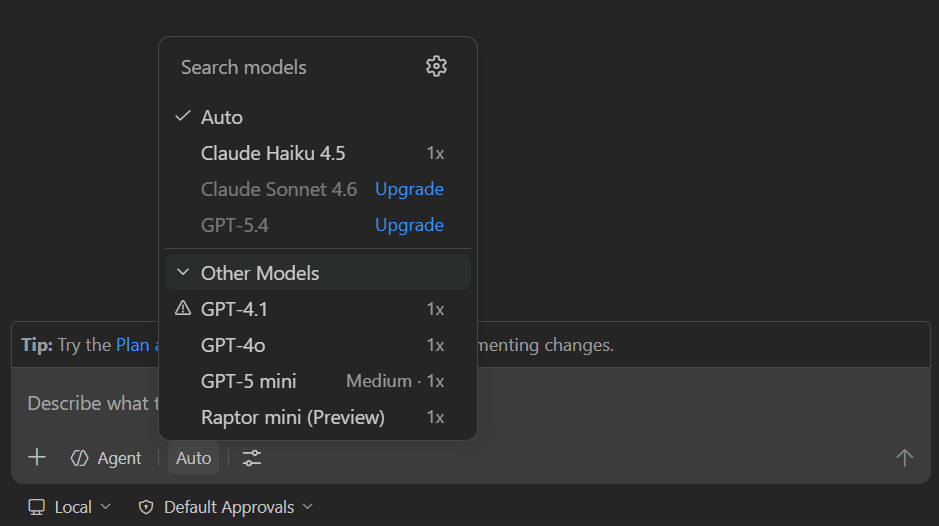
Screenshot of the VS Code Chat model picker showing available language models.

What is BYOK?

BYOK lets you use a language model from a supported provider by adding your own API key or endpoint configuration in VS Code. Once configured, those models appear in the same Chat model picker you already use for Copilot. Support is built in for several providers and VS Code is extensible, so any model provider can enable support through an extension.

This gives you more choice for chat and agent workflows. For example, you can:

  • Try models that are not built into VS Code.
  • Use a provider your organization already has billing or governance set up for.
  • Connect to local models through providers such as Ollama or Foundry Local.
  • Pick different models for different tasks, such as quick Q&A, planning, or multi-step agent work.

The goal is to allow you to choose the right model and keep working.

What BYOK works with

BYOK models are available for VS Code chat experiences, including agent workflows when the selected model supports the required capabilities.

There are a few important details to keep in mind:

  • BYOK models work without signing into a GitHub account and without a Copilot plan. You can add and use models entirely with your own API keys, including fully offline scenarios with local models.
  • BYOK applies to chat and utility tasks, not standard code completions.
  • Some AI features, such as semantic search, inline suggestions, and features that rely on embeddings, still require a GitHub account or Copilot support.
  • Usage for provider-backed BYOK models is billed directly by that provider and does not count against GitHub Copilot request quotas.
  • For Copilot Business and Enterprise, organization administrators can control BYOK availability through Copilot policy settings.

In other words, BYOK expands model choice in VS Code Chat, but it does not replace every Copilot-powered feature in the editor.

Getting started with BYOK

The easiest way to get started is through the Language Models editor.

You can open it from the Chat model picker by selecting the Manage Language Models gear icon, or you can run Chat: Manage Language Models from the Command Palette.
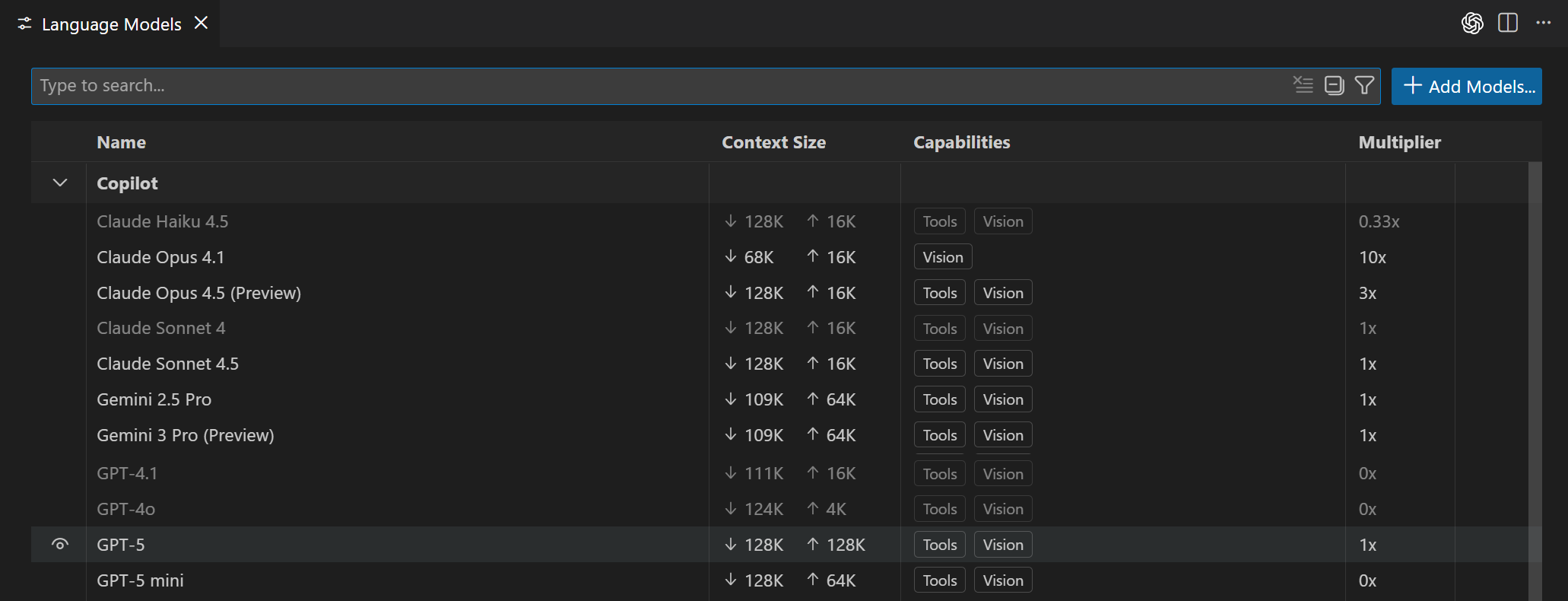
Screenshot of the Language Models editor in VS Code.

The Language Models editor shows the models available to you, grouped by provider. It also shows useful details like model capabilities, context size, billing information, and whether a model is visible in the picker.

This is also where you can keep the model picker focused. If you are testing several providers, you can hide models you do not use often and keep your day-to-day models easy to find.

Adding models from a built-in provider

If the provider you want is built into VS Code, setup is a few clicks.
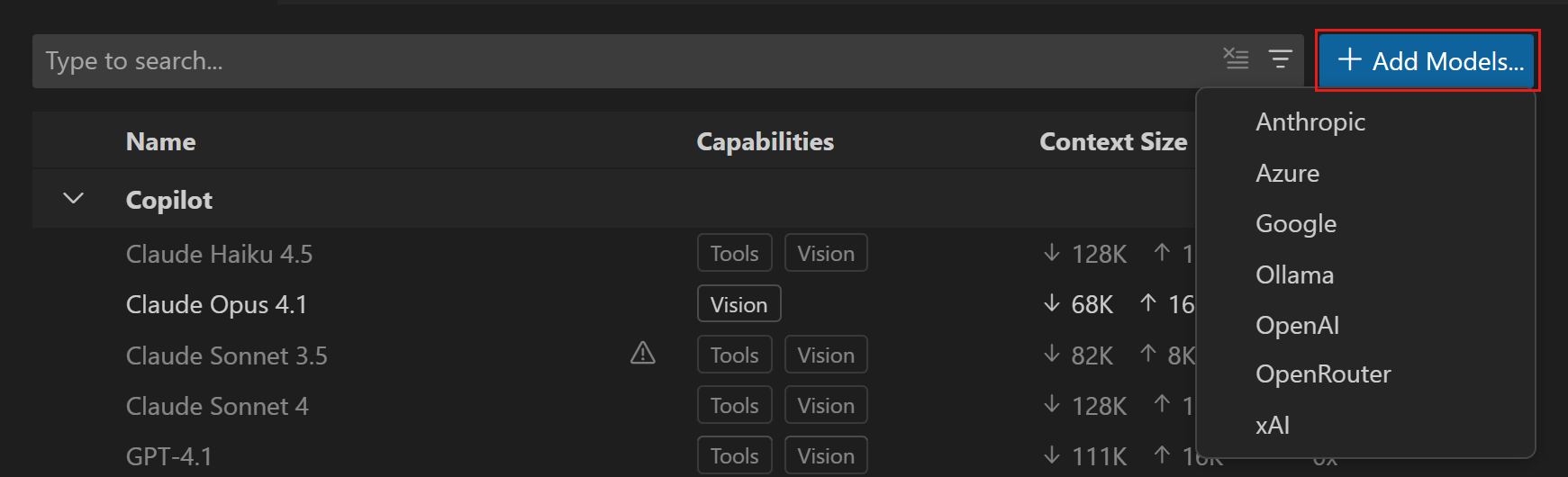
  1. Open Chat: Manage Language Models.
  2. Select Add Models.
  3. Choose a provider.
  4. Enter a group name for the models. This is the label shown in the model picker and Language Models editor.
  5. Enter the provider details, such as an API key, endpoint, deployment name, or other required configuration.
  6. Select the model from the Chat model picker.

Screenshot of the model provider picker in VS Code.

Depending on the provider, VS Code might open a chatLanguageModels.json file so you can finish configuring model details.

For example, a Mistral configuration specifies the endpoint URL, API type, and model capabilities:

[
  {
    "name": "Mistral",
    "vendor": "customendpoint",
    "apiKey": "<your-mistral-api-key>",
    "apiType": "chat-completions",
    "models": [
      {
        "id": "mistral-medium-latest",
        "name": "mistral medium",
        "url": "https://api.mistral.ai/v1/chat/completions",
        "toolCalling": true,
        "vision": true,
        "maxInputTokens": 256000,
        "maxOutputTokens": 16000
      }
    ]
  }
]

The exact fields depend on the provider and model. The important part is that after the provider is configured, the model becomes available from the same picker you use for the rest of Chat. For more information, check out the Language Model docs.

Adding models from extensions

VS Code also supports language model provider extensions. These extensions can contribute models directly into the Language Models editor and Chat model picker.

To find provider extensions:

  1. Open the Extensions view.
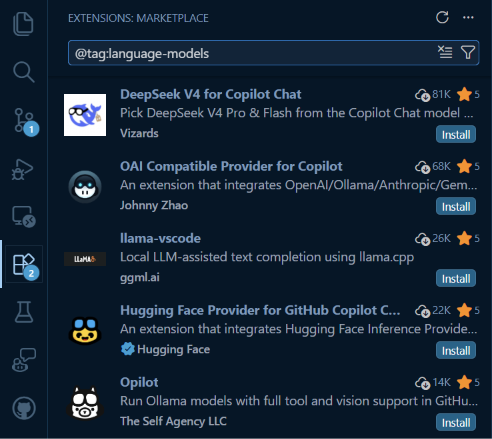
  2. Search for @tag:language-models.
  3. Install the provider extension you want to use.
  4. Follow the extension's setup instructions.
  5. Select the model from the Chat model picker.

Screenshot of the Extensions view listing extensions that provide language models.

This extensibility is a big part of the BYOK story. Instead of every provider needing to be hard-coded into VS Code, extensions can bring new model providers into the editor as the ecosystem evolves.

Leveraging utility models

VS Code also uses lightweight models in the background for small tasks like generating chat titles, commit messages, and rename suggestions. These default to built-in Copilot models and most users won't need to touch them. But if you're using BYOK without signing into a GitHub account, those defaults aren't available. VS Code will show a notification in the Chat view prompting you to configure them. Set chat.utilityModel and chat.utilitySmallModel to one of your BYOK models to keep those features working. A fast, inexpensive model works well here.
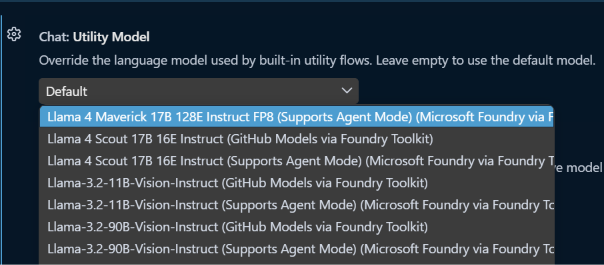
Screenshot of the setting for configuring the Chat Utility Model.

Choosing the right model

One of the best parts of BYOK is that you do not have to use one model for everything.

For everyday work, you might choose:

  • A fast model for quick questions, summaries, and small edits.
  • A reasoning model for planning, debugging, or complex refactors.
  • A local model when you want to experiment offline.
  • A provider-specific model when your team already has workflows around that provider.

Simply choose which model you want to use in the model picker below the Chat box.

Screenshot of the VS Code Chat model picker showing available language models.

Try it out

BYOK gives you more flexibility in VS Code without adding more tools to your workflow. You can keep using the built-in Copilot models, add models from providers you already use, experiment with local models, and choose the right model for each task from one place.

To learn more, check out the VS Code docs on AI language models, the VS Code blog post on Expanding Model Choice in VS Code with Bring Your Own Key, and the GitHub changelog entry for BYOK availability in VS Code.

We also have a video for how to Bring Your Own AI... No Sign-In Required!.

We are continuing to improve model choice in VS Code, and your feedback helps shape what comes next. Try BYOK with your workflow and let us know what you think in the VS Code repository.

Happy coding! 💙