


Alex Photo Stock/Shutterstock
The Microsoft Office suite of productivity programs has long been the industry standard for professional work. Plenty of alternatives have come and gone over the years, but today, despite there being a large variety of essential productivity apps to choose from, Microsoft's industry dominance hasn't shifted much.
Among the many apps you get as part of the Microsoft 365 subscription, Microsoft Word is designed for creating and processing various types of text documents. It offers an incredibly strong set of simple features, such as setting specific fonts or text styles, along with in-depth formatting capabilities, like creating SmartArt objects and highly customizable tables.
Despite this industry dominance, though, there are many users that aren't satisfied with what the app offers. Whether it's how a pasted table never seems to look right or how painful it is to move images or graphics in your document, there are many reasons users believe you shouldn't use Microsoft Word.
1. Many free alternatives do the job
Stockinq/Shutterstock
Microsoft Word is an amazing tool for those who can make full use of its powerful feature set. However, many casual users might not be willing to pay for a subscription for a simple text processor. Even your basic notes app or notepad on your computer can be enough if all you want is a barebones text editor, but there are also several completely free options that can provide a similar experience to Microsoft Word.
The most obvious of these is Google Docs (which is getting a sleek new icon soon), a cloud-based program that can run right in your browser and save your files directly online. It offers many of the most commonly used features that Microsoft Word does, and is enough for most day-to-day use.
Still, even with Google Docs now having audio overviews, there are many more in-depth features missing from it, such as the ability to record custom macros. If you want a complete Microsoft Office replacement, programs like LibreOffice are free and offer basically everything Word does. If you don't mind something that looks different, an open-source note-taking app like Obsidian can offer even more versatility using community-made plugins, again with no price attached.
2. Lacking image manipulation
Asad Kashif/BGR
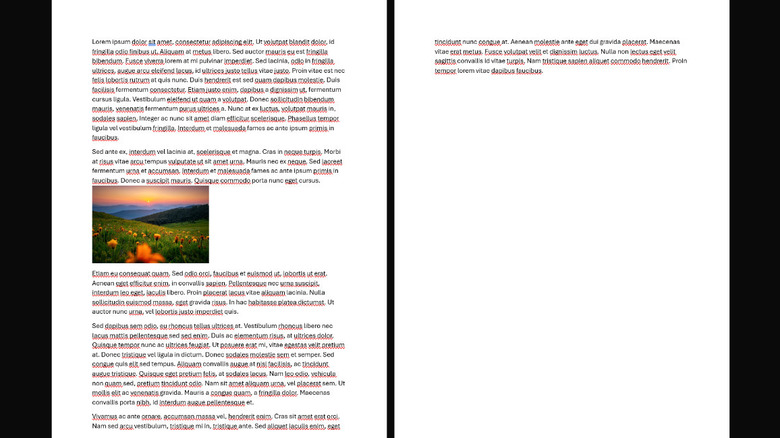
Even if Microsoft Word is primarily a text processor, the program gives you many ways of adding flair to your documents through formatting, styles, graphics, and images. Unfortunately, if you don't already know how images and other graphical elements work in Microsoft Word, even something as simple as moving an image or typing inside a paragraph with an image on the same page can completely break your formatting.
When you insert an image in Microsoft Word, it's set to "In line with text" or simply "Inline" by default. This means that the image is treated as any other text character in the same line as other letters. This can cause unnatural gaps between lines, your paragraphs to break whenever you type something, and more. Fortunately, fixing this is often as easy as changing how the image behaves from "Inline" to "Tight" or another option.
Another reason why many think you shouldn't use Word has to do with image anchoring. Word is a text-first processor, unlike an image editing tool like Canva. This means that it processes your images in terms of text and anchors them with paragraphs, where they move along with the text. This can be a good feature if you want to ensure an image is shown alongside a specific paragraph, but can break things if you're unsure what you're doing. You can fix this by locking the image or properly anchoring it, but for many people, it's easier to switch to another app entirely.
3. Easily breakable templates

Sdi Productions/Getty Images
There are few things more daunting than starting off a huge project with a completely blank page. Fortunately, all major word processors have templates for you to use, offering tailor-made and already formatted files for everything from resumes to newsletters. Unfortunately, using a template in Microsoft Word is one of the least flattering experiences you can subject yourself to.
This doesn't mean that any available template is bound to run into errors; if all you're doing is replacing text inside a template, you're likely going to be fine. However, changing any existing elements or putting in content that doesn't fit within the existing bounds can result in small formatting issues at best, and completely breaking your document at worst. As templates often rely on invisible tables or tab spaces to ensure everything stays in place, extra elements can break these tables and cause misalignment.
For example, if you're using a template that has two sets of text on different ends of a page and try to make the text longer, the spacing between the two sides can get messed up. If you have multiple rows, this can lead to a misalignment in them. Alternatively, if you try to insert a table, an image, or another graphical element in a template, Word can often fail to interpret where it fits, leading to a complete breakdown of your document.
4. Tables can get very confusing

one photo/Shutterstock
Managing images in Microsoft Word can be a chore, but at least you can get by if you know the basics. Tables, on the other hand, are a problem even if you've been using Word for a while. Word processes tables in a very specific way, which means that your Excel table might work fine, but tables from other places might not. For a table to be considered a table in Microsoft Word, it has to be coded that way behind the scenes. Many tables on web pages are only formatted to look like tables, and so Word processes them as normal text content instead.
Additionally, cells inside a table still follow the same formatting rules as paragraphs inside word. This is what leads to cases like what this Redditor experienced, where troubleshooting a table becomes much more difficult than creating a new one from scratch.
There are problems you can run into even when pasting an Excel table. For example, a table with many large columns will overflow outside the page, and fixing column width manually can cause words to break or overflow as well. These are entirely fixable if you take the right steps, but once you start working with nested tables or ones with differently sized columns and rows, they can become a nightmare to deal with.
5. End of support
agustin.photo/Shutterstock
The digital landscape is ever changing. Companies are constantly pushing out updates with new features and fixes for bugs and security risks. This is why keeping apps updated is important, something you're no longer able to do with your old Microsoft Word.
Microsoft officially ended support for older versions of Microsoft Office on October 14, 2025. This includes Office 2016 and Office 2019, both of which will no longer be receiving any updates. This applies to new features, but also to security and maintenance updates, which can lead to anything from a laggy app to genuine security risks.
There's always the option of switching to a newer version of Office, but many think that it's much more bloated and difficult to work with compared to what they're used to, which is a good enough reason to stop using Microsoft Word. We've already discussed plenty of alternatives in an earlier section, and some of them even give you a similar experience to these now obsolete versions of Word, such as LibreOffice or OnlyOffice.