


Traditionally, when we access content over the internet, it first gets downloaded entirely to our device and then rendered on the screen. This is fine if we deal with images or other files that are a few Kilobytes in size.
However, when it comes to videos, the original files can be huge. For example, a typical 30-second video from a modern-day phone camera can quickly run into a few 100MBs.
Therefore, the traditional way of downloading the original 100MB video file to the user's device and then playing it is not at all great from an experience or data consumption point of view. Imagine having first to download the entire 1-hour episode of Game of Thrones before you can even see the first 5 seconds of it.
What is Video Streaming?
An alternative way of delivering content to the user's device is called Video Streaming. Video streaming is the continuous transmission of a video file over the internet as smaller chunks of data. With streaming, the original file that runs into 100s of MBs remains on remote cloud storage, gets loaded in increments of a few seconds on the client's device, and plays almost instantly. An example of video streaming is when you click on the Netflix play button, and your favorite episode starts playing almost immediately. The start time is short, low data transfer, and a fantastic user experience.
Streaming services like Netflix or YouTube use Adaptive Bitrate Streaming, a type of video streaming that can "adapt" the video to your network and device. This is accomplished by encoding the same video at different bitrates and resolutions.
This blog will look at the most basic video streaming setup using AWS S3. And then look at how we can improve it drastically in minutes by using a real-time media optimization service like ImageKit.
How does AWS S3 Video Streaming work?
AWS Simple Storage Service, or S3, is one of the most popular object storage in the cloud. It is practically infinite file storage where you can store your large video files, even if they run into a few 100MBs.
Even though AWS S3 is primarily a storage provider, one can deliver videos directly from S3 to the user's device. It will rely on the Range Requests from the client's device and load partial content. While this is not "streaming" the way Youtube or Netflix stream their videos (using adaptive bitrate streaming techniques), it still does qualify as video streaming, given its definition.
For example, we have uploaded a video to an AWS S3 bucket for this blog. test-video.mp4 is 14.7MB in size.

We can load them directly in the browser using their S3 URL (Obviously, if we have the proper permissions set for access on these files)
<video>
  <source src="https://bucketname.s3.amazonaws.com/test-video.mp4" type="video/mp4">
</video>
When loaded in the browser, the browser issues multiple range requests for the video, each ending with a 206 Response status and a content range header indicating the size of the partial response.

We can also see that the video takes over 25 seconds to load when accessed from a bucket in US East for a user in India.
Using a CDN + S3 for faster video streaming
We can improve the load time of our video streaming by adding a CDN in front of the S3 bucket. Unlike a centrally located storage, a CDN has globally-distributed distribution nodes. The video content gets cached on different nodes based on users accessing the content. The users can therefore access content from the CDN node closest to them instead of getting it from the central storage location, thereby improving the load time.
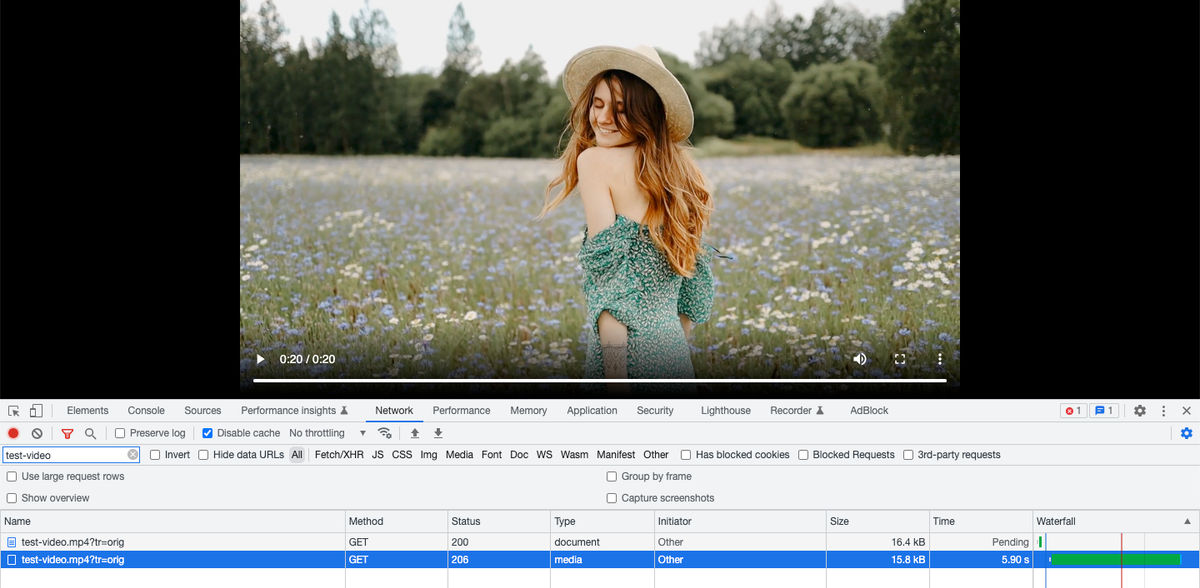
We can see that by using a CDN, the load time for a cached video comes down to 5.9 seconds from over 25 seconds. That's a significant improvement in the load time, but we are still loading the same 14.7MB video leading to heavy data usage on the client's device.
Disadvantages of video streaming from AWS S3
While using AWS S3 with the optional CDN provides a basic video streaming setup, it has a lot of disadvantages.
The solution offers no compression of videos. If you have a 100MB video, you will deliver a 100MB video to every user, regardless of their device or network conditions resulting in a slow playback experience.
AWS S3 Video streaming offers no format conversions. Modern formats like WebM are smaller than MP4, whereas formats like MOV need to be converted to a web-safe format like MP4 for delivery. This format conversion is impossible if you directly stream your videos from AWS S3.
We cannot optimize our videos for different devices or build a rich video experience because of the lack of features to modify the video. For example, we cannot deliver a lower video resolution on mobile vs. desktop devices. We cannot watermark our videos with our logo if we stream directly from S3. Or, we cannot create video snippets or thumbnails for previews on our websites and apps.
AWS S3 video streaming is not Adaptive Bitrate Streaming - the kind of streaming websites like Youtube and Netflix use. Regardless of the user's device and network conditions, they always see the same 100MB original video. Contrast this to streaming on Youtube, where the video's quality or resolution adjusts as your network speed varies to ensure faster, consistent playback.
While AWS provides media encoding solutions through some of its other products like AWS MediaConvert, the setup using them is very complex, involving webhooks and a few other AWS products. It also requires you to have sufficient knowledge about video and audio encoding and anticipate the video encoding requirements beforehand. This requires development effort and increases your costs on AWS cloud using several other products.
And last but not least, because of the lack of any significant video optimization solution natively in AWS S3, you spend massive costs on AWS streaming a high amount of bandwidth from your systems.
Using ImageKit for streaming optimized videos from AWS S3
ImageKit is a real-time media optimization, transformation, and management solution that allows you to stream and optimize videos in near real-time with minimum effort.
The best part about using ImageKit is the ease of setup with any cloud storage, including AWS S3, to deliver optimized media in minutes. It also comes integrated with AWS Cloudfront by default. Therefore, it is a single solution that will let you deliver fast video experiences to your users without requiring any other external tool.
Let's quickly see how we can optimize and stream our 100MB video in our AWS S3 bucket using ImageKit.
You can sign up for a free ImageKit account from here. It offers free 500 seconds of video processing and 20GB of data output every month.
Attaching AWS S3 bucket to ImageKit
Attaching an existing AWS S3 storage to ImageKit is really simple, even if it is a private bucket. You just need to create a new user in AWS using its IAM service and provide it with read-only access to the S3 storage.

We can then use the new users' access and secret keys in ImageKit's dashboard to provide it with read-access to our storage. You can read more about integrating AWS S3 bucket with ImageKit here.

With our test bucket now added to ImageKit, let's see how we can optimize that 14.7MB original video for delivery on our user's device.
Streaming optimized video with ImageKit and AWS S3
With our AWS S3 storage now connected to ImageKit, we can access the video file using the following URL.
https://ik.imagekit.io/ikmedia/videodemo/test-video.mp4While AWS S3 in itself offers no optimization for video streaming, delivering the same file via ImageKit provides you with best-in-class video optimization capabilities with minimal effort.
ImageKit automatically identifies the requesting device and its video format support. Using this information, it converts the video to either WebM or MP4, the two most widely used web-safe video formats.
It also compresses the video using format-specific compression algorithms to reduce the video file size without significantly reducing the visual quality.
These video optimizations are just a click away in the ImageKit dashboard and require no extensive setup or video encoding knowledge.

When we deliver our sample video via ImageKit, its size drops from 14.7MB to just 9.1MB when delivered in WebM format on Chrome.
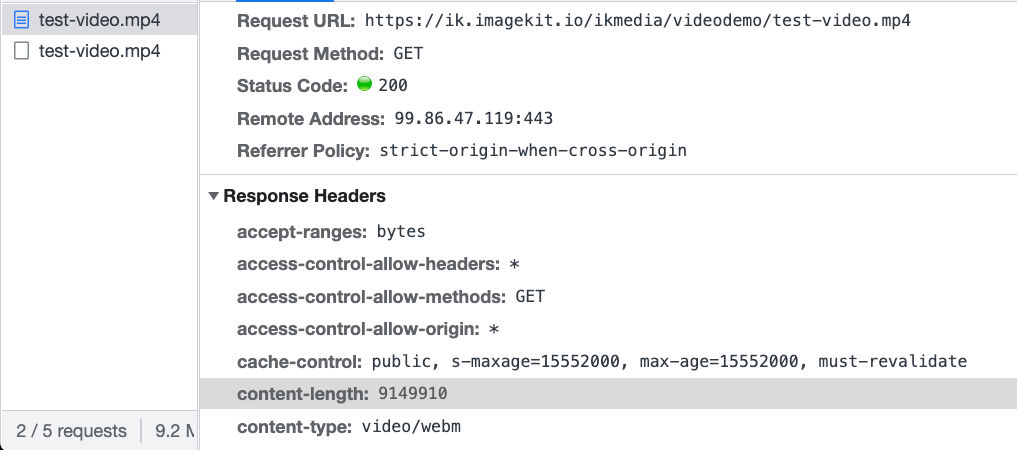
This is a massive 40% improvement in the video streaming experience we can offer with AWS S3 just by using ImageKit with it. And with the integrated CDN in ImageKit, the video load time also improves to under 2 seconds.

Transforming videos for different use cases with ImageKit
ImageKit stands out from most video compression tools available in the market with its capability to resize and transform videos in near real-time. The URL-based real-time video API makes it easy to adapt videos to different devices and placeholders, and create video snippets and thumbnails, to create a complete video experience without using any specialized video player on the client's device.
To resize our video to a 200px width, we simply have to add the video transformation parameter tr=w-200 to our URL, as shown below.
https://ik.imagekit.io/ikmedia/videodemo/test-video.mp4?tr=w-200
As can be seen in the screenshot above, the video is delivered in WebM format (content-type: video/webm response header), and the size is down to 184KB!
We can also convert our video to a vertical video to adapt to some social media platforms by specifying the corresponding height and width parameters directly in the video URL. We get a 2.3MB vertical video ready to use on the web and social media.
https://ik.imagekit.io/ikmedia/videodemo/test-video.mp4?tr=w-400,h-640
Or go a step further and add our logo as a watermark to the video and control where it is placed all in real-time using the URL-based video transformation parameters.
https://ik.imagekit.io/ikmedia/videodemo/test-video.mp4?tr=w-400,h-640,l-image,i-logo_HuFO6vJ2x.png,lx-10,ly-10,w-200,l-end

Adaptive bitrate streaming for videos with AWS S3 and ImageKit
Directly streaming videos using the URL cannot adapt to varying user network conditions - something that streaming services like Netflix and YouTube do. The video quality changes if your network speed changes. This "adaptation" to the user's device is called adaptive bitrate streaming.
ImageKit makes it super simple to use DASH and HLS - the two most popular Adaptive Bitrate Streaming protocols with your videos hosted on AWS S3. Unlike AWS's native tools, such as MediaConvert, we can implement ImageKit's URL-based Adaptive Bitrate Streaming API in seconds, and in real-time, by making some URL changes.
For example, to get an HLS stream ready at 360p, 480p, and 720p resolutions, we need to modify our video URL, as shown below.
https://ik.imagekit.io/ikmedia/videodemo/test-video.mp4/ik-master.m3u8?tr=sr-360_480_720When accessed for the first time, ImageKit will automatically start transcoding your video into different resolutions in the background and return the manifest file - ik-master.m3u8 - for HLS streaming.
We can load the above URL directly in a video player supporting HLS streams, and our adaptive bitrate streaming setup is ready!
We can see in the screenshot below that the browser first started with a couple of 360p video segments for a fast load time before switching up the resolution to 720p because the user's device could load a higher resolution video.

Since generating manifests with multiple resolutions for ABS can take slightly longer than other real-time video optimizations and transformations, you can use video webhooks to listen to events indicating the completion of this transcoding process. Unlike AWS's native tooling, these video webhooks are optional and meant to enhance the developer experience. You can still offer adaptive bitrate streaming on your apps without using them.
{
  "type": "video.transformation.ready",
  "id": "a03031b5-ad5f-4985-8cf5-4de67630f6d7",
  "created_at": "2022-06-20T12:00:11.703Z",
  "request": {
    "x_request_id": "fa98fa2e-d6cd-45b4-acf5-bc1d2bbb8ba9",
    "url": "http://ik.imagekit.io/demo/sample-video.mp4?tr=f-webm,q-10",
    "user_agent": "Mozilla/5.0 (Macintosh; Intel Mac OS X 10.15; rv:101.0) Gecko/20100101 Firefox/101.0"
  }
  ....
  other fields
  ....
}
Conclusion
AWS S3 video streaming is the simplest of all video streaming setups for web and apps. However, without any other feature for video optimization or transformations, it leaves much to be desired.
ImageKit is a media optimization and transformation service that simplifies streaming optimized videos directly from your AWS S3 storage. Once the AWS S3 bucket is attached, we can use the URL-based real-time video API to optimize videos automatically, adapt them to different devices, and deliver adaptive bitrate streams using DASH and HLS protocols.
ImageKit offers a generous free plan with almost 500 seconds of SD video processing and 20GB of video streaming every month. Sign up now and use ImageKit with AWS S3 for video streaming on your websites and apps.
If your videos are stored in Azure Blob Storage instead of S3, see Video streaming and optimizations for Azure Blob Storage using ImageKit. For Google Cloud Storage, see Video streaming and optimizations for Google Cloud Storage using ImageKit.