


For every third-party tool that you integrate on your website, it is essential to be able to determine if you are using that tool well or not. And especially if it is something like image optimization and delivery, which has a lot of moving parts with different image placeholders, platforms, screen sizes, display densities, etc., it is easy to miss out on making the proper use of ImageKit.
This blog will guide you through how you can make the best use of different tools and reports in ImageKit to ensure that you are delivering perfectly optimized images on your website.
What tools and reports can I access in ImageKit?
There are multiple ways in ImageKit for you to analyze the performance of your website for image optimization.
1. Website Analyzer
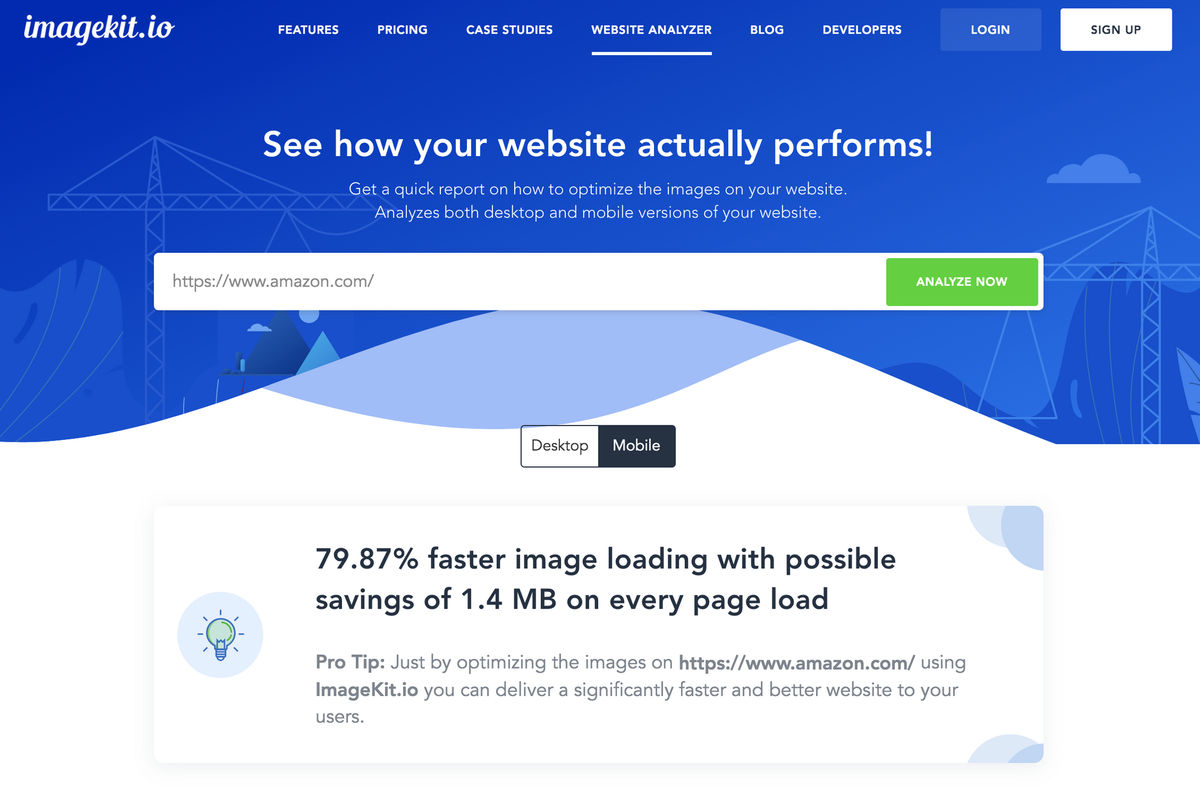
The Website Analyzer is a tool developed by ImageKit that provides you with an image-by-image optimization report for a webpage on desktop and mobile. It is free to use for everyone, even website visitors who are not users of ImageKit.
2. Performance Center
A website undergoes a lot of changes over time, and it is possible that the image optimizations you implemented at a particular point in time, need to be updated.
For example, you might have resized an image to 300x200 px and achieved a perfect score on the website analyzer, but six months later, there was a design change, and the new image size required is 200x200 px. But you continued to use the larger 300x200 px image. This miss is not ideal if you are using a third-party tool like ImageKit that makes it simple to resize and crop images to any size in real-time.
To solve this, the Performance Center generates the same report as the Website Analyzer, but it does so automatically every day. These daily reports ensure that you are always aware if you are optimizing the images well or not, and if not, then how can you do the same.
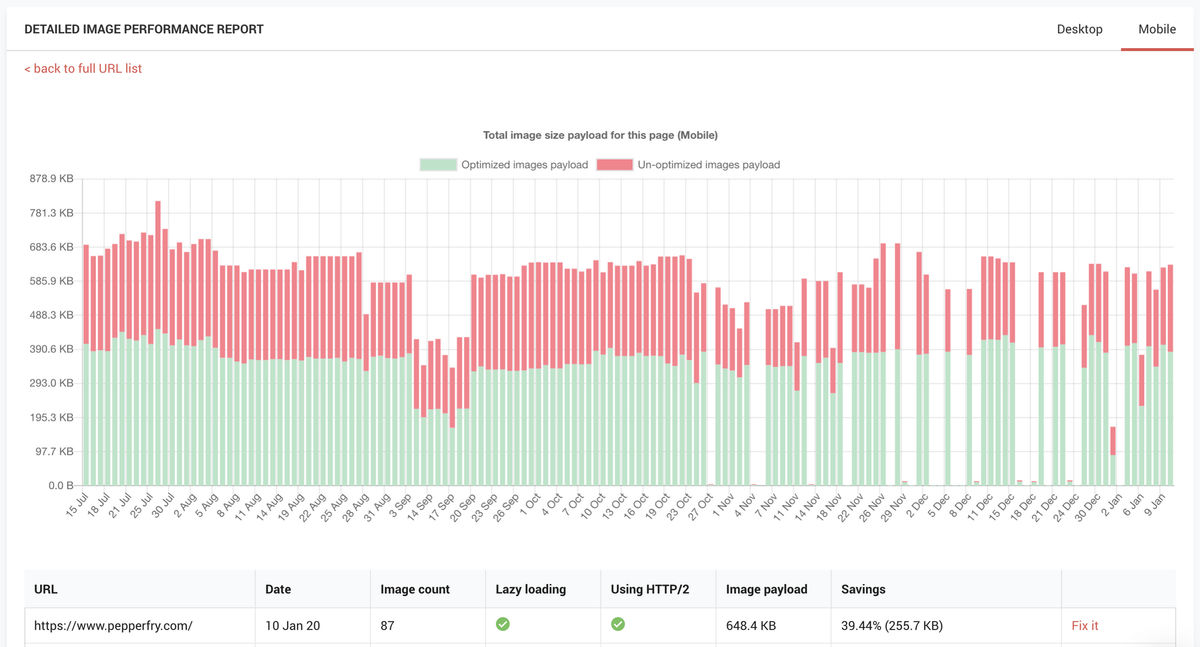
The Performance Center is available only to paid customers of ImageKit.io.
3. Analytics
The analytics report gives you an overview of your usage of ImageKit every month. There are many different sections in this report. From graphs for bandwidth consumption to top images, errors, and transforms, you get all the information within your ImageKit dashboard. We will look at how to understand and make the best use of different parts of the analytics report in this blog.
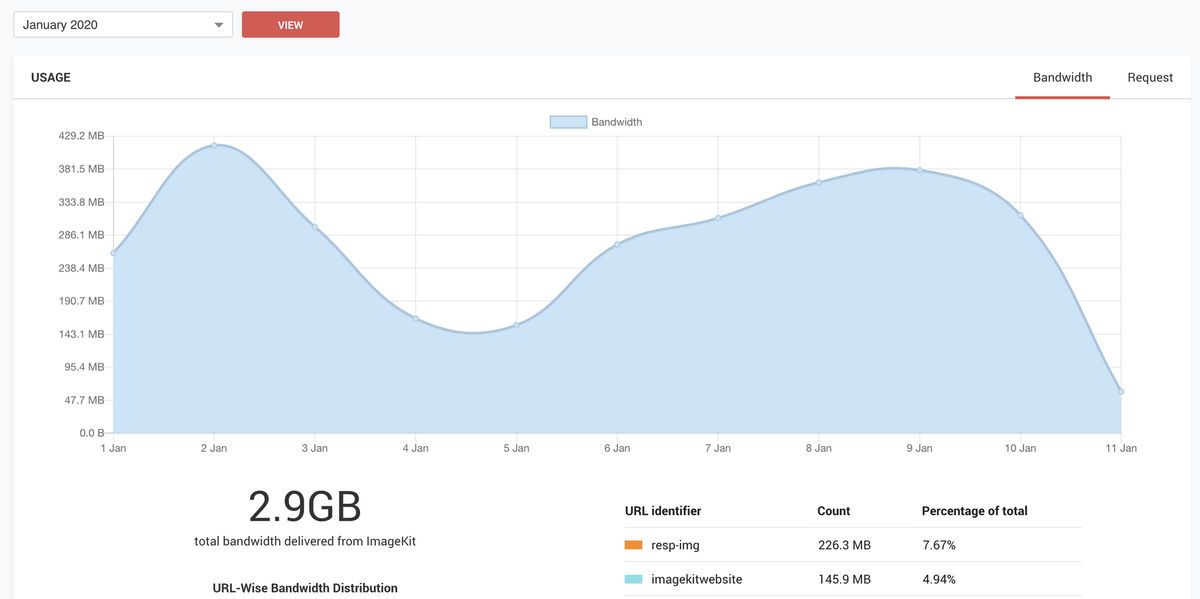
This report is available to all users of ImageKit, paid as well as free. However, for customers using ImageKit with a custom CDN, only the bandwidth and request graphs are available. You don't see the other reports with a custom CDN because ImageKit is serving only a small portion of the total image requests, and using just that subset of data will lead to incorrect reports getting generated.
How To Use These Tools For Better Image Optimization?
Let us try to answer some of the most common questions that come up when customers start using ImageKit. This will help you get the most out of ImageKit's image optimization and transformation capabilities.
1. How to implement the correct optimizations?
This is the first step to using ImageKit - implement the correct optimizations in the current state of your website. You can use the website analyzer for critical pages on your website to check the optimizations that you need to do for the images.
Just by serving your images via ImageKit, you will start delivering them in the right format and at the right compression level. If, after implementing ImageKit, you are still getting a warning for using an incorrect format, possibly the image is not getting served via ImageKit. Or it could be the case that you have forced the format using URL parameters.
Additionally, the report would indicate the correct dimensions for every image, and you can use ImageKit's resizing parameters to solve these warnings. If you are loading larger images to cater to multiple devices or because larger images look better visually, consider implementing responsive images to deliver the right size across devices.
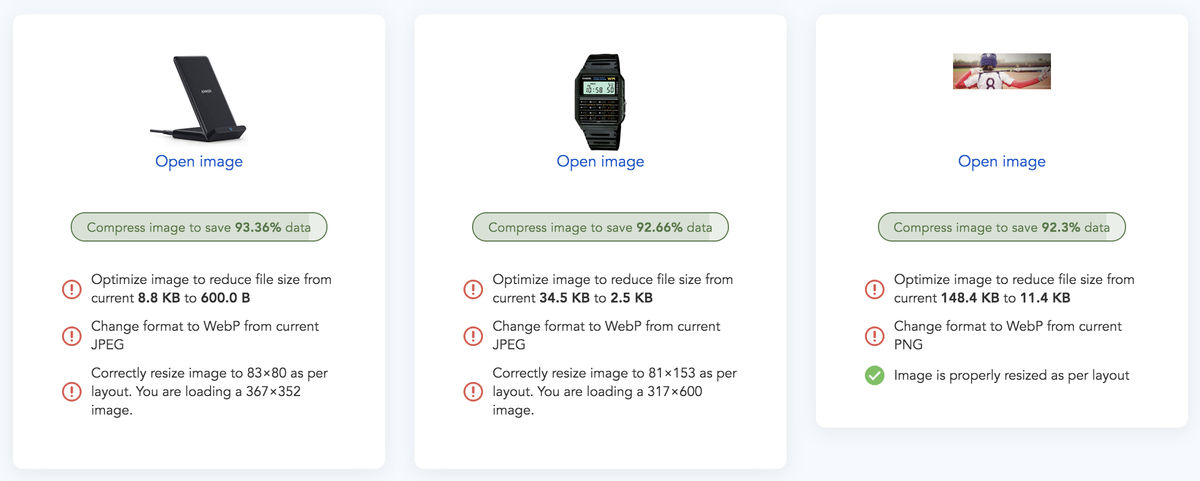
Once you solve critical issues in the website analyzer, all image-related warnings in tools like Google Lighthouse, PageSpeed, GTMetrix, etc. will get resolved.
ImageKit's paid users need not run the website analyzer manually. You can add the critical pages of your website to the Performance Center, and you will get daily reports inside your dashboard.
2. How to find why your bandwidth consumption has gone up?
The analytics in your dashboard gives you a daily breakdown of your bandwidth and request consumption on ImageKit.
If you see a sudden spike in the graph, it could have been a result of a one-off event - like a promotional activity or a festival weekend.
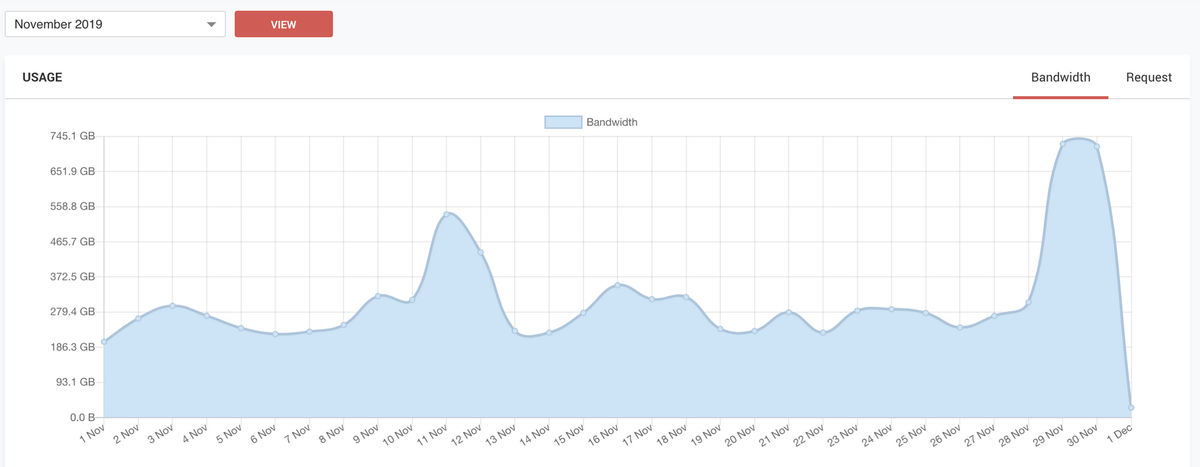
However, if the spike doesn't fall off and you are always using more bandwidth than earlier, it indicates a change to your website traffic or the images on your website.
If your bandwidth has gone up as a result of increased website traffic, that's great for your business :) Do get in touch with our team to get a custom pricing plan for your usage.
If the website traffic has been constant, but bandwidth consumption has gone up, it indicates that there has been some change to the number or size images loading on your website. Go to the website analyzer or the Performance center and fix the optimizations indicated there.
3. How to see if you are loading larger images than before?
From the bandwidth and request graphs in your dashboard, you can get the average request size by dividing the bandwidth consumed by the number of requests. You can do this for either for a single day or an entire month.
Compare this average to other days. Average image sizes range between 20-30KB on most websites and could be higher or lower based on your use case or industry. If compared to a previous period, the average image size has gone up by over 5KBs, then yes, you are loading larger images.

4. Which files have led to an increase in bandwidth consumption?
The "Top Images" section gives you the files that have consumed the most bandwidth or requests.
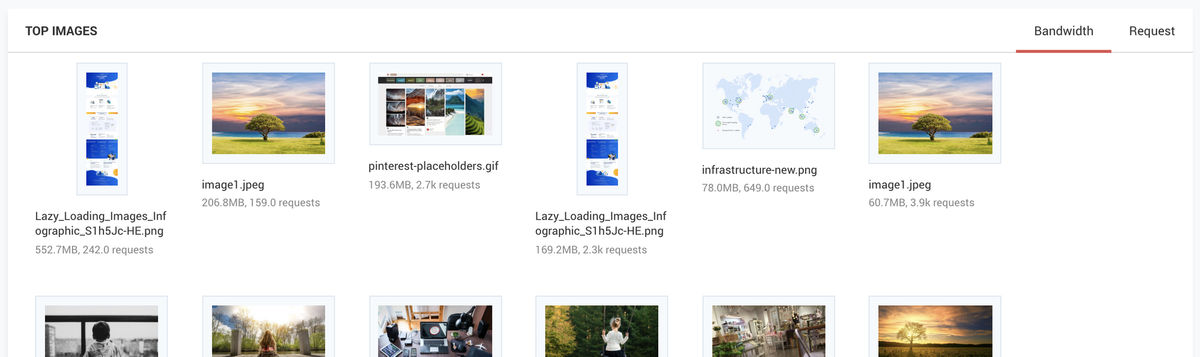
You can open an image from this section by clicking on it. The reason for high bandwidth consumption could be that you are loading a larger image than what is required or are forcing a format that is not suitable for that image type.
Note that if you are accessing the dashboard and the top images in the Chrome browser, you will get the images in WebP format. However, the high consumption could be from the image loading in JPG format in a different browser.
5. Is some other website using my images?
The "Top Referrers" section in ImageKit's analytics gives you a list of websites from where we are getting requests for your images. You might see a few other sites using your images, but the consumption will not be that significant. Also, the bandwidth and request numbers under the Top Referrers section may not match the one in daily usage graphs. That happens because some browsers, mobile apps, scripts, etc., might not be sending the Referer header in the request.

6. Are you using the right transformations?
ImageKit provides you with a list of most common transformations for your images. Generally, if you use ImageKit on just one website, the top 4 transforms would make up more than 50% of all transformations.
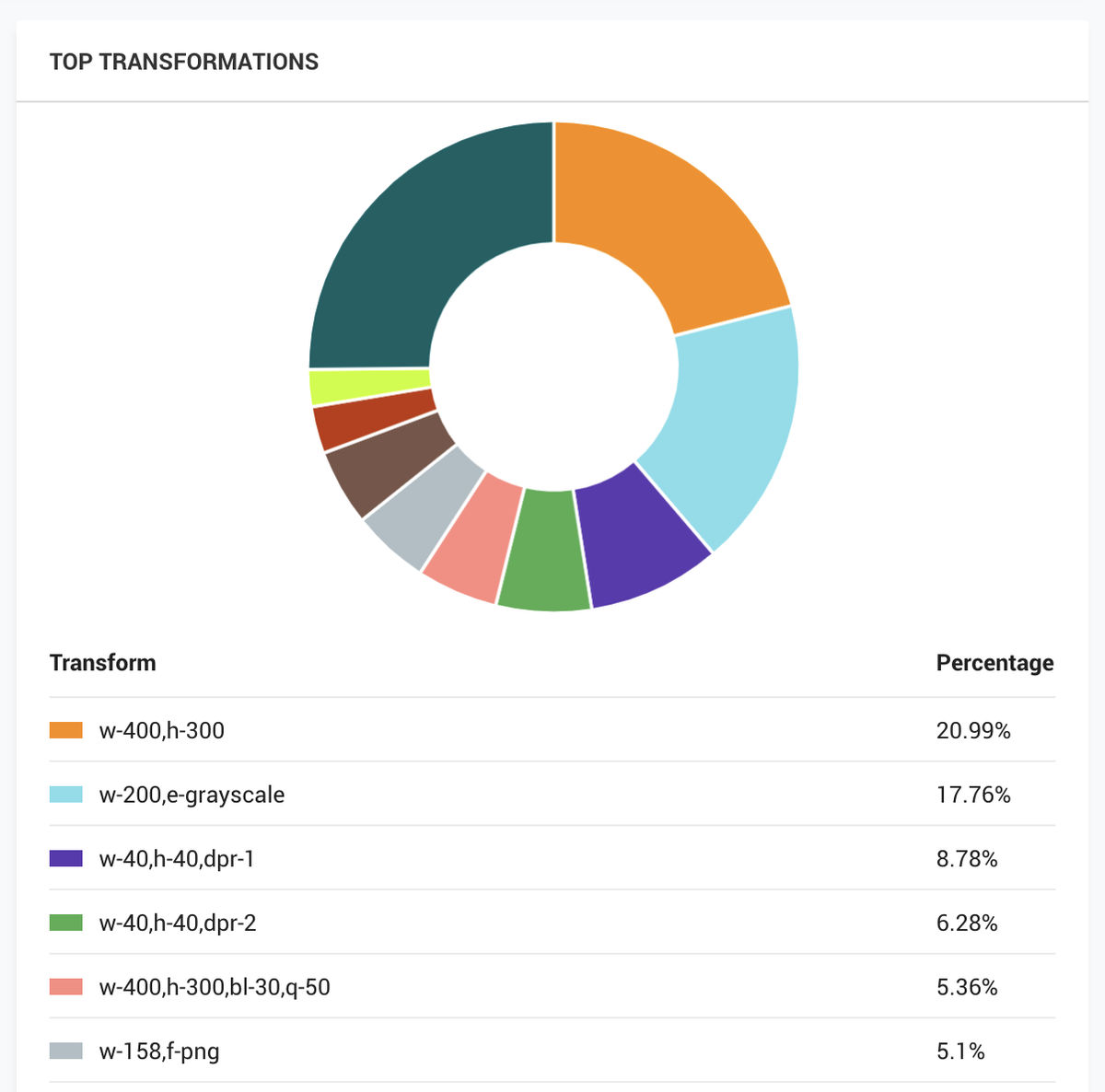
However, if you see that the top 4 transforms make up a small percentage of the total, then it means that you are using a lot of different transformations on your pages. This small percentage could be because you are trying to load the perfect size for every device by computing the transforms on the client-side. Such granular modification to transformation parameters is not the right practice and will lead to reduced cache hit ratio and poor performance.
Bonus: Read about the best practices of image caching here
Try using responsive images and use not more than five different transforms for a particular image placeholder.
7. How is network-based image optimization working for me?
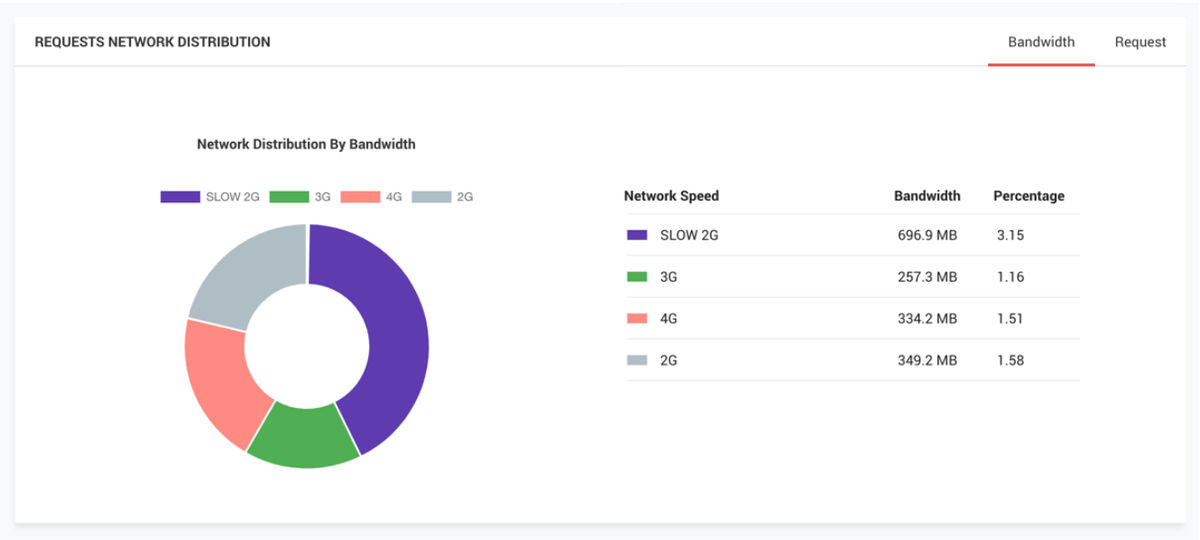
If you are using ImageKit's network-based optimization feature, then you also get a list of how many times and for what network type did it get triggered. A lot of times, network-based optimization might not trigger at all. This could be because of an unsupported device, unregistered service workers, pre-cached images on the CDN, etc. Ensure that you are using the right quality settings for different network types. Slower networks should use a smaller image quality.
8. Am I getting any errors while loading the images?
If you are running a website with hundreds of thousands of images, a few image URLs might not be working. Or some code in your application could be generating incorrect URLs.
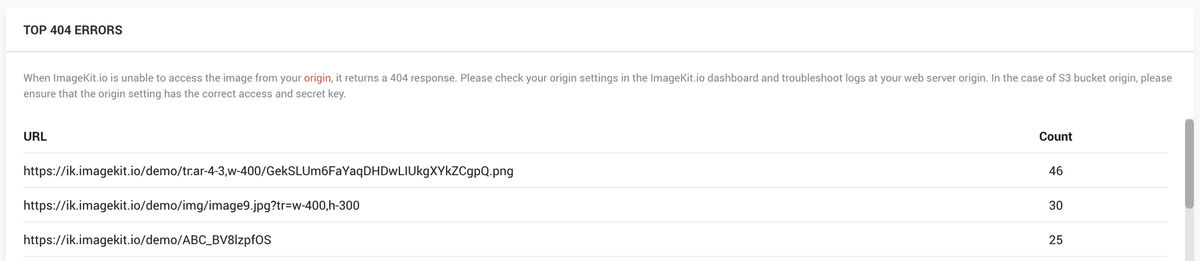
A recent addition to the ImageKit's analytics section, you can now see a list of images that end in 404 or "Not Found" errors. Generally, in this case, either the URL is incorrect, or the image does not exist on the origin that you have attached to ImageKit. Either fixing the URL or adding the image to your origin will fix this issue. If there is an image URL that should work, but ImageKit is giving an error for it, please reach out to us on support@imagekit.io for the same.
Bonus: See how to handle loading of images that may not exist.
You can now make the most of ImageKit's analytics, Performance Center, and the Website Analyzer to deliver a perfect experience for your visitors and optimize your website's images for better performance and SEO. If you have any questions about these tools and would like to explore a different pricing plan for the increased usage, do reach out to us on support@imagekit.io.