惯性聚合 高效追踪和阅读你感兴趣的博客、新闻、科技资讯
阅读原文 在惯性聚合中打开

推荐订阅源

Spread Privacy
Spread Privacy
P
Palo Alto Networks Blog
P
Proofpoint News Feed
AI
AI
Help Net Security
Help Net Security
S
Securelist
T
Troy Hunt's Blog
K
KPMG report finds enterprise disconnect between AI and its ROI | CIO
C
Cisco Blogs
Scott Helme
Scott Helme
Hacker News - Newest:
Hacker News - Newest: "LLM"
Vercel News
Vercel News
Exploit-DB.com RSS Feed
CTFtime.org: upcoming CTF events
B
Blog
GbyAI
GbyAI
Recent Commits to openclaw:main
D
Darknet – Hacking Tools, Hacker News & Cyber Security
P
Proofpoint News Feed
S
Security Affairs
Cisco Talos Blog
Cisco Talos Blog
AWS News Blog
AWS News Blog
T
Tenable Blog
H
Help Net Security
NISL@THU
NISL@THU
F
Fortinet All Blogs
博客园_首页
G
GRAHAM CLULEY
L
LINUX DO - 最新话题
P
Privacy International News Feed
G
Google Developers Blog
博客园 - Franky
Cyber Security Advisories - MS-ISAC
cs.CL updates on arXiv.org
Security Archives - TechRepublic
The Register - Security
L
LangChain Blog
aimingoo的专栏
aimingoo的专栏
T
Tor Project blog
P
Privacy & Cybersecurity Law Blog
量子位
C
Cyber Attacks, Cyber Crime and Cyber Security
Forbes - Security
Forbes - Security
S
Secure Thoughts
Simon Willison's Weblog
D
Docker
Recorded Future
Recorded Future
博客园 - 三生石上(FineUI控件)
L
Lohrmann on Cybersecurity
T
Tailwind CSS Blog

ImageKit.io Blog

Next.js Image Optimization with ImageKit Use Video as a Background in Your Next.js Project How to Fix Autoplay Video in Next.js How Durian Scaled a Visual-First Retail Experience to 350K Monthly Visitors Online How Matsmart accelerated image delivery across countries with ImageKit AI in Digital Asset Management: From Smart Workflows to Agentic Automation How Joseph Joseph unified and secured global video delivery with ImageKit How Modall powers fast, effortless media delivery across 40+ projects with ImageKit Digital Asset Management (DAM) Trends: 2026 Report How to add a poster image to Video.js player (and automate it) HLS streaming with Video.js + React Building the future of storytelling with fast, AI-powered video delivery How PushOwl delivers 100M+ image-rich notifications seamlessly with ImageKit How Homify delivers millions of interior design images seamlessly with ImageKit Better event discovery with lightning‑fast videos & images Adding video player in React Native Video player in Angular applications Crop and resize videos in React Next.js image and video upload React image and video upload React video optimization How we quadrupled our traffic to 625K monthly page views How Apollo 24|7 boosted performance & reduced costs with ImageKit Simplify your media workflows with ImageKit DAM integrations Extending Lighthouse for custom image and video optimization analysis Brand Asset Management: What is it? How does it work? WordPress Digital Asset Management Guide - Manage your WP media assets better Why Shopify retailers need a digital asset management solution DAM vs. SharePoint: Which is best for you? AI-powered Metadata and Tagging in Digital Asset Management How Hopscotch built India's largest online Kids' fashion brand with ImageKit Dropbox Vs. DAM: Which Is The Right Tool For Digital Asset Management Digital Asset Management for Photographers: A Complete Guide Why digital asset management for agencies is essential Helping both Top and Bottom Line: SaffronStays rapid, profitable growth with ImageKit How KreditBee simplified media experiences with ImageKit Google Drive alternatives for businesses (with fast-growing teams) Node.js image upload ImageKit: The Secret Ingredient in Swiggy’s Expansion Journey Streamlining the Design Approval Process: A Comprehensive Guide AV1 Codec - Complete guide for video application devs PHP image and video upload Angular image & video upload AV1 vs VP9: Which codec should you choose? Adding video player in Next.js React Video Player VP8 vs VP9 - In the context of online video delivery Exploring WebM vs MP4 7 Free Digital Asset Management Software that are not Open-Source Comparing 9 Top Digital Asset Management Tools in the Market What are Brand Standards and Why do they Matter? Boost Sales and Brand Appeal: Essential Tips for eCommerce Image Management Brand Recall: The Strategy to Create Unforgettable Brands How to upload files in HTML? Branding for Small Businesses (2025 Edition) Everything you need to know about VP9 codec Recent updates from ImageKit and what's next Best Ways to Write RFP For Digital Asset Management (+ with free RFP template) What is Brand Dilution? How to Avoid It? Explained with [Examples] The Importance of Brand Identity: Leveraging Digital Asset Management for Impact From Launch to Scale: How to Launch a Brand Campaign Digital Asset Management Requirements - What do You Need to Evaluate and How? Marketing Collateral Management: A Quick End-to-End Guide Video Content Management System: What Is It And How To Choose One? Dropbox vs. Google Drive vs. Onedrive: The Best Cloud Storage Solution How to Build Brand Trust: Get Started In 2025 Google Drive vs. Box: A Detailed Comparison How Digital Asset Management Solutions Help Protect Brand Equity A DAM Solution Can Safeguard Your Digital Intellectual Property - Here’s How WebP Vs. PNG: Which Image Format Should You Use and Why? How to Resize Images in Bootstrap Easily Progressive jpegs (PJPEG): the key to loading images faster on your website Dropbox vs. Google Drive: The Best Cloud Storage For Digital Assets Dropbox Pros & Cons In 2024: An In-Depth Analysis and Why A DAM Solution Stands Out Google Drive Vs OneDrive: The Better Storage Option For Digital Assets Manage your video assets better with video metadata Understanding DAM's Role in Strengthening Brand Identity Digital asset management strategy: What to know before creating one The Ultimate Guide To Marketing Agency Onboarding 6 Solutions To Simplify Large File Sharing Over The Web A Step-by-Step Breakdown of a Video Production Workflow 13 Digital Asset Management Use Cases You Should Know How to Conduct a Brand Audit and Manage Your Brand Assets Costly Consequences of Inconsistent Branding And How DAM Can Help Dynamic Asset Transformation: What It Is, Why You Need It, and How ImageKit Can Help Everything You Need to Know About HTML Video Autoplay How To Select Your DAM Vendor: A Complete Guide How to Boost User Experience with Smart Digital Asset Management React Image Optimization: A Guide for Web Developers Why Should DAM Be A Part Of Your MarTech Stack? Unleashing the Power of Content Repurposing with ImageKit MKV vs MP4: Which Video File Format Is Better for Your Needs? Digital Asset Management For Ecommerce: A Complete Guide How an Image Tagging Software can Transform Your Image Search How to Manage Your Content Lifecycle Effectively M4V vs MP4: Which Video Format Should You Use and Why? Why Every Business Needs An Image Management System All The Questions To Ask During A Dam Demo Which is the Best Image Format for Your Website? Uploading Multiple Files Using JavaScript: A Comprehensive Guide
How to create a photo collage
Manu Chaudhary · 2020-06-01 · via ImageKit.io Blog

Collages are epic. They grab attention and say a lot. But its not always easy to create one.

Before you create a collage, it's important to have a rough idea of how the final result should look. But don't worry if you don't have an idea yet. This article will provide you a step by step guide to create a collage. In the end, you will be ready to customize it as per your need.

Sounds good? Let's jump right into it.

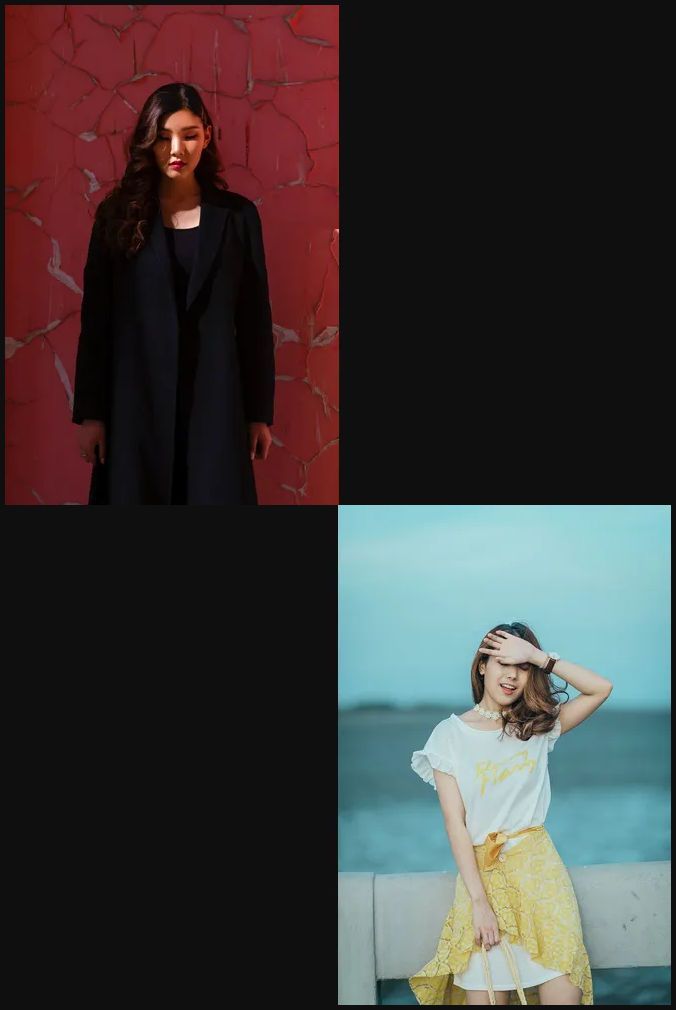
We will use the following example - A collection of women's clothing.

This collage is created using the following URL:

https://ik.imagekit.io/ikmedia/white-canvas.png?tr=w-1245,h-1245:l-image,i-women-dress-1.jpg,lfo-top_left,w-600,h-600,b-15_FFFFFF,l-end:l-image,i-women-dress-2.jpg,lfo-top_right,w-600,h-600,b-15_FFFFFF,l-end:l-image,i-women-dress-3.jpg,lfo-bottom_left,w-600,h-600,b-15_FFFFFF,l-end:l-image,i-women-dress-4.jpg,lfo-bottom_right,w-600,h-600,b-15_FFFFFF,l-end:l-text,i-Women's Clothing,bg-00000080,pa-20,fs-60,co-FFFFFF,l-end:b-2_000000

The URL may look scary, but don't worry. I will break it down for you.

Basically, we will use text overlay layer in ImageKit.io to create a photo collage.

Let's understand the different parameters and the whole process so that you can create something on your own.

Notice that:

  • This collage is made up of 4 images.
  • All individual images have a white border of 15px (that is what creating a grid)
  • There is a text "Women's Clothing" in the center.
  • The whole image has a 2px black border.

These individual images are accessible separately through ImageKit.io URL-endpoint. For this example, we have uploaded them in the Media library, but it is up to you where you store them – ImageKit.io Media library or your storage. Both work the same way.

Now we want to join these individual images and create a big photo. For that, we will first need a white canvas.

Create a white canvas

To create a canvas of the desired dimension, you can upload this white image in your media library and use it as a base image.

Download the white canvas image.

For our example, the dimension of the white canvas will be 1245×1245. Each individual image is 600×600, separated with a 15px white border.

So its 15(left border)+600(top-left image)+15(middle border is collapsed)+600(top-right image)+15(right border) = 1245. Same goes for height.

The white canvas URL will be

https://ik.imagekit.io/ikmedia/white-canvas.png?tr=w-1245,h-1245

You can use width(w) and height(h) parameters to create any dimension you want. Now that we have canvas let's add these individual images on it.

Add individual images

Let's stitch the top-left image on the above canvas at x=0,y=0 using image overlay layer and chained transformations.

The URL becomes:

https://ik.imagekit.io/ikmedia/white-canvas.png?tr=w-1245,h-1245:l-image,i-women-dress-1.jpg,lx-0,ly-0,w-600,h-600,b-15_FFFFFF,l-end

We have also added a white border of 15px using the border transformation i.e. b-15_FFFFFF. We can use many transformation parameters inside the image layer to modify the overlay before its placed on top of base image.
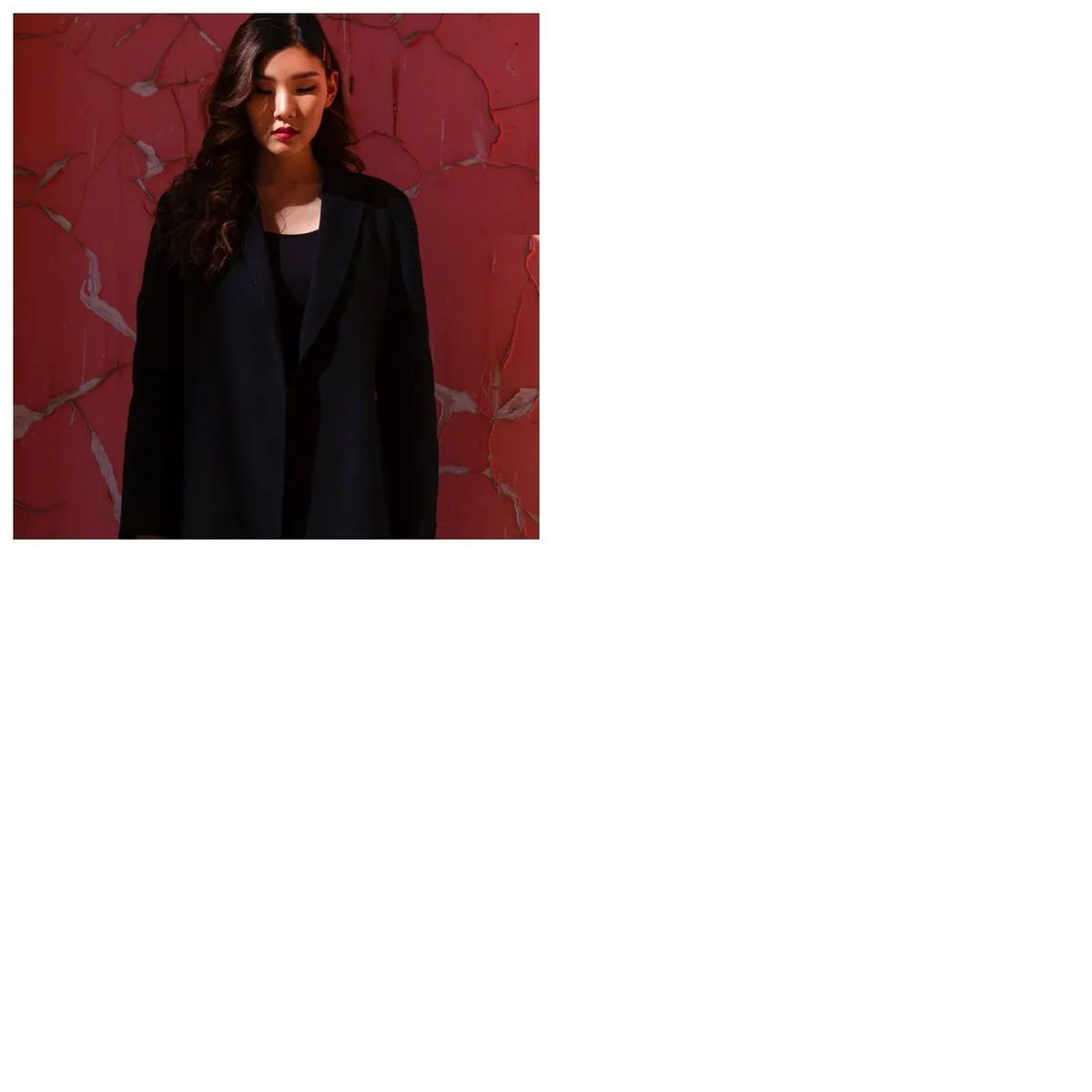
A single image added on a big white canvas

Let's stitch the remaining three images using chained transformation. Position of the layer can be controlled using lx and ly parameters:

  • Top right image at x=615,y=0.
  • Bottom left image at x=0,y=615
  • Bottom right image at x=615,y-615

Now we have the following URL:

https://ik.imagekit.io/ikmedia/white-canvas.png?tr=w-1245,h-1245:l-image,i-women-dress-1.jpg,lx-0,ly-0,w-600,h-600,b-15_FFFFFF,l-end:l-image,i-women-dress-2.jpg,lx-615,ly-0,w-600,h-600,b-15_FFFFFF,l-end:l-image,i-women-dress-3.jpg,lx-0,ly-615,w-600,h-600,b-15_FFFFFF,l-end:l-image,i-women-dress-4.jpg,lx-615,ly-615,w-600,h-600,b-15_FFFFFF,l-end

Collage created using 4 individual images

Now the position of the layer can be relative as well. That means we don't have to explicitly define lx and ly for each layer. We can simply use top_left, top_right, bottom_left and bottom_right for the 4 layers respectively. URL in that case becomes much simpler:

https://ik.imagekit.io/ikmedia/white-canvas.png?tr=w-1245,h-1245:l-image,i-women-dress-1.jpg,lfo-top_left,w-600,h-600,b-15_FFFFFF,l-end:l-image,i-women-dress-2.jpg,lfo-top_right,w-600,h-600,b-15_FFFFFF,l-end:l-image,i-women-dress-3.jpg,lfo-bottom_left,w-600,h-600,b-15_FFFFFF,l-end:l-image,i-women-dress-4.jpg,lfo-bottom_right,w-600,h-600,b-15_FFFFFF,l-end:l-text,i-Women's Clothing,bg-00000080,pa-20,fs-60,co-FFFFFF,l-end:b-2_000000

Add a text overlay

Let's add a text "Women's Clothing" on above image using text overlay layer in ImageKit.io.

Text can be added using i-Women%27s%20Clothing (its encoded) inside the text layer. After that we also need to add a black transparent background which can be controlled using the bg parameter i.e. bg-00000080. Again, you can use many transformations inside the text layer to modify the text font, size, color, padding & typography etc.

The URL becomes:

https://ik.imagekit.io/ikmedia/white-canvas.png?tr=w-1245,h-1245:l-image,i-women-dress-1.jpg,lfo-top_left,w-600,h-600,b-15_FFFFFF,l-end:l-image,i-women-dress-2.jpg,lfo-top_right,w-600,h-600,b-15_FFFFFF,l-end:l-image,i-women-dress-3.jpg,lfo-bottom_left,w-600,h-600,b-15_FFFFFF,l-end:l-image,i-women-dress-4.jpg,lfo-bottom_right,w-600,h-600,b-15_FFFFFF,l-end:l-text,i-Women's Clothing,bg-00000080,pa-20,fs-60,co-FFFFFF,l-end

Collage created using 4 individual images and a text overlay

Add a black border

To add a border we will use b parameter. Let's add a 2px black border using b-2_000000.

The URL becomes:

https://ik.imagekit.io/ikmedia/white-canvas.png?tr=w-1245,h-1245:l-image,i-women-dress-1.jpg,lfo-top_left,w-600,h-600,b-15_FFFFFF,l-end:l-image,i-women-dress-2.jpg,lfo-top_right,w-600,h-600,b-15_FFFFFF,l-end:l-image,i-women-dress-3.jpg,lfo-bottom_left,w-600,h-600,b-15_FFFFFF,l-end:l-image,i-women-dress-4.jpg,lfo-bottom_right,w-600,h-600,b-15_FFFFFF,l-end:l-text,i-Women's Clothing,bg-00000080,pa-20,fs-60,co-FFFFFF,l-end:b-2_000000

Women's clothing collage with text overlay

Conclusion

It becomes effortless to create engaging visuals when you have the ability to create stunning images dynamically, as shown above. The overall idea is:

  1. First select the individual images. These images can be returned from the backend API as well. And you can create a dynamic photo collage to showcase a product collection, or event cover.
  2. Decide the final layout and create a canvas accordingly using the white image.
  3. Add individual images using overlays in ImageKit.io
  4. That's it

Let us know about your use-case in the comments section.

A few other examples
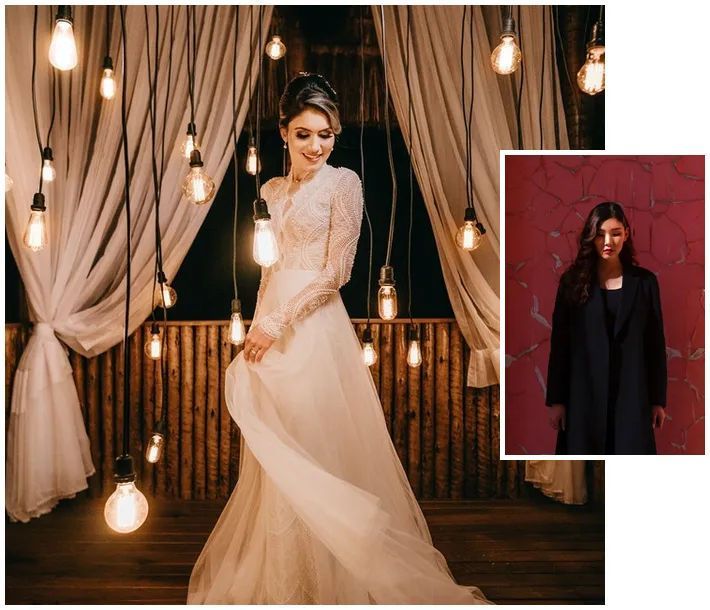
https://ik.imagekit.io/ikmedia/tr:w-710,h-610:l-image,i-women-dress-2.jpg,lfo-left,w-600,h-600,b-5_FFFFFF,l-end:l-text,i-99,l-end:l-image,i-women-dress-1.jpg,lfo-right,w-200,h-300,b-5_FFFFFF,l-end/white-canvas.png
https://ik.imagekit.io/ikmedia/white-canvas.png?tr=w-666,h-1000:l-image,i-women-dress-1.jpg,lfo-top_left,w-666,h-500,cm-pad_resize,fo-left,bg-0F0F0F,l-end:l-image,i-women-dress-4.jpg,lfo-bottom_right,w-666,h-500,cm-pad_resize,fo-right,bg-0F0F0F,l-end:b-5_0F0F0F

Where to go from here?

  • Learn more about overlays from layers documentation.
  • Try creating a collage and share it in the comments section for others.
  • If you face any problem, reach out to us at support@imagekit.io. We will be happy to help!