




There are a couple of ways to resize & crop images in Java. This article will briefly compare different methods of resizing images in Java, along with pros and cons.
More importantly, after you finish reading, you will learn a novel approach to resizing images in Java applications, which doesn’t require writing any image resizing code or maintaining servers to handle a large volume of image manipulation requests.
There are broadly four ways to resize images in Java:-
- Native Java - It does not require any third-party libraries.
- Open-source image manipulation libraries - For example, ImageMagick.
- Open source imaging service like Thumbor.
- Free and paid Image CDN e.g. ImageKit.io.
| Method | Pros | Cons |
|---|---|---|
| Native Java functions |
| You will have to deal with a lot of low-level image processing and file operation. |
| Open source image processing libraries |
| You will have to install third-party libraries and find relevant options to get the desired results. |
| Open source thumbnail general service |
| You will have to install a third-party service and maintain the infrastructure. |
| Free or paid image CDN |
| An overkill if you want to resize a handful of images. If you are serving images on the web, then you should be using an image CDN. |
In this post, we will deep dive into different methods of resizing and cropping using ImageKit.io URL-parameters.
Image resizing in Java using ImageKit.io
We will learn the following image manipulation in Java using ImageKit.io. It doesn’t require you to install any third-party image processing library. You can scale from zero to millions of image requests per minute without having to worry about scaling or maintaining infrastructure.
- Basic image resizing, height and width manipulation
- Cropping & preserving aspect ratio while resizing images
- Add watermark in images
- Adding text over images
- Generating encrypted secured image URLs
- Converting image format
You can manipulate the height and width of an image using simple URL parameters. Your backend can generate these URLs in Java or in the frontend itself.
For example, the original image is 1280x853px.
https://ik.imagekit.io/ikmedia/woman.jpg
To get a 200px wide image, use tr=w-200 query parameter
https://ik.imagekit.io/ikmedia/woman.jpg?tr=w-200
To resize image to 400 width and 200 height, you can use tr=w-400,h-200
https://ik.imagekit.io/ikmedia/woman.jpg?tr=w-400,h-200
Using ImageKit.io Java SDK, you can quickly generate image URLs like this:
List<Map<String, String>> transformation = new ArrayList<Map<String, String>>();
Map<String, String> scale = new HashMap<>();
scale.put("height","200");
scale.put("width","400");
transformation.add(scale);

Map<String, Object> options = new HashMap();
options.put("urlEndpoint","https://ik.imagekit.io/ikmedia/");
options.put("path","/woman.jpg");
options.put("transformation", transformation);

String url = ImageKit.getInstance().getUrl(options);
// https://ik.imagekit.io/ikmedia/tr:w-400,h-200/woman.jpg?ik-sdk-version=java-VERSION
Cropping & preserving aspect ratio while resizing images in Java
If only one of the height(h) or width(w) is specified, then ImageKit.io adjusts the other dimension accordingly to preserve the aspect ratio, and no cropping occurs.
But when you specify both height(h) and width(w) dimension and want to preserve the aspect ratio - you have the following three options:
- Crop some part of the image. You can choose which area to crop, where to focus etc.
- Add padding around the image. You can control the background color of the padding to match the layout.
- Let ImageKit change either height or width so that the whole image is visible. In this case, only one of the height or width matches the request dimension.
Let’s understand different cropping options with examples.
No cropping, force-fit image in requested dimensions
If you need an image in exact dimension as requested even if the aspect ratio is not preserved, use forced crop strategy.
https://ik.imagekit.io/ikmedia/woman.jpg?tr=w-200,h-200,c-force
Default center cropping
If you don’t choose any cropping strategy, ImageKit.io will crop the edges by default and show the center of the image.
https://ik.imagekit.io/ikmedia/woman.jpg?tr=w-200,h-200
Fit inside the container (no cropping)
If you want the image to fit inside the container as per request height and width, use c-at_max. The full image content is preserved (no cropping), the aspect ratio is maintained, but the resulting height & width might differ from what is requested.
The output image is less than or equal to the dimensions specified in the URL, i.e., at least one dimension will exactly match the output dimension requested, and the other dimension will be equal to or smaller than the corresponding output dimension requested.
It is equivalent to object-fit:contain or background-size:contain CSS properties.
https://ik.imagekit.io/ikmedia/woman.jpg?tr=w-400,h-200,c-at_max
Fill container (no cropping)
If you want the image to cover the whole container as per the requested height and width, use c-at_least. The entire image content is preserved i.e. no cropping, the aspect ratio is maintained, but the resulting height & width might be different from what is requested.
One of the dimensions will be the same as what is requested, while the other dimension will be equal to or larger than what is asked for.
It is roughly equivalent to object-fit:cover or background-size:cover CSS properties.
https://ik.imagekit.io/ikmedia/woman.jpg?tr=w-400,h-200,c-at_least
No cropping, add padding around the image
If you don’t want the image to be cropped while maintaining the aspect ratio, you can add padding around the edges to get the desired dimension. You can also control the background color of this padding.
https://ik.imagekit.io/ikmedia/woman.jpg?tr=w-200,h-100,cm-pad_resize,bg-DDDDDD
Smart cropping
ImageKit.io can intelligently crop image such that the object of interest remains in the center using smart cropping. In the thumbnail generated below, the woman is kept in the center.
https://ik.imagekit.io/ikmedia/woman.jpg?tr=w-200,h-200,fo-auto
Object-aware cropping:
If your image contains multiple objects and you want to crop out a specific one, object-aware cropping allows you to do so using the object's name. Use the parameter fo-<object name>
With over 70 objects available to choose from, you can precisely isolate and crop the desired item from your image.
Watch how by using fo-couch the image gets automatically cropped to showcase the couch and fo-chair gives you the cropped image of the chair.
Here's how the URLs look like when you apply these transforms:
https://ik.imagekit.io/ikmedia/Graphics/Furniture.jpg?tr=fo-chair
https://ik.imagekit.io/ikmedia/Graphics/Furniture.jpg?tr=fo-couch
Face cropping
You can crop and focus around the human face using fo-face parameter.

Add watermark in images in Java
You can protect your images by adding your logo over them. If you try to achieve this in Java or using open-source image processing libraries, you will have to deal with low-level file operations and library-specific technicalities.
With ImageKit, it is straightforward to add a watermark in images in Java. Let’s say we want to put our logo on an image.
Logo can be accessed at -
https://ik.imagekit.io/ikmedia/logo/light-icon_GTyhLlWNX-.svgThe image we want to watermark -
https://ik.imagekit.io/ikmedia/woman.jpg?tr=w-600Using the overlay image layer, we can generate a watermarked image.
https://ik.imagekit.io/ikmedia/woman.jpg?tr=l-image,i-logo@@light-icon_GTyhLlWNX-.svg,l-end
You can also control the position, size, and other manipulation options of the overlay image. Learn more about layer from our docs.
Adding text over images in Java
You can add text over images in Java using ImageKit.io text overlay layer. You can create engaging visuals in Java using URL-based parameters to add watermark and text on images dynamically.
For example - We have added l-text,i-Sky is the limit,l-end in the URL to add a string “Sky is the limit” over the image.
https://ik.imagekit.io/ikmedia/backlit.jpg?tr=l-text,i-Sky is the limit,bg-FFFFFF90,pa-20,fs-70,co-00000,lx-N0,ly-30,l-end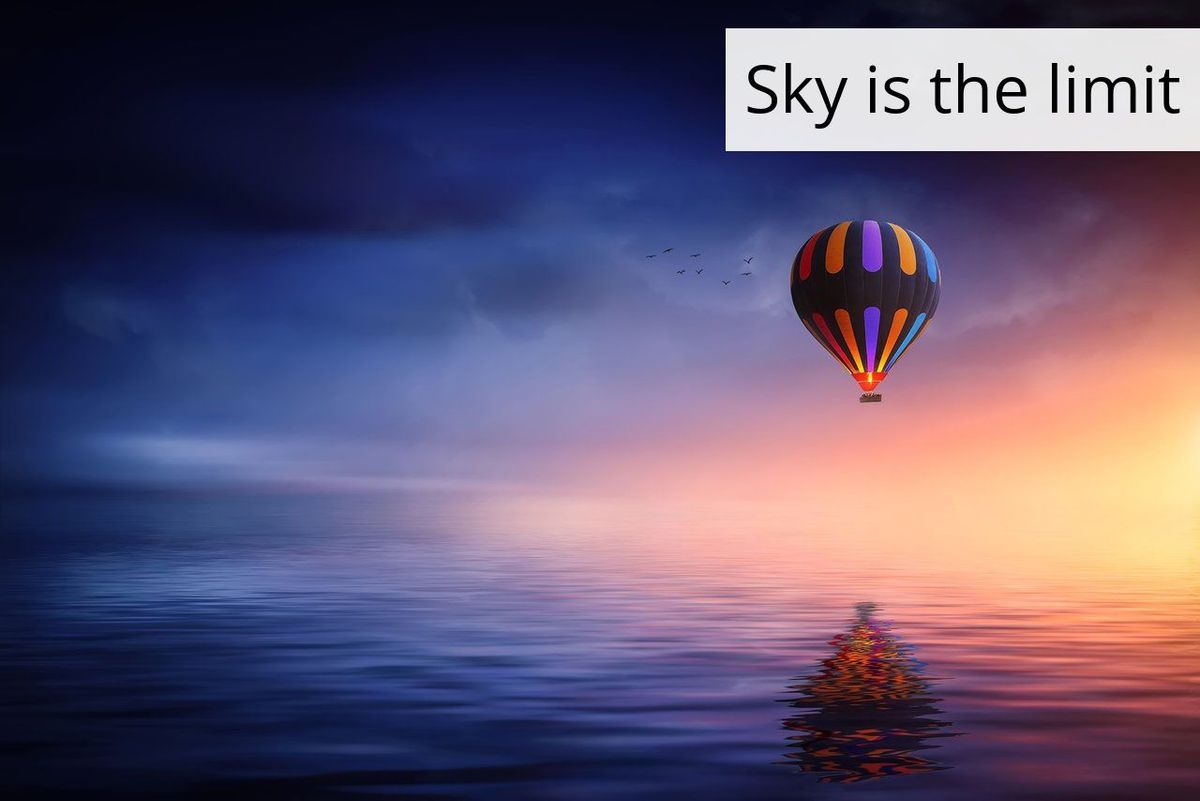
You can generate photo collage in Java using the same methods. Learn more about how to create a photo collage using ImageKit.
You can use Java SDK to simplify URL generation in your backend application.
List<Map<String, String>> transformation = new ArrayList<Map<String, String>>();
Map<String, String> overlayUsingRaw = new HashMap<>();
overlayUsingRaw.put("raw","l-text,i-Sky is the limit,bg-FFFFFF90,pa-20,fs-70,co-00000,lx-N0,ly-30,l-end");
transformation.add(overlayUsingRaw);

Map<String, Object> options = new HashMap();
options.put("urlEndpoint","https://ik.imagekit.io/ikmedia/");
options.put("path","/backlit.jpg");
options.put("transformation", transformation);

String url = ImageKit.getInstance().getUrl(options);
// https://ik.imagekit.io/ikmedia/backlit.jpg?tr=l-text,i-Sky is the limit,bg-FFFFFF90,pa-20,fs-70,co-00000,lx-N0,ly-30,l-end
Generating encrypted secured image URLs in Java
At times, you might want to secure access to your media assets to limit misuse. Or you might want to set a time-based expiry on the image URLs to make it hard for web scarpers to use your image URLs.
To solve this, you can create signed image URLs in your backend application written in Java. A signed URL is a secure URL that can be generated only by you using your account's private key.
For example, let’s create a signed URL that expires in 300 seconds with the default URL endpoint and other query parameters:
List<Map<String, String>> transformation=new ArrayList<Map<String, String>>();
Map<String, String> scale=new HashMap<>();
scale.put("height","600");
scale.put("width","400");

transformation.add(format);

Map<String, Object> options=new HashMap();
options.put("path","/default-image.jpg");
options.put("signed",true);
options.put("expireSeconds",300);
String url = ImageKit.getInstance().getUrl(options);
// https://ik.imagekit.io/your_imagekit_id/tr:h-600,w-400/default-image.jpg?ik-t=1567358667&ik-s=f2c7cdacbe7707b71a83d49cf1c6110e3d701054&ik-sdk-version=java-VERSION
If someone tries to modify the image transformation or use it beyond its intended expiry time of 300 seconds, a 401 Unauthorised response is returned instead of the image.
Converting image format in Java
In Java, you can convert image format using write() function provided by the class ImageIO under javax.imageio package. The supported output formats are JPG, JPEG, PNG, BMP, WBMP, and GIF.
However, you will have to deal with low-level file operations and image buffer. There is a different and easy way to convert image format in Java. Using an image CDN like ImageKit, you can easily convert image format using URL based transformation.
For example - The actual format of the following image is JPG.
https://ik.imagekit.io/ikmedia/woman.jpgYou can convert it to PNG using tr=f-png transformation.
https://ik.imagekit.io/ikmedia/woman.jpg?tr=f-pngYou can covert it to WebP using tr=f-webp
https://ik.imagekit.io/ikmedia/woman.jpg?tr=f-webpImageKit also offers features such as automatic best format selection, quality optimization, and metadata manipulation out of the box. This reduces the final size of the output image and improves your website's images load time while maintaining visual quality.
Summary
Here is what you need to know:
- If you only have a handful of images, use Java’s native image manipulation using the native Java ImageIO class.
- If you need easy to use image resizing capabilities, go for a free image CDN like ImageKit.io. With a forever free plan, you get 20GB of viewing bandwidth every month. It is sufficient for small scale businesses.