






Azure Blob Storage is the object storage offering in the cloud computing services offered by Microsoft Azure. It is a massively scalable, high-availability storage in the cloud to store data and files.
Like its competitors, AWS's S3 and Google's Cloud Storage, Blob Storage provides enterprise-grade object storage features and is available in multiple regions across the globe. However, it has some drawbacks related to image delivery.
- It does not provide image optimization features like format conversion to WebP or AVIF out of the box.
- It does not offer image compression that's essential for delivery on the web.
- It does not offer real-time image manipulations to allow responsive images across different devices or any other transformation.

However, online businesses cannot function without these basic image optimization and processing features in place. While there are ways available to optimize and transform images in Blob Storage, most of them either rely on processing the image before uploading to the storage or on setting up your own servers and your image processing pipeline.
This is not the best use of your team's time, given all the core product-related features in their pipelines.
That's where a solution like ImageKit comes in. It integrates directly with your Azure Blob Storage and can deliver perfectly optimized, responsive images across devices in minutes. You can get started for free on the forever free plan on ImageKit!
Read on to see how you can do this.
What is ImageKit?
ImageKit is a cloud-based end-to-end image management and delivery service. It comes with in-built storage and delivery CDN, with automatic optimizations and more than 50 image and video transformations that can be performed in real-time.
Note: ImageKit comes with AWS CloudFront as its CDN out of the box. If you prefer using your own CDN like the Azure CDN with ImageKit, you can do so on its enterprise plan with assistance provided by ImageKit's support team. The features and integration with Blob Storage demonstrated in this post remain the same, regardless of the CDN you choose.
The good thing about ImageKit is that you can use all its optimization and transformation features while storing the original images in your Azure Blob Storage. This means minimal changes to your workflow while still getting best-in-class image delivery features in minutes.
Over 35,000 developers and 600 companies use ImageKit to deliver billions of optimized images and videos every day. Let's look at how you can use it with your Azure Blob storage.
Request flow for optimized images in Blob Storage with ImageKit
After attaching your Blob Storage to ImageKit, you can access the image in it using the ImageKit URL endpoint.
If ImageKit has a cached version of the image on its CDN or other internal caches, it delivers the image from there. Such images get delivered in low double-digit milliseconds.
Suppose ImageKit does not have the optimized and transformed image in its cache. In that case, ImageKit gets the original image from the storage attached to ImageKit, does all the processing in real-time, and sends back the right image to the user. This takes about 100-200ms on average, depending on the input image.
Subsequent requests for the same image get served from ImageKit's CDN (or if you are using a custom CDN).

Integrating Azure Blob Storage with ImageKit
Let's look at the steps you need to follow to optimize and resize the images in your Blob Storage via ImageKit.
Considering the rapidly changing features in both ImageKit and Azure Cloud. Always refer to the current technical documentation for this integration here.
We have created a storage account called testimagekit in Blob Storage. The access on this storage account is Private, i.e., we cannot access anything inside this account via public URLs. Inside this storage account is a container called ikcontainer . We have uploaded a few images to this container.
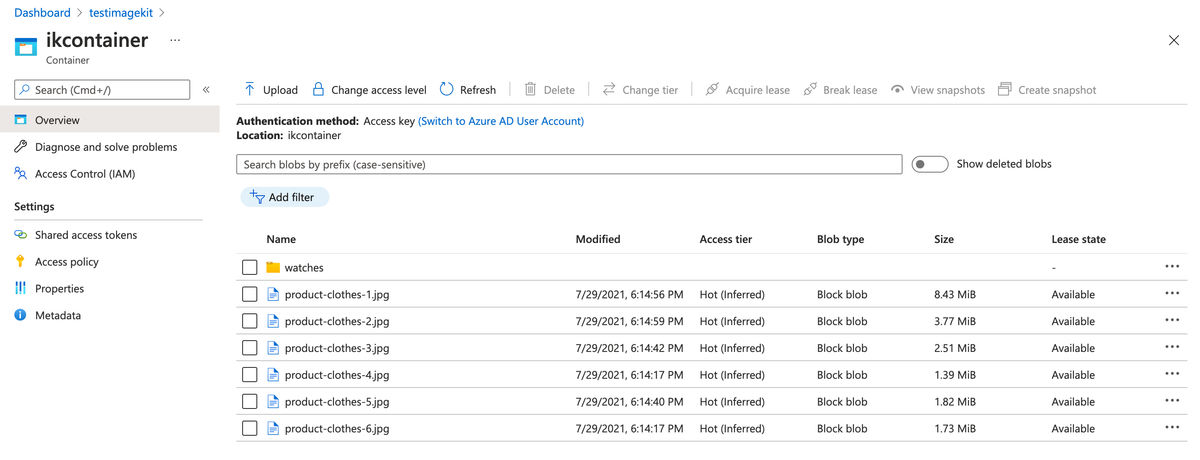
By the end of this article, we would be able to deliver high-quality, responsive images across devices using the original image stored in this storage.
1. Create an ImageKit Account
Go ahead and create an ImageKit account. The Forever Free plan comes with all the image optimization and transformation features, along with 20GB of delivery bandwidth every month. This would be sufficient for small websites. You can always go for higher plans if your delivery bandwidth requirement is higher than 20GB in a month.
ImageKit offers seven processing regions across the globe for optimization. You should choose the one that is geographically closest to your storage account location in the Azure cloud.
2. Creating a shared access key to access the objects in the storage account
Since the images added to our storage account are private, we cannot access them via the object's URL. We need to create access keys in our storage account that will have access to read the files in our container.
Note: If the objects in your bucket are public, i.e., you can access them via their URL, you can also use ImageKit's Web Server origin integration to attach your Blob Storage to ImageKit.
a. Creating a Shared Access Signature in the storage account
We need to create a shared access signature (SAS) with read-only access on the containers in our storage account. To do this, click on the corresponding option in the menu on the left, and create a new signature. The settings would look as shown below.
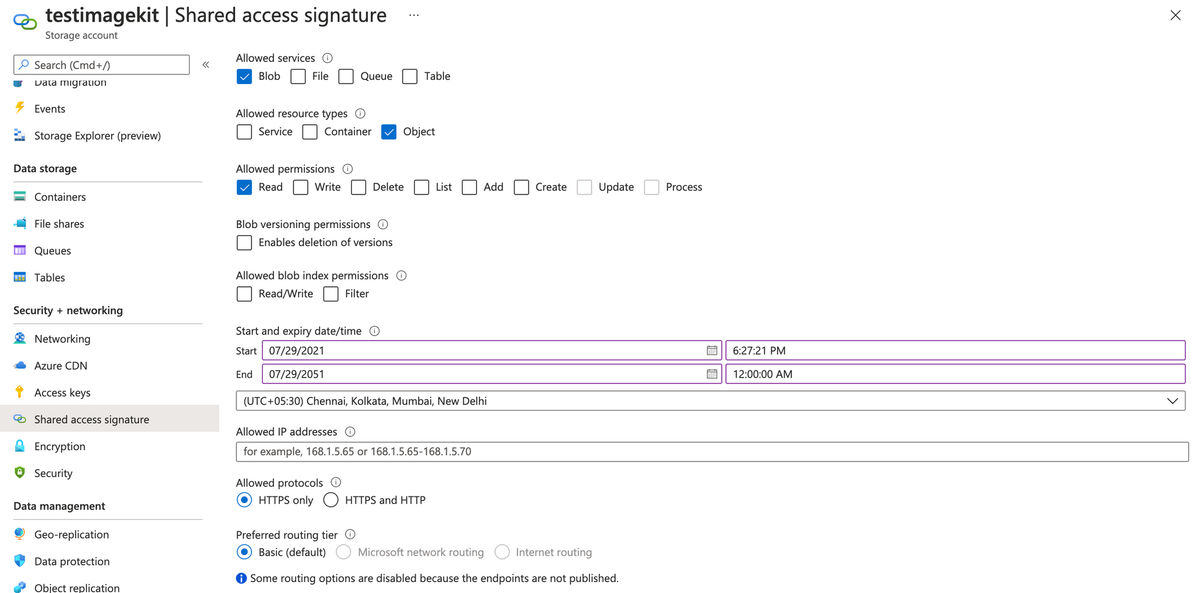
The shared access signature needs an expiry time as well. We should specify something that is practically infinite. In the example above, we are setting the expiry to 30 years from now.
Once you click on Generate SAS token button, you will be shown the generated SAS token, amongst other things, as shown below. Copy its value as we will be using it to integrate our storage container to ImageKit.
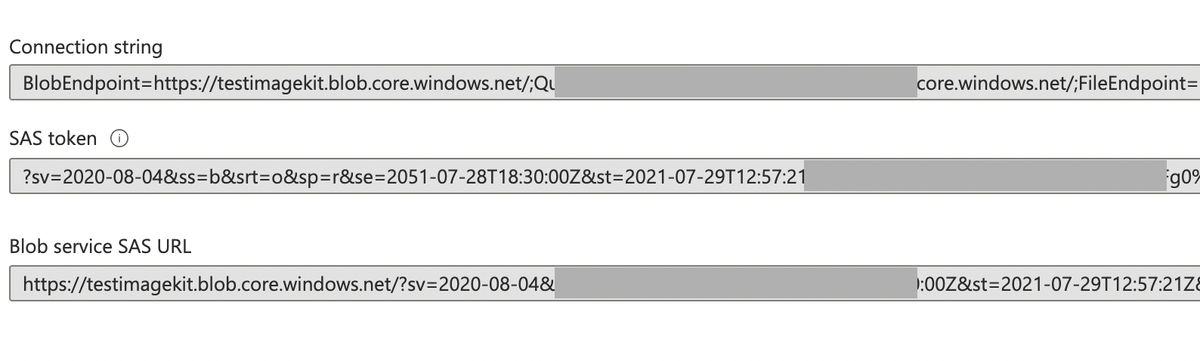
Note: For simplicity, we have generated an account-level Shared Access Signature. Please refer to the official Azure documentation here to generate a service SAS or a user-delegated SAS.
3. Attaching your Blob Storage to ImageKit
The next step is to attach your Blob Storage container to ImageKit. This will allow ImageKit to access the original images from your container when needed.
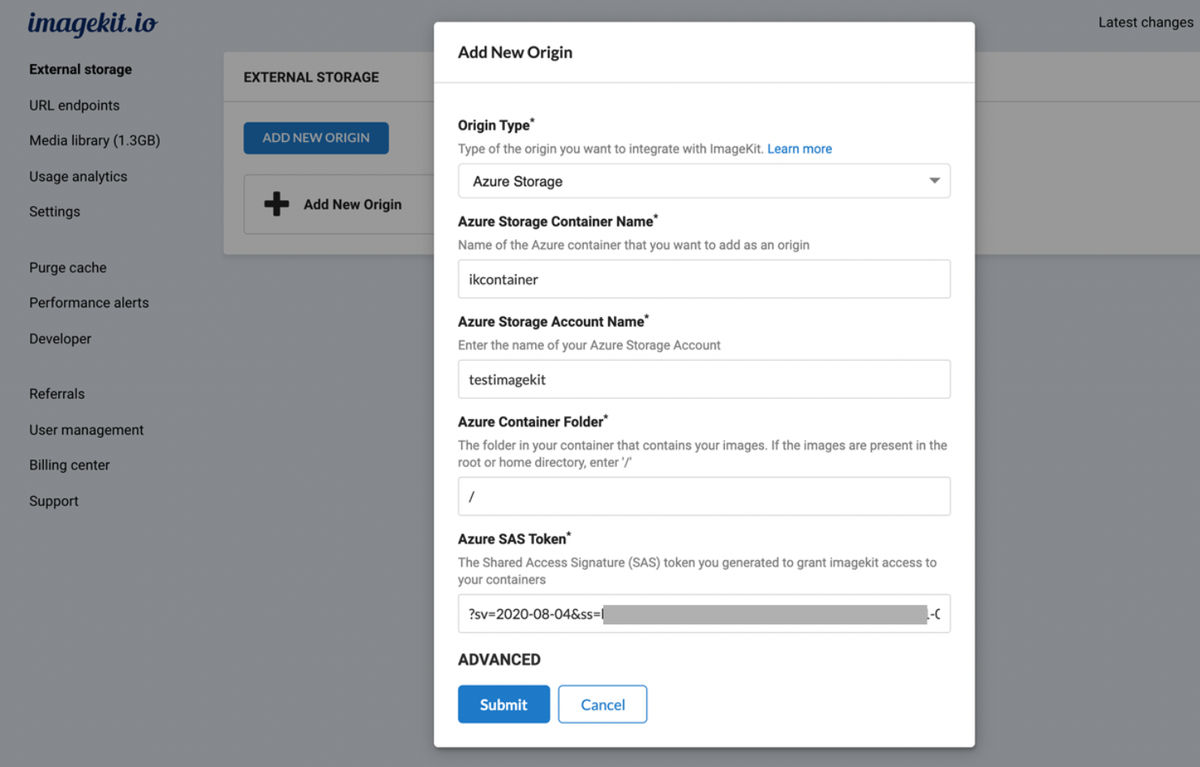
To do this, go to the “External Storage” page in the ImageKit dashboard and click on the “Add New Origin” button. In the modal that opens up, select the “Origin Type" as “Azure Storage”.
You can now fill up all the other fields in this modal like the Container Name, Account Name, Container Folder (the folder you want to access in the bucket, we will use / because we want to access the entire bucket). Paste the value of the SAS token generated in the previous step in the corresponding field. Once done, click on "Submit" to add this container to ImageKit.
ImageKit does not start copying the objects from your container after this step. ImageKit accesses an object only when you request it via its ImageKit URL.
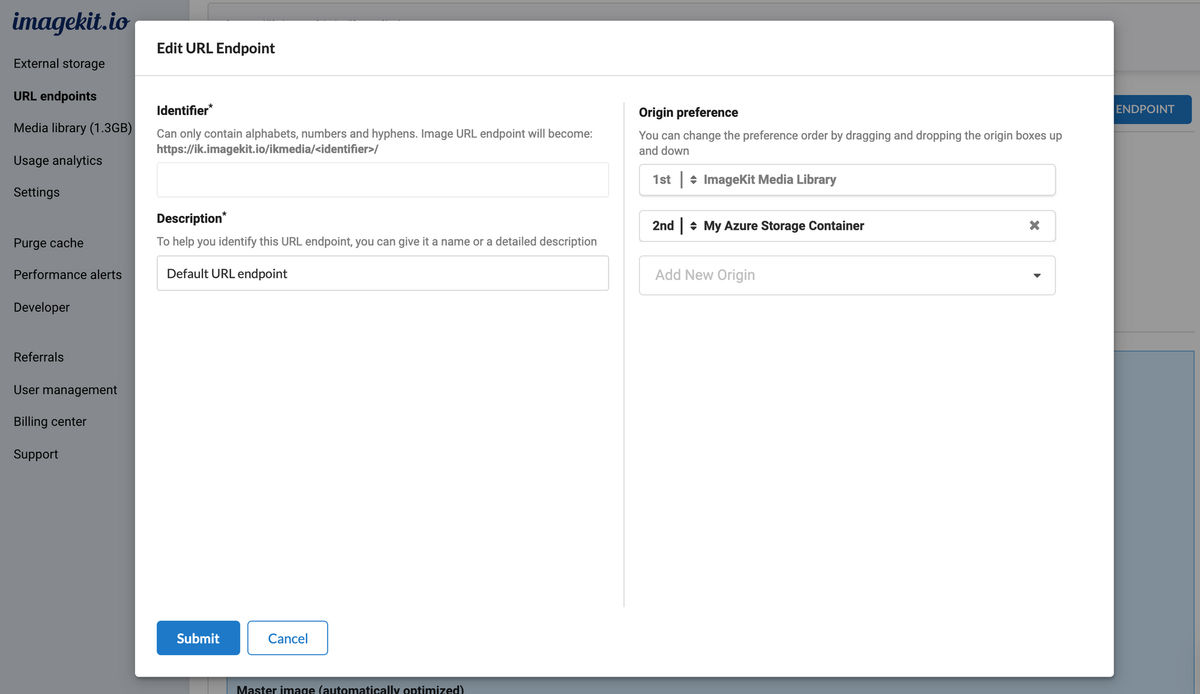
Now head over to the “URL Endpoints” section in the ImageKit dashboard. Your newly added Blob Storage origin will appear under the Default URL Endpoint. If not, you can always click on Edit URL Endpoint, and add this origin to your ImageKit URL Endpoint.
That's it! The setup is now complete.
We can now start accessing the images in our Blob Storage via ImageKit. We provided access to the entire container (using Bucket Folder as /), so we need to replace the container's URL endpoint with the ImageKit URL endpoint.
https://testimagekit.blob.core.windows.net/ikcontainer/product-clothes-4.jpgThe Blob Storage object URL from our bucket
gets changed to
https://ik.imagekit.io/ikmedia/product-clothes-4.jpgURL using ImageKit URL endpoint
For an image inside a folder in the container, we need to retain the folder path in the ImageKit URL. For example, if the original image URL is this
https://testimagekit.blob.core.windows.net/ikcontainer/watches/product-watch-1.jpgthen its ImageKit URL is
https://ik.imagekit.io/ikmedia/watches/product-watch-1.jpgAutomatic image optimization for Azure Blob Storage
ImageKit uses existing web standards to determine the formats supported on the requesting device. If the device supports a newer format like WebP or AVIF, ImageKit automatically converts your images to the best possible format. It also compresses the image using the quality optimization setting in your ImageKit dashboard.
These automatic optimizations ensure that every device gets the right image, and we don't have to get into the technical details!
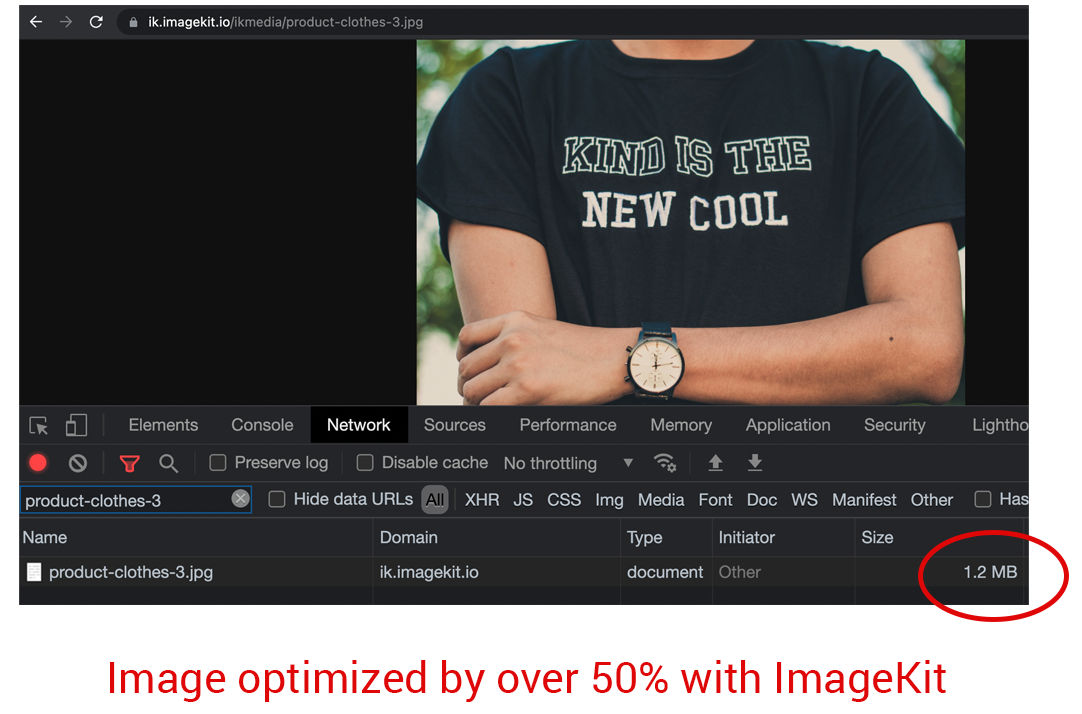
For example, the original image product-clothes-3.jpg in the storage was 2.5MB in size.
When we access it via ImageKit, the image gets converted to WebP on a supported browser, and the size comes down to 1.2MB. That's over a 50% reduction in size without making any other change to the URL.
If we convert the image to AVIF (via URL parameters or automatic conversion in ImageKit), then the output image would be just 641KB in size. A massive 75% reduction in size!
Real-time image resizing and other transformations for Blob Storage
ImageKit allows us to add transformation parameters directly to the image URL to get the transformed image in real-time. For example, if we have to resize the above image to width 300px, we just need to add tr=w-300 as a query parameter in our URL.
https://ik.imagekit.io/ikmedia/product-clothes-3.jpg?tr=w-300
Need a 300 x 400 image? It should not be a problem with ImageKit's resizing parameters.
https://ik.imagekit.io/ikmedia/product-clothes-3.jpg?tr=w-300,h-400
Like the examples above, ImageKit offers over 50 different transformations. From simple crop and resize to more complex operations like watermarking images, smart cropping, blurring, background change, etc. We can do everything in real-time.
Using these transformations, we can now deliver perfect responsive images to every user, ensuring excellent performance across devices.
<img srcset="https://ik.imagekit.io/ikmedia/product-clothes-3.jpg?tr=w-300 300w,
	  https://ik.imagekit.io/ikmedia/product-clothes-3.jpg?tr=w-600 600w,
          https://ik.imagekit.io/ikmedia/product-clothes-3.jpg?tr=w-900 900w"
     sizes="(max-width: 480px) 300px, 50vw" />
Example of a responsive image tag
Using the image and text overlay transformations, we can generate rich contextual images and dynamic banners in real-time. In the image below, we have added ImageKit's logo and the product's price as text on an image of a shoe. This is done using the URL-based transformation parameters. You can see the transformed image URL here.

Here is a video demonstrating some of the transformations available in ImageKit.
Improving page speed scores for images in Azure Blob Storage
All popular web performance measurement tools, including Lighthouse, PageSpeed, Web Page Test, etc., measure image optimization and delivery performance in their reports. If we do not resolve these issues, our website's performance is affected, and therefore, the SEO and UX on our web page suffer.
With ImageKit's automatic format optimizations and compression, and the ability to resize and transform images in real-time, we can now resolve all such performance issues related to images.
A better score in the performance tests helps you improve your SEO rankings and the user experience you deliver to your customers. And we get this with minimal effort or change to our workflow.
Get started with ImageKit now!
ImageKit's Forever Free plan comes with 20GB of output bandwidth every month, absolutely free. It can be integrated with your Blob Storage container in minutes and has all the image optimization and transformation features you need to deliver the right images across devices.
Sign up now and start delivering perfectly optimized images on your websites and apps.