
惯性聚合 高效追踪和阅读你感兴趣的博客、新闻、科技资讯
阅读原文 在惯性聚合中打开

推荐订阅源

Vercel News
Vercel News
Recorded Future
Recorded Future
CTFtime.org: upcoming CTF events
The GitHub Blog
The GitHub Blog
Application and Cybersecurity Blog
Google DeepMind News
cs.AI updates on arXiv.org
Microsoft Azure Blog
K
KPMG report finds enterprise disconnect between AI and its ROI | CIO
M
MIT News - Artificial intelligence
云风的 BLOG
云风的 BLOG
Y
Y Combinator Blog
N
News | PayPal Newsroom
freeCodeCamp Programming Tutorials: Python, JavaScript, Git & More
Help Net Security
Help Net Security
博客园 - Franky
SecWiki News
SecWiki News
Recent Announcements
T
Troy Hunt's Blog
The Register - Security
The Last Watchdog
The Last Watchdog
Webroot Blog
Webroot Blog
S
Security Affairs
博客园 - 司徒正美
S
Schneier on Security
I
InfoQ
博客园_首页
www.infosecurity-magazine.com
T
Threat Research - Cisco Blogs
Forbes - Security
Forbes - Security
腾讯CDC
N
Netflix TechBlog - Medium
N
News and Events Feed by Topic
Cloudbric
Cloudbric
T
The Exploit Database - CXSecurity.com
P
Proofpoint News Feed
A
About on SuperTechFans
Engineering at Meta
Engineering at Meta
Recent Commits to openclaw:main
B
Blog
V
Vulnerabilities – Threatpost
C
Check Point Blog
Google DeepMind News
Google Online Security Blog
C
Cyber Attacks, Cyber Crime and Cyber Security
Hacker News - Newest:
Hacker News - Newest: "LLM"
C
Cisco Blogs
Schneier on Security
O
OpenAI News
K
Kaspersky official blog

NetBird - Networking Knowledge Hub - RSS Feed

NetBird Is Now on the Vultr Marketplace Native NetBird on the GL.iNet Comet Pro (GL-RM10) NetBird v0.71 - IPv6 Overlay Addressing NetBird Exit Nodes - Appear at Home, or Anywhere Else Reporting Bugs and Requesting Features in NetBird Setup and Use Local AdGuard Home Anywhere with NetBird DNS How to Set Up NetBird on PiKVM for Secure Remote KVM Access NetBird v0.69 - CrowdSec IP Reputation for the Reverse Proxy Cloudflare Mesh vs NetBird vs Tailscale: Performance Compared Self-Hosting Nextcloud with Docker and NetBird Implementing Zero Trust with NetBird NetBird v0.67 - Layer 4 Proxy Support for TCP, UDP, and TLS Solwr Enhances Remote Connectivity with NetBird Self-Hosting NetBird with Authentik Jellyfin Media Server - Self-Host Your Movies, TV, and Music Cloudflare Tunnels vs. NetBird Reverse Proxy INFITX Builds Zero-Touch Kubernetes Networking with NetBird NetBird v0.66 - Expose Local Services to the Internet from the CLI Pangolin vs. NetBird Home Assistant Setup Guide with EASY Remote Access NetBird v0.65 - Built-in Reverse Proxy with Custom Domains Docker for Beginners - Everything You Need to Get Started NetBird for SOC 2 Compliance NetBird v0.63 - Custom DNS Zones for Private Network Resolution Vibecode This in a Weekend and Take 5% of the Company NetBird v0.62 - Built-in Local Users with Optional IdP Integration NetBird v0.61.0 - Granular SSH Access Control and Automatic Updates Top 5 Alternatives to OpenVPN Top 5 Open Source Alternatives to Tailscale Top 5 Alternatives to ZeroTier How to Set Up ZeroByte and REST Server for Backups with NetBird How to Install n8n v2.0 with NPM and PM2 ZeroTier vs. NetBird The Ultimate Immich Guide - Ditch Google and Amazon Photos for Good NetBird as Your Help with ISO 27001 Compliance NetBird and Huntress - Secure Network Access for MSPs netgo Relies on Modern ZTNA with NetBird Connect to Your Homelab from Anywhere with a Raspberry Pi NetBird SSH - A New, Identity-Aware Approach The AI Mega Mesh: How to Connect 30+ GPU Cloud Providers Connect Multiple Ollama GPUs to OpenWebUI with NetBird Top 5 Tailscale Alternatives SSH and RDP, now in your browser NetBird–Acronis Integration: Empowering MSPs for Advanced Ransomware and Threat Defense Introducing the Control Center - Remote Access, Beautifully Visualized NetBird at MSP Global 2025 Understanding Overlay Networks - The Basics NetBird and SentinelOne Singularity™ - Automate Threat Response NetBird and Microsoft Intune - Enforcing Device Compliance for Zero Trust Rethinking Zero Trust Security with NetBird and pfSense Improving Unidirectional Access Control Proxmox VE for Beginners Guide with NetBird LXC Stronger Security: NetBird + GitHub Secure Open Source Fund NetBird's MSP Partner Program Signicat Enhances Cross-Cloud Accessibility with NetBird SonicWall SSL VPN NetExtender vs. NetBird NetBird Is Embracing the AGPLv3 License NetBird Profiles Have Landed - Manage Multiple Accounts Effortlessly Rethinking Access Control to Secure Your On-Premises SharePoint Servers Sport Alliance Increases Efficiency with Zero Trust Networking at Scale Rethinking Network Access: qwertiko Goes Zero Trust with NetBird Optimizing Network Efficiency with NetBird's Lazy Connections Use Port Ranges in Access Control Policies Generic HTTP Endpoint for Network Events Streaming NetBird’s Response to Spear-Phishing Campaign Targeting Financial Executives Zero-Trust Access to Internal Resources Without Installing Agents Enhance Network Visibility with NetBird’s Traffic Events Logging TrueNAS Made Easy - Install, Set Up, and Access From Anywhere Top 5 Alternatives for WireGuard Jump Hosts. Gateways for Remote Access NetBird Network Routes and Exit Nodes Security for All - SSO and MFA for Free Enhancing Network Access Control with NetBird's Identity Provider Feature Twingate vs. NetBird Limit Network Access Based on Running Applications FortiClient ZTNA vs. NetBird OpenVPN vs. NetBird Tailscale vs. NetBird Getting Started with an Azure Site-to-Site VPN Getting Started with an On-premise-to-AWS Site-to-Site VPN Secure Remote Access to VPCs, LANs, and Offices regreSSHion - A New OpenSSH Server Remote Code Execution Vulnerability Evolve Bank & Trust Data Breach. What Happened? What Is a Site-to-Site VPN? IPSec Tunneling Demystified. Enhancing Data Security Across Networks Understanding IPSec Tunnel and Transport Modes Understanding the Differences Between IKEv1 and IKEv2 Understanding the IKEv1 Protocol in IPSec ZeroTier versus NetBird - Which Should You Choose? AWS Lambda Serverless Security. Mistakes, Oversights, and Potential Vulnerabilities Using NetBird for Kubernetes Access Serverless Security Vulnerabilities and Best Practices to Mitigate Them Security Best Practices for Serverless Azure Functions A Guide to Remote Access Security for SMEs IoT Security Essentials. How to Achieve Secure Remote Access Open Source Zero Trust Networking Using SSH for Secure Remote Access How We Integrated Rosenpass in NetBird The First Quantum-Resistant Mesh VPN Using eBPF and XDP to Share Default DNS Port Between Multiple Resolvers
How to Access Windows Shares from Anywhere with NetBird
Written byBrandon Hopkins · 2025-12-03 · via NetBird - Networking Knowledge Hub - RSS Feed

How to Access Windows Shared Folders from Anywhere with NetBird

Accessing files on a Windows machine remotely typically requires exposing ports to the internet, setting up a traditional VPN, or relying on third-party cloud sync services. This can introduce security risks, configuration complexity, or dependency on external platforms.

NetBird offers a different approach. By creating a WireGuard-based mesh network with zero-trust access controls, you can securely access your Windows file shares from anywhere without opening ports or exposing services to the public internet.

This guide covers two methods for remote file share access:

  • Direct peer-to-peer: Install NetBird on both the Windows host and your client device for end-to-end encrypted access
  • Routing peer: Use an existing NetBird node (like a Raspberry Pi) to route traffic to Windows machines on your LAN without installing NetBird on each one

Prerequisites

  • A Windows machine with files you want to share
  • A NetBird account (free tier available at netbird.io )
  • For the routing peer method: a device on the same network as the Windows machine with NetBird installed

Understanding SMB and Port Requirements

Windows file sharing uses the Server Message Block (SMB) protocol over TCP port 445. When configuring NetBird access policies later in this guide, you'll restrict access to this specific port rather than allowing all traffic between peers.

Legacy Windows systems may also use port 139 (NetBIOS), but modern Windows networking relies primarily on port 445.

Before setting up NetBird, configure the folder you want to share on your Windows machine.
Step 1: Enable File Sharing

  1. Open Settings → Network & Internet → Advanced network settings
  2. Click Advanced sharing settings
  3. Under your current network profile, enable:
    • Network discovery
    • File and printer sharing

Step 2: Share a Folder

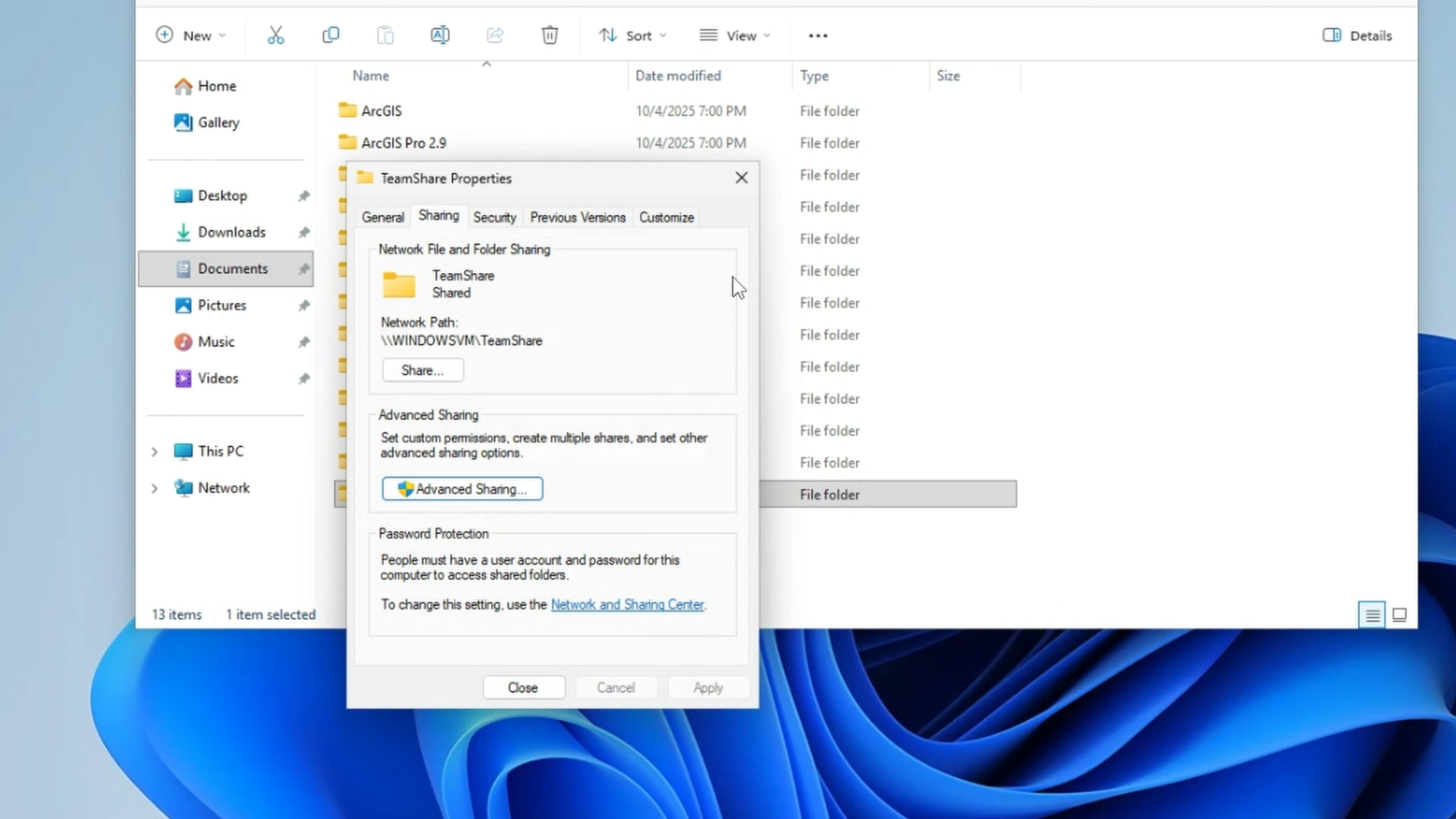
Sharing Windows Folders

  1. Right-click the folder you want to share and select Properties
  2. Navigate to the Sharing tab
  3. Click Share...
  4. Add users who should have access.
  5. Set permission levels (Read or Read/Write)
  6. Click Share and note the network path displayed (e.g., )

Step 3: Note Your Computer Name or IP

You'll need either:

  • The computer name shown in the share path
  • The local IP address (run in Command Prompt and look for your IPv4 address)

For the direct peer-to-peer method, you'll use the NetBird-assigned IP instead. For the routing peer method, you'll use the local LAN IP.

Direct Peer-to-Peer Method

This method installs NetBird directly on the Windows machine hosting the share. Both devices connect through an encrypted WireGuard tunnel with no intermediary.

Step 1: Install NetBird on Windows

  1. Log in to your NetBird dashboard at app.netbird.io
  2. Navigate to the installation page or download the Windows installer directly
  3. Run the installer and complete the setup
  4. Click the NetBird icon in the system tray and select Connect
  5. Complete authentication in your browser

Once connected, your Windows machine appears in the NetBird dashboard under Peers. Note the assigned NetBird IP (typically in the range).

Step 2: Install NetBird on Your Client Device

Repeat the installation process on the device you'll use to access the share remotely:


For platform-specific instructions, see the NetBird installation documentation .

Step 3: Create an Access Policy

By default, NetBird creates a permissive policy allowing all peers to communicate. For better security, create a specific policy for file share access. Learn more about groups and access policies .
smb-share-policy.png

  1. In the NetBird dashboard, go to Access Control → Groups
  2. Create two groups:
    • — for your Windows machine
    • — for devices that should access the share
  3. Assign your Windows peer to
  4. Assign your client devices to
  5. Navigate to Access Control → Policies
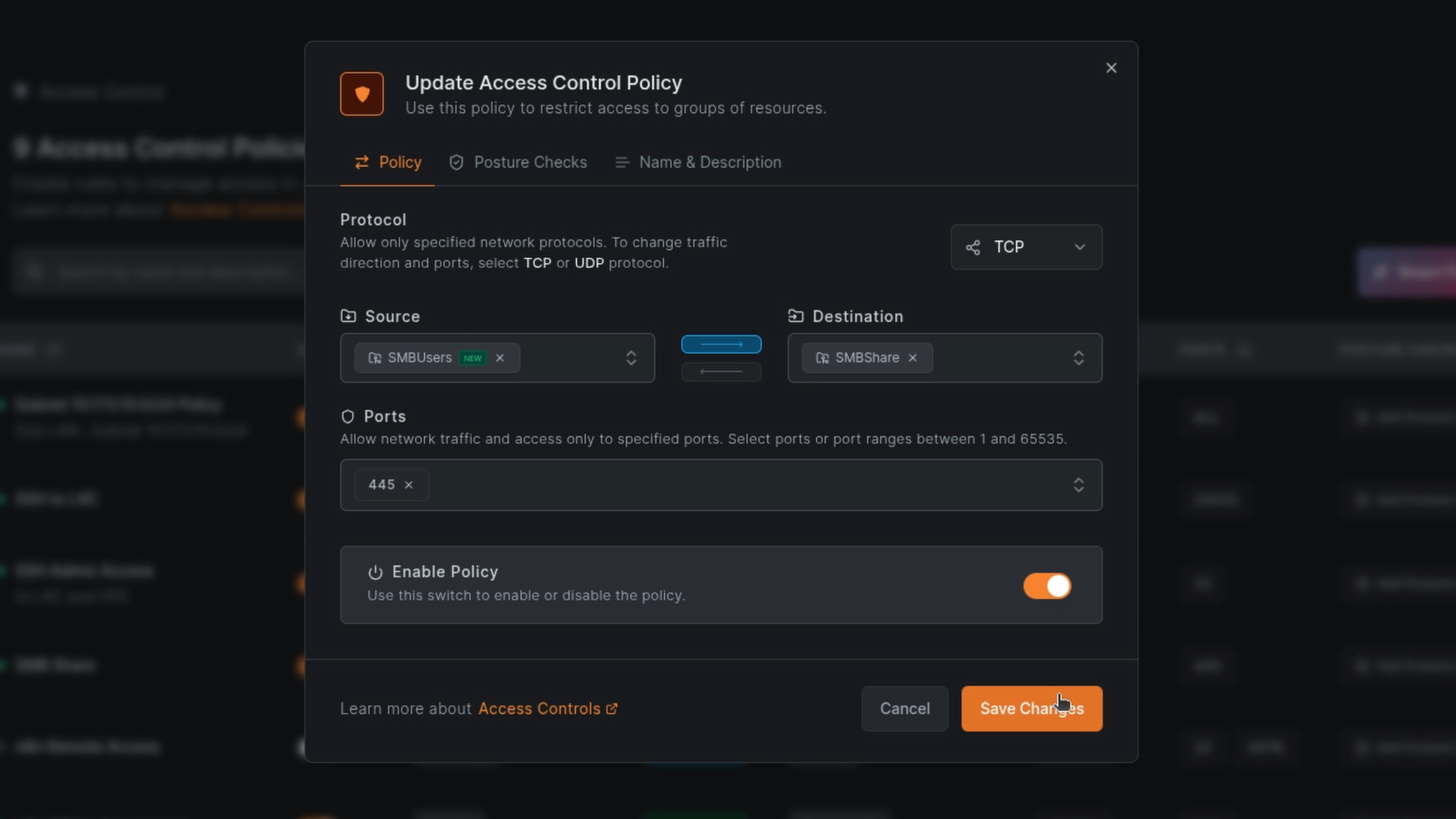
  6. Click Add Policy and configure:
    • Name: Windows File Share Access
    • Source:
    • Destination:
    • Protocol: TCP
    • Port: 445
    • Direction: Source → Destination (unidirectional)

This policy allows only devices in the clients group to initiate SMB connections to the Windows host. The Windows machine cannot initiate connections back to client devices on this port.

Step 4: Access the Share

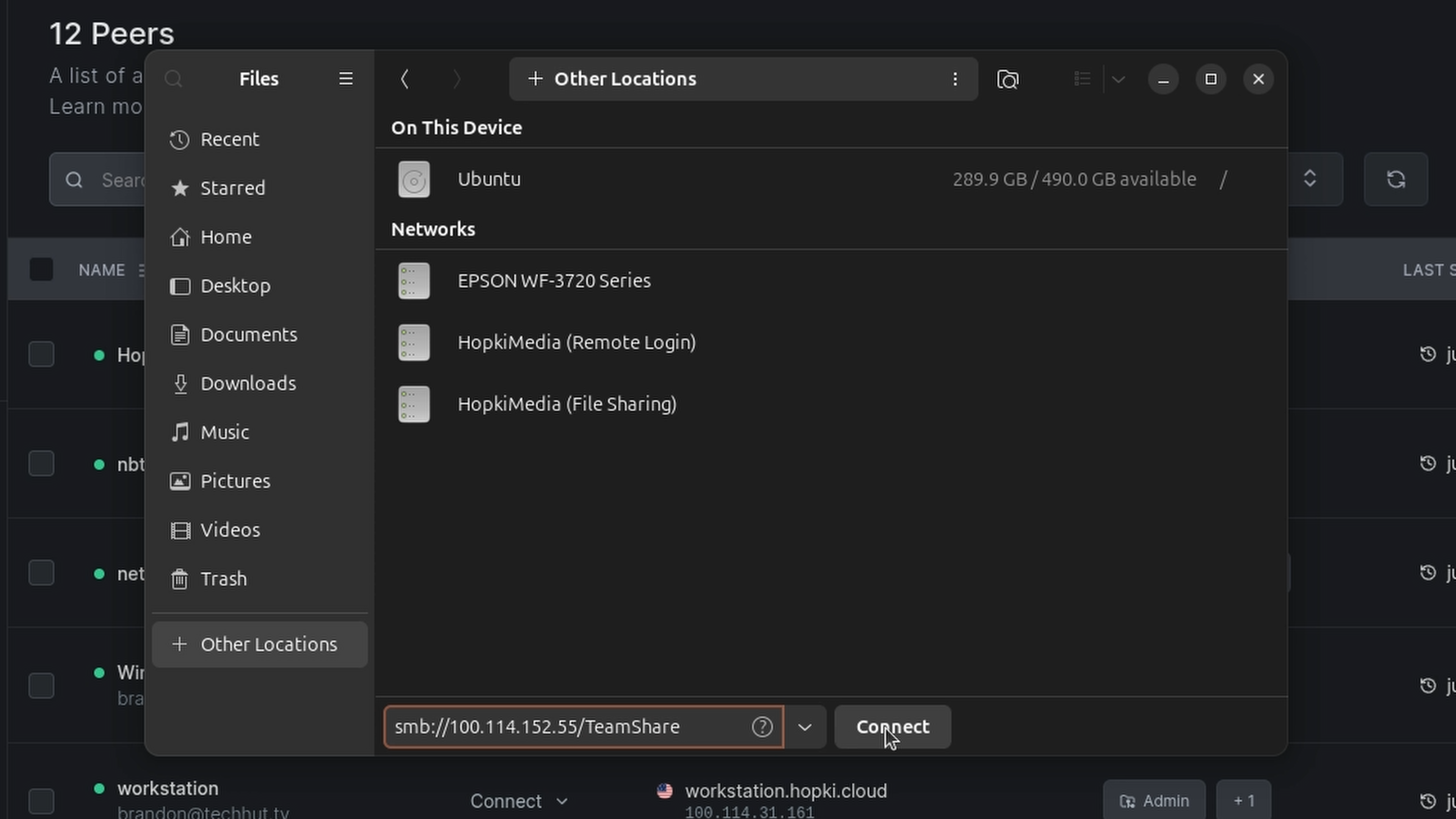
From your client device, connect to the share using the Windows machine's NetBird IP (not its local LAN IP):

Windows client:


Or open File Explorer and type the path in the address bar.

macOS:

  1. Open Finder
  2. Press or go to Go → Connect to Server
  3. Enter:
  4. Enter credentials when prompted

Linux:


Replace with your Windows machine's actual NetBird IP shown in the dashboard.
smb-netbird-ip-linux.png

Routing Peer Method

If you already have a NetBird node running on your network, you can use it as a routing peer to access resources on your LAN without installing NetBird on each machine.

This approach is useful when:

  • You want to access multiple devices without individual NetBird installations
  • You can't or prefer not to install software on the Windows machine
  • You're managing a homelab with many resources

How It Works

The routing peer sits on your LAN and advertises a route to your local subnet through NetBird. When a remote client wants to access (your Windows machine's LAN IP), traffic flows:

  1. Client → NetBird tunnel → Routing peer
  2. Routing peer → Local network → Windows machine

The Windows machine sees connections coming from the routing peer's LAN IP, not from NetBird IPs.

Step 1: Set Up the Routing Peer

If you don't already have a NetBird peer on your network, check out the installation documentation . Then login with SSO or generate a setup key from the NetBird dashboard under Setup Keys for headless installation.

Step 2: Create a Network

NetBird's Networks feature (available in version 0.35.0+) replaces the older Network Routes and provides better resource management.

  1. In the NetBird dashboard, go to Networks
  2. Click Add Network
  3. Enter a name (e.g., "Home LAN")
  4. Click Add Resource:
    • Name: Home Subnet
    • Address: Your LAN CIDR (e.g., )
    • Group: Create or select a destination group (e.g., )
  5. Click Add Routing Peer:
    • Select your Linux device
    • Enable Masquerade (recommended—hides NetBird IPs behind the routing peer's local address)

Step 3: Create an Access Policy for the Network

  1. Go to Access Control → Policies
  2. Click Add Policy:
    • Name: Home LAN SMB Access
    • Source: Your client devices group
    • Destination: (the group assigned to your network resource)
    • Protocol: TCP
    • Port: 445

Step 4: Access the Share

From your remote client device (connected to NetBird), access the Windows share using its local LAN IP:

Windows client:


macOS:


Linux:


The routing peer handles forwarding traffic between the NetBird mesh and your local network.

Windows Considerations for Always-On Access

Unlike a dedicated server, a typical Windows desktop may enter sleep or hibernation mode after periods of inactivity. When the machine suspends, the network adapter powers down and your shared folders become inaccessible—even though NetBird remains configured correctly.

If you need reliable, always-available access to your Windows file shares, consider these adjustments to keep the machine running like a server.

Disable Sleep and Hibernation

Open Settings → System → Power & battery (or Power Options in Control Panel) and set the following:

  • Screen: Turn off after your preferred time (this doesn't affect network availability)
  • Sleep: Set to Never when plugged in
  • Hibernate: Disable if enabled

For more granular control, open an elevated Command Prompt and run:


Use the High Performance Power Plan

Windows' balanced power plan may still aggressively sleep components. Switch to High Performance:

  1. Open Control Panel → Power Options
  2. Select High performance (you may need to click "Show additional plans")
  3. Click Change plan settings → Change advanced power settings
  4. Under Sleep, set all options to Never or 0
  5. Under USB settings, disable USB selective suspend
  6. Under PCI Express → Link State Power Management, set to Off

Prevent Network Adapter Sleep

Windows can power down network adapters to save energy, which kills remote connections:

  1. Open Device Manager
  2. Expand Network adapters and right-click your adapter
  3. Select Properties → Power Management
  4. Uncheck Allow the computer to turn off this device to save power

Repeat for both wired and wireless adapters if applicable.

Consider Wake-on-LAN (Optional)

If you'd rather let the machine sleep and wake it on demand, configure Wake-on-LAN (WoL):

  1. Enable WoL in your BIOS/UEFI settings
  2. In Device Manager → Network adapter → Properties → Advanced, enable:
    • Wake on Magic Packet
    • Wake on Pattern Match (optional)
  3. In the Power Management tab, check Allow this device to wake the computer

You can then send a magic packet from another device on your network (or through your routing peer) to wake the Windows machine. Note that WoL typically only works within the same broadcast domain, so the routing peer method is required if waking remotely through NetBird.

Keep the NetBird Service Running

The NetBird Windows client installs as a system service that starts automatically with Windows. Verify it's configured correctly:

  1. Press , type , and press Enter
  2. Find NetBird in the list
  3. Ensure Startup type is set to Automatic
  4. Verify Status shows Running

If the service stops unexpectedly, check the Windows Event Viewer for errors.

Security Considerations

Principle of Least Privilege

The access policies created in this guide restrict access to TCP port 445 only. Avoid using the default "All" policy in production environments, as it creates a full mesh where every peer can reach every other peer on all ports.

Posture Checks

NetBird supports posture checks that can enforce additional requirements before allowing connections, such as:

  • Operating system version
  • NetBird client version
  • Geographic location

Consider enabling posture checks for sensitive file shares.

Audit Logging

NetBird logs connection events in the dashboard. Review the activity logs periodically to identify unexpected access patterns.

Conclusion

NetBird provides a straightforward path to secure remote file access without the complexity of traditional VPNs or the exposure of port forwarding. The zero-trust policy model ensures only authorized devices can reach your resources.

For more advanced configurations, including DNS-based routing, high-availability setups with multiple routing peers, and integration with identity providers, consult the NetBird documentation .