


Sharing applications with the world is no easy task. Developers struggle to ensure compatibility across different platforms, vendors continually search for new channels to showcase and distribute their software, and users often encounter hurdles when installing and updating the applications. To help solve this challenge, Microsoft offers multiple solutions including its Microsoft Store, the native Windows Installer component (.msi packages), and a lesser-known but powerful option: ClickOnce technology.
ClickOnce is a deployment technology that enables developers to package and distribute applications that users can run, install, and automatically update with minimal interaction and without requiring administrative privileges. However, ClickOnce's user-friendly deployment process is a double-edged sword — while it simplifies software deployment for legitimate developers, it also provides threat actors with an easy way of spreading malware.
In this two-part series, we document — for the first time, to our knowledge — the internals of this little-documented technology and discuss its security implications. Part 1 examines how the technology works under the hood, from the publication of the app to its installation on the user endpoint. In Part 2, we focus on how threat actors can take advantage of ClickOnce apps. We summarize known weaponization methods, disclose what we believe to be a previously unknown abuse our research uncovered, discuss detection strategies, and demonstrate how the CrowdStrike Falcon® platform provides protection against these attacks in real-world environments.
Want to hear more? Come catch our talk at REcon 2026 in Montreal on June 19, where we'll walk through it all live.
ClickOnce is a “deployment technology,” which refers to the process of getting an application published with the ClickOnce technology to run and optionally install on a remote system. Its scope is therefore twofold: It provides developers with a streamlined way to distribute applications across different environments, and it offers users a standardized mechanism to execute (and optionally install) software.
The concept is pretty straightforward: Developers can share one of the ClickOnce deployment files, on which the user would only have to “click once” to deploy the application. These deployment files can be hosted on the vendor's website, where they introduce their app alongside an “Install” button. When clicked, the button triggers the download of the ClickOnce deployment file, and after some prerequisites are met, directly initiates the deployment. First, the OS asks for the user’s confirmation if the publisher’s signature cannot be verified, and upon confirmation, uses a standardized procedure to deploy the app alongside a dedicated wizard to keep the user informed of every step.
Figure 1. ClickOnce’s wizard
Microsoft engineered this technology to provide a user-friendly solution to install and update applications, with greater flexibility than traditional installation methods like MSI packages that require, among other things, elevated privileges.
Key features of ClickOnce include:
Before diving into how it works under the hood, let's clarify key terminology:
Let’s walk through the publishing process of a basic ClickOnce application to understand where the ClickOnce technology comes into play.
In Visual Studio, when a C# or a Visual Basic application is ready to be distributed, we can choose to "publish" our application instead of compiling it into an executable. A dedicated wizard then pops up to guide us in the configuration of the deployment parameters, where we can specify:
Figure 2. Visual Studio’s publish wizard
Upon successful publishing, we would see the following output generated:
Figure 3. Part of the files generated from the publishing of a ClickOnce app
This directory houses key files that drive different aspects of the ClickOnce deployment process. First listed is the .application file is known as the "ClickOnce deployment manifest." This is an XML-based file that holds various information about the application, the publisher, and the signature. It points to the resources required to start the deployment of the application it defines. When a user interacts with this file, it triggers the application’s deployment and sets the ClickOnce mechanisms in motion.
Alternatively, the deployment can be initiated by the second binary from the folder, "setup.exe," which acts as a standalone installer. This method differs from the one using the .application file through the components and mechanisms involved during the deployment. They represent two different options to start the deployment, which we'll detail in further sections.
Then, we have the "publish.htm," which is a default webpage allowing users to deploy a ClickOnce app from a browser. It contains basic information about the ClickOnce application, but more importantly, an "Install" button that links to the location of either the "setup.exe" installer or the ".application" file. This introduces an additional option to deploy an application: triggered when a user is requesting it from the browser instead of relying on local files.
Figure 5. publish.htm rendered in the Chrome browser
These three files belong to distinct deployment scenarios, which represent different ways an application can be deployed. While they differ in some ways, they can intertwine and it can be tricky to identify what happens under which deployment scenario. So let's examine the different scenarios and observe what happens within each of them.
As previously mentioned, clicking on a webpage’s button can trigger the download of either the .application manifest or the setup.exe binary to initiate the deployment. This path represents the first category of deployment scenarios: when ClickOnce apps are deployed from web browsers. Within this category, we distinguish two paths: when the deployment is initiated from Microsoft Edge (Scenario 1), or when the deployment is being requested from any other browser, such as Chrome (Scenario 2).
When the user clicks the "Install" button of a MSEdge’s webpage referencing a .application file, the browser downloads the deployment manifest and offers to "open" it to initiate the deployment.
Figure 6. Screenshot of an install from Edge
Upon confirmation, the browser launches a rundll32.exe process that acts as a COM client designed to request the deployment to a COM server. In such cases, rundll32.exe starts with the following command line:

Using the deployment manifest alongside dedicated libraries, rundll32.exe retrieves the resources required for the next steps and starts the "dfsvc.exe" binary. This process initializes the COM server responsible for receiving the deployment requests and ensures the deployment, eventually executing the ClickOnce application from a predefined location.
Figure 7. Deployment Scenario 1
If the ClickOnce application has been configured to be available "offline," the application is not only run but also installed on the system. This includes an additional step, where dfsvc.exe drops an application reference file, determined by a ".appref-ms" extension. This file contains a single line referencing the name of the application, and the location where it can be deployed from, alongside various metadata. For instance, the content of "MyApp.appref-ms" is:

This .appref-ms file is dropped in the "Start Menu" folder (by default %AppData%\Roaming\Microsoft\Windows\Start Menu) to provide a shortcut to start the app from the Windows menu, the interface listing the installed programs accessible from the taskbar. Let’s note the "Start Menu" should not be confused with the "Startup" directory, which contains the list of software to start upon the boot of the OS.
Figure 8. The .appref-ms file’s default location
A user clicking the "Install" button of the same "publish.htm" page from Scenario 1, but displayed in a browser other than MSEdge, triggers a different deployment scenario. With Chrome, for instance, instead of downloading the ClickOnce file and automatically launching rundll32.exe, Chrome only downloads the resource, and the user needs to manually click on the file to initiate deployment. The resource retrieved from the browser can be either the .application file (the ClickOnce deployment manifest) or the setup.exe (ClickOnce’s installer), as they can both start the deployment process. As a side note, it is a similar situation for MSEdge when the webpage hosts a link to "setup.exe" — the binary is not automatically launched and the user needs to manually start it.
Figure 9. Result of a user clicking on the ClickOnce “Install” button in Chrome
When manually opening the .application file, the next steps of the deployment process remain the same as described in the first scenario. Upon opening the .application, rundll32.exe acts as a COM client and starts dfsvc.exe to perform the deployment. When using setup.exe, no rundll32.exe is involved, as it directly acts as the COM client and starts dfsvc.exe, which subsequently deploys the ClickOnce application.
Let’s note that having the setup.exe installer or the .application file is enough to initiate the deployment, regardless of how they’ve been acquired. Users deploying ClickOnce applications from hard disk mediums thus introduce two additional deployment scenarios:
Even if the deployment process does not fundamentally change, it is worth distinguishing it from previous scenarios, as it highlights the fact that deployment can be made without browsers being involved.
So far, we now have:
Figure 10. Deployment Scenarios 1, 2, 3, and 4
Users can also manually initiate the deployment by running their own rundll32.exe process, rather than automatically triggering it by opening the .application file. This fifth scenario is also worth mentioning because it gives more flexibility for the file to use for the deployment — for instance, by letting users install an application from a remote server:

This can also allow threat actors to deploy an application using a ClickOnce deployment manifest with any extension. By using a benign extension instead of the legitimate ".application" extension, they gain stealthiness and increase the chances for the payload to fly under the radar of security products. This means threat actors would be able to initiate a ClickOnce deployment using a command line such as:

Alternatively, a .appref-ms file can be used. Let’s remember this file is dropped after a deployment only to give the user a way to launch the application from the Start Menu, which is why it is not used by vendors to initiate a deployment. However, .appref-ms files are processed by rundll32.exe similarly to .application files and trigger the deployment of the application as well. So, it is technically possible to use this resource as an initial deployment method, even if it wasn’t the file’s intended purpose. One noticeable difference lies in the function used from dfshim.dll, as the command line syntax would in this case be:

This gives us one final piece to add to the summary of deployment scenarios:
Figure 11. Summary of the most common deployment scenarios
Now that we have an overview of the different ways a ClickOnce application can be deployed, let’s look into how it works under the hood. To focus on the most essential parts of the deployment process, let’s consider one of the most basic scenarios: when users click on a .application file (Scenario 3).
As we’ve highlighted above, the opening of the deployment manifest triggers rundll32.exe to start with the following command line:

Here rundll32.exe uses the library dfshim.dll, a native Windows library defined as the "ClickOnce Application Deployment Support Library," and the API "ShOpenVerbApplication," which serves one purpose: identifying the required resources to request the application deployment and redirect the execution flow to them.
Core functionalities of the deployment are implemented in the "dfdll.dll" library, which, unlike dfshim.dll, does not live in the C:\Windows\System32. So to load this resource, dfshim.dll first needs to retrieve the location of "dfdll.dll" using the API GetRequestedRuntimeInfo, which returns a path similar to "C:\Windows\Microsoft.NET\Framework64\v4.0.30319" and then loads dfdll.dll from this directory. Once dfdll.dll is loaded, dfshim.dll dynamically resolves the address of the function dfdll!ActivateDeploymentW(), which is responsible for requesting the deployment and calls it.
As a side note, we could wonder why Microsoft doesn’t rely directly on dfdll.dll instead of using dfshim.dll. After all, why would we need an intermediate instead of calling functionalities from dfdll.dll through rundll32?
We can assume the reason lies in the nature and location of dfdll.dll. As it lives in the .NET folder, it cannot be found with the default dll search order, as most libraries from %System32% directory, and its location may change depending on the version of the .NET. This makes it trickier for Microsoft to standardize the deployment process, and Microsoft likely decided on trusting native resources available from %System32% to act as the intermediate that identifies the correct .NET resources before using them.
ActivateDeploymentW() is dedicated to initializing and starting the COM server in charge of the deployment. It first performs sanitary checks on the parameters of the deployment information, such as checking the length of the URL indicating the location of where to download the .application file. It then calls the function dfdll!InvokeServer() alongside the motive for the server creation. In the case of a deployment, this string is "ActivateDeployment," but this can vary depending on the reason the server is requested. For instance, when the app attempts to fetch updates, we can observe "CheckForDeploymentUpdate."
InvokeServer() then initializes the COM library using CoInitialize(), and a subfunction called BindToServer() performs a call to CoCreateInstance() with the CLSID {20FD4E26-8E0F-4F73-A0E0-F27B8C57BE6F} to request the creation of the COM server responsible for deploying the ClickOnce application. If the call is unsuccessful, BindToServer() moves on to manually start "dfsvc.exe," the executable that implements the COM server, using CreateProcessW(). In Part 2 of this blog post, we explore why the call is unsuccessful on updated Windows and what this failure entails.
Figure 12. The dfsvc.exe process creation call, decompiled in IDA
Dfsvc.exe is a .NET binary that, similarly to dfldll.dll, lives in the default .NET repository. While it uses functionalities from the dedicated .NET library "System.Deployment.dll," dfsvc.exe also uses dfdll.dll to perform the deployment.
Upon start, dfsvc.exe mostly performs initialization routines in order to set up the COM server that will receive deployment requests. One key API used for this is ole32!CoRegisterClassObject, which is called from the function dfdll!RegisterDeploymentServiceCom(). This function allows dfsvc.exe to register the COM server so other processes can communicate with it as COM clients. As a result of that call, an ALPC is exposed for clients to connect to.
Figure 13. Screenshot of System Informer showing the handles of dfsvc.exe
Once the dfsvc.exe server is started, rundll32.exe needs to send the deployment request to dfsvc.exe. As shown in Figure 13, dfsvc.exe opens an ALPC port — whose name starts with "\RPC Control\OLE%" — so we can safely assume they rely on Remote Procedure Calls (RPC) to share information. But let’s dive into the internals to understand the technicalities of this communication.
Within subsequent calls of dfdll!InvokeServer, we can observe a call to RPCRT4!NdrClientCall2, which we can also use to visualize their communication using tools like RPCMon:
Figure 14. Screenshot of RPCMon showing the RPC request to dfsvc.exe
There are a few interesting things to note here. First, we see in Figure 14 that the protocol used is "LRPC" (Local Remote Procedure Calls), which makes sense, as the communication between the COM client rundll32.exe and its COM server dfsvc.exe occurs locally. We can also observe that the "endpoint" is an ALPC port, implying that under the hood, ALPC (Advanced/Asynchronous Local Procedure Calls) is being used. On the server side, we can retrieve the ALPC port created in the previous step, which confirms dfsvc.exe is ready to receive communications from COM clients like rundll32.
If we dive into the subsequent calls of RPCRT4!NdrClientCall2, we eventually stumble upon the API ntdll!NtAlpcSendWaitReceivePort, which is the API call responsible for sending and receiving ALPC messages between a client and a server.
Figure 15. Callstack from the call to ntdll!NtAlpcSendWaitReceivePort
While not being official documentation, there is great research available online to tell us more about this key API. Among them are Alex Ionescu’s publication, "All about the ALPC, RPC, LPC, LRPC in your PC," and 0xcsandker’s blog post, which both describe the internals of ALPC and provide key takeaways on the ALPC mechanisms used within ClickOnce deployment. Their research allows us to draft a prototype of ntdll!NtAlpcSendWaitReceivePort:
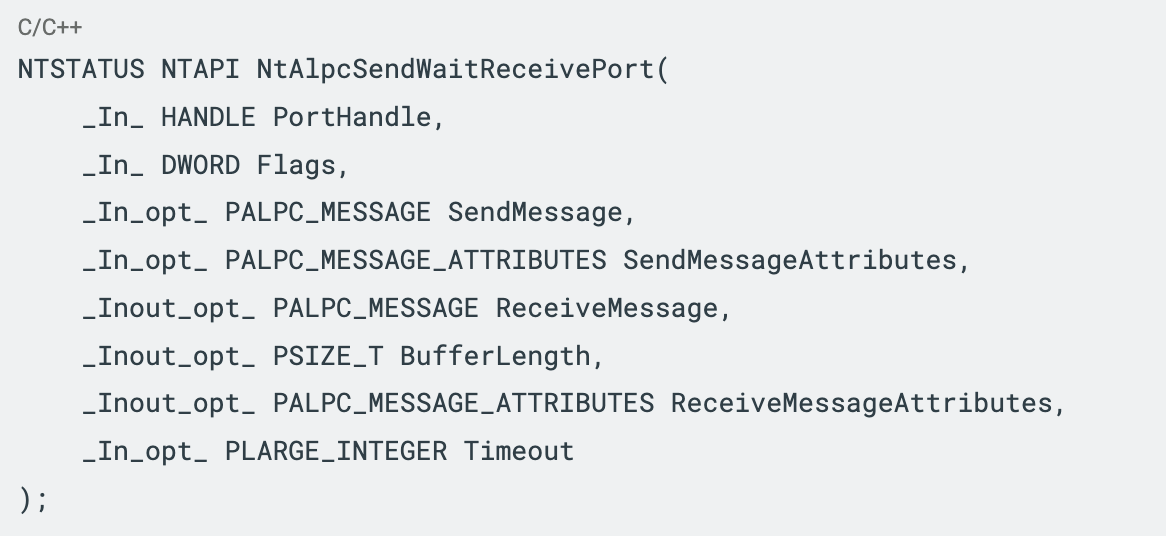
We can observe the following arguments:
In our case, only the first three arguments matter to understand how rundll32.exe communicates with dfsvc.exe, so let’s focus on these. If we set a breakpoint on the ntdll!NtAplcSendWaitReceivePort call and intercept a few calls, we can observe the following:
Figure 16. Annotated breakpoint at ntdll!NtAlpcSendWaitReceivePort
We notice the first argument held in the rcx register is, as expected, a handle that points to an ALPC port, and the second argument held in rdx has the format of a flag. By diving into the code attached to 0xcsandker’s blog post, we can see the value "0x800000" is being defined as "ALPC_PORTFLG_LRPC_WAKE_POLICY3," offering us a potential interpretation of the flag. Regarding the third argument held in r8, we can assume it points to the ALPC_MESSAGE, composed of a PORT_MESSAGE and followed by the message buffer. So we first display the content of r8 as "WORD" values to identify the length of the message contained within the header. Then, we can display the full content of r8 using the retrieved "full length" as an array of bytes, hoping to find interesting information within the ALPC message buffer transmitted to dfsvc.exe. The last command shown in Figure 16 shows the content of one of these ALPC messages, where we can recognize the full path of the ClickOnce deployment manifest. As we expected, this shows rundll32.exe does use ALPC messages to communicate information about the deployment requests to dfsvc.exe.
Once the deployment request has been sent, rundll32.exe has served its purpose of starting the server and requesting deployment and can exit, leaving the next steps to dfsvc.exe.
If we attach a debugger to dfsvc.exe and set a breakpoint on ntdll!NtAlpcSendWaitReceivePort before the process receives the deployment request over ALPC, we can intercept the call and step into the operation flow of dfsvc.exe from the moment it receives the deployment request.
As the request contains the path to the deployment manifest, dfsvc.exe first downloads the file from the location indicated within the ALPC message into the ClickOnce application’s designated folder: %Temp%\Deployment\%Deploymentid%\%AppId%.application. As in our test, the source is local and we can observe several ReadFile() operations as the "local pull" of the file occurs. If the deployment manifest was hosted on a remote location, this is where we would see the download.
Figure 17. ProcessMonitor’s capture showing the download of the files
Then, dfsvc.exe parses the manifest to retrieve various information and verifies its validity, including the "subscription state" referring to whether or not the app was already installed, not present, etc.
If the application has been published to be available offline, the System_Deployment!InstallApplication() function is called to ensure the installation into the system. If the publisher identity can’t be verified, this is when the deployment wizard asks for the user’s authorization to install the application, as shown in Figure 1. When the user has confirmed the installation or if the publisher identity has successfully passed the verification, the files from the %Temp% folder are copied into a more definitive folder in %Local%\Apps\2.0\%ID%\.
Figure 18. Migration of the ClickOnce application files
As last steps, the application reference file is dropped within the folder "%AppData%\Roaming\Microsoft\Windows\Start Menu\Programs\%AppName%\%AppName%.appref-ms" in order to create a shortcut for the user in the Start Menu. Finally, a registry entry is added under the key "HKCU\Software\Microsoft\Windows\CurrentVersion\Uninstall" to give the user the option to uninstall the app easily.
Figure 19. ClickOnce installed app entry
Finally, dfsvc.exe calls the System_Deployment!Activate() function that launches the binary from the folder where the software was installed into. And voilà, the deployment is done.
In this first part, we’ve explored what the ClickOnce technology is and the unique features that differentiate it from other installation mechanisms. We’ve highlighted the multiple scenarios that can lead to the deployment of an app published with ClickOnce, and we’ve documented the internals of the deployment process beyond currently available documentation.
But beyond representing a user-friendly way to install applications, the mechanisms used to support ClickOnce deployment are powerful — and unfortunately can be leveraged by threat actors. In Part 2 of this blog series, we will dive into the various ways the ClickOnce technology can be hijacked and reveal a new attack surface that our research has uncovered.
此内容由惯性聚合(RSS阅读器)自动聚合整理,仅供阅读参考。 原文来自 — 版权归原作者所有。


