


I spent years teaching CSS layout on this blog. I put everything I know into The Layout Maestro course: 70+ lessons and 150+ interactive examples that teach you how to think CSS layouts, not just memorize syntax.
Back in the days, like nine months ago, I was using font icons as a primary tool to show icons on a web page.
I had a good impression about icon fonts and I encountered almost no issues while dealing with them, this did not stay for too long though, and things got completely changed when I noticed an outlined rectangle taking the place of the icon font if the loading process or the connection is slow, I live in Palestine anyway so I don’t expect to get a very high-speed internet.
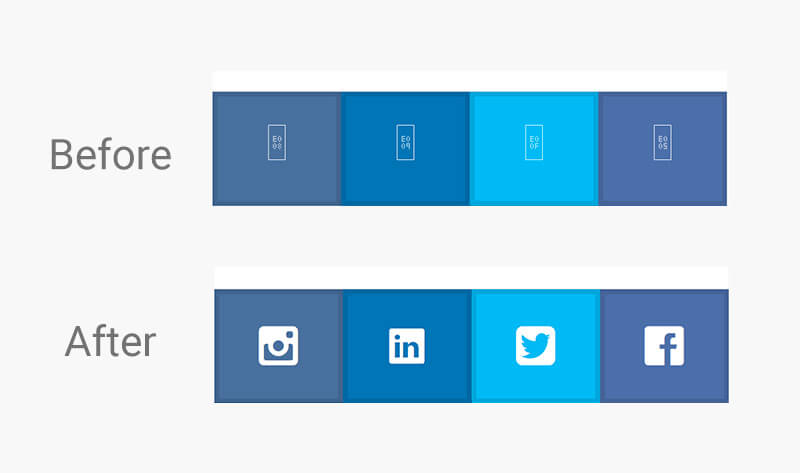
When fonts and css files are getting loaded, that would need time and sometimes the font gets blocked from the browser for some reason.
Using a ready-made icon fonts will make the browser load font and CSS files that are not necessary.
Even if you created your own custom font set, using Icomoon for example, every time you decide to add a new icon, you should use the tool to append it and redownload the font files again.
Unfortunately, If the icon you are using is very important then screen readers will read the class name loud!
When I learned about icon fonts, I said oh that’s crazy! I didn’t like the way they work and I was happy to get resolution independent icons but, using these icons doesn’t feel safe, since the browser will fallback to another font in case they didn’t load.
@font-faceluckily, SVG support is 3% higher than using icon fonts.
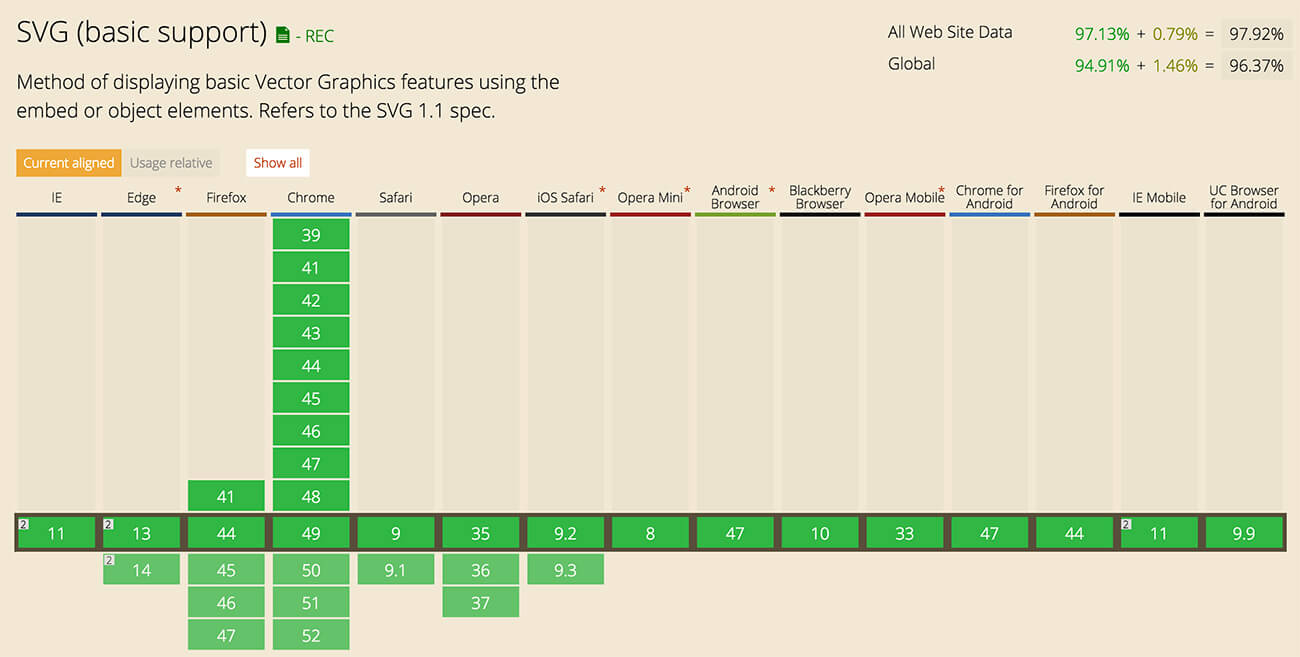
At that point, I decided to use SVG (Scalable Vector Graphics). I knew how to use SVG but, I was afraid to completely start using it because I have the idea that the support is not that good, until I checked caniuse website.
Wow! 😍 look at that green! It’s well supported and we still are afraid of using it.
As you see in the figure, SVG is well supported starting IE9+. After checking that, I started testing the usage of SVG icons in a project that I worked on in the past using icon fonts, the result was awesome and since then I started using SVG for the icongraphy.
We will start working on a simple example, below is the final result:

Either you have a custom designed icon set, or you have downloaded an already created one, pick all of the icons and add them in a folder.
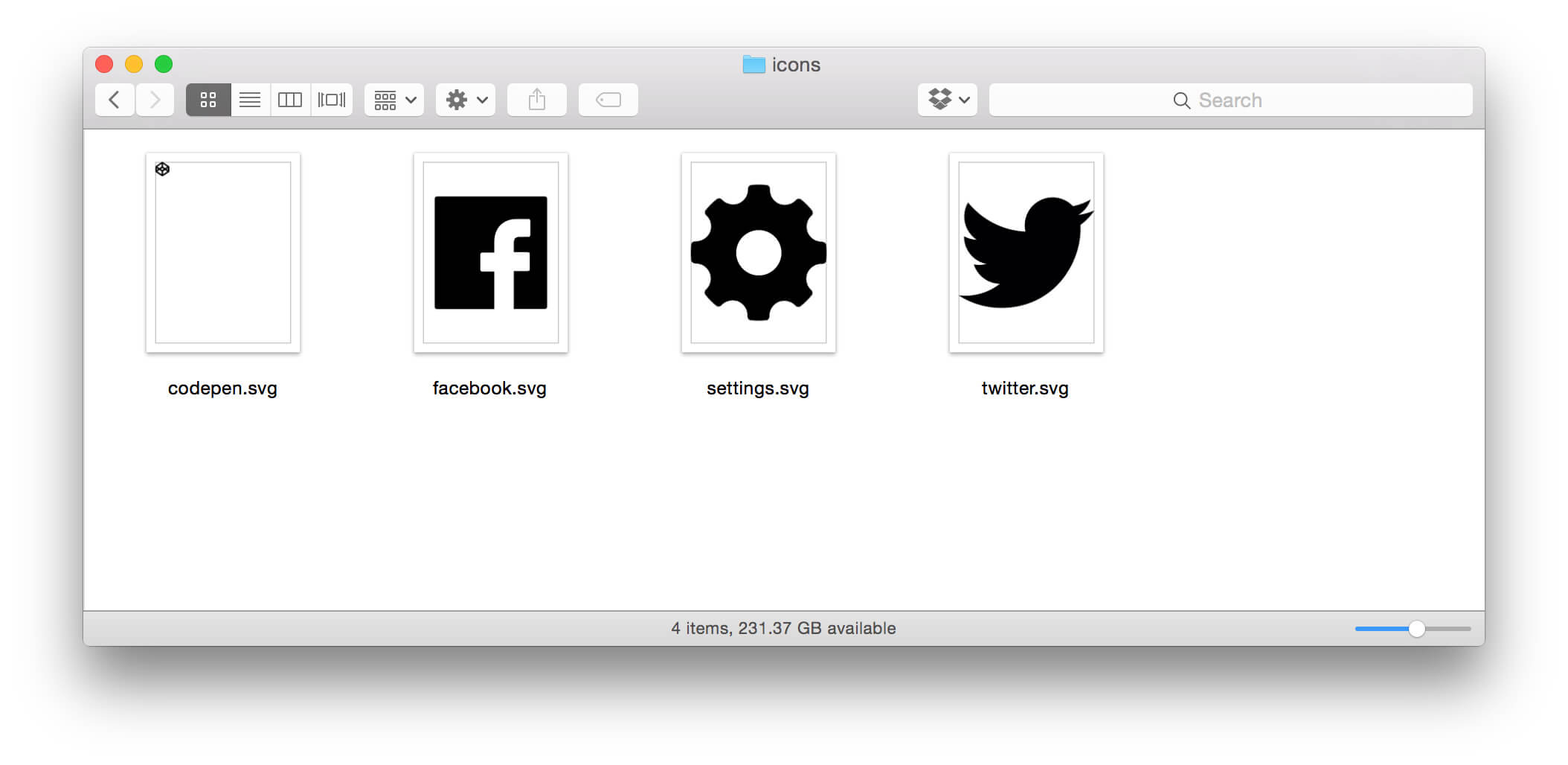
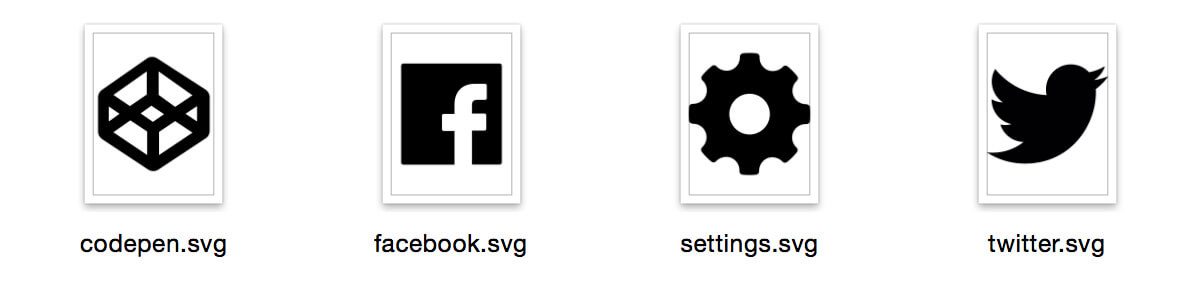
You might have noticed that Codepen icon is very small, sometimes when downloading an icon you will face that. The solution I found to make it occupy the whole thumb space, is to open it in Adobe Illustrator and resize it a bit to make it smaller.
Create a new Illustrator file with a squared dimensions (equal width and height), mine is 32 * 32 pixels. Then, add all icons inside this file like below:
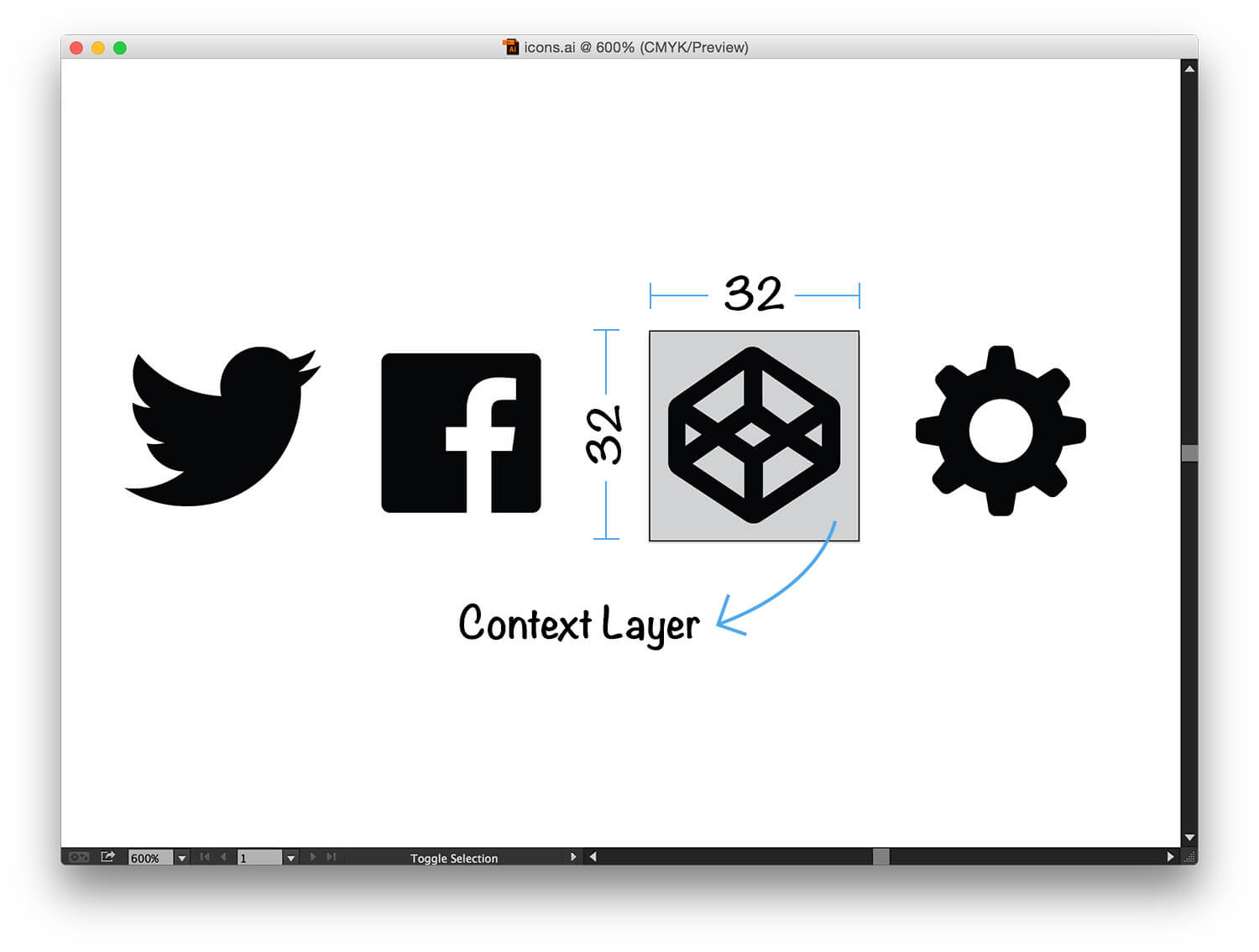
We should place all the icons inside the context layer (the grey rectangle), why? because this will help us in maintaining the same aspect ratio (the proportional relationship between width and height).
But, before doing that we should do the following steps:
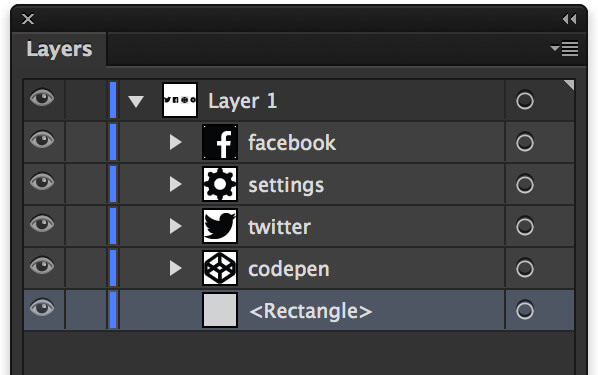
Before placing all icons in the artboard, let me show you the difference between using and not using a context layer:
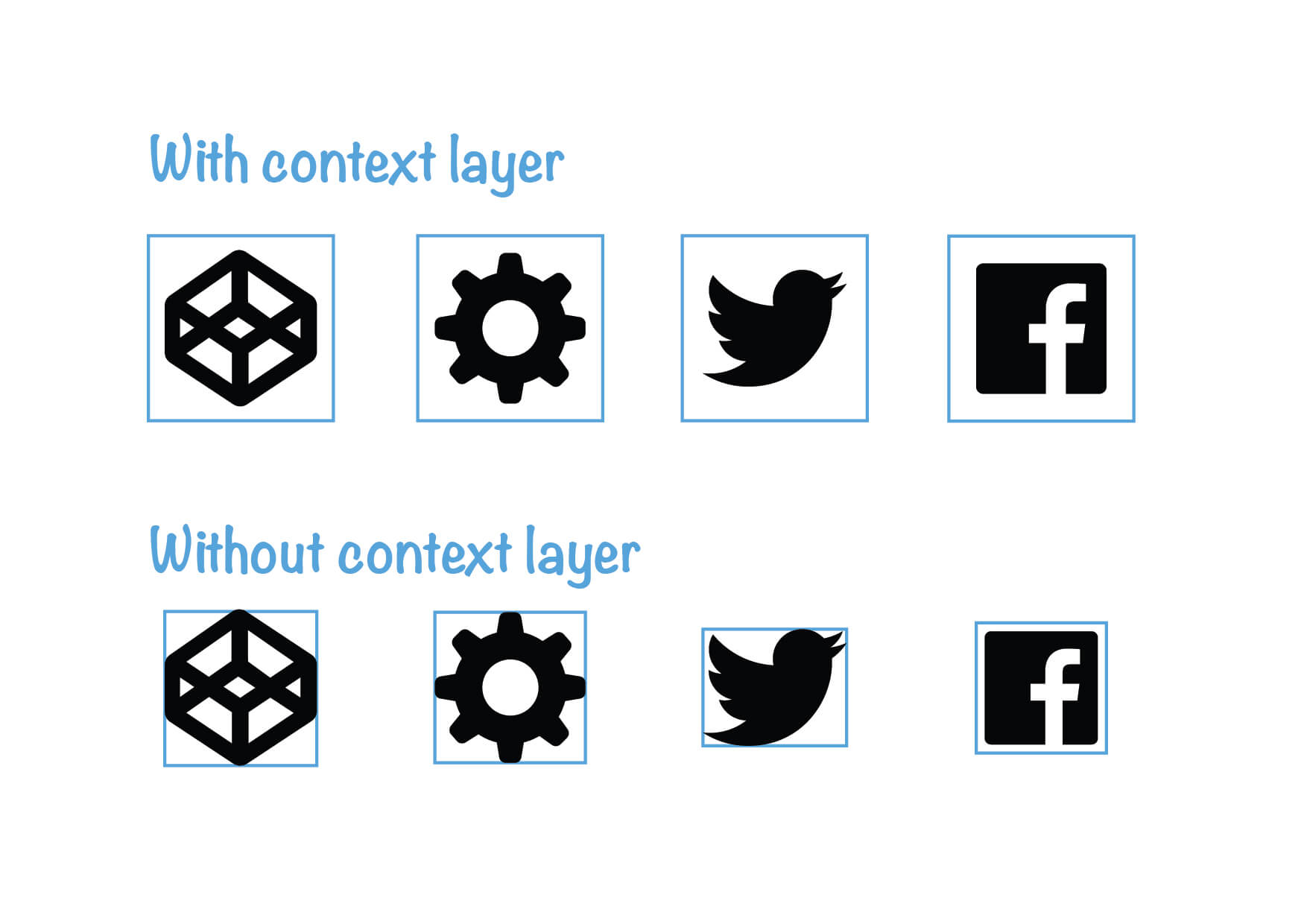
Notice that with the context layer, we are controlling the placement of each icon inside the blue outlined rectangle. While in second row, each icon has it’s own context and this is not recommended, because it will introduce a lot of issues while working with the icons in HTML. For example, you will notice that an icon is cropped a bit from its boundaries.
The next step is to place all the icons in our artboard (32 * 32 pixels). I know, the result is ugly but skip this for now.
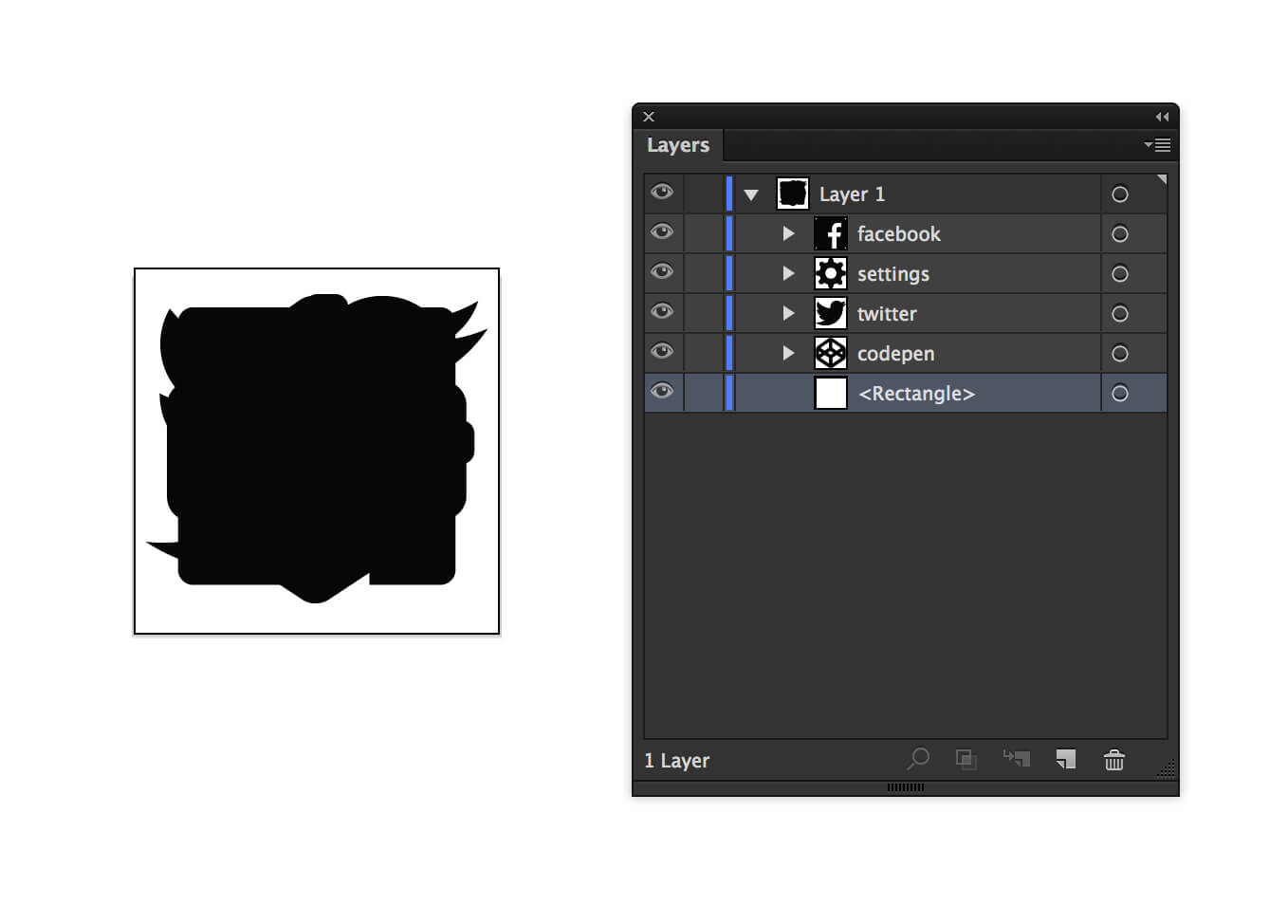
Important: outline the context layer (make it empty) and don’t hide it. Then, use the shortcut ‘CMD/CTRL + A’ to select all icons and the context layer.

Ready for the magic? If you paste now in any code editor, you will get an SVG code.

Before moving to the other steps, Adobe Illustrator CC last update added some awesome features to export SVGs. Now it’s possible to get a more cleaned SVG code. If you have the latest version, then follow the below steps:
Before cleaning the code be sure to remove the rect element (The context layer). We don’t need it anymore because all icons are placed nicely.
All right. Then, there is a tool called SVGOMG that provide us with different options to clean the code. It’s important to warn you that this tool might remove some wanted things in the code, like IDs and groups so be sure to uncheck those.
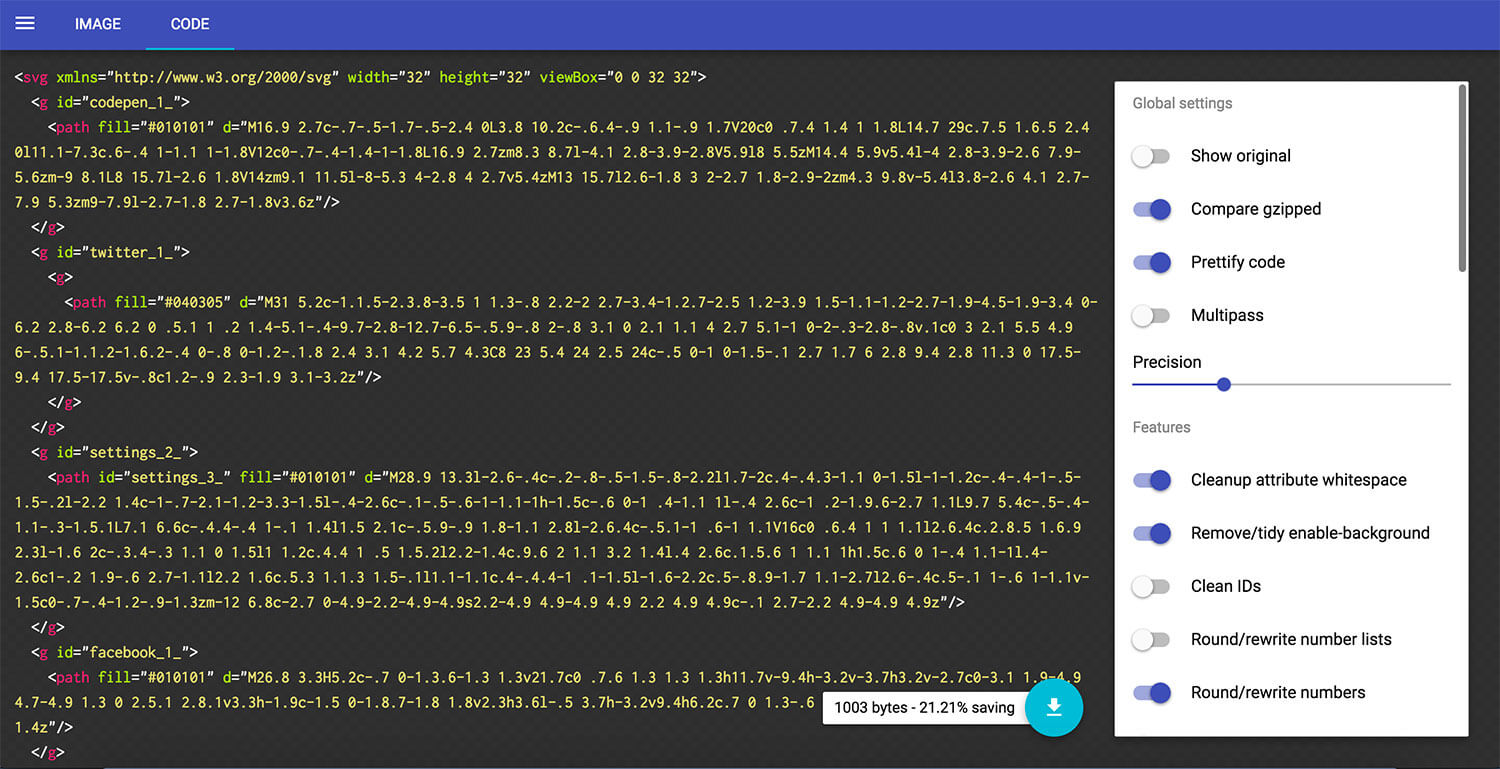
You’re done with cleaning the code? Perfect. The next step is to copy it again into your page, right after the opening opening body tag.
Let me explain some concepts from that SVG code.
<g> stands for groupThe idea behind this element that it can group elements, just like in Illustrator.
We can give an ID to this group. Remember when we named each icon in Illustrator? Notice the ID attribute in the <g> tag. These chars _1_ are rubbish data from Illustrator, they solved this in the last CC 2015 update, just remove it and prefix each one with icon- as below:
The final SVG code should be as below:
One more thing for the SVG, we must hide it from the document. Add style="display: none;" to hide it from the page, otherwise it will occupy some space from the page.
To reuse the icons, we need the help of the <use> element, the idea is that we can reference the icon we want using it’s ID. Check out the below example:
We can use the above code the HTML elements we have. Below is an example of using SVG inside an anchor link:
Below is the final result for the work we did in the previous steps:
See the Pen SVG Icons - Example 1 by Ahmad Shadeed (@shadeed) on CodePen .
This was the simplest way to implement SVG icons in a web page. It has some cons that I should address:
We are lucky! There is a solution for each one of these cons.
We can do this by including the SVG code in an external file, icons.svg for example and to be placed in the website root. Then, you can call the icon like icons.svg#icon-codepen.
Please note that the external SVG linking is not supported for IE11 and below, luckily there is a polyfill called SVG For Everybody that inject an inline SVG or a PNG image.
Time is money. Because of that, we should always be able to add any icon very quickly. Una Kravets wrote an article about automating the process using gulp. Check it for further reference.
In addition to that, icomoon provide us with a way to upload all our icons and generate an icon system out of them.
Import the SVGs you want, or choose from the available libraries and once you’re done click on “Generate SVG and more” button.
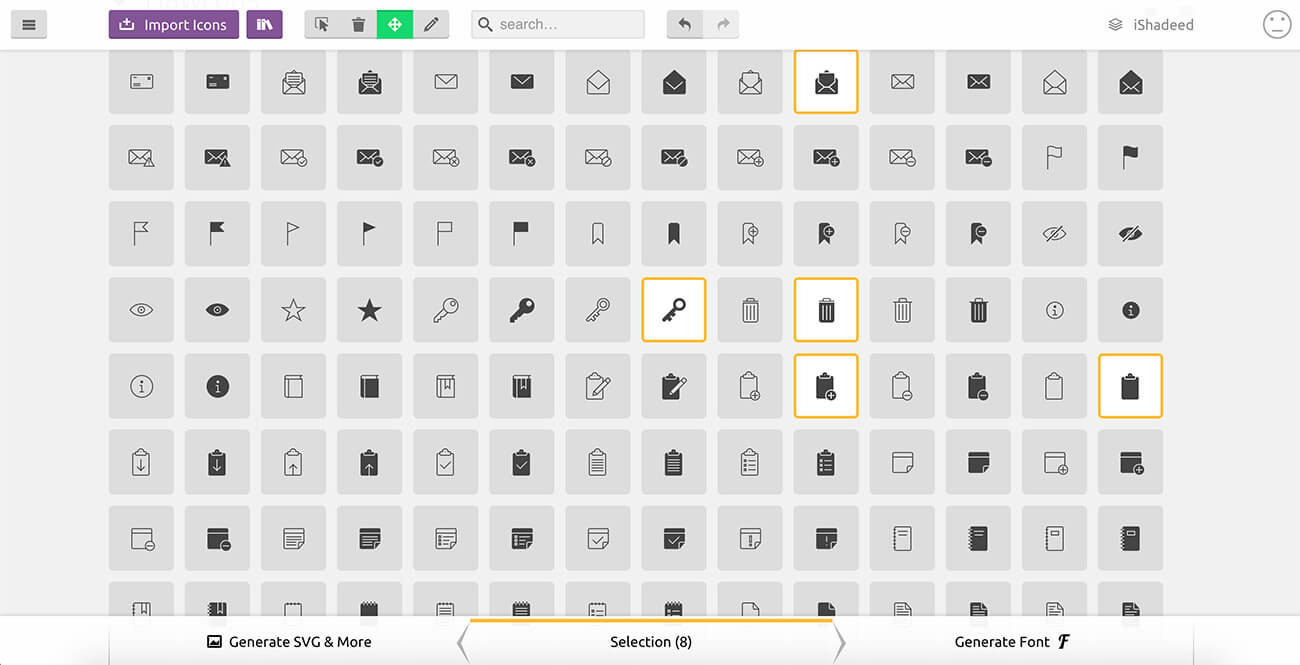
You can rename the icons, change the export settings like including a png version and other things.
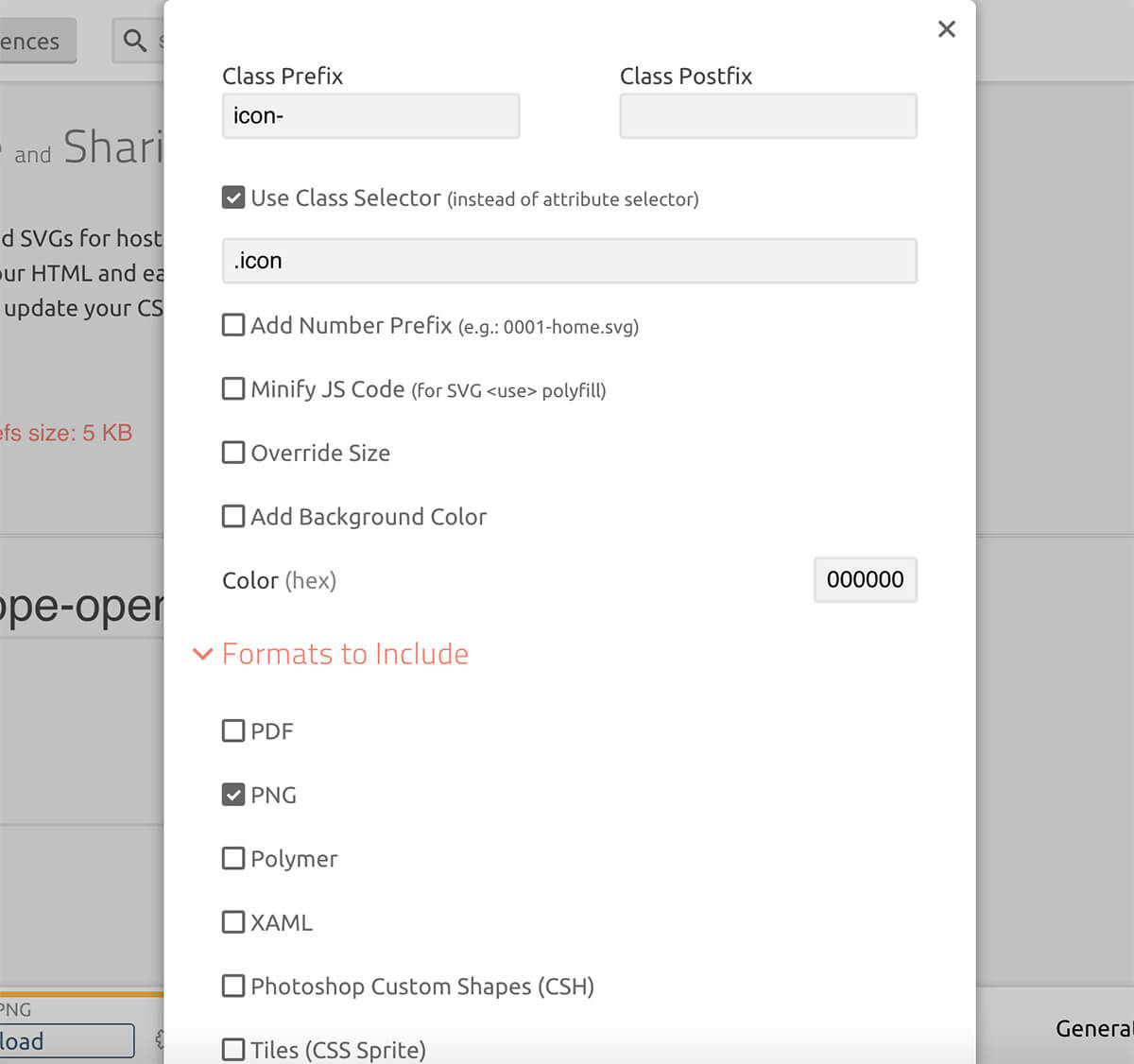
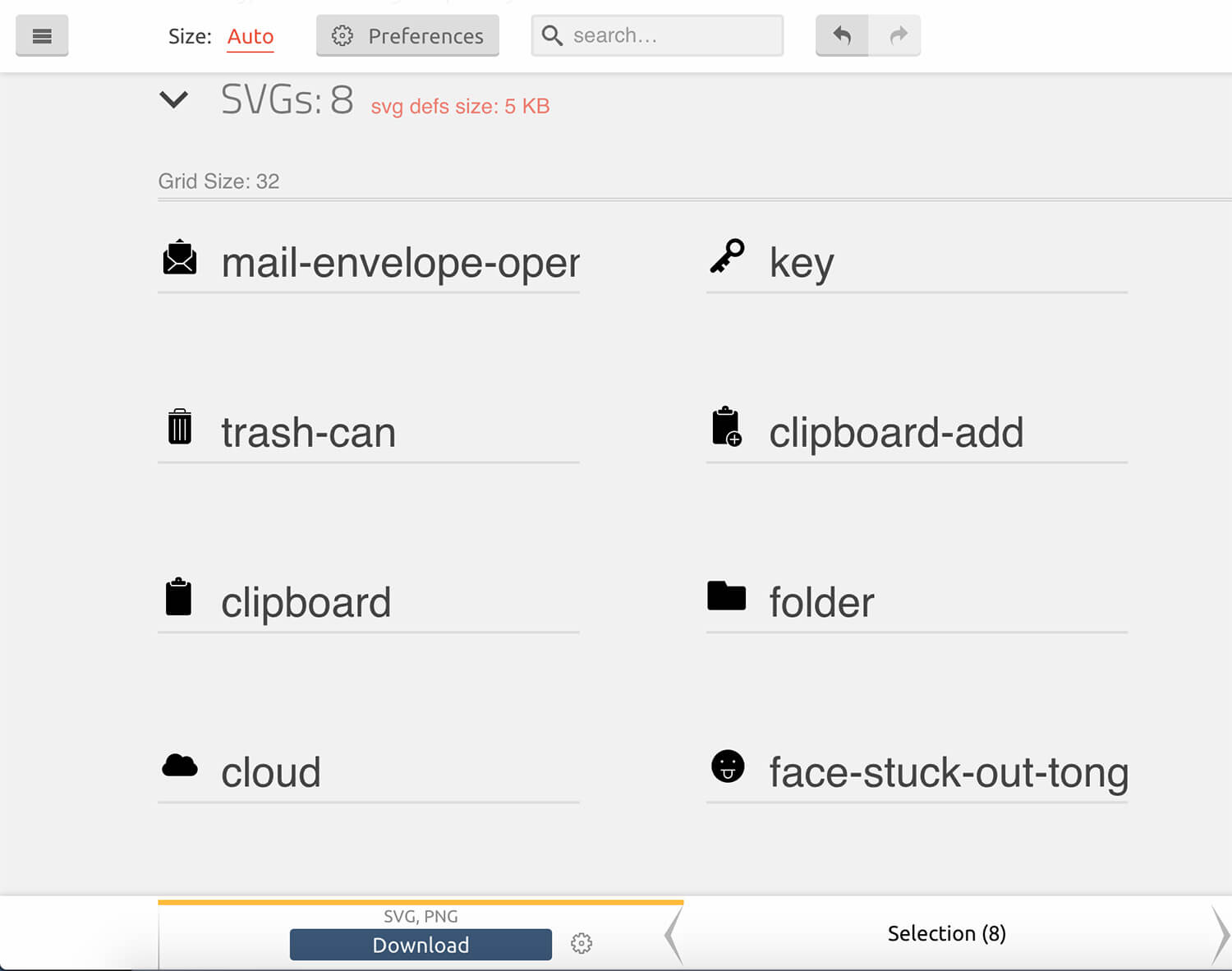
Once you download the files, you will get an HTML file that has all of your icons.
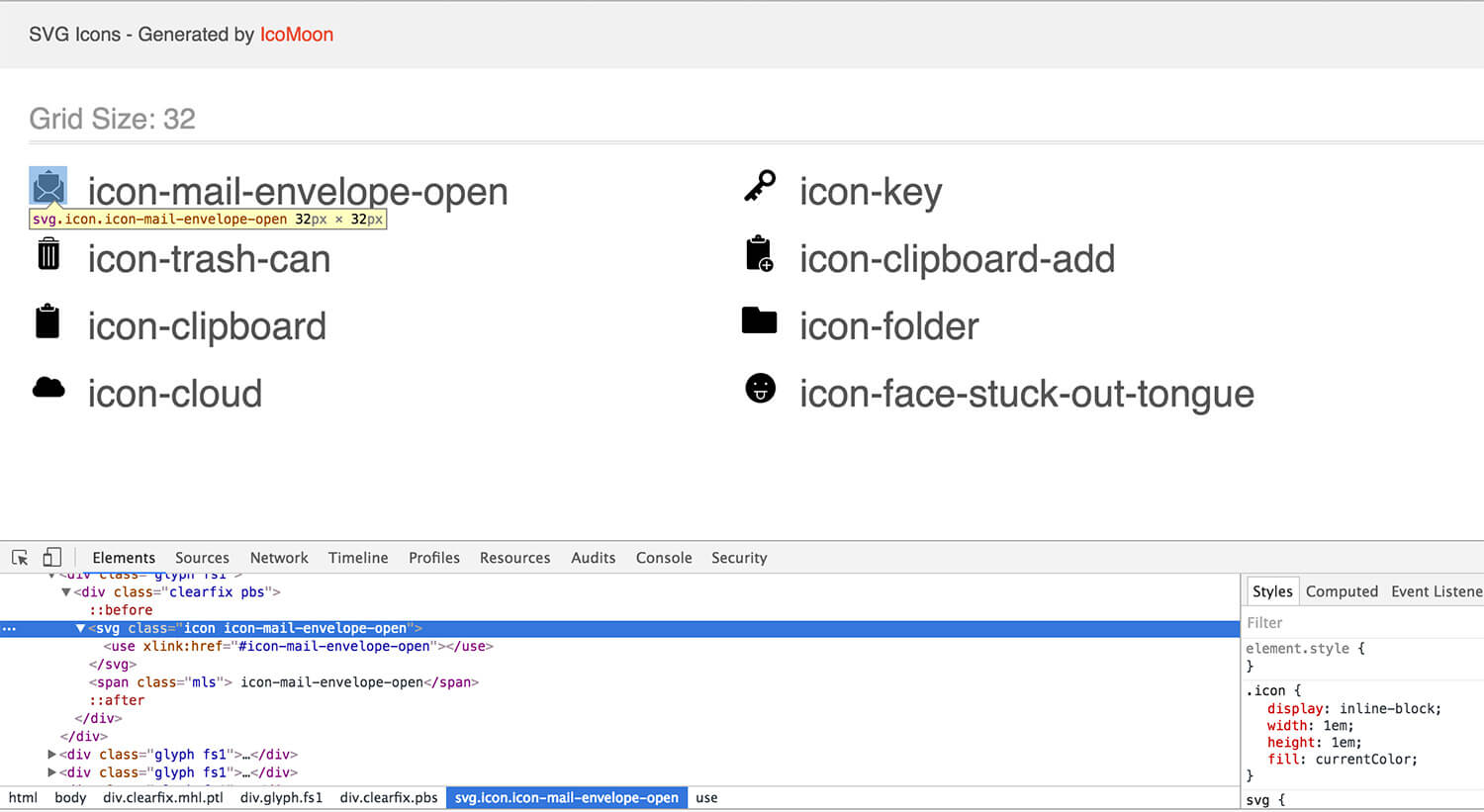
Web is for everyone. There are users with disabilities and we should respect them. By building pages that can be accessed from any device. If the icons are important to the user then you should add a title and description so screen reader devices can read it aloud. Also, you can let the browser know that it’s role is an image.
In case you don’t want screen reader users to know about the icon, simply add aria-hidden="true":
Recently, Sara Soueidan wrote an article about this issue. In our example above, if CSS didn’t load the result will be as below:

Why is that? because we specified the icon width in CSS. When CSS is disabled or not loaded for some reason, the icons will appear in a bad way. The solution for this is to use SVG presentational attributes (width and height) for the SVG.
Note: the values added for the width and height are treated as pixel values. Hence, you use em or other unites as needed for your project. Below is a screenshot from Chrome dev tools, notice the width and height attributes:
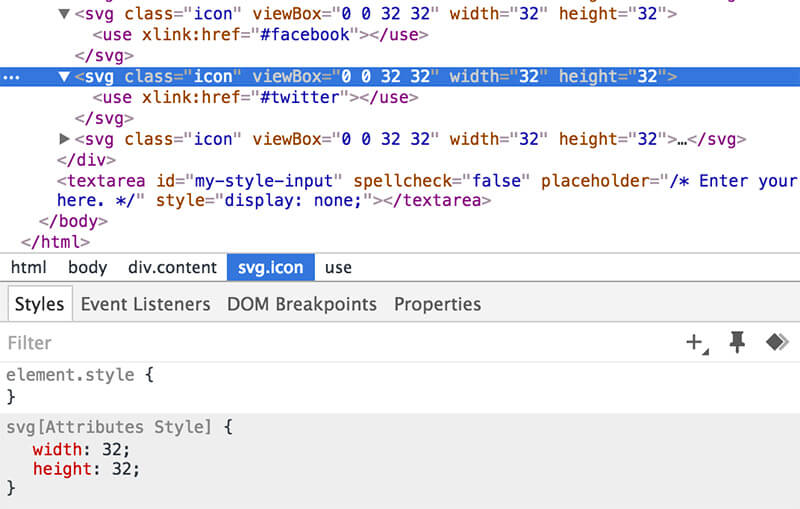
Yes! check the below result, the icons are acceptable way even if CSS is disabled.

You can use the fill CSS property to color an SVG, in case you have a stroke for example, it’s possible to style it using stroke and stroke-width.
In the next example, I will show you how it’s possible to let the SVG inherit the color if it’s parent element, let’s suppose that we have a Twitter follow link.
See the Pen SVG Icons - buttons by Ahmad Shadeed (@shadeed ) on CodePen .
The HTML is simple, a regular anchor link with an SVG elemnt inside it.
The awesomeness is here! When adding color to the .link, we can use currentColor keyword to let the SVG inherit the color from the link. That way, if we change the link color on hover, the SVG will get the hovered color automatically.
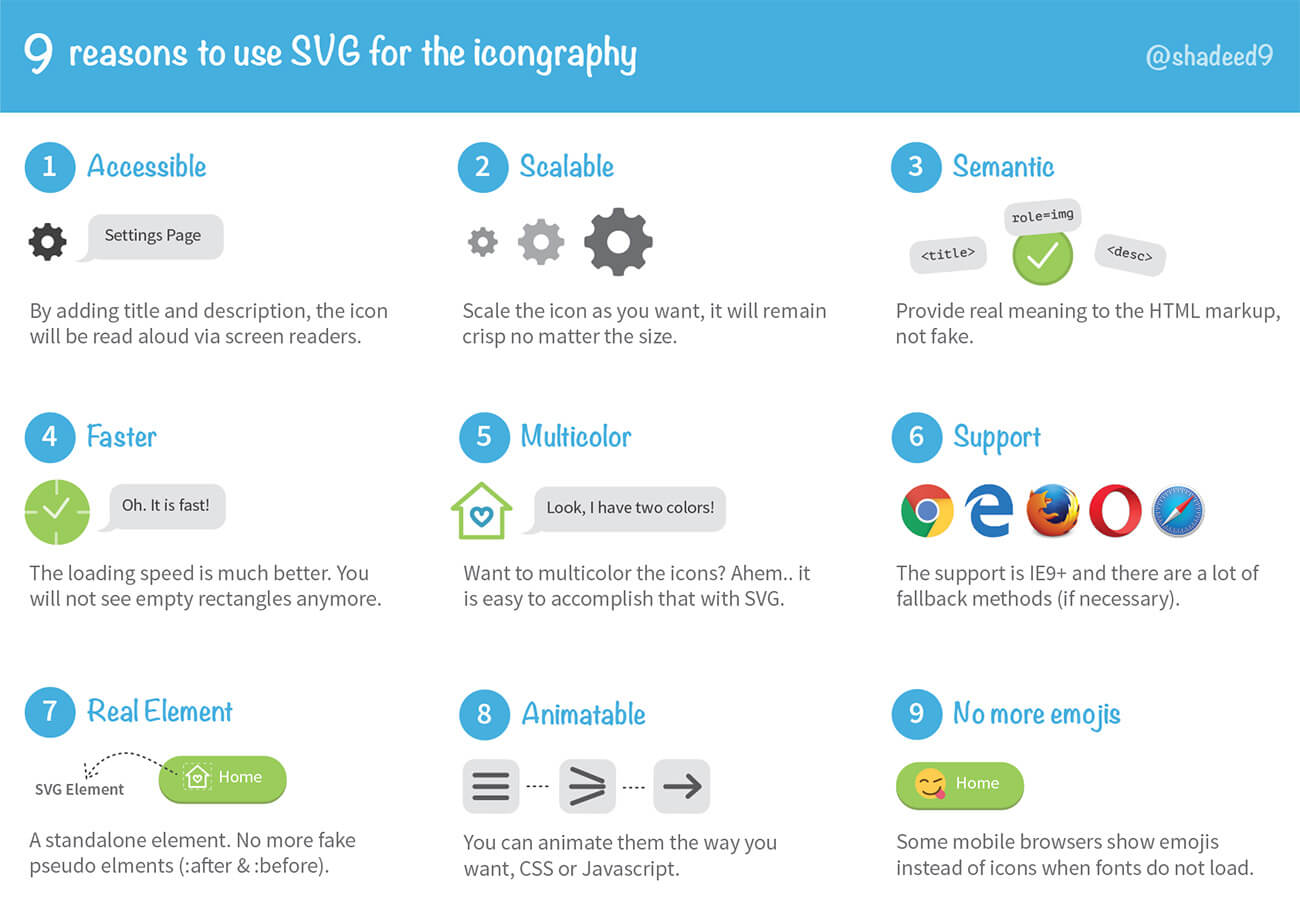
If you want to convince someone very quickly in using SVG for the icongraphy, then probably he don’t have enough time to read a long article. So, I created this simple PDF guide that contains 9 reasons about why you should use SVG.
Download the PDF guide.
Thank you for reading the article.
此内容由惯性聚合(RSS阅读器)自动聚合整理,仅供阅读参考。 原文来自 — 版权归原作者所有。