


In this article, I will cover the basics of Anchor Positioning and how I wish I had learned it earlier. Please use Chrome on a desktop or laptop if you want to try the interactive demos. If not, I’ve attached a video for most of the demos.
When learning CSS, you most likely came across the position property and how to position an element outside of its normal flow.
.parent {
  position: relative;
}

.child {
  position: absolute;
  left: 0;
  top: 0;
}
While this works, it has limitations:
position: relative (for example, to adjust its z-index), we can’t position it relative to an outer parent.What’s better than facing an actual problem and trying to solve it with position: absolute? Let’s start.
Here we have a simple card component that contains an image, title, description, and a category tag.
<div class="card">
  <div class="card-thumb">
    <img src="thumb.jpg" alt="Coffee" />
  </div>
  <div class="card-header">
    <a href="#" class="tag">Coffee</a>
    <p class="card-title">...</p>
    <p class="card-desc">...</p>
  </div>
</div>

Coffee
The art of making cafe-quality coffee at home
Learn how to make the best coffee at home, by following some simple steps.
I want to position the category tag on top of the image, what should I do? Let’s add position: absolute to the category tag.
.cardTag {
  position: absolute;
  left: 0;
  top: 0;
}
Coffee
The art of making cafe-quality coffee at home
Learn how to make the best coffee at home, by following some simple steps.
Oh, I forgot to add position: relative to the card.
.card {
  position: relative;
}
Perfect, now the category tag is on top of the image.
Coffee
The art of making cafe-quality coffee at home
Learn how to make the best coffee at home, by following some simple steps.
The designer requested it be on the right side instead.
.cardTag {
  position: absolute;
  right: 0;
  top: 0;
}
Coffee
The art of making cafe-quality coffee at home
Learn how to make the best coffee at home, by following some simple steps.
Cool, but on larger screens, we want to change the card layout to horizontal. That means, the image is on the left and the content is on the right.
It’s not working. See the result:
🤷♂️
Coffee
The art of making cafe-quality coffee at home
Learn how to make the best coffee at home, by following some simple steps.
In our case, the category tag isn’t part of the image, so we can’t position it at the right corner of the image.
We can hack it.
.cardTag {
  left: 84px;
}
Coffee
The art of making cafe-quality coffee at home
Learn how to make the best coffee at home, by following some simple steps.
This is a fragile solution that breaks easily. If the image size or gap changes, it will fail.
Anchor positioning
Limited availability
Supported in Chrome: no.
 Supported in Edge: no.
 Supported in Firefox: no.
 Supported in Safari: no.

This feature is not Baseline because it does not work in some of the most widely-used browsers.
In CSS, we can now position an element relative to another element, regardless if it’s a parent or not.
First, we need to define the anchor element. In our case, it’s the card thumbnail wrapper.
.card-thumb {
  anchor-name: --card-thumb;
}
Next, we can reference that anchor for the category tag.
.card-thumb {
  anchor-name: --card-thumb;
}

.cardTag {
  position-anchor: --card-thumb;
}
Now that the anchor is defined, we can use the inset properties to position the category tag.
.card-thumb {
  anchor-name: --card-thumb;
}

.cardTag {
  position-anchor: --card-thumb;
  right: anchor(right);
  top: anchor(top);
}
Coffee
The art of making cafe-quality coffee at home
Learn how to make the best coffee at home, by following some simple steps.
Now, wherever the anchor element is, the category tag will stay positioned relative to it.
Coffee
The art of making cafe-quality coffee at home
Learn how to make the best coffee at home, by following some simple steps.
Or this:
Coffee
The art of making cafe-quality coffee at home
Learn how to make the best coffee at home, by following some simple steps.
The following figure shows an anchor element with its four edges. In CSS, we can position a target in relation to those inset edges.
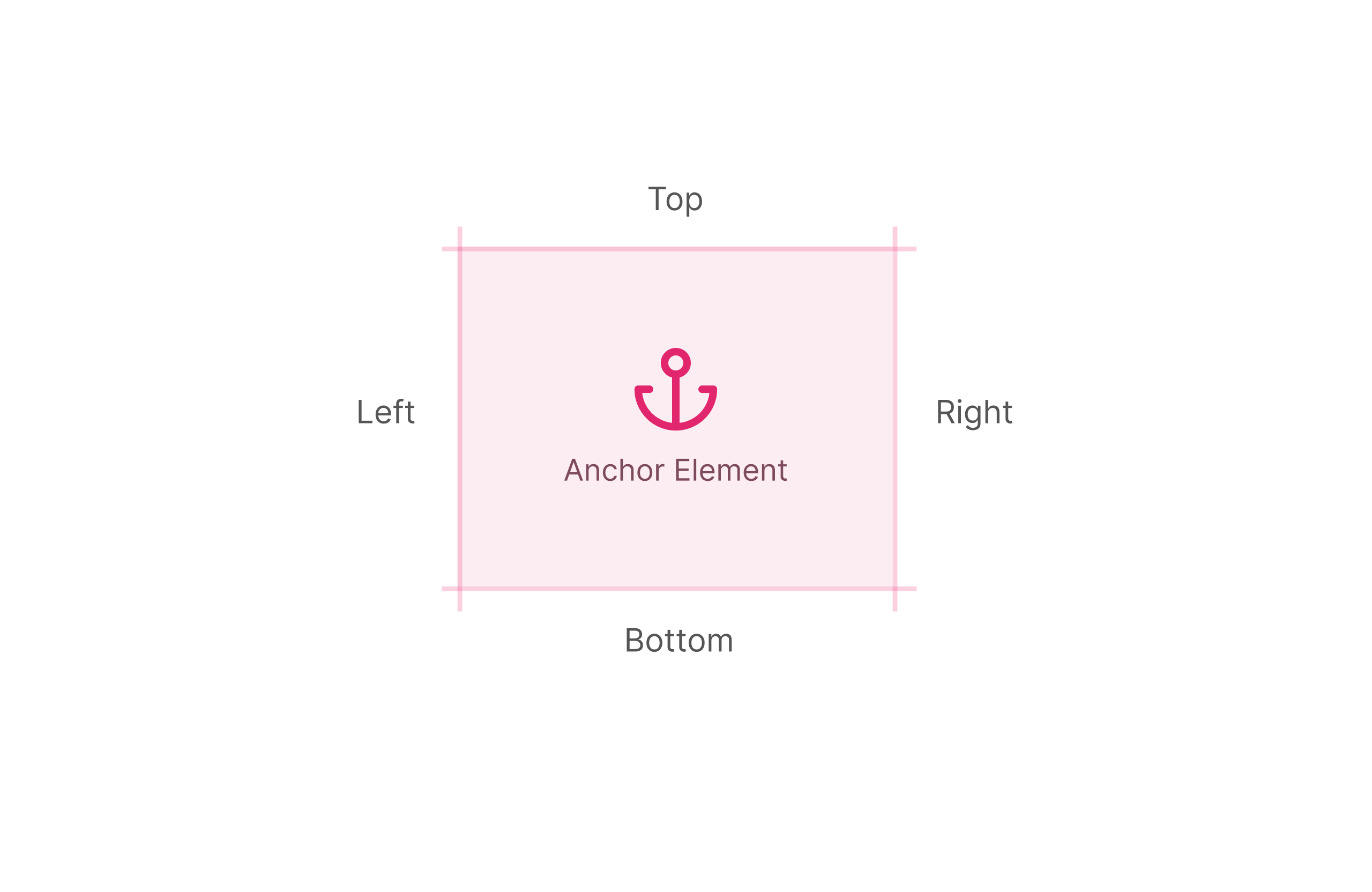
When using the anchor() function, we can use one or more of the four edges (top, right, bottom, left).
See the following demo and try to change the values.
This is a target element with random text.
Align the left of target to:
Align the top of target to:
Remember: the tag doesn’t live in the same container as the card thumbnail. Here is a reminder of the HTML:
<div class="card">
  <div class="card-thumb">
    <img src="thumb.jpg" alt="Coffee" />
  </div>
  <div class="card-header">
    <a href="#" class="tag">Coffee</a>
    <!-- ... -->
  </div>
</div>
Anchor positioning gives us the ability to connect one element to another, as shown in the following figure.
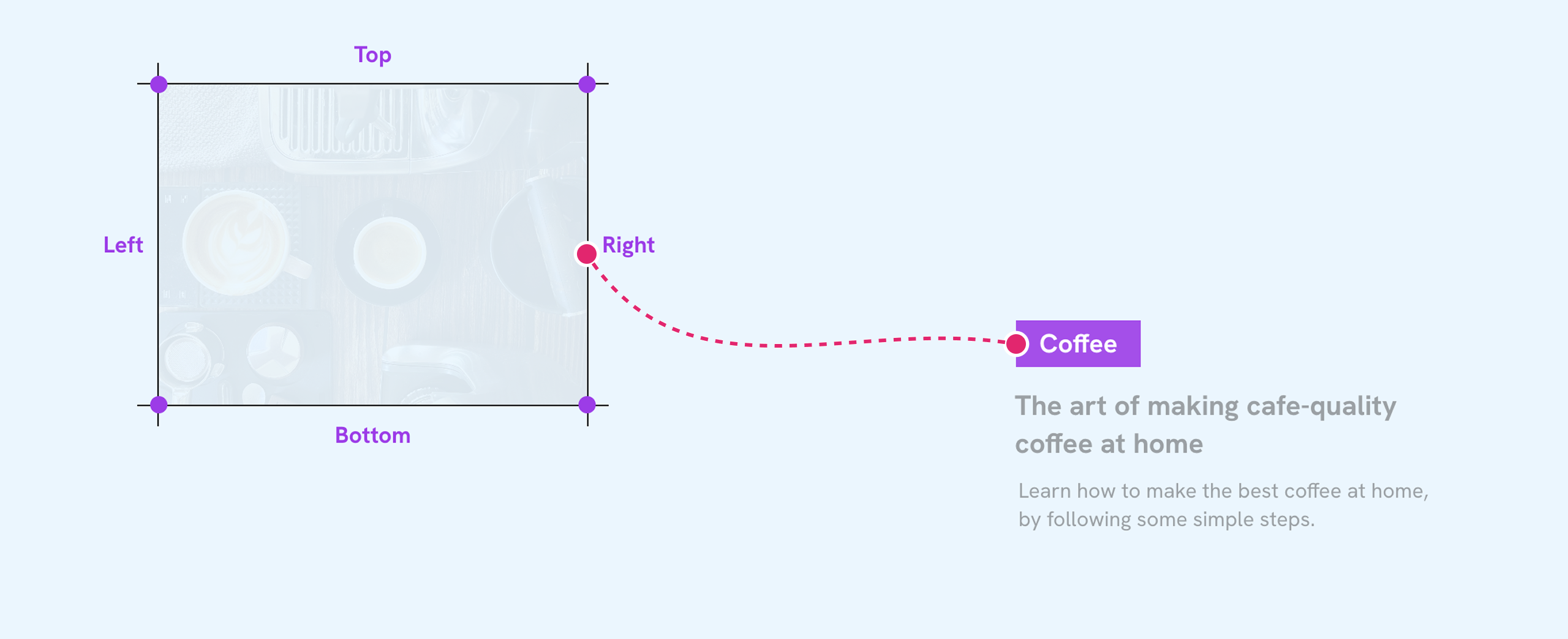
This works a bit differently than the anchor() function by using the position-area property. In short, it creates a 3x3 grid around the anchor element.
Click on any cell in the demo below and see how the tag position changes.
position-area: top center;
Coffee
This demo doesn’t work correctly in Safari TP. I haven’t had the time to
debug why. I’m using query units to create the anchor grid. Update 3 Sep 2025: it works
fine now! Thanks to Elika Etemad for the help.
We can position the tag on one or multiple cells at once. In the following demo, try to click and drag on the center cell (vertically or horizontally) and notice how the value changes to span-*.
At first, I found span-* confusing. As a visual learner, I created a simple illustration to make sense of it.
Let’s assume the following:
.target {
  position-area: top center;
}
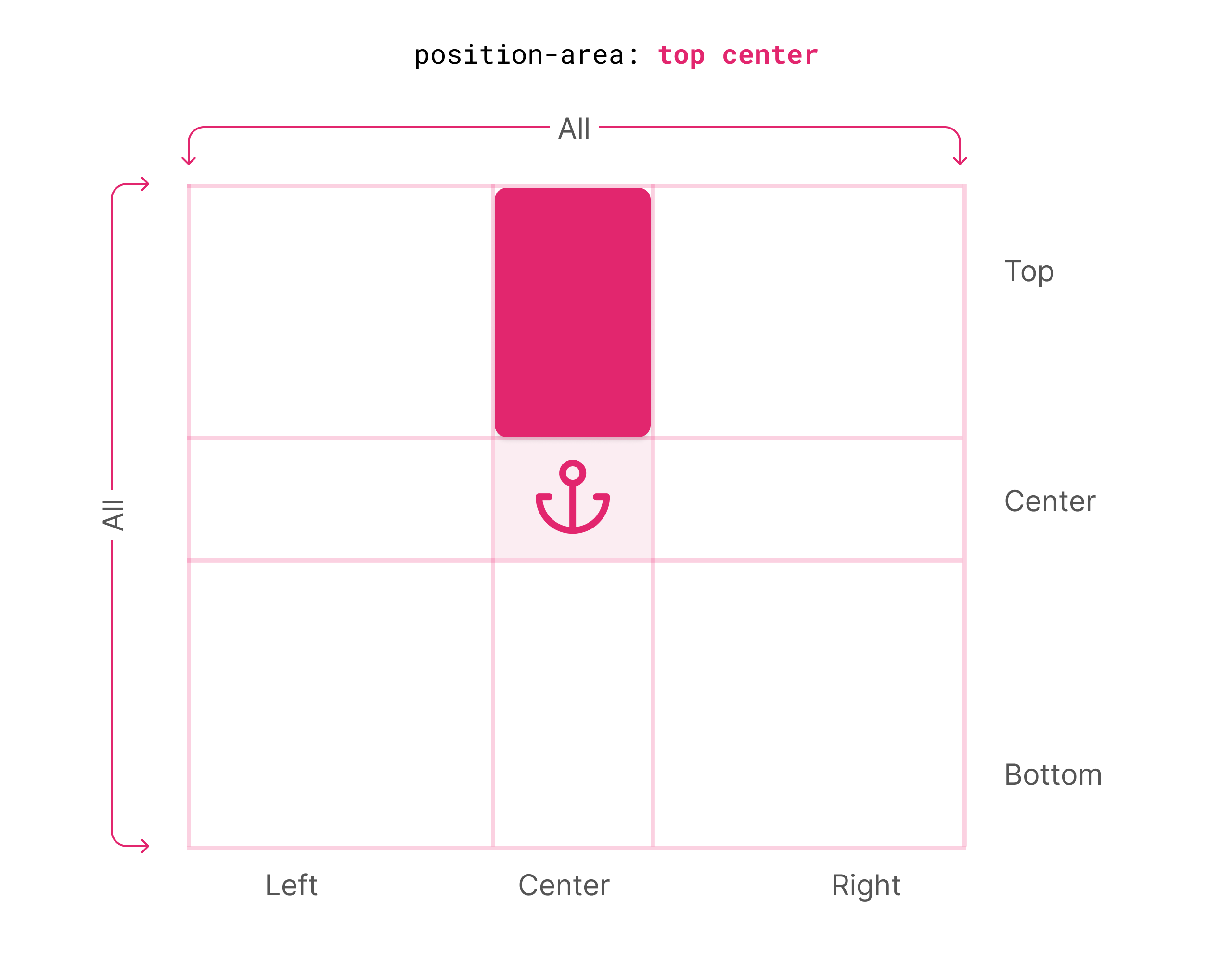
The target is positioned in the center cell at the top. What if we want to make it take two cells?
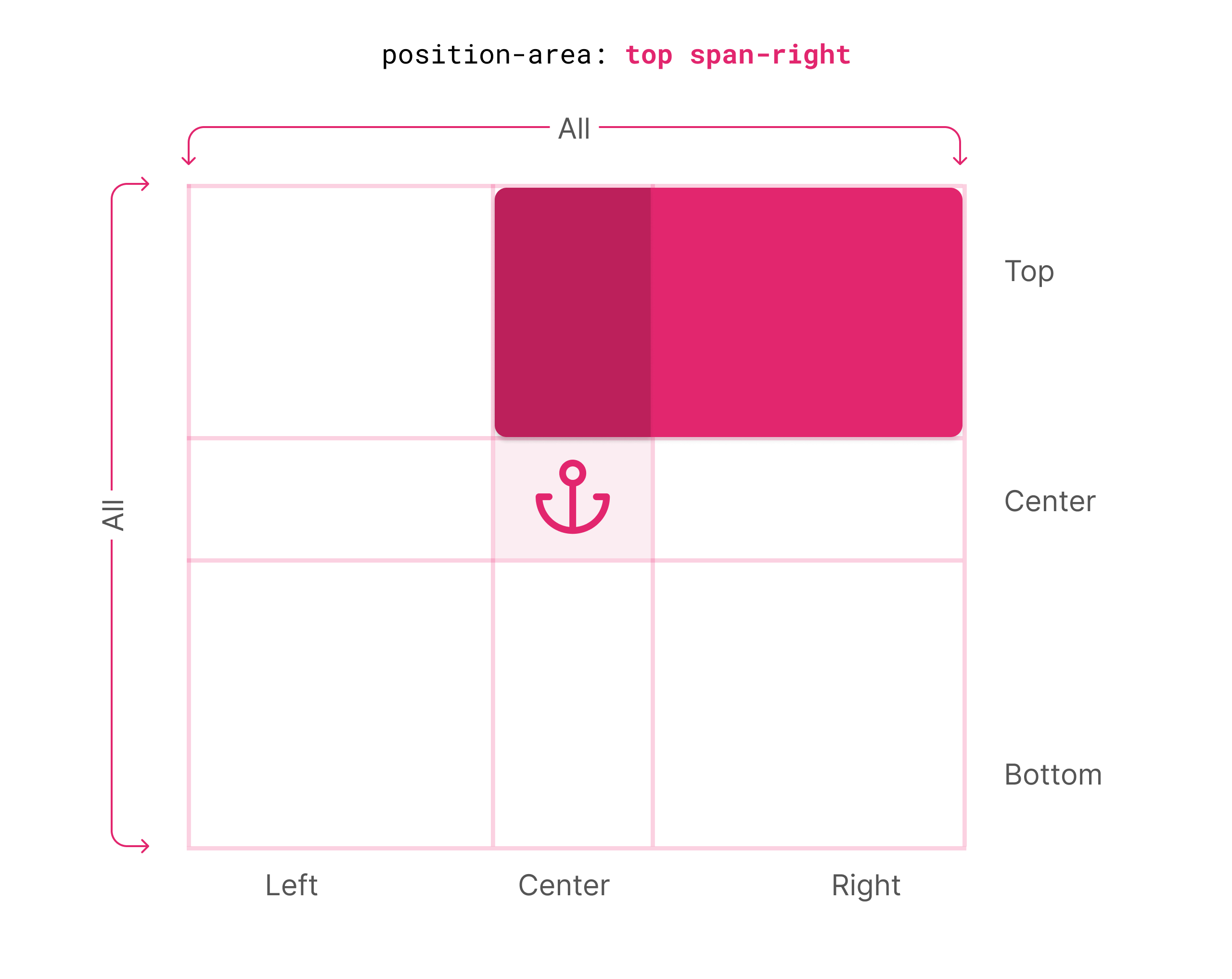
.target {
  position-area: top span-right;
}
In the above example, span-right means: I want the target to take the width of the center cell all the way to the right cell.
See the following figure.
In the following interactive demo, you can try how the span works:
You can switch between the interactive demo and the video.
position-area: top left;
Hello, I'm an empty popup for the sake of the demo.
I hope this is clear now. Let’s explore an exciting feature.
With Anchor Positioning, it’s not only about positioning a target according to its anchor. The nature of positioning doesn’t guarantee that a positioned element will fit perfectly within the viewport.
As an example, if the anchor element is at the top of the viewport, and the target is positioned on top of it, it will be hidden.
Take a look at the following figure.
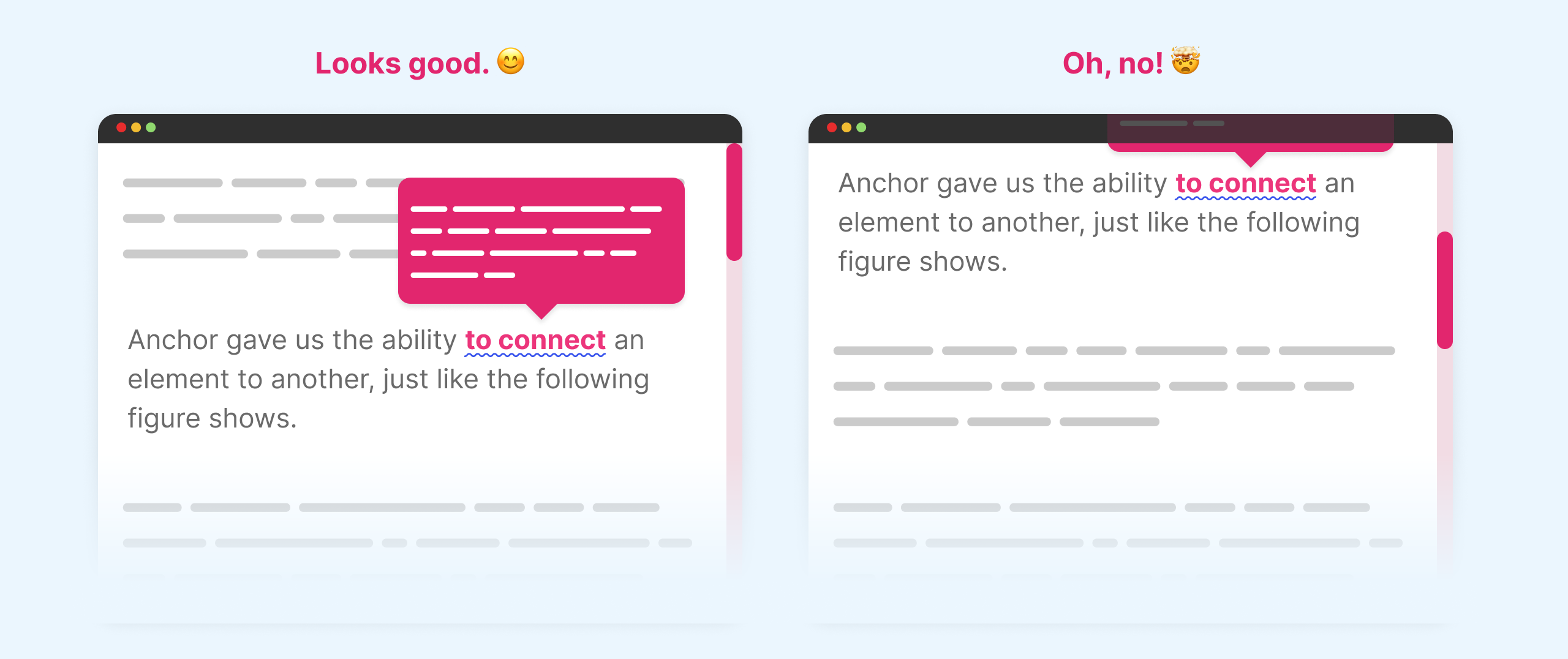
Ideally, the target element (popup) should switch from the top to the bottom of the anchor element.
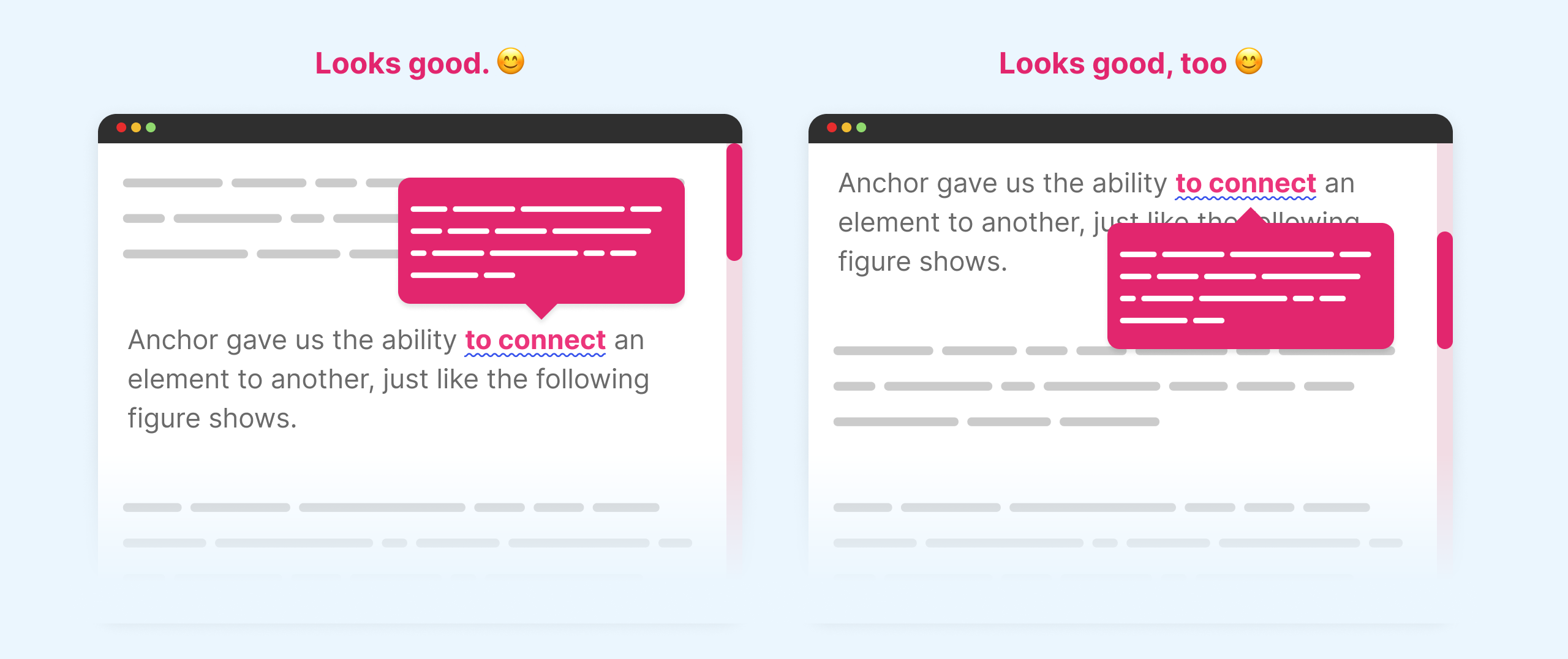
Previously, we relied on JavaScript for this. With Anchor Positioning, we can now use the position-try-fallbacks property.
We can use multiple values, such as:
For the sake of simplicity, I’ll only show the flip-block and flip-inline values.
From its name, it will flip the target element on the block axis if the target is overflowing its containing block.
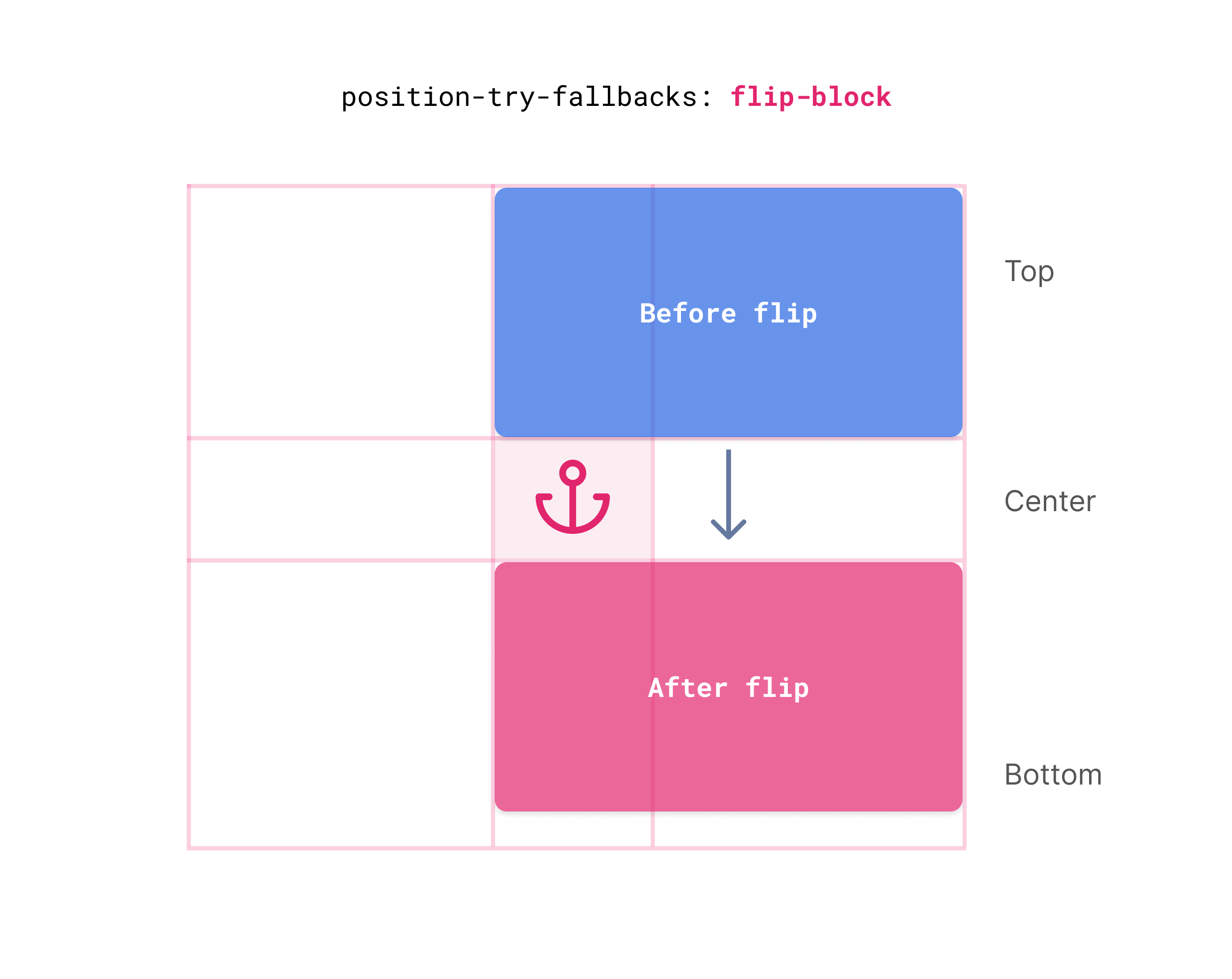
See the following CSS:
.popup {
  position-area: top span-right;
  position-try-fallbacks: flip-block;
}
To make it easier to understand, I made an interactive demo that shows how flipping works. Try to scroll up and down and see how the popup flips.
Espresso is more than just brewing coffee
A good espresso starts with fresh, high-quality beans. The roast profile matters: medium to dark brings out chocolatey and nutty notes, while lighter roasts highlight fruity, acidic flavors.dk dsk dosdos doskd oskdosk odskdo ksdo skods dsadk aspodksapo dkaspodkas podakspdokaspdokas dpoaskd poaskdpaska
A good espresso starts with fresh, high-quality beans. The roast profile matters: medium to dark brings out chocolatey and nutty notes, while lighter roasts highlight fruity, acidic flavors. d ldskd osdkso dksokd oskdok sodks odskdo ksodk sokdo skdosk.
Making espresso is more than just brewing everyday coffee it's a ritual The hiss of the machine the smell of freshly ground beans and the anticipation build into something magical each morning
The extraction itself is like art. Watching the thick golden crema form as water coffee under pressure feels rewarding. Each shot is slightly different, like a fingerprint.
Finally, enjoying espresso is personal. Some prefer it pure and intense, while others soften it with steamed milk. Either way, it’s about savoring the effort and craft in every sip.
In espresso, grinding too fine can lead to a bitter taste and slow extraction.
Not only that, but I also added the anchor areas visualizer. You can see where the target is positioned and anticipate its next position.
Try scrolling again now.
Espresso is more than just brewing coffee
A good espresso starts with fresh, high-quality beans. The roast profile matters: medium to dark brings out chocolatey and nutty notes, while lighter roasts highlight fruity, acidic flavors.dk dsk dosdos doskd oskdosk odskdo ksdo skods dsadk aspodksapo dkaspodkas podakspdokaspdokas dpoaskd poaskdpaska
A good espresso starts with fresh, high-quality beans. The roast profile matters: medium to dark brings out chocolatey and nutty notes, while lighter roasts highlight fruity, acidic flavors. d ldskd osdkso dksokd oskdok sodks odskdo ksodk sokdo skdosk.
Making espresso is more than just brewing everyday coffee it's a ritual The hiss of the machine the smell of freshly ground beans and the anticipation build into something magical each morning
The extraction itself is like art. Watching the thick golden crema form as water coffee under pressure feels rewarding. Each shot is slightly different, like a fingerprint.
Finally, enjoying espresso is personal. Some prefer it pure and intense, while others soften it with steamed milk. Either way, it’s about savoring the effort and craft in every sip.
In espresso, grinding too fine can lead to a bitter taste and slow extraction.
Got it? This is how flipping works. The same can also work for the inline axis
In my example, I used span-right in the position-area property. We can add flip-inline to the position-try-fallbacks property to flip the position when there isn’t enough space.
.popup {
  position-area: top span-right;
  position-try-fallbacks: flip-inline;
}
Click the next button below (desktop only) and notice how the popup’s horizontal position changes.
Espresso is more than just brewing coffee
A good espresso starts with fresh, high-quality beans. The roast profile matters: medium to dark brings out chocolatey and nutty notes, while lighter roasts highlight fruity, acidic flavors.dk dsk dosdos doskd oskdosk odskdo ksdo skods dsadk aspodksapo dkaspodkas podakspdokaspdokas dpoaskd poaskdpaska
A good espresso starts with fresh, high-quality beans. The roast profile matters: medium to dark brings out chocolatey and nutty notes, while lighter roasts highlight fruity, acidic flavors. d ldskd osdkso dksokd oskdok sodks odskdo ksodk sokdo skdosk.
Making espresso is more than just brewing everyday coffee it's a ritual The hiss of the machine the smell of freshly ground beans and the anticipation build into something magical each morning
The extraction itself is like art. Watching the thick golden crema form as water coffee under pressure feels rewarding. Each shot is slightly different, like a fingerprint.
Finally, enjoying espresso is personal. Some prefer it pure and intense, while others soften it with steamed milk. Either way, it’s about savoring the effort and craft in every sip.
In espresso, grinding too fine can lead to a bitter taste and slow extraction.
There’s much more we can do with Anchor Positioning, and there are more features that I haven’t explored yet like:
Finally, I look forward to stable support in Firefox and Safari.
Thank you for reading!
此内容由惯性聚合(RSS阅读器)自动聚合整理,仅供阅读参考。 原文来自 — 版权归原作者所有。