


Before we move on to 3D let's stick with 2D for a little while longer. Bear with me please. This article might seem exceedingly obvious to some but I'll build up to a point in a few articles.
This article is a continuation of a series starting with WebGL Fundamentals. If you haven't read them I suggest you read at least the first one, then come back here.
Translation is some fancy math name that basically means "to move" something. I suppose moving a sentence from English to Japanese fits as well but in this case we're talking about moving geometry. Using the sample code we ended up with in the first post you could easily translate our rectangle just by changing the values passed to setRectangle right? Here's a sample based on our previous sample.
First let's make some variables to hold the translation, width, height and color of the rectangle
  var translation = [0, 0];
  var width = 100;
  var height = 30;
  var color = [Math.random(), Math.random(), Math.random(), 1];
Then let's make a function to re-draw everything. We can call this function after we update the translation.
  // Draw a the scene.
  function drawScene() {
    webglUtils.resizeCanvasToDisplaySize(gl.canvas);

    // Tell WebGL how to convert from clip space to pixels
    gl.viewport(0, 0, gl.canvas.width, gl.canvas.height);

    // Clear the canvas.
    gl.clear(gl.COLOR_BUFFER_BIT);

    // Tell it to use our program (pair of shaders)
    gl.useProgram(program);

    // Turn on the attribute
    gl.enableVertexAttribArray(positionLocation);

    // Bind the position buffer.
    gl.bindBuffer(gl.ARRAY_BUFFER, positionBuffer);

    // Setup a rectangle
    setRectangle(gl, translation[0], translation[1], width, height);

    // Tell the attribute how to get data out of positionBuffer (ARRAY_BUFFER)
    var size = 2;          // 2 components per iteration
    var type = gl.FLOAT;   // the data is 32bit floats
    var normalize = false; // don't normalize the data
    var stride = 0;        // 0 = move forward size * sizeof(type) each iteration to get the next position
    var offset = 0;        // start at the beginning of the buffer
    gl.vertexAttribPointer(
        positionLocation, size, type, normalize, stride, offset)

    // set the resolution
    gl.uniform2f(resolutionLocation, gl.canvas.width, gl.canvas.height);

    // set the color
    gl.uniform4fv(colorLocation, color);

    // Draw the rectangle.
    var primitiveType = gl.TRIANGLES;
    var offset = 0;
    var count = 6;
    gl.drawArrays(primitiveType, offset, count);
  }
In the example below I've attached a couple of sliders that will update
translation[0] and translation[1] and call drawScene anytime they
change. Drag the sliders to translate the rectangle.
So far so good. But now imagine we wanted to do the same thing with a more complicated shape.
Let's say we wanted to draw an 'F' that consists of 6 triangles like this.
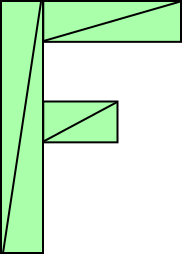
Well, following our current code we'd have to change setRectangle to
something more like this.
// Fill the buffer with the values that define a letter 'F'.
function setGeometry(gl, x, y) {
  var width = 100;
  var height = 150;
  var thickness = 30;
  gl.bufferData(
      gl.ARRAY_BUFFER,
      new Float32Array([
          // left column
          x, y,
          x + thickness, y,
          x, y + height,
          x, y + height,
          x + thickness, y,
          x + thickness, y + height,

          // top rung
          x + thickness, y,
          x + width, y,
          x + thickness, y + thickness,
          x + thickness, y + thickness,
          x + width, y,
          x + width, y + thickness,

          // middle rung
          x + thickness, y + thickness * 2,
          x + width * 2 / 3, y + thickness * 2,
          x + thickness, y + thickness * 3,
          x + thickness, y + thickness * 3,
          x + width * 2 / 3, y + thickness * 2,
          x + width * 2 / 3, y + thickness * 3,
      ]),
      gl.STATIC_DRAW);
}
You can hopefully see that's not going to scale well. If we want to draw some very complex geometry with hundreds or thousands of lines we'd have to write some pretty complex code. On top of that, every time we draw JavaScript has to update all the points.
There's a simpler way. Just upload the geometry and do the translation in the shader.
Here's the new shader
<script id="vertex-shader-2d" type="x-shader/x-vertex">
attribute vec2 a_position;

uniform vec2 u_resolution;
+uniform vec2 u_translation;

void main() {
*   // Add in the translation.
*   vec2 position = a_position + u_translation;

   // convert the rectangle from pixels to 0.0 to 1.0
*   vec2 zeroToOne = position / u_resolution;
   ...
and we'll restructure the code a little. For one we only need to set the geometry once.
// Fill the buffer with the values that define a letter 'F'.
function setGeometry(gl) {
  gl.bufferData(
      gl.ARRAY_BUFFER,
      new Float32Array([
          // left column
          0, 0,
          30, 0,
          0, 150,
          0, 150,
          30, 0,
          30, 150,

          // top rung
          30, 0,
          100, 0,
          30, 30,
          30, 30,
          100, 0,
          100, 30,

          // middle rung
          30, 60,
          67, 60,
          30, 90,
          30, 90,
          67, 60,
          67, 90,
      ]),
      gl.STATIC_DRAW);
}
Then we just need to update u_translation before we draw with the
translation that we desire.
  ...

+  var translationLocation = gl.getUniformLocation(
+             program, "u_translation");
  ...

  // Create a buffer to put positions in
  var positionBuffer = gl.createBuffer();
  // Bind it to ARRAY_BUFFER (think of it as ARRAY_BUFFER = positionBuffer)
  gl.bindBuffer(gl.ARRAY_BUFFER, positionBuffer);
+  // Put geometry data into buffer
+  setGeometry(gl);

  ...

  // Draw scene.
  function drawScene() {

    ...

+    // Set the translation.
+    gl.uniform2fv(translationLocation, translation);

    // Draw the rectangle.
    var primitiveType = gl.TRIANGLES;
    var offset = 0;
*    var count = 18;
    gl.drawArrays(primitiveType, offset, count);
  }
Notice setGeometry is called only once. It is no longer inside
drawScene.
And here's that example. Again, drag the sliders to update the translation.
Now when we draw, WebGL is doing practically everything. All we are doing is setting a translation and asking it to draw. Even if our geometry had tens of thousands of points the main code would stay the same.
If you want you can compare the version that uses the complex JavaScript above to update all the points.
I hope this example was too obvious. On the other hand please keep reading as we'll eventually get to a much better way to do this. In the next article we'll move on to rotation.
此内容由惯性聚合(RSS阅读器)自动聚合整理,仅供阅读参考。 原文来自 — 版权归原作者所有。