


I was recently looking for ways to automate sharing code snippets, I thought that generating these code snippets images by calling a serverless function could be a pretty cool use case to apply some of the serverless concepts and tricks I've learned the past few months. My aim here was to be able to send a file or the string of a code snippet to an endopoint that would call a function and get back the base64 string representing the screenshot of that same code snippet. I could then put that base 64 string inside a png file and get an image. Sounds awesome right? Well, in this post I'll describe how I built this!
I've used carbon.now.sh quite a bit in the past, and I noticed that the code snippet and the settings I set on the website are automatically added as query parameters to the URL.
E.g. you can navigate to https://carbon.now.sh/?code=foobar for example and see the string "foobar" present in the code snippet generated.
Thus to automate the process of generating a code source image from this website, I needed to do the following:
Call the cloud function: via a POST request and pass either a file or a base64 string representing the code that I wanted the screenshot of. I could additionally add some extra query parameters to set up the background, the drop shadow, or any Carbon option.
Generate the Carbon URL: to put it simply here, decode the base64 or get the file content from the payload of the incoming request, parse the other query parameters and create the equivalent carbon.now.sh URL.
Take the screenshot: use a chrome headless browser to navigate to the generated URL and take the screenshot.
Send back the screenshot as a response to the request.
The first step involved figuring out what kind of request I wanted to handle and I settled for the following patterns:
Sending a file over POST curl -X POST -F data=@./path/to/file https://my-server-less-function.com/api/carbon
Sending a string over POST curl -X POST -d "data=Y29uc29sZS5sb2coImhlbGxvIHdvcmxkIik=" https://my-server-less-function.com/api/carbon
This way I could either send a whole file or a string to the endpoint, and the cloud function could handle both cases. For this part, I used formidable which provided an easy way to handle file upload for my serverless function.
Once the data was received by the function, it needed to be "translate" to a valid carbon URL. I wrote the following function getCarbonUrl to take care of that:
Implementation of getCarbonUrl
1
const mapOptionstoCarbonQueryParams = {
4
dropShadowBlur: 'dsblur',
5
dropShadowOffsetY: 'dsyoff',
12
paddingHorizontal: 'ph',
13
paddingVertical: 'pv',
16
widthAdjustment: 'wa',
22
const BASE_URL = 'https://carbon.now.sh';
24
const defaultQueryParams = {
45
const toCarbonQueryParam = (options) => {
46
const newObj = Object.keys(options).reduce((acc, curr) => {
51
const carbonConfigKey = mapOptionstoCarbonQueryParams[curr];
52
if (!carbonConfigKey) {
62
[carbonConfigKey]: options[curr],
69
export const getCarbonURL = (source, options) => {
74
const carbonQueryParams = {
75
...defaultQueryParams,
76
...toCarbonQueryParam(options),
82
const code = encodeURIComponent(source);
88
const queryString = qs.stringify({ code, ...carbonQueryParams });
93
return `${BASE_URL}?${queryString}`;
This function takes care of:
making the "code string" URL safe using encodeURIComponent to encode any special characters of the string
detecting the language: for this I could either look for any language query param, or fall back to auto which and let carbon figure out the language.
taking the rest of the query string and append them to the URL
Thanks to this, I was able to get a valid Carbon URL 🎉. Now to automate the rest, I would need to paste the URL in a browser which would give the corresponding image of it and take a screenshot. This is what the next part is about.
This step is the core and most interesting part of this implementation. I was honestly pretty mind blown to learn that it is possible to run a headless chrome browser in a serverless function to begin with. For this, I used chrome-aws-lambda which despite its name or what's specified in the README of the project, seems to work really well on any serverless provider (in the next part you'll see that I used Vercel to deploy my function, and I was able to get this package running on it without any problem). This step also involves using puppeteer-core to start the browser and take the screenshot:
Use chrome-aws-lambda and puppeteer-core to take a screenshot of a webpage
1
import chrome from 'chrome-aws-lambda';
2
import puppeteer from 'puppeteer-core';
4
const isDev = process.env.NODE_ENV === 'development';
12
process.platform === 'win32'
13
? 'C:\\Program Files (x86)\\Google\\Chrome\\Application\\chrome.exe'
14
: '/Applications/Google Chrome.app/Contents/MacOS/Google Chrome';
16
export const getOptions = async (isDev) => {
24
executablePath: exePath,
33
executablePath: await chrome.executablePath,
34
headless: chrome.headless,
38
export const getScreenshot = async (url) => {
39
const options = await getOptions(isDev);
40
const browser = await puppeteer.launch(options);
41
const page = await browser.newPage();
47
await page.setViewport({
56
await page.goto(url, { waitUntil: 'load' });
58
const exportContainer = await page.waitForSelector('#export-container');
59
const elementBounds = await exportContainer.boundingBox();
62
throw new Error('Cannot get export container bounding box');
64
const buffer = await exportContainer.screenshot({
72
x: Math.round(elementBounds.x),
73
height: Math.round(elementBounds.height) - 1,
Let's dive in the different steps that are featured in the code snippet above:
Get the different options for puppeteer (we get the proper executable paths based on the environment)
Start the headless chrome browser
Set the viewport. I set it to something big to make sure that the target is contained within the browser "window".
Navigate to the URL we generated in the previous step
Look for an HTML element with the id export-container, this is the div that contains our image.
Pass the boundingBox fields as options of the screenshot function and take the screenshot. This eventually returns a binary buffer that can then be returned back as is, or converted to base64 string for instance.
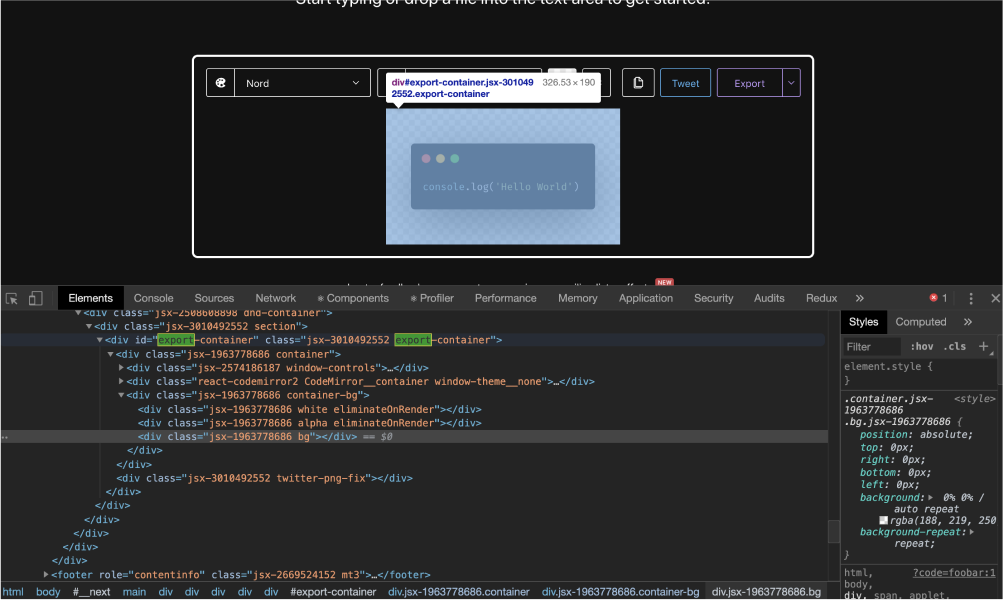
Now that the function was built, it was deployment time 🚀! I chose to give Vercel a try to test and deploy this serverless function on their service. However, there was a couple of things I needed to do first:
Put all my code in an api folder
Create a file with the main request handler function as default export. I called my file carbonara.ts hence users wanting to call this cloud function would have to call the /api/carbonara endpoint.
Put all the rest of the code in a _lib folder to prevent any exported functions to be listed as an endpoint.
Then, using the Vercel CLI I could both:
Run my function locally using vercel dev
Deploy my function to prod using vercel --prod
You can try this serverless function using the following curl command:
Sample curl command to call the serverless function
1
curl -d "data=Y29uc29sZS5sb2coImhlbGxvIHdvcmxkIik=" -X POST https://carbonara-nu.now.sh/api/carbonara
If you want to deploy it on your own Vercel account, simply click the button bellow and follow the steps:
Otherwise, you can find all the code featured in this post in this Github repository.
After reading all this you might be asking yourself: "But Maxime, what are you going to do with this? And why did you put this in a serverless function to begin with?". Here's a list of the few use cases I might have for this function:
To generate images for my meta tags for some articles or snippets (I already do this now 👉 Tweet from @MaximeHeckel
To be able to generate carbon images from the CLI and share them with my team at work or other developers quickly
Enable a "screenshot" option for the code snippets in my blog posts so my readers could easily download code screenshots.
Many other ideas that I'm still working on right now!
But, regardless of its usefulness or the number of use cases I could find for this serverless function, the most important is that I had a lot of fun building this and that I learned quite a few things. I'm now definitely sold on serverless and can't wait to come up with new ideas.
此内容由惯性聚合(RSS阅读器)自动聚合整理,仅供阅读参考。 原文来自 — 版权归原作者所有。