


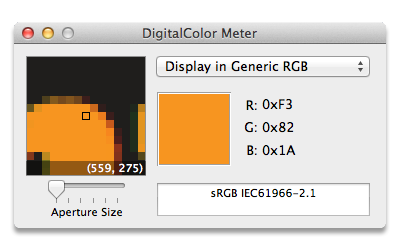
Have you ever wanted to figure out the particular color of a piece of text, or a background, without having to sift through a CSS file, or open Photoshop to use its eye dropper tool?
One of the secrets of the Mac OS, at least for web designers, is the utility called Digital Color Meter. I'm surprised more designers and developers don't know about it, so I thought I'd try to rectify that situation.
To use Digital Color Meter, go to Applications/Utilities, and you'll find it there (along with other goodies like Network Utility). When open, it will present a floating window with a magnified representation of where your cursor point is.
You will also see a set of RGB values of the color of that pixel. But what if you don't want RGB values?
In Lion, though, Apple changed where this toggle is. Go to the View menu, Display Values > as Hexadecimal. Voila - now you're getting hex values!
The way I used to work was to look at those values, and write them down on a scrap of paper. But I just needed to poke around the menu a bit and I'd have found a much easier way!
You need to know two key commands (Digital Color Meter has to the front most app for these to work):
Command-L - this locks the pixel that digital color meter is looking at. You can now freely move your cursor and you won't loose the pixel you were measuring.
Shift-Command-C - this will copy the measured value onto your clipboard
Now you can paste your desired hex value, even with the octothorp - er, '#' included!
此内容由惯性聚合(RSS阅读器)自动聚合整理,仅供阅读参考。 原文来自 — 版权归原作者所有。