
惯性聚合 高效追踪和阅读你感兴趣的博客、新闻、科技资讯
阅读原文 在惯性聚合中打开

推荐订阅源

F
Full Disclosure
Stack Overflow Blog
Stack Overflow Blog
H
Help Net Security
Microsoft Azure Blog
The GitHub Blog
The GitHub Blog
cs.CV updates on arXiv.org
cs.AI updates on arXiv.org
Recorded Future
Recorded Future
Y
Y Combinator Blog
Cloudbric
Cloudbric
Threat Intelligence Blog | Flashpoint
S
Schneier on Security
K
KPMG report finds enterprise disconnect between AI and its ROI | CIO
C
Cybersecurity and Infrastructure Security Agency CISA
TaoSecurity Blog
TaoSecurity Blog
Security Latest
Security Latest
N
News and Events Feed by Topic
Hacker News - Newest:
Hacker News - Newest: "LLM"
D
DataBreaches.Net
Security Archives - TechRepublic
H
Hacker News: Front Page
C
Cisco Blogs
L
LangChain Blog
aimingoo的专栏
aimingoo的专栏
Recent Commits to openclaw:main
V
Vulnerabilities – Threatpost
L
LINUX DO - 最新话题
cs.CL updates on arXiv.org
Google Online Security Blog
D
Darknet – Hacking Tools, Hacker News & Cyber Security
A
About on SuperTechFans
www.infosecurity-magazine.com
Jina AI
Jina AI
C
CXSECURITY Database RSS Feed - CXSecurity.com
Schneier on Security
T
Tenable Blog
N
News and Events Feed by Topic
W
WeLiveSecurity
有赞技术团队
有赞技术团队
AI
AI
爱范儿
爱范儿
大猫的无限游戏
大猫的无限游戏
Latest news
Latest news
T
The Blog of Author Tim Ferriss
S
Security Affairs
Know Your Adversary
Know Your Adversary
Simon Willison's Weblog
G
GRAHAM CLULEY
Google DeepMind News
The Cloudflare Blog

Chip Cullen

The need for importance, and AI: Chip Cullen An updated Colorosetta: Chip Cullen The Return of the Font Combinator!: Chip Cullen Changing the number of an item in an ordered list: Chip Cullen My pizza dough recipe as of May 2025: Chip Cullen Gonna try to be a bit more personal: Chip Cullen How I built dynamic social media images in Eleventy using Cloudinary: Chip Cullen My current approach to AI : Chip Cullen Lessons Learned Surviving a Major Product Launch: Chip Cullen How to Build a Drop Down Menu with Modern CSS: Chip Cullen How to stop page scrolling when you have an open dialog element: Chip Cullen Distraction Driven Development: Chip Cullen How I learned to code: the art of letting go: Chip Cullen In praise of the switch statement: Chip Cullen Project stuck? Think about how you’re breaking it down & question everything: Chip Cullen So how did the onboarding experiment go?: Chip Cullen Ideas for an Onboarding Checklist: Chip Cullen I really like Post Mortems: Chip Cullen Raise Red Flags Early: Chip Cullen How to mock fetch requests in React Testing Librarty tests: Chip Cullen Running a Structured Meeting: Chip Cullen Adding the View Transitions API to my personal site: Chip Cullen A Lightweight Way to Read GraphQL Data: Chip Cullen How to make a color changing favicon: Chip Cullen Using a Pros/Cons list to help navigate technical discussions: Chip Cullen How to use variable fonts from Google Fonts: Chip Cullen A new website: now on Eleventy!: Chip Cullen How to Truncate Type at More Than One Line with Just CSS: Chip Cullen Colorosetta: the VS Code Extension!: Chip Cullen Using CSS Custom Properties and Logical Properties Together: Chip Cullen Browser Dev Tools: Element Inspector Popover: Chip Cullen The Link with rel=preload is a Seperate Thing: Chip Cullen How to have Dark & Light Mode Images that also works with User Choice: Chip Cullen Don’t use Viewport Units for Font Size on their own: Chip Cullen A little known Media Query: Aspect Ratio: Chip Cullen Meta thinking: Managing Decisions: Chip Cullen Give Your To-Do's Context: Chip Cullen Say What the Impact is when Reporting Issues: Chip Cullen Firefighting 101: How to Manage Breakages: Chip Cullen How to Deal With Large Pieces of Technical Debt: Chip Cullen Make Your Request Clear: Chip Cullen Analytics events, HTML classes, and protecting against refactoring: Chip Cullen How We Removed jQuery from a large app: Chip Cullen New tool: ColoRosetta: Chip Cullen What width and height attributes should you use with responsive images?: Chip Cullen Django 3.1 gotcha: Referrer Policy has a new default, and it might break iframes and links: Chip Cullen A Javascript Component Pattern: Chip Cullen CSS min(), max() and clamp() Functions: Chip Cullen Pointer Events and Inline Elements in Chrome: Chip Cullen Resolving a github repo and a new Create React App: Chip Cullen How to POST *Data* with the Fetch API: Chip Cullen The Contrast Triangle: Chip Cullen Advice on interviewing for Junior Developers: Chip Cullen Life Lessons Learned From Running a Marathon: How to do something really hard: Chip Cullen A (Brief) intro to Search Engine Structured Data: Chip Cullen Javascript Fallback Values on Variables and Booleans - a hard lesson: Chip Cullen Alfred Tip: Quickly Access Common URLs: Chip Cullen Responsive Images in Hugo - by Laura Kalbag: Chip Cullen Making a Gatsby Site with Multiple Content Types: Chip Cullen How to Create and Use Fixtures in Cypress Tests: Chip Cullen Fixing the 'Bad Interpreter' Error from AWS and Python 3.7: Chip Cullen Creating a Canonical Tag in a Django Template: Chip Cullen Responsive spacing with viewport and ch units: Chip Cullen Welcome to my New Design - 2019: Chip Cullen Django Templates: Block and If statements don’t work like you might expect: Chip Cullen Books I Read in 2018: Chip Cullen Lifehack: 4 ways to help tame common email noise: Chip Cullen How to make better Pull Requests: Adding Steps to Test: Chip Cullen The unsung develpment tool: Spreadsheets: Chip Cullen Troubleshooting Adding and Removing EventListeners: with Arguments, Debounced, and in a React Class: Chip Cullen How to Fake the Window Object in Jest and Enzyme: Chip Cullen Migrating From Wordpress to Hugo: Chip Cullen Background Repeat and its Possibilities: Chip Cullen Getting Started With Front End Tests: a Mindset: Chip Cullen Migrating a Blog - An Opportunity for a Content Inventory: Chip Cullen Moving to Hugo: Chip Cullen JavaScript events: .target vs .currentTarget: Chip Cullen Things I wish I knew when starting with Python: Chip Cullen Leading Ampersands for modifiers in Sass: An anti-pattern: Chip Cullen How to get rid of the "You have mail" message in your terminal: Chip Cullen Why three typefaces rule the web, and what you can do about it: Chip Cullen You shouldn't worry about Section 508 - it's Section 504: Chip Cullen Looping Video Backgrounds: pointers and pitfalls: Chip Cullen How to “preview” a click event tag in the Google Tag Manager console: Chip Cullen Moving on from a technology, or: life after Drupal: Chip Cullen Don’t be a dumb developer: Chip Cullen Two level breadcrumbs with CSS :only-child: Chip Cullen Simplicity comes with experience: Chip Cullen Do the least amount possible: Chip Cullen SVGs vs. Icon Fonts: Two points in favor of Icon Fonts: Chip Cullen Accessible links without underlines: Chip Cullen The Strategic Job Hunt: Chip Cullen Surviving Getting Laid Off: Chip Cullen How to structure your typography in Sass: Chip Cullen Layer Cake: A Responsive Design Layout Pattern: Chip Cullen Creativity is yet to come in Web Design: Chip Cullen Front End Testing with Wraith: A Step by Step Recipe: Chip Cullen Where to begin? How I start a visual design for the web: Chip Cullen If you could only have five Google Fonts: Chip Cullen Why SVG is so cool (or: what happens when you're late to the party on something): Chip Cullen
Developing a Wordpress site locally, on more than one computer: Chip Cullen
2011-11-01 · via Chip Cullen

Let’s say you want to develop a Wordpress site on your computer ( i.e., locally), but want to be able to work on that same site from a different computer. For instance, you are working on a site at work, but you have another computer at home, and want to easily work on the site from there.

To work on a site from two (or more) computers, you could constantly copy files back and forth, but the site content and configuration will not be the same. But you also don’t want to work straight off a hosted server, as the lag of FTP'ing changes would be slow you down.

Using the method I’m about to describe, you will be able to:

  • Make changes to your theme files
  • Add plugins
  • Create/modify content
  • Change site settings

And it will also seamlessly transfer from one computer to another.

I do not recommend this process for a group environment, as I explain later.

Some assumptions I’m going to make up front:

  • You’ve installed a Wordpress site before, by hand, and are comfortable with the process (it’s easy!)
  • You’re using a Mac. I work on a Mac, as does most of my audience, but the same process should be possible on Windows.
  • You have a web hosting account already. If you are going down the rabbit hole I’m about to show you, I’m assuming you’re the kind of person who does.
  • You at least know what a mySQL database is, and that Wordpress runs on it, and you can at least get your web host account to create a new database.

Let’s get started

To achieve this, you will need a tasty cocktail of (mostly free) technologies that makes this easy. You need four things:

Wordpress

Grab yourself a fresh copy of the latest copy of Wordpress. Download it onto your hard drive, and keep an eye on it. That Wordpress is shifty.

Dropbox

This won’t be a full introduction to Dropbox - the short version is that it’s a way to keep files synced between computers and devices. Once you have an account, download the desktop app. This will install a directory on your computer that you can place files in that will sync with Dropbox.

Once you are set up, drag your Wordpress directory into your Dropbox directory. It may take a few minutes for the whole Wordpress folder to sync with Dropbox, but can continue to the next step anyway.
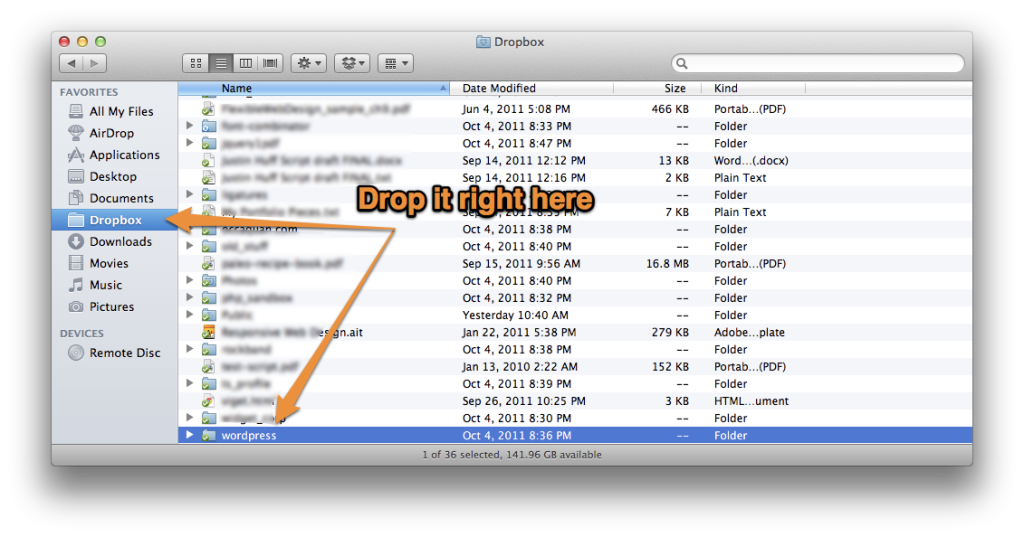
Put your Wordpress folder right in Dropbox

MAMP (or WAMP for Windows)

MAMP is an indispensable utility that allows you to easily run a server environment on your computer. It lets you set up things like mySQL and PHP without having to deal with the command line.

This won’t be a tutorial on MAMP (check out one here), but once you have it up and running, you are ready to run Wordpress.

Here is the magic part: you can run a Wordpress instance from within a Dropbox folder.

All you need to do is to point your MAMP Apache preferences to your Wordpress folder within Dropbox.

In the main MAMP window, click "Preferences", select the "Apache" tab, and under "Document Root", hit "Select…". In the dialog box, select your Wordpress folder from within Dropbox, and hit "okay". MAMP may prompt you for an administrator password.
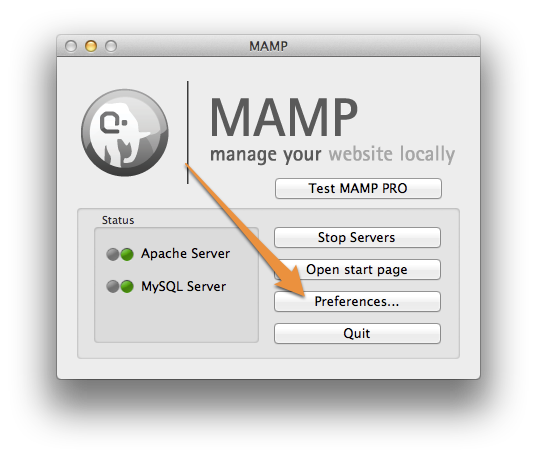
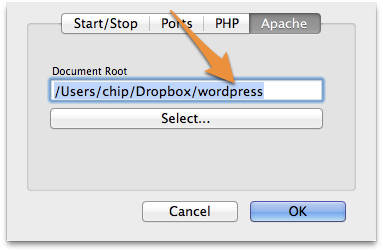
MAMP Start Screen - Click on "Preferences" Point MAMP's Apache Preferences to your Wordpress folder within Dropbox

A Hosted Database

The last ingredient is an empty mySQL database available to you that is hosted somewhere on the internet. Most web hosts allow you to add new databases, and should have a database front end like phpMyAdmin. Once you create a database, you will need to have four pieces of information:

  • The name of the database
  • A user name that has privileges for that database
  • That user’s password
  • The host name for the database - either a website’s URL or an IP address

In you Wordpress directory, you will need to adjust the wp-config-sample.php file and adjust it with the above information, and save it as “wp-config.php”.

Setting up your site

Now you’re ready to start working on your Wordpress site. You will need to launch it first, so open your browser and go to:

https://localhost:8888

That URL basically points to your own machine (localhost), while using MAMP's port, 8888. You should see the Wordpress set up screen.

If you do, great! You’re ready to rock. On the Wordpress set up screen, you will need to enter the database information that you have from your web host. Put that in, plus the normal Wordpress info, and you’re good to go.

IF YOU DOn’t SEE THE SETUP SCREEN: You probably are getting an error page saying “Error establishing database connection‘. If you are, there are several things that could be at play. One, your web host’s database may not be accessible from a remote location (in this case, your computer), so that port may not be exposed. It varies from host to host - you will need to check with them. The other issue could be your local firewall settings - if they are under your control, you may need to tweak which ports are exposed.

Bringing it all together

So now you have Wordpress up and running on your computer. Sweet! Now, what to do about your other computer?

On your second machine, you will need to install:

When you have Dropbox installed, and are synced with your account, you will see the Dropbox folder has all the files that you put in it on your first computer. That includes the Wordpress directory.

When you have MAMP up and running on the second computer, point its Apache preferences to your Wordpress folder within Dropbox, just like you did on your first machine.

Now, you will literally have the same site when you go to

https://localhost:8888

on your second computer. Now you can make updates to your theme(s), add plugins, create content, etc., and everything will stay in sync when you switch between computers!

Why this isn’t meant for groups/teams

I would recommend this method only if you are working alone on a site. This idea could theoretically work for two or more people working at the same time on a site. However, I would not recommend this method for a group environment. This is because there is no proper (group) version control with this method.

If you are working by yourself, your changes from one machine to the other won’t happen at the same time. When you are working on a site with other people, nothing prevents them from changing a file that you’re working on at the same time. This can lead to nasty conflicts, and possibly loss of data.

If you are working with other people, you will want to invest the time in getting something like a Git repository set up.

One nice thing, though, if you are going it alone, is that Dropbox will save versions of your files, and you can access them through their web interface. It works all in the background, on every save.

A word about Drupal

I don’t see any reason why this idea wouldn’t work with Drupal. This method is actually CMS-agnostic. As the whole trick is a CMS in a Dropbox account that simply points to a remote database, it should theoretically work for any PHP/mySQL based CMS. I just haven’t had time to try it out.

Wrap up

I hope this tutorial helps you create a better workflow for working on a Wordpress site from multiple locations.