
惯性聚合 高效追踪和阅读你感兴趣的博客、新闻、科技资讯
阅读原文 在惯性聚合中打开

推荐订阅源

T
Tenable Blog
博客园_首页
Vercel News
Vercel News
WordPress大学
WordPress大学
美团技术团队
G
Google Developers Blog
大猫的无限游戏
大猫的无限游戏
小众软件
小众软件
Y
Y Combinator Blog
博客园 - 【当耐特】
量子位
酷 壳 – CoolShell
酷 壳 – CoolShell
The Cloudflare Blog
T
The Blog of Author Tim Ferriss
奇客Solidot–传递最新科技情报
奇客Solidot–传递最新科技情报
Google DeepMind News
云风的 BLOG
云风的 BLOG
腾讯CDC
M
MIT News - Artificial intelligence
爱范儿
爱范儿
Recent Announcements
雷峰网
雷峰网
Last Week in AI
Last Week in AI
宝玉的分享
宝玉的分享
The Register - Security
Jina AI
Jina AI
CTFtime.org: upcoming CTF events
cs.CL updates on arXiv.org
Hugging Face - Blog
Hugging Face - Blog
P
Privacy & Cybersecurity Law Blog
Recorded Future
Recorded Future
Help Net Security
Help Net Security
N
News and Events Feed by Topic
博客园 - Franky
P
Proofpoint News Feed
L
LINUX DO - 热门话题
S
SegmentFault 最新的问题
The GitHub Blog
The GitHub Blog
K
KPMG report finds enterprise disconnect between AI and its ROI | CIO
钛媒体:引领未来商业与生活新知
钛媒体:引领未来商业与生活新知
月光博客
月光博客
D
Docker
Google DeepMind News
有赞技术团队
有赞技术团队
IT之家
IT之家
Security Latest
Security Latest
L
LangChain Blog
V
V2EX
阮一峰的网络日志
阮一峰的网络日志
J
Java Code Geeks

Chip Cullen

The need for importance, and AI: Chip Cullen An updated Colorosetta: Chip Cullen The Return of the Font Combinator!: Chip Cullen Changing the number of an item in an ordered list: Chip Cullen My pizza dough recipe as of May 2025: Chip Cullen Gonna try to be a bit more personal: Chip Cullen How I built dynamic social media images in Eleventy using Cloudinary: Chip Cullen My current approach to AI : Chip Cullen Lessons Learned Surviving a Major Product Launch: Chip Cullen How to Build a Drop Down Menu with Modern CSS: Chip Cullen How to stop page scrolling when you have an open dialog element: Chip Cullen Distraction Driven Development: Chip Cullen How I learned to code: the art of letting go: Chip Cullen In praise of the switch statement: Chip Cullen Project stuck? Think about how you’re breaking it down & question everything: Chip Cullen So how did the onboarding experiment go?: Chip Cullen Ideas for an Onboarding Checklist: Chip Cullen I really like Post Mortems: Chip Cullen Raise Red Flags Early: Chip Cullen How to mock fetch requests in React Testing Librarty tests: Chip Cullen Running a Structured Meeting: Chip Cullen Adding the View Transitions API to my personal site: Chip Cullen A Lightweight Way to Read GraphQL Data: Chip Cullen How to make a color changing favicon: Chip Cullen Using a Pros/Cons list to help navigate technical discussions: Chip Cullen How to use variable fonts from Google Fonts: Chip Cullen A new website: now on Eleventy!: Chip Cullen How to Truncate Type at More Than One Line with Just CSS: Chip Cullen Colorosetta: the VS Code Extension!: Chip Cullen Using CSS Custom Properties and Logical Properties Together: Chip Cullen Browser Dev Tools: Element Inspector Popover: Chip Cullen The Link with rel=preload is a Seperate Thing: Chip Cullen How to have Dark & Light Mode Images that also works with User Choice: Chip Cullen Don’t use Viewport Units for Font Size on their own: Chip Cullen A little known Media Query: Aspect Ratio: Chip Cullen Meta thinking: Managing Decisions: Chip Cullen Give Your To-Do's Context: Chip Cullen Say What the Impact is when Reporting Issues: Chip Cullen Firefighting 101: How to Manage Breakages: Chip Cullen How to Deal With Large Pieces of Technical Debt: Chip Cullen Make Your Request Clear: Chip Cullen Analytics events, HTML classes, and protecting against refactoring: Chip Cullen How We Removed jQuery from a large app: Chip Cullen New tool: ColoRosetta: Chip Cullen What width and height attributes should you use with responsive images?: Chip Cullen Django 3.1 gotcha: Referrer Policy has a new default, and it might break iframes and links: Chip Cullen A Javascript Component Pattern: Chip Cullen CSS min(), max() and clamp() Functions: Chip Cullen Pointer Events and Inline Elements in Chrome: Chip Cullen Resolving a github repo and a new Create React App: Chip Cullen How to POST *Data* with the Fetch API: Chip Cullen The Contrast Triangle: Chip Cullen Advice on interviewing for Junior Developers: Chip Cullen Life Lessons Learned From Running a Marathon: How to do something really hard: Chip Cullen A (Brief) intro to Search Engine Structured Data: Chip Cullen Javascript Fallback Values on Variables and Booleans - a hard lesson: Chip Cullen Alfred Tip: Quickly Access Common URLs: Chip Cullen Responsive Images in Hugo - by Laura Kalbag: Chip Cullen Making a Gatsby Site with Multiple Content Types: Chip Cullen How to Create and Use Fixtures in Cypress Tests: Chip Cullen Fixing the 'Bad Interpreter' Error from AWS and Python 3.7: Chip Cullen Creating a Canonical Tag in a Django Template: Chip Cullen Responsive spacing with viewport and ch units: Chip Cullen Welcome to my New Design - 2019: Chip Cullen Django Templates: Block and If statements don’t work like you might expect: Chip Cullen Books I Read in 2018: Chip Cullen Lifehack: 4 ways to help tame common email noise: Chip Cullen How to make better Pull Requests: Adding Steps to Test: Chip Cullen The unsung develpment tool: Spreadsheets: Chip Cullen Troubleshooting Adding and Removing EventListeners: with Arguments, Debounced, and in a React Class: Chip Cullen How to Fake the Window Object in Jest and Enzyme: Chip Cullen Migrating From Wordpress to Hugo: Chip Cullen Background Repeat and its Possibilities: Chip Cullen Getting Started With Front End Tests: a Mindset: Chip Cullen Migrating a Blog - An Opportunity for a Content Inventory: Chip Cullen Moving to Hugo: Chip Cullen JavaScript events: .target vs .currentTarget: Chip Cullen Things I wish I knew when starting with Python: Chip Cullen Leading Ampersands for modifiers in Sass: An anti-pattern: Chip Cullen How to get rid of the "You have mail" message in your terminal: Chip Cullen Why three typefaces rule the web, and what you can do about it: Chip Cullen You shouldn't worry about Section 508 - it's Section 504: Chip Cullen Looping Video Backgrounds: pointers and pitfalls: Chip Cullen How to “preview” a click event tag in the Google Tag Manager console: Chip Cullen Moving on from a technology, or: life after Drupal: Chip Cullen Don’t be a dumb developer: Chip Cullen Two level breadcrumbs with CSS :only-child: Chip Cullen Simplicity comes with experience: Chip Cullen Do the least amount possible: Chip Cullen SVGs vs. Icon Fonts: Two points in favor of Icon Fonts: Chip Cullen Accessible links without underlines: Chip Cullen The Strategic Job Hunt: Chip Cullen Surviving Getting Laid Off: Chip Cullen How to structure your typography in Sass: Chip Cullen Layer Cake: A Responsive Design Layout Pattern: Chip Cullen Creativity is yet to come in Web Design: Chip Cullen Front End Testing with Wraith: A Step by Step Recipe: Chip Cullen Where to begin? How I start a visual design for the web: Chip Cullen If you could only have five Google Fonts: Chip Cullen Why SVG is so cool (or: what happens when you're late to the party on something): Chip Cullen
How to apply classes to elements with CKEditor 4, in Drupal 7: Chip Cullen
2013-12-20 · via Chip Cullen

I'm just jotting down a couple things that I figured out recently with regards to making modifications to the CKEditor WYSWIG editor in a Drupal 7 installation.

On a recent project, we had a client who wanted the ability to have images in the body float left or right. What I wanted to see happen, as a front end developer, is that the images would simply have a class attached to them, and my external CSS would handle the floating.

Why a class (as opposed to inline styling?):

  • Cleaner markup in general
  • Style attributes were being stripped by our text format, and I didn't want to let any HTML fly within this format
  • Just adding a class would make future modifications easier (rather than trying to modify individual instances of inline styles)

After an afternoon of experimentation, I found out you need two files added to your theme, and a weird trick to make sure it works.

I'm going to assume that you already have the CKEditor module up and running, and the CKEditor library itself has been installed in sites/all/libraries.

Adding new style options to CKEditor

The first step is to add the "Styles" drop down to the editor itself.
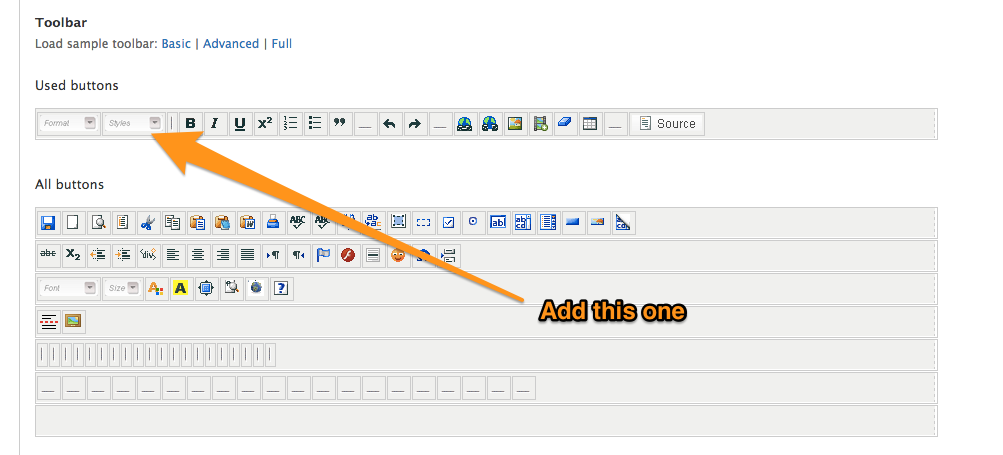
  • Go to Configuration > Content Authoring > CKEditor
  • Next to the profile that you want to change, click "Edit"
  • then on that page, open the "Editor Appearance" fieldset
  • Scroll to the section where you can drag/drop items on the tool bar, and drag the "Styles" box onto your tool bar

The CKEditor Styles dropdown

Save your changes, but keep the CKEditor page open, as we'll be revisiting it soon.

The first file that you will need to add to your theme is ckeditor.styles.js. This is what will dictate what style options appear in the dropdown that was just added to the toolbar.

The default file exists within the contributed module (presumably sites/all/modules/contrib/ckeditor/ckeditor.styles.js). I would suggest copying that file and putting it in the root of your theme.

When you look at the file, you will see that the styles are laid out in a fairly easy-to-understand JSON format.
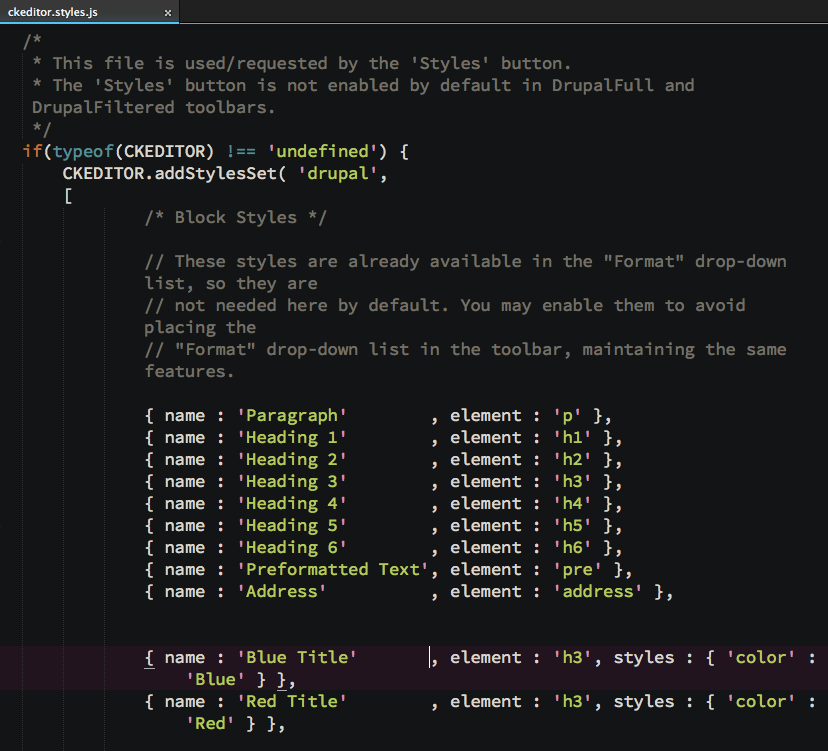
JSON formated options

You can see how styles are described, and even have some visual design applied to them, so they appear a certain way within the drop down.

I didn't want any of these styles, so I commented out almost everything. What I did add looked like this:

/* Object Styles */ { name : 'Image on Left', element : 'img', attributes : { 'class' : 'align-left' } }, { name : 'Image on Right', element : 'img', attributes : { 'class' : 'align-right' } }

Which, when configured (see below), will make two options appear in the drop down menu. When an image element is selected, and one of these options are applied, a class will be added to the image element - exactly what I wanted!
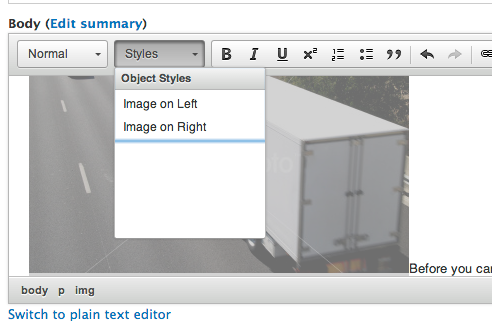
The styles drop down

In order to get Drupal to have your new style options, though, you need to make CKEditor see your new file:

  • Go to Configuration > Content Authoring > CKEditor (you did leave that page open, right?)
  • Click "Edit" next to the text format that you edited earlier
  • Scroll down to the "CSS" Fieldset and open it
  • In the "Predefined styles" dropdown, I would suggest that you set it to "Define path to ckeditor.styles.js".

While setting it to "Use Theme ckeditor.styles.js" will do the same thing in theory, in practice it doesn't work the way you expect. There is some nasty caching gremlin in the dark places of Drupal that will read your file once, but simply will ignore future changes. This issue has been raised for a while, but it's still exhibiting this behavior.

The weird trick to get around Drupal not seeing changes to ckeditor.styles.js

As noted at the very end of that Issue, a cache busting string will fix this issue. That's why I suggest you define the path to your ckeditor.styles.js. You can set it to something like this:

%tckeditor.styles.js?v1

(The %t is a wildcard character that points to the active theme.)

And when you make future changes, just update v1 to v2 and so on. Drupal will see your changes, then.

Once you've defined your path, and hit save (and clear caches, just to be sure), now your custom style options should appear in the CKEditor toolbar. You can now select image elements that have been placed in the content, and apply classes to them via the options created.

You can try it out, and you should see something like this show up in your markup:

...

Which you can now style in your normal theme CSS, to float or do whatever else you want:

img.align-left { float: left; margin: 0 20px 20px 0; }

Changing the style inside the editor itself

You can also add custom CSS so that the editor itself reflects your style changes. What you need to do is to add another CSS file to your theme called that will be used by the editor.

I would suggest starting out with the default version of the CKEditor file, which can be found at /sites/all/libraries/ckeditor/contents.css. I simply copied that over to the root of my theme, and renamed it ckeditor.styles.css just to keep the name associated with the javascript file.

Within that file you can modify how the editor appears. You can do things like change the font that is used, the background color, etc. The sky is the limit - you can take it as far as you want.

You can also include styles for the new options that you just made available in your javascript file. I basically copied over exactly what I added to my main CSS file, so that now when someone selects an image and floats it, it will float within the editor.
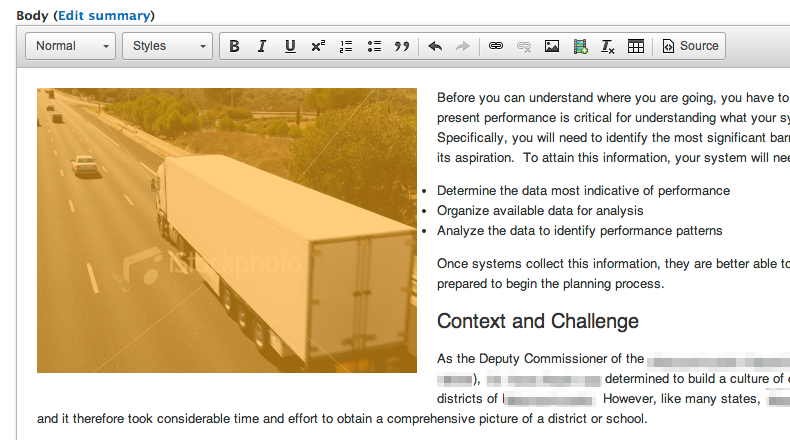
An image floating to the left in the editor

You will need to configure Drupal to see the new CSS, though. Back in the CKEditor Profile page, under "CSS", under "Editor CSS", I would suggest again using Define CSS and using a string with a cache buster, just like the JavaScript file.
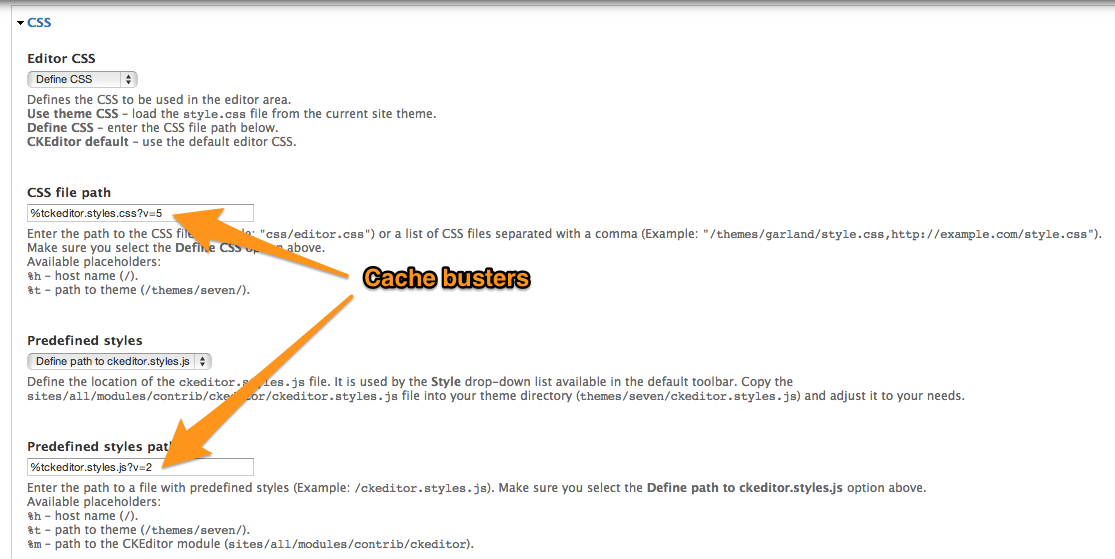
CKEditor Settings

So that is basically it. You need a couple files, one piece of voodoo, and now you can let users apply classes to elements within the CKEditor editor.