


How to create simple Mac apps from shell scripts
Basically, a Mac application has a .app extension, but it’s not really a file — it’s a package. You can view the application’s contents by navigating to it in the Finder, right-clicking it and then choosing “Show Package Contents”.
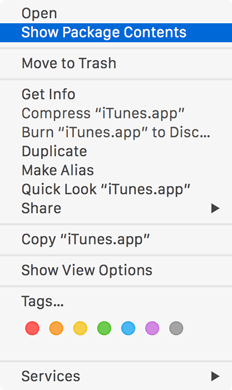
The internal folder structure may vary between apps, but you can be sure that every Mac app will have a Contents folder with a MacOS subfolder in it. Inside the MacOS directory, there’s an extension-less file with the exact same name as the app itself. This file can be anything really, but in its simplest form it’s a shell script. As it turns out, this folder/file structure is all it takes to create a functional app!
Enter appify
After this discovery, Thomas Aylott came up with a clever “appify” script that allows you to easily create Mac apps from shell scripts. The code looks like this:
#!/usr/bin/env bash

APPNAME=${2:-$(basename "${1}" '.sh')};
DIR="${APPNAME}.app/Contents/MacOS";

if [ -a "${APPNAME}.app" ]; then
	echo "${PWD}/${APPNAME}.app already exists :(";
	exit 1;
fi;

mkdir -p "${DIR}";
cp "${1}" "${DIR}/${APPNAME}";
chmod +x "${DIR}/${APPNAME}";

echo "${PWD}/$APPNAME.app";
Installing and using appify is pretty straightforward if you’re used to working with UNIX. (I’m not, so I had to figure this out.) Here’s how to install it:
- Save the script to a directory in your
PATHand name itappify(no extension). I chose to put it in/usr/local/bin, which requires root privileges. - Fire up Terminal.app and enter
sudo chmod +x /usr/local/bin/appifyto make appify executable without root privileges.
After that, you can create apps based on any shell script simply by launching Terminal.app and entering something like this:
$ appify your-shell-script.sh "Your App Name"
Obviously, this would create a stand-alone application named Your App Name.app that executes the your-shell-script.sh script.
After that, you can very easily add a custom icon to the app if you want to.
Adding a custom app icon
- Create an
.icnsfile or a 512×512 PNG image with the icon you want, and copy it to the clipboard (⌘ + C). (Alternatively, copy it from an existing app as described in steps 2 and 3.) - Right-click the
.appfile of which you want to change the icon and select “Get Info” (or select the file and press ⌘ + I). - Select the app icon in the top left corner by clicking it once. It will get a subtle blue outline if you did it right.
- Now hit ⌘ + V (paste) to overwrite the default icon with the new one.
Note that this will work for any file or folder, not just .app files.
Examples
Chrome/Chromium bootstrappers
I like to run Chrome/Chromium with some command-line switches or flags enabled. On Windows, you can create a shortcut and set the parameters you want in its properties; on a Mac, you’ll need to launch it from the command line every time. Well, not anymore :)
#!/usr/bin/env bash
/Applications/Chromium.app/Contents/MacOS/Chromium --enable-benchmarking --enable-extension-timeline-api&
The & at the end is not a typo; it is there to make sure Chromium is launched in a separate thread. Without the &, Chromium would exit as soon as you quit Terminal.app.
Launch a local web server from a directory
Say you’re working on a project and you want to debug it from a web server. The following shell script will use Python to launch a local web server from a specific directory and open the index page in your default browser of choice. After appifying it, you won’t even need to open the terminal for it anymore.
#!/usr/bin/env bash
cd ~/Projects/Foo/
python -m SimpleHTTPServer 8080 &> /dev/null &
open http://localhost:8080/
More?
Needless to say, the possibilities are endless. Just to give another example, you could very easily create an app that minifies all JavaScript and CSS files in a specific folder. Got any nice ideas? Let me know by leaving a comment!
Leave a comment
Comment on “How to create simple Mac apps from shell scripts”Name *
Email *
Website
Your input will be parsed as Markdown.
Spammer? (Enter ‘no’) *