


When developers create a website, an important concern is that the tap targets are sufficiently big for all different kinds of input devices. This includes mouse pointers, which are fairly accurate, but can also include fingers, thumbs, or assistive tech. Today I learned that if you live in the midwest in winter, it can also include noses!

Given the variation in devices and input mechanisms, how does the browser determine what you clicked on?
TL;DR Browsers kind of expand the tap target of elements and try to find the element the user intended to click. It works slightly differently in each browser, but the end result is roughly the same: Browsers assist users who are unable to click perfectly given the combination of their circumstances and abilities.
What can you do as a developer to help this work as accurately as possible? When you have clickable “targets”, you should follow the minimum target size guidelines from WCAG 2.2. This gives you a couple options:

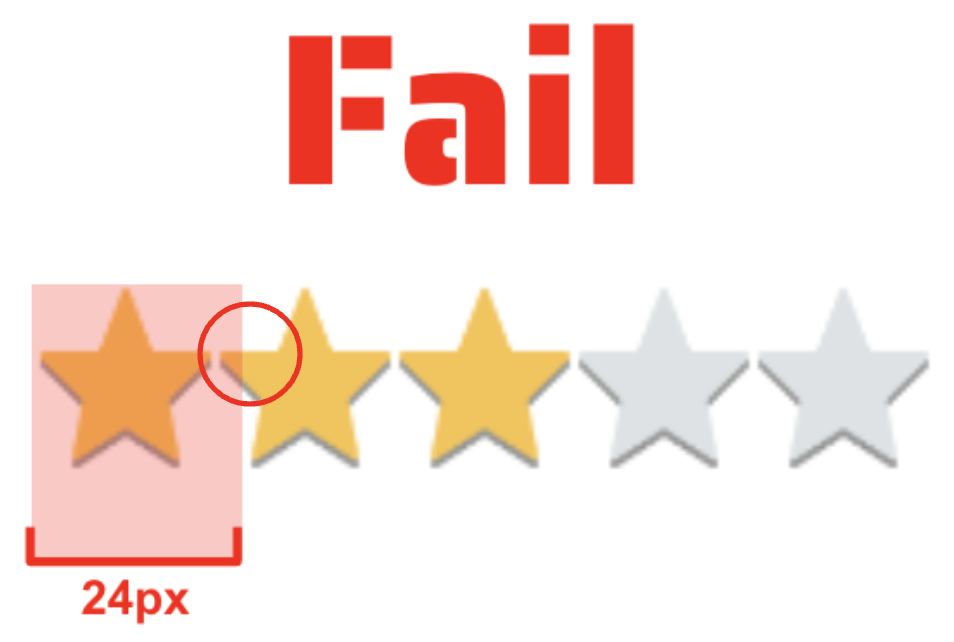
You don’t need to worry about inline elements like links in the middle of sentences, and there are more exceptions in the guidelines, but these 3 are the ones you need to understand for this article.
The browser doesn’t change anything in the page visually. It all happens behind the scenes so users who don’t quite hit tap targets don’t have a frustrating experience on the web.
You can definitely stop here. You know what you need to know to design a site with good tap targets. But, for those of you who want to go deeper, let’s get into how this works in browsers.
This was my first time reading C++, so I probably misunderstood a few things. Corrections welcome!
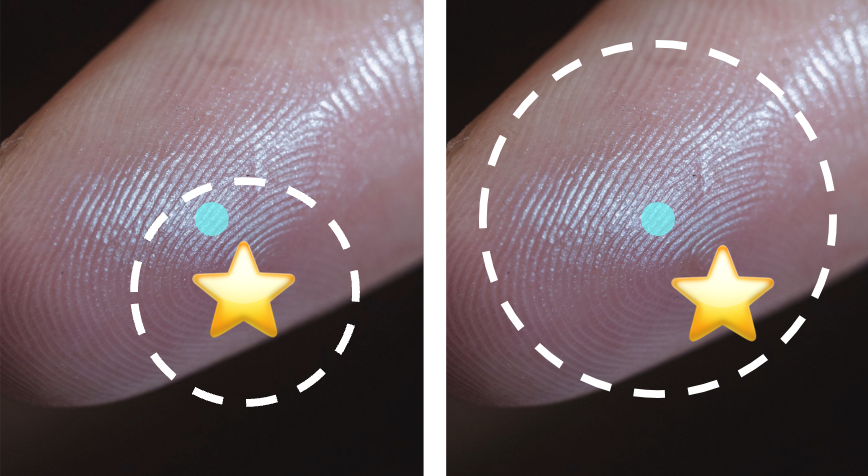
First a few definitions. I’ll use these throughout, even though different browsers have their own language for it. In this example, this giant stubby finger is attempting to click the yellow star, but it misses.
Browsers have different heuristics for finding elements that are touch targets and excluding elements that are not. This table is the criteria I found in the codebases, but probably not the complete set. (more to come for webkit!)
| Criteria | Chromium | Firefox | Webkit (incomplete) |
| Responds to tap (mouse move and click) | x | x | |
| Focusable item | x | – | |
| Exclude focusable items | – | – | x* |
| Excludes iframes | x | – | |
:active / :hover set | x | x | |
role=button or role=key | – | x | |
| Sets touch start or end | – | x | |
| Controls (forms) | x | x | |
| Editable | – | x | |
| Excludes stylus and other editable areas | x | – | |
Set CSS cursor:pointer property | – | x | |
Exclude cursor:auto children of cursor pointer | – | x | |
Listeners (like mousedown and mouseup) | x | x | |
| Exclude pseudo elements | x | – | |
| Visited links | – | x | |
| Exclude large touch targets | – | – | x |
| Exclude media controls | – | – | x |
In Chromium, the main heuristic for candidates is called NodeRespondsToTapGesture which is about whether it is focusable, affected by :hover or :active, or has listers for things like mousedown, mouseup, and click.
Firefox considers a few different characteristics to determine which elements are candidates, like whether it is editable, has listeners, has a role=button or role=key, sets the CSS cursor property, sets touch start or end, or if it is a link. Additionally, if you set the cursor to auto, it is removed from this list because the developer probably didn’t intend for the element to be clickable. See GetClickableAncestor.
From this set of criteria, browsers build a list of potential touch targets that might be the closest to the touch point.
How do browsers decide which event radius is closest to the touch point? Again, with a combination of heuristics and some math.
In Chromium, we compute an hit rectangle based on the physical touch radius of the touch points. See WebGestureEvent::TapAreaInRootFrame. Then, we search for any candidates which overlap this area and choose the best one based on a combination of distance and size of target. See FindBestCandidate. Distance in is the best (shortest) of area of overlap (works well for long links) and percentage of overlap which gives a higher confidence for small targets. Chromium currently excludes pseudo elements.
Which candidate is chosen also varies based on the detected size of the tap. This tap varies from device to device, tap to tap, and finger to finger. Page zoom ratio and device-pixel-ratio (high DPI) can also affect the decision.
After Gecko finds a set of candidate frames, they determine which one the user probably intended to interact with. First, they expand the touch radius by a certain number of millimeters based on the user’s device. See ui.touch.radius to look for the value for devices you support. Then, if there is a clickable element directly under the event position, Firefox uses that. otherwise they find all the frames that intersect a radius around the event position and calculate the closest by distance. CSS transforms are taken into account. See GetClosest.
What do they mean by closest? In their own words:
“
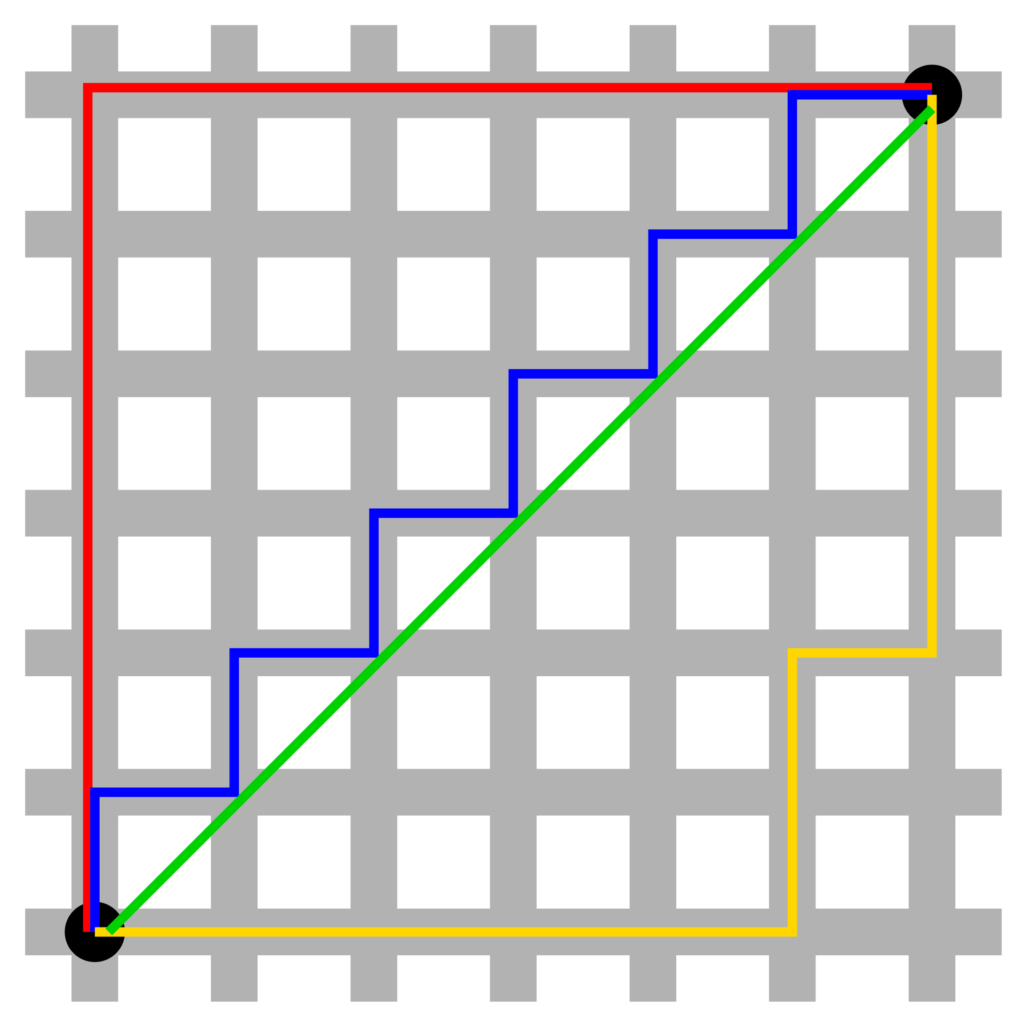
GeckoGetClosest()computes the transformed axis-aligned bounds of each candidate frame, then computes the Manhattan distance from the event point to the bounds rect (which can be zero).”
I’ll be honest, I had to look up the Manhattan distance. It is the distance between two points if you travelled the distance at right angles. Imagine a taxi in manhattan going diagonally across the city. It would need to turn from street to street to cover that diagonal distance. That is the Manhattan distance.
This isn’t anything particularly new. Most of the code Firefox uses to “fluff out” touch and click targets was written over a decade ago. [bug]
Webkit starts by determining selectability and calculating a bunch of different information about potentially selectable elements. It is still unclear to me what it uses of that information for… but I’ll fill in more as I find my way through the code.
As I understand it, Webkit expands the touch point rather than the tap target but I haven’t found this in code yet.
The biggest thing you can do to work in concert with browsers is to keep at least 24px of space around your touch targets. This means, that from the center of your touch target, there should be no other touch targets within a 12px radius. This can be 24px wide touch targets, or 20px wide touch targets with 2px of space between it and the edge of another touch target. Browsers heuristics to expand the event radius and the flexibility in the minimum target size guidelines work together to allow developers to create well designed sites that don’t compromise interactivity.
Thanks to Adrian for asking questions and creating a codepen that started this investigation.
Two people pointed me in the right direction.
Emilio at Mozilla.
And Rob Flack at Google for his responses to my many queries.
此内容由惯性聚合(RSS阅读器)自动聚合整理,仅供阅读参考。 原文来自 — 版权归原作者所有。