惯性聚合 高效追踪和阅读你感兴趣的博客、新闻、科技资讯
阅读原文 在惯性聚合中打开

推荐订阅源

爱范儿
爱范儿
钛媒体:引领未来商业与生活新知
钛媒体:引领未来商业与生活新知
G
GRAHAM CLULEY
www.infosecurity-magazine.com
V2EX - 技术
V2EX - 技术
The Last Watchdog
The Last Watchdog
S
Secure Thoughts
Webroot Blog
Webroot Blog
PCI Perspectives
PCI Perspectives
L
LINUX DO - 最新话题
Hacker News: Ask HN
Hacker News: Ask HN
N
News and Events Feed by Topic
H
Heimdal Security Blog
H
Help Net Security
T
The Blog of Author Tim Ferriss
P
Proofpoint News Feed
The GitHub Blog
The GitHub Blog
Jina AI
Jina AI
Recent Commits to openclaw:main
F
Full Disclosure
小众软件
小众软件
S
Securelist
罗磊的独立博客
NISL@THU
NISL@THU
D
Darknet – Hacking Tools, Hacker News & Cyber Security
C
Cisco Blogs
云风的 BLOG
云风的 BLOG
C
CERT Recently Published Vulnerability Notes
Cisco Talos Blog
Cisco Talos Blog
Know Your Adversary
Know Your Adversary
S
Schneier on Security
D
DataBreaches.Net
M
MIT News - Artificial intelligence
V
Vulnerabilities – Threatpost
N
News and Events Feed by Topic
有赞技术团队
有赞技术团队
F
Fortinet All Blogs
T
Tenable Blog
The Register - Security
C
Check Point Blog
AWS News Blog
AWS News Blog
Cloudbric
Cloudbric
C
CXSECURITY Database RSS Feed - CXSecurity.com
cs.AI updates on arXiv.org
C
Cyber Attacks, Cyber Crime and Cyber Security
Cyber Security Advisories - MS-ISAC
Google Online Security Blog
博客园 - 叶小钗
Hacker News - Newest:
Hacker News - Newest: "LLM"
博客园 - 司徒正美

Video Conferencing Blog

Optimizing TrueConf Room for Multi-Monitor Conference Setups — Video Conferencing Blog TrueConf 4.1 for iOS: Messenger Improvements — Video Conferencing Blog Secure Communication Platform for Enterprises: 2026 Guide TrueConf 3.2 for Android TV: Tone Dialling, User-Friendly Conference Management, and Updated UI — Video Conferencing Blog Webinar: New Features of API and Chat Bots — Video Conferencing Blog What will happen to Microsoft Teams on Windows 7, 8, and 10? — Video Conferencing Blog How to use TrueConf chatbots with the Hermes AI agent — Video Conferencing Blog TrueConf Calendar Connector 2.4: Support for Rooms and “Do Not Disturb” Status for Offline Meetings — Video Conferencing Blog How to use TrueСonf bots with the OpenClaw AI agent — Video Conferencing Blog TrueConf AI Server 1.1: Detecting Speakers by Voice, Uploading Recordings, and Transcription Search — Video Conferencing Blog TrueConf Server: Security Updates for June 2026 — Video Conferencing Blog Enterprise Video Conferencing: Top 10 Platforms, Features and Deployment Options TrueConf 4.0 for iOS: Voice Messages and Additional Statuses — Video Conferencing Blog Self-Hosted Video Conferencing in Enterprise Environments Business Document Sharing: Secure Files Collaboration + 5 Best Tools TrueConf Room 5.1: Setting Up an Additional Video Stream and Convenient Content Sharing from a TrueConf Group 2.1 Major Update: AI, New Interface, Tablet Control, and Much More — Video Conferencing 10 Best Free Video Conferencing Tools with No Time Limit TrueConf Earns “Top Performer” Recognition in FeaturedCustomers’ Spring 2026 Report — Video TrueConf 2.0.1 Add-ons for Corporate Calendars — Video Conferencing Blog 10 Best Video Meeting Tools in 2026 TrueConf 3.2 for Android: Voice Messages and PIN to Access the App — Video Conferencing Blog Video Conferencing 2026: A Complete Guide to 9 Leading Platforms TrueConf Calendar Connector 2.3: Changes and Improvements — Video Conferencing Blog Password Management in TrueConf — Video Conferencing Blog TrueConf Server: Security Updates for April 2026 — Video Conferencing Blog TrueConf AI Server 1.0.2: Conference Summary — Video Conferencing Blog TrueConf Server 5.5.4: Changes and Improvements — Video Conferencing Blog TrueConf 8.5.4: Changes and Improvements — Video Conferencing Blog How to install TrueConf client application for Linux TrueConf at GITEX Africa 2026 — Video Conferencing Blog TrueConf Server 5.5.3: User Connection History, List of Videos in the Personal Area — Video TrueConf Calendar Connector: What's New in Versions 2.1 and 2.2 — Video Conferencing Blog TrueConf 3.1.2 for Android TV: Updated UI — Video Conferencing Blog What to do if file transfer is not working? — Video Conferencing Blog TrueConf 8.5.3: Useful Changes and Improvements — Video Conferencing Blog TrueConf MCU 2.2: New Layout Editor, Improved Cascading, and Security Settings — Video Conferencing Blog TrueConf at Convergence India 2026 — Video Conferencing Blog TrueConf 3.1.2 for Android: List of Upcoming Meetings and New Noise Suppression — Video Conferencing TrueConf Server: Security Updates for March 2026 — Video Conferencing Blog Future of secure collaboration at GITEX Africa 2026 — Video Conferencing Blog Important TrueConf Server security updates — Video Conferencing Blog No outages in collaboration: Power Grid Bangladesh adоpts TrueConf — Video Conferencing Blog Filtering LDAP accounts — Video Conferencing Blog
How to create a "Let's Encrypt" certificate on Windows
Anthony Baadzhy · 2026-06-26 · via Video Conferencing Blog

Cryptographic certificates are the digital equivalent of website validation, which enables you to encrypt connections using TLS protocol and thus provide a secure link between server and client.

There are both paid and free certification centers. Let’s Encrypt is one of the free centers, which provides certificates for 90 days with an automatic renewal option.

Step 1: Getting started

First, you should stop all TrueConf Server services and all processes that can use 80 and 443 ports, such as Apache Http Server.

To create a TLS certificate on Windows, download the ACME Simple (WACS) program. Then follow the instruction:

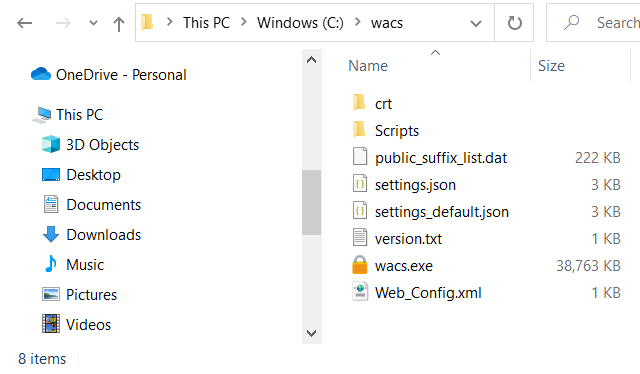
  • Extract the downloaded archive to the C:\wacs\ folder.
  • Create a crt directory in the same folder.
    How to create a "Let's Encrypt" certificate on Windows 1
  • In Windows Defender Firewall, go to Advanced SettingsInbound RulesNew RulePort; enter 80 and 443 ports separated by comma in the Specific local ports field and click Next. Then select Allow the connection, click Next again, specify which profiles the rule will apply to (for all by default) and after clicking Next, save the rule under any name.
  • Step 2: Creating a certificate

    Open the command line (cmd) as administrator and run the following program:

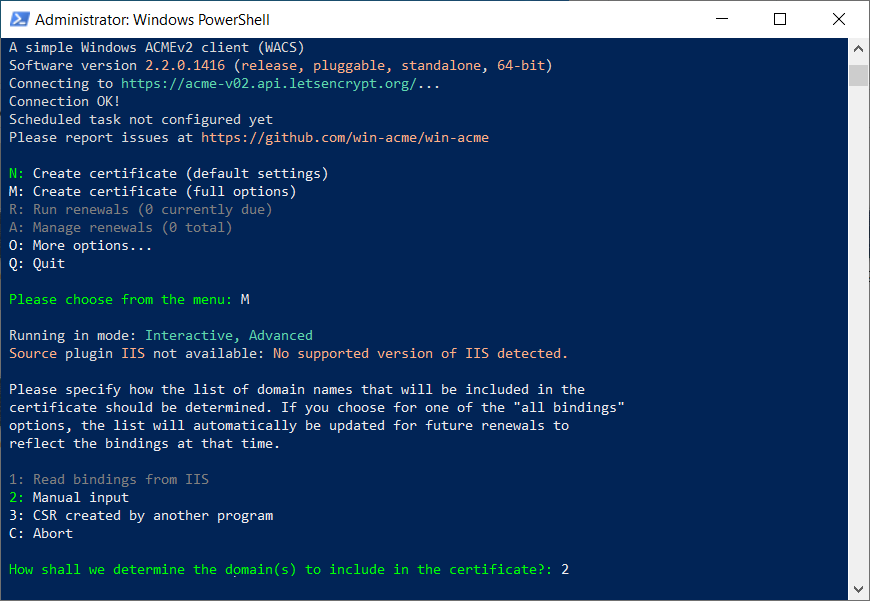
    Next, run the following commands sequentially by entering the letters and digits corresponding to the menu options that you want to select. For example, to run the command Create certificate (full options), you will need to type m and press Enter. (for version 2.2).

    • Start creating the certificate by manually specifying the parameters. To do it, select:
    • Create certificate (full options)
    • Manual input.

    How to create a "Let's Encrypt" certificate on Windows 2

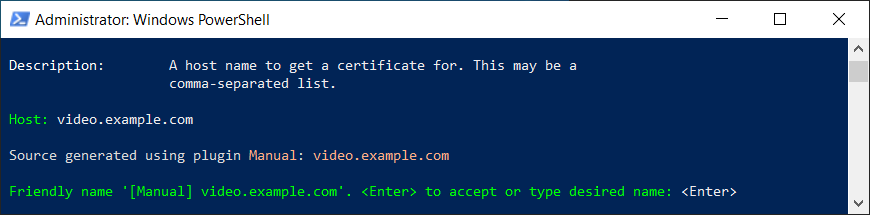
  • Specify your domain name and press Enter twice to confirm.
    How to create a "Let's Encrypt" certificate on Windows 3
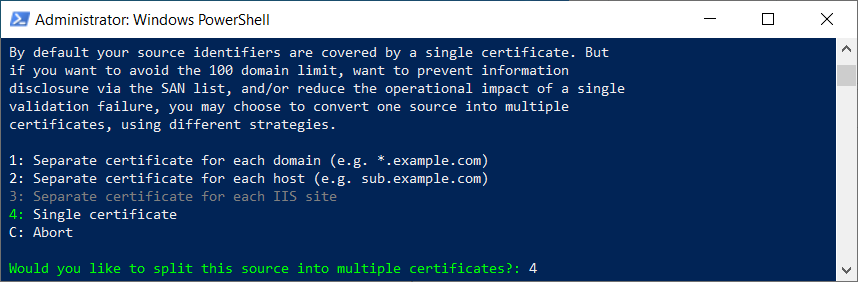
  • If necessary, you can create separate certificates for subdomains and hosts. In our case, we will select Single Certificate:
    How to create a "Let's Encrypt" certificate on Windows 4
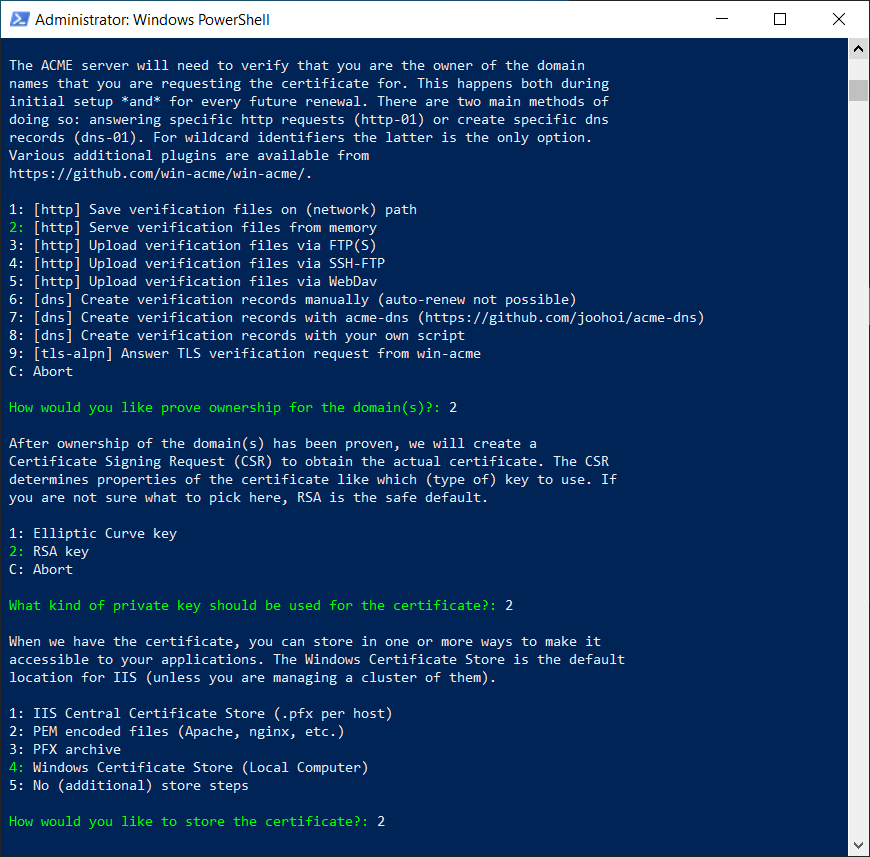
  • Then select the following options sequentially:
    • [http] Serve verification files from memory
    • RSA key
    • PEM encoded files (Apache, nginx, etc.).
    How to create a "Let's Encrypt" certificate on Windows 5

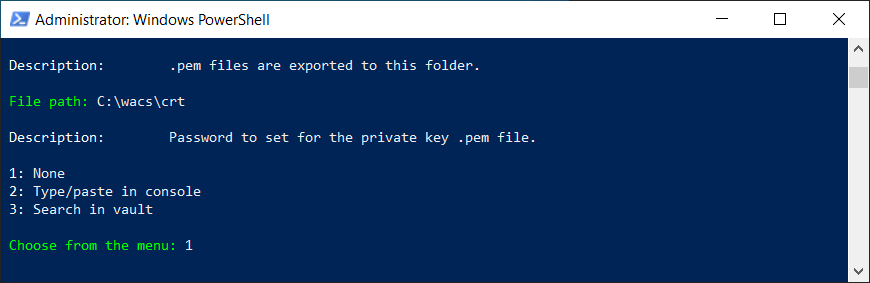
  • Specify a folder for saving certificates C:\wacs\crt.
  • You will be offered to create the password for the private key. Select None.
    How to create a "Let's Encrypt" certificate on Windows 6
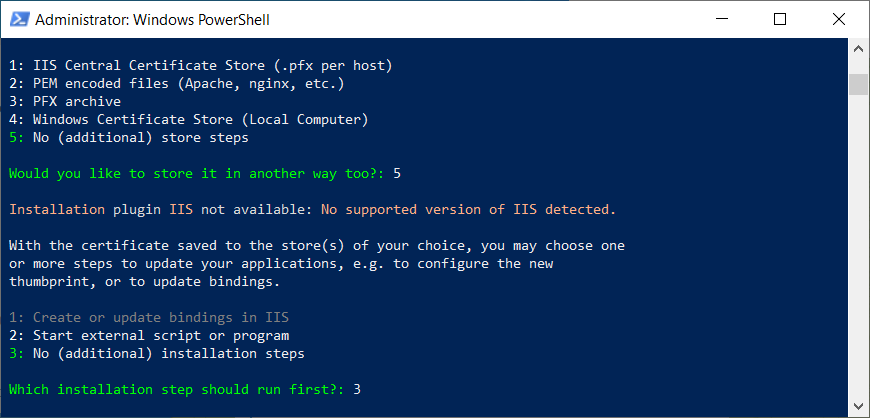
  • Next, select:
    • No (additional) store steps
    • No (additional) installation steps.

    How to create a "Let's Encrypt" certificate on Windows 7

  • Answer additional questions as follows:
    • type no for the question Open in default application?
    • type yes for the question Do you agree with terms?.
  • Specify an email address for error notifications.
  • When you successfully create the certificate, you will see the Authorization result: valid message. Answer no to the question Do you want to specify the user the task will run as? question.

    If a certificate has already been generated for the specified domain name, there will be the corresponding notification in the Existing renewal line. The certificate expiry date will be provided as well. You can create the certificate again by entering yes in response to the question Overwrite settings?.

    Three files will be generated in the C:\wacs\crt folder:

  • domain_name-crt.pem is the certificate itself
  • domain_name-key.key is the key file
  • domain_name-chain.pem is the trust chain, it includes Let’s Encrypt root and intermediate certificates.

Now you can use them in TrueConf Server, as shown in our article.

Try out the secure video conferencing platform TrueConf!

Video conferencing solution TrueConf Server works inside of your closed network without an internet connection
and allows you to gather up to 1,500 people in one conference!