






Got extra smartphones sitting around your office? How about tablets? As we move multiple generations into mobile technology, more and more of us are building up collections of old, dated devices from both our work and our personal lives. And more often than not, those devices do little more than take up space and gather dust.
Here’s a little secret, though: Your abandoned Android gadgets are actually virtual gold mines. You just have to find the right way to tap into their potential and give them new life.
So grab the nearest DustBuster and get ready: Here are 25 ways to make your old phone or tablet useful again.
If you struggle with poor Wi-Fi coverage in particular areas of your home, office, and/or home office (hello, my fellow converted garage dwellers!), a random old Android device can serve as a surprisingly effective extender for your internet signal — in the same way that a dedicated Wi-Fi extender or repeater appliance could.
Few folks realize it, but the hotspot option built into Android works not only with mobile data — the way most of us use it with a current, active Android device — but also with any Wi-Fi network associated with the device. That means your old Android gizmo can take the signal it’s receiving from a router and broadcast it further, almost as if it were a point in a mesh networking system like Eero or Nest Wifi (only without quite as elegant or simple of a setup — but hey, this approach is completely free!). It’s an interesting advantage that Apple devices notably don’t offer.
The key is to find a place for the phone where it’s close enough to a router to be seeing a reasonably strong Wi-Fi signal and close enough to your dead zone that it can extend the signal further in that direction, while still being plugged in to have consistent power. You may have to experiment to figure out what exact positioning works best.
Once you have the device in the right spot, though, all that’s left is to find the hotspot option within its settings and get it configured correctly. The precise placement of the option may vary depending on the device’s software, but you’ll usually want to look within a Network & Internet section of the system settings (or whatever closest equivalent you find), then look for a “Hotspot” or “Hotspot & Tethering” subsection within that area.
Tap the option for “Wi-Fi Hotspot” there, and you should be able to configure the name and password of the network the phone will generate — using your existing Wi-Fi network as its backbone. If there’s an option to turn the hotspot off automatically anytime no other devices are connected, you’ll probably want to disable that. And if you see an option for setting the network to be 2.4GHz or 5GHz, you’ll likely want to enable both of those paths.
Then, just flip the switch to start your hotspot — and that’s it: Your extended network is officially up and running.
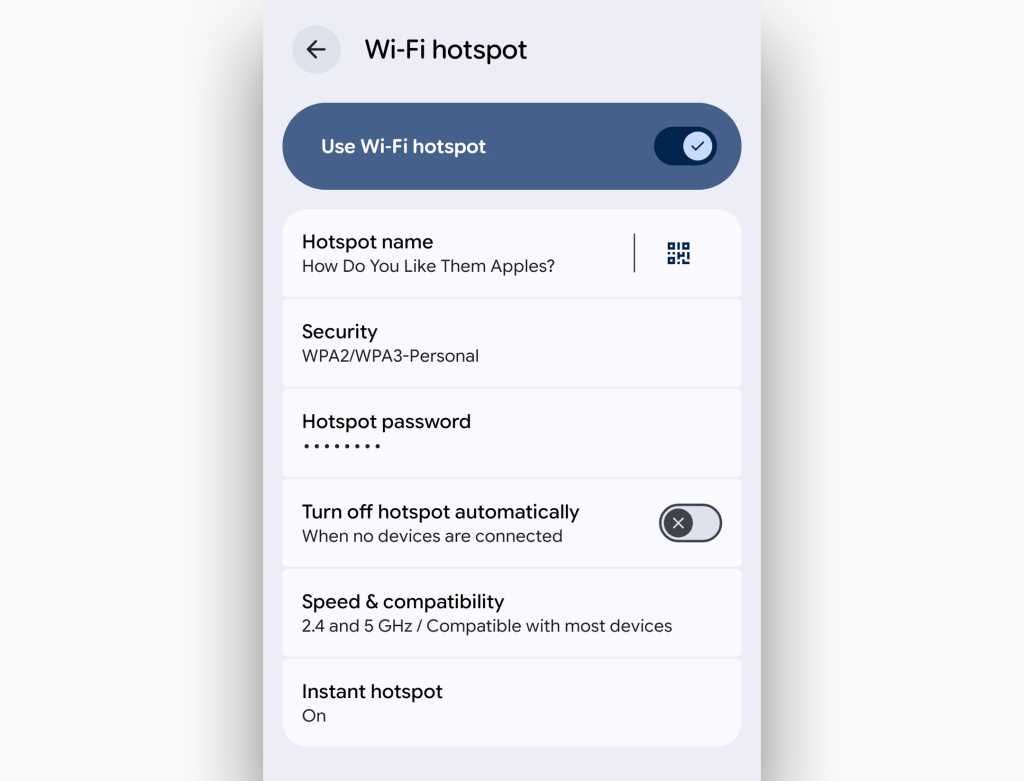
Android’s Wi-Fi hotspot setup, in action — a feat iPhones won’t allow.
JR Raphael / Foundry
Now, just go into the part of your building where Wi-Fi wasn’t great and try connecting to your phone’s network instead of the standard Wi-Fi network. If your positioning worked, the signal should be noticeably stronger — and your connection should be noticeably faster as a result.
With the right software and a couple minutes of configuration, your old Android device can act as an on-demand controller for your Windows, Mac, or Linux computer.
An app called Unified Remote and a Wi-Fi or Bluetooth connection are all you need to make the magic happen. The free version of the app gives you basic mouse and keyboard control along with specialized remotes for media playback and power-related commands, while the full $5 version adds in program-specific remotes for presentation control along with other advanced features.

Unified Remote provides basic mouse and keyboard control along with a variety of specialized remotes.
JR Raphael / IDG
Grab whichever version you prefer and download the server-side software for your computer — then toss your old device into a desk drawer or computer bag and rest easy knowing it’ll be ready and waiting the next time you need to go wireless.
Want easy access to your home computer from the office — or vice-versa? Your old Android phone or tablet can be a splendid stationary screen for keeping a remote system at arm’s reach.
And it couldn’t be any easier to make that happen. All you need is Google’s free Chrome Remote Desktop program on both your computer and your old Android device, and your phone or tablet will effectively become a window to your desktop.
I’ve got a thorough guide to the Chrome Remote Desktop setup process, if you want step-by-step instructions — but the short version is that you’ll need to install the official Google Chrome Remote Desktop extension into Chrome on your computer, then open the Chrome Remote Desktop website and follow the prompts to set up remote access.
Snag the companion Remote Desktop Android app, get all signed in there, and that’s it: Your old Android device is now a full-fledged terminal and access point for any computer you want.
Cloud services may often be the simplest way to store and transport files nowadays, but there’s something to be said for good old-fashioned physical storage — both in terms of consistent availability regardless of connectivity and in terms of the added assurances having especially important files in your own pocket can provide.
And just like that, you’ve got a generative AI chatbot at your beck and call 24/7 without having to have it take over your current Android device and run down its battery.
With more and more companies taking a bring-your-own-device approach for the workplace, the lines between our personal and professional lives are getting increasingly blurry.
And while Android does have some decent options for creating separate work and personal profiles — both natively, if your phone is part of an enterprise-managed arrangement, and with a little creative configuring in any other scenario — there’s an undeniable appeal in creating a formal barrier between your worlds and being able to leave your work completely behind when the opportunity arises.
So think about using your old Android device as a dedicated work or personal phone and setting it up explicitly for that purpose, then using your current Android phone exclusively for the other role. That’ll give you separate physical devices for your separate life roles — the kind of power most people only dream about seizing these days.
Even the junkiest old Android device has ample power to serve as a smart remote for your home or office. That can be a helpful way for you and anyone else around to control your various smart devices and multimedia components without needing any special access (or your own current personal phone in hand).
First, the easy part: Load up your old phone or tablet with all the relevant apps for your smart-device setup — things like Google Home, Hue, and anything else appropriate for controlling your home or office tech.
Next, think about adding some tools that’ll let the device handle any audio and video systems in your area. There are a few ways you can make that work:
Who needs a fancy-schmancy connected camera when you’ve got an old Android phone sitting around? With the aid of a third-party app, the camera on your dated device can let you keep an eye on your home, office, or top-secret crime lair from anywhere — and even perform advanced functions like video recording and motion detection.
Just download the free IP Webcam app or get the fully featured $5 pro version and follow its instructions. Within moments, you’ll be able to peek through your device’s lens from any compatible web browser and cackle with glorious glee.
Smartphone cameras just keep getting better, but we’re reaching a point where even cameras from a few years back are really quite good — and the differences between them and their more current siblings are relatively subtle.
With that in mind, an old Android device can be a perfect way to have a ready-to-roll camera at your disposal for times when you might not want your primary phone to be out and about on your adventures — whether you’re worried about it getting wet or damaged or maybe just trying to disconnect from the world of work-related dings and pings for a while.
The best part about this setup that is no special preparation is even required. Just grab the old phone and go, and rest easy knowing your “real” phone is safe and sound somewhere far away from whatever you’re photographing.
Set up your old Android device with the app for your video-chatting platform of choice — Zoom, Google Meet, Microsoft Teams, or whatever the case may be — then drop it into a dock on your desk or conference room table. Say “hocus pocus” for good measure, and ta-da: You’ve just created a permanent access point for virtual face-to-face communications.
Just think: With enough old phones and tablets, you can create an entire house- or office-wide videoconferencing system. Sign each device into its own unique account, with the name of the room as its username, and seeing someone across the building will never be more than a couple quick taps away.
Hard to believe, but my ancient 2011 Motorola Xoom tablet was one of the most used devices in my house until it finally kicked the bucket some six years into its life. That’s because I converted it into a multipurpose command center for our kitchen — a role my 2012 Nexus 10 tablet then took over for another couple years after that.
So how to make a kitchen command center of your own? Easy: First, use a custom Android launcher like Smart Launcher or Niagara Launcher to simplify your old tablet’s home screen and add in some easy-to-perform gestures — like double-tapping anywhere on the screen to launch Android’s voice search function for on-the-fly info-gathering and other hands-free commands, either via Gemini or the old Google Assistant, if your old Android device still has that present.
Second, populate the home screen with the right apps for the purpose. Netflix and other video-streaming services will effectively turn your old tablet into a cooking-time television. Recipe apps can also be useful, as can Android note-taking apps — like Google Keep, Microsoft OneNote, and Notion — for quick viewing of personal recipes or editing of always-synced family-shared shopping lists.
If you really want to get wild, you can even set up a smart-display-like screensaver that’ll turn your device into a customizable intelligent info center whenever you aren’t actively using it — kind of like what Google has tried (but thus far mostly failed) to accomplish with its not-so-old Pixel Tablet product.
If you use Google Fi (formerly known as Project Fi) for your current phone’s wireless service, take advantage of a little-known bonus feature: the ability to get an extra SIM card that’s connected to your account and able to provide data on any other device — without any superfluous fees.
All you’ve gotta do is order the card from the Google Fi website, pop it into an old phone (or a tablet, if you happen to have one with a SIM slot) — and bam: That device is instantly online and connected. You’ll pay only for whatever mobile data the device uses in any given month, at the same flat rate associated with your regular Fi plan, so it’s essentially just an extension of your primary phone.
That opens up plenty of interesting possibilities: You could use your old device as a ready-to-go backup phone in case your regular one is ever missing, broken, or low on battery; you could use it as a dedicated hotspot to beam out mobile data access without draining your primary phone’s battery; or you could use it as an always-connected on-the-go slate for your kids (hello, airport video-streaming) without having to pay for an extra line of service.
Don’t have the greatest view from your desk? Let your old Android phone or tablet be your window to wild and exciting locales.
To get started, grab the EarthCam Webcams app from the Google Play Store. It’ll give you one-touch access to an impressive list of live streaming cameras around the world, from the hustle and bustle of New Orleans’ famous Bourbon Street to the swooshing serenity of Niagara Falls. Pull up any view you like, then tap the icon to go full-screen and gaze the day away. If you find yourself craving some variety, you can consider upgrading from the app’s free collection to a set of 175 live cameras for a one-time $5 fee.

EarthCam lets you gaze down Niagara Falls — or a slew of other webcams around the world — for a break from the mundane.
JR Raphael / IDG
You can find quite a few mobile-friendly live cameras on the web as well: Pull up your device’s browser and try out the San Diego Zoo’s assorted animal cams — including a penguin cam, koala cam, and tiger cam, among other exotic views — or the Monterey Bay Aquarium’s extensive underwater cams for even more “aww”-inducing options.
Ah, memories. Snag an inexpensive stand, plug your device into its charger, and turn it into a cloud-connected photo frame for your home or office.
If you use Google Photos, just open up the app, tap on any photo in your main library or within a specific album, and then tap the three-dot menu icon in the upper-right corner of the screen. Scroll horizontally along the menu that appears and select “Slideshow.” The app will cycle through your photos and give you plenty of memories to reflect upon whilst relaxing or taking care of business.
If your old Android phone is a Pixel, you can also set it on one of Google’s official Pixel Stands to start an ever-evolving Photos-linked slideshow showing any specific albums or even specific people you want.
Want a distraction-free reading environment for your next business trip or public transit commute? Load up your old Android device with only the apps you need for reading — Google Play Books, Amazon Kindle, Nook, or whatever tickles your text-ingesting fancy.
You can even borrow books from your local library: Check with your nearest branch for information on how to do it or download the free Libby app, which is used by a variety of libraries, schools, and institutions.
Be sure to disable notifications from Gmail and other noisy apps — heck, even switch the device into airplane mode once you’ve downloaded the content you need — and you’ve got the equivalent of a dedicated e-reader without all the usual phone or tablet temptations.
Dock your old device on your desk and put it to work as your personal calendar. Google’s own Calendar app can get the job done with plenty of productivity-oriented elements, or the free DigiCal Calendar Agenda app will give you an even more graphical and customizable interface that’s perfectly suited for this purpose.

The DigiCal app looks especially sharp in its landscape (horizontal) orientation.
JR Raphael/IDG
DigiCal is free with an optional $5.50 upgrade for extra themes and customization options.
The idea of an iPod may seem amusingly antiquated at this point, but there’s something to the idea of having a dedicated device for the specific purpose of playing podcasts, music, or even just some manner of white noise.
By outsourcing that task to an old Android device, you can grant yourself the freedom to leave your current phone behind when you’re working out, doing something outside, or even just taking a break from business on the weekend — and eliminate the temptation to keep checking your inbox or looking at other work-related distractions.
You can also give yourself a great way to listen to audio while traveling without having to wear down your primary device battery during a long day of flights.
Save yourself the hassle of futzing around with your current phone in your car by turning your old device into an always-available command center for a car that doesn’t have its own built-in equivalent.
Just find a decent car dock and mount the device somewhere safe. Be sure to plug it into your car’s power port and connect it to the stereo (via Bluetooth or a 3.5mm headphone jack). Then, either use your primary phone as a hotspot to keep it online or go the economical route and download any necessary music and directions before you hit the road, while you’re still connected to Wi-Fi.
All that’s left is to open up the Google Maps app and start a navigation, and you’ll be moving full-speed ahead with a simplified interface and ready-to-roll voice commands.
Your old tablet may seem tired to you, but it’s still top-notch tech by toddler standards — so why not turn it into a fun and educational gadget for your kid?
On most reasonably recent tablets, you can find a native Restricted Profile feature right within the operating system: Just head into the system settings, tap “Users” (or “Users & accounts” and then “Users,” depending on your OS version), and then “Add user or profile.”
Select the option to add a restricted profile. You’ll be prompted to enable or disable access to each app installed on the tablet, allowing you to control exactly what processes your progeny will and won’t be able to use.
If your old device has Android 7.0 or higher (or Android 5.0, on a limited number of models), Google’s Family Link program can give you even more robust controls — including the abilities to set screen-time limits and receive weekly activity reports. You can learn more and sign up at the Family Link website.
Time for something new? An old phone with a dock can make a snazzy customizable clock for your desk or nightstand. Google’s own Clock app is a great place to start, especially if you want to use the clock for alarms. Look for the “Screensaver” option in the Display section of your system settings to make it automatically activate anytime your device is plugged in.
Put down the briefcase and summon your inner Pac-Man: Silly as it may seem, your old Android device is a mini-arcade just waiting to be called into action. (Hey, we all need the occasional break from working, right?)
To complete your device’s Game-Boy-like transformation, just surf the Play Store for some games — you can even find emulators for console-level systems, if (ahem) you know where to look — and then level up by grabbing a universal Android game controller like the ones you’ll find available on Amazon or at other tech retailers.
Any cell phone can make emergency calls, even if it’s not connected to active service. Keep an old phone charged and in your car or travel bag; if something bad happens and your active phone is either dead or unavailable, you’ll still have a way to get through to 911.
Android is a tinkerer’s dream. It typically doesn’t take too much sorcery to root, or gain system-level access to, an Android device — and once you’ve done that, you open up a whole new world of possibilities. You can install powerful root-only applications and even replace your device’s entire operating system with a custom ROM full of fresh features and advanced customization potential.
Anytime you start poking around under the hood, though, you risk screwing something up. And when the device in question is your primary phone or tablet, that can be a daunting gamble to take (especially since rooting a device usually violates its warranty).
That’s where an old phone or tablet can come into play. Put on your hacker’s hat and do a Google search for “root [your device name]” and then “[your device name] ROM.” There’s a huge community of Android enthusiasts out there, and you’ll almost certainly find some helpful user-generated guides to get yourself started.
This one’s easy, right? After all, what’s old to you is new to someone else. You can go the regular route and list your device on Craigslist or eBay — or you can check in with a more niche service like Swappa or Gazelle to get an instant estimated price for your device. Amazon and Best Buy also both offer buyback programs that may be worth investigating.
Whatever you do, make sure you head into your device’s system settings and perform a full factory reset before passing anything along. You’ll probably also want to remove any memory cards you might have added, if your old phone or tablet has an external storage slot.
Feeling philanthropic? Rest assured: There’s no shortage of organizations ready to put your old Android device in the hands of someone who could really use it.
A few possibilities worth considering:
So there you have it: 25 intriguing options for giving new life to your old device. Figure out which one best suits you — and send those gadget-dwelling dust bunnies packing.
This story was originally published in August 2014 and most recently updated in May 2026.
More Android tips:
此内容由惯性聚合(RSS阅读器)自动聚合整理,仅供阅读参考。 原文来自 — 版权归原作者所有。