
惯性聚合 高效追踪和阅读你感兴趣的博客、新闻、科技资讯
阅读原文 在惯性聚合中打开

推荐订阅源

IntelliJ IDEA : IntelliJ IDEA – the Leading IDE for Professional Development in Java and Kotlin | The JetBrains Blog
G
GRAHAM CLULEY
P
Privacy & Cybersecurity Law Blog
Threat Intelligence Blog | Flashpoint
宝玉的分享
宝玉的分享
P
Proofpoint News Feed
H
Help Net Security
V
Visual Studio Blog
阮一峰的网络日志
阮一峰的网络日志
C
Cisco Blogs
人人都是产品经理
人人都是产品经理
Know Your Adversary
Know Your Adversary
freeCodeCamp Programming Tutorials: Python, JavaScript, Git & More
Recorded Future
Recorded Future
I
Intezer
罗磊的独立博客
T
The Exploit Database - CXSecurity.com
Blog — PlanetScale
Blog — PlanetScale
Malwarebytes
Malwarebytes
Spread Privacy
Spread Privacy
T
Tor Project blog
V
Vulnerabilities – Threatpost
云风的 BLOG
云风的 BLOG
腾讯CDC
B
Blog RSS Feed
Stack Overflow Blog
Stack Overflow Blog
F
Future of Privacy Forum
MyScale Blog
MyScale Blog
Latest news
Latest news
IT之家
IT之家
MongoDB | Blog
MongoDB | Blog
The Hacker News
The Hacker News
S
Securelist
博客园 - 【当耐特】
C
CXSECURITY Database RSS Feed - CXSecurity.com
T
Threat Research - Cisco Blogs
Jina AI
Jina AI
Cisco Talos Blog
Cisco Talos Blog
B
Blog
博客园 - 三生石上(FineUI控件)
Last Week in AI
Last Week in AI
CTFtime.org: upcoming CTF events
M
MIT News - Artificial intelligence
V
V2EX
D
Darknet – Hacking Tools, Hacker News & Cyber Security
The Cloudflare Blog
The GitHub Blog
The GitHub Blog
博客园 - 聂微东
F
Full Disclosure
C
CERT Recently Published Vulnerability Notes

Comments for The Eclectic Light Company

Apple has released an update to XProtect for all macOS Comment on Medium and message: Pottery by hoakley Settings, preferences and defaults Comment on Hero or hooligan: Theseus and the sandals by hoakley Solutions to Saturday Mac riddles 360 Comment on How QuickLook provides thumbnails and previews by hoakley Comment on Paintings of visits to India 1878-1944 by snmphtg Hunting extended attributes with an update to xattred Comment on Saturday Mac riddles 360 by Duncan Explainer: QuickLook Chinese whispers in PDF metadata Comment on What has changed in macOS Tahoe 26.5? by jmrichards7f14f5632c Comment on How to preserve versions, and how to create versioned PDFs by markbot2zero Comment on What gets synced in iCloud Drive? by hoakley Apple has released macOS Tahoe 26.5, and security updates 15.7.7 and 14.8.7 Does iCloud Drive now lose almost all metadata? Comment on Solutions to Saturday Mac riddles 359 by joethewalrus Paintings of Beatrice Portinari: after 1862 Comment on Last Week on My Mac: snapshots, the elephant in APFS by Sebastian Explainer: File Provider and cloud services Comment on How to check whether Spotlight is getting the right metadata by hoakley How to make and roll back to a snapshot macOS Tahoe no longer fully supports Time Capsules Medium and message: miniature Explainer: AppKit and SwiftUI How macOS can ignore and hide metadata How to store and manage metadata in macOS Comment on The bicentenary of Frederic Edwin Church: 1857-77 by frpsr Comment on macOS virtual machines and audio-video syncing by hoakley Last Week on My Mac: Where’s the fire escape? How fast is a macOS VM, and how small could it be? A walk in the parks of London and Paris Comment on Use Finder tags for categories by Chuck Last Week on My Mac: Dependency and skill fade On Reflection: The Venus Effect Comment on Virtualisation on Apple silicon Macs is different by AndyS Finder comments, steganography and malware The Minimise Easter Egg lives on Comment on Painting Pandora and her box: 1883-1919 by Duncan Last Week on My Mac: Didn’t macOS have a GUI? Explainer: Network file systems Mac Easter eggs Naturalists: Education Networking changes coming in macOS 27 On Reflection: Hodler and Klimt Comment on Painting Spring blossom 2 by hoakley Comment on The macOS Natural Language framework and Nalaprop by Ingo Comment on The MACL extended attribute by hoakley Five months later and the Clock app still has an obvious bug DFU mode Comment on On Reflection: Cézanne by artiste212 Comment on Privacy: Which folders are protected in Tahoe? by hoakley Dual-boot an Apple silicon Mac in Sequoia or Tahoe CPU core frequencies updated for all current Apple silicon Macs CPU core frequencies updated for all current Apple silicon Macs Explainer: AppKit and SwiftUI Buying a used Mac CPU core frequencies updated for all current Apple silicon Macs Last Week on My Mac: Root cause analysis and ClickFix Explainer: AppKit and SwiftUI Comment on Buying a used Mac by derek Comment on CPU core frequencies updated for all current Apple silicon Macs by Alan B Comment on Last Week on My Mac: Root cause analysis and ClickFix by Aravindh Comment on Last Week on My Mac: Root cause analysis and ClickFix by hoakley Comment on Last Week on My Mac: Root cause analysis and ClickFix by markbot2zero By: hoakley By: hoakley Comment on Last Week on My Mac: Root cause analysis and ClickFix by hoakley By: bmike Comment on Last Week on My Mac: Root cause analysis and ClickFix by Sebastian Comment on Last Week on My Mac: Root cause analysis and ClickFix by hoakley Comment on Last Week on My Mac: Root cause analysis and ClickFix by hoakley Comment on Last Week on My Mac: Root cause analysis and ClickFix by Alex Comment on Last Week on My Mac: Root cause analysis and ClickFix by Enzo Vincenzo
Unmount a volume or eject a disk
Tristan Hubs · 2026-05-21 · via Comments for The Eclectic Light Company

It always happens when you’re in a rush to get your MacBook Pro ready. When you try to eject its external disk, macOS tells you that volume or disk can’t be unmounted or ejected because “one or more programs may be using it”, and asks you whether you want to force it. Should you resort to force, or is there a better way?
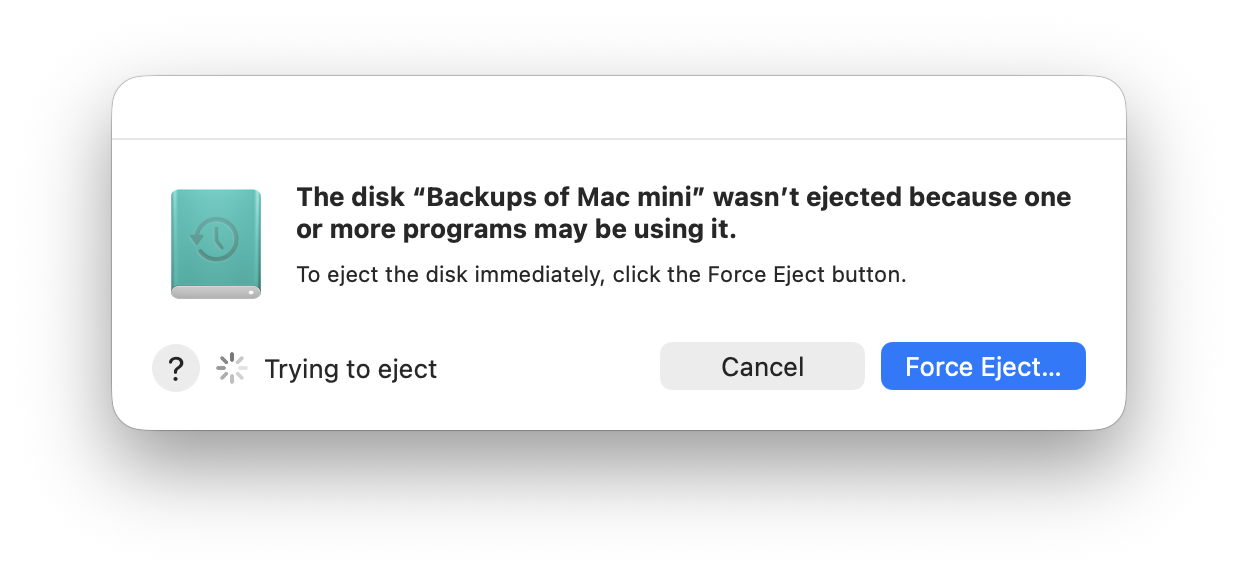
Whatever you choose, don’t just disconnect the cable of an external disk. Not only will your Mac complain, but you could end up damaging the contents of its files, or even the file system on that volume. That would only worsen your problem.

Try again or force eject

If every second counts, you can cancel and try again, or go straight to force ejection, if it’s offered. macOS will then try to identify the processes that are still accessing that volume or disk, and kill them, before trying again to eject it. That can take time, and seldom appears successful even if you allow a minute or two for it to complete. However, when it does work, it’s likely to be the fastest solution.

If you encounter this problem when trying to run First Aid on a volume or container in Disk Utility, it’s often best to select the offending volume or container and unmount it using the tool in Disk Utility’s toolbar. You should also double-check that you’re trying the correct volume: if it’s one of the current boot volume group, System or Data, then you’re better off running First Aid in Recovery mode anyway.

Best options

When you have time to address this properly, or all else has failed, there are at least two good options, Jettison and Sloth.

Jettison, $6.95 from St. Clair Software, provides a menu bar control you can use to eject individual or all external disks, and will also do that automatically before sleep or after the display powers off. Every laptop Mac user should have this ready for ejecting external disks.

Sloth is free and open source by Sveinbjorn Thordarson, who now provides it fully signed and notarised. It’s an excellent wrapper for the lsof command detailed below, and tells you which processes you’d have to kill before that disk can be safely ejected.

Sloth

Using Sloth to tackle this problem is quick and simple. Open the app, and at the upper right select the volume you want to unmount. That will list all the processes currently known to be accessing that volume, excluding those running as root. To enable those to be shown, click on the padlock to the left of the blue Refresh button at the bottom right, and authenticate.
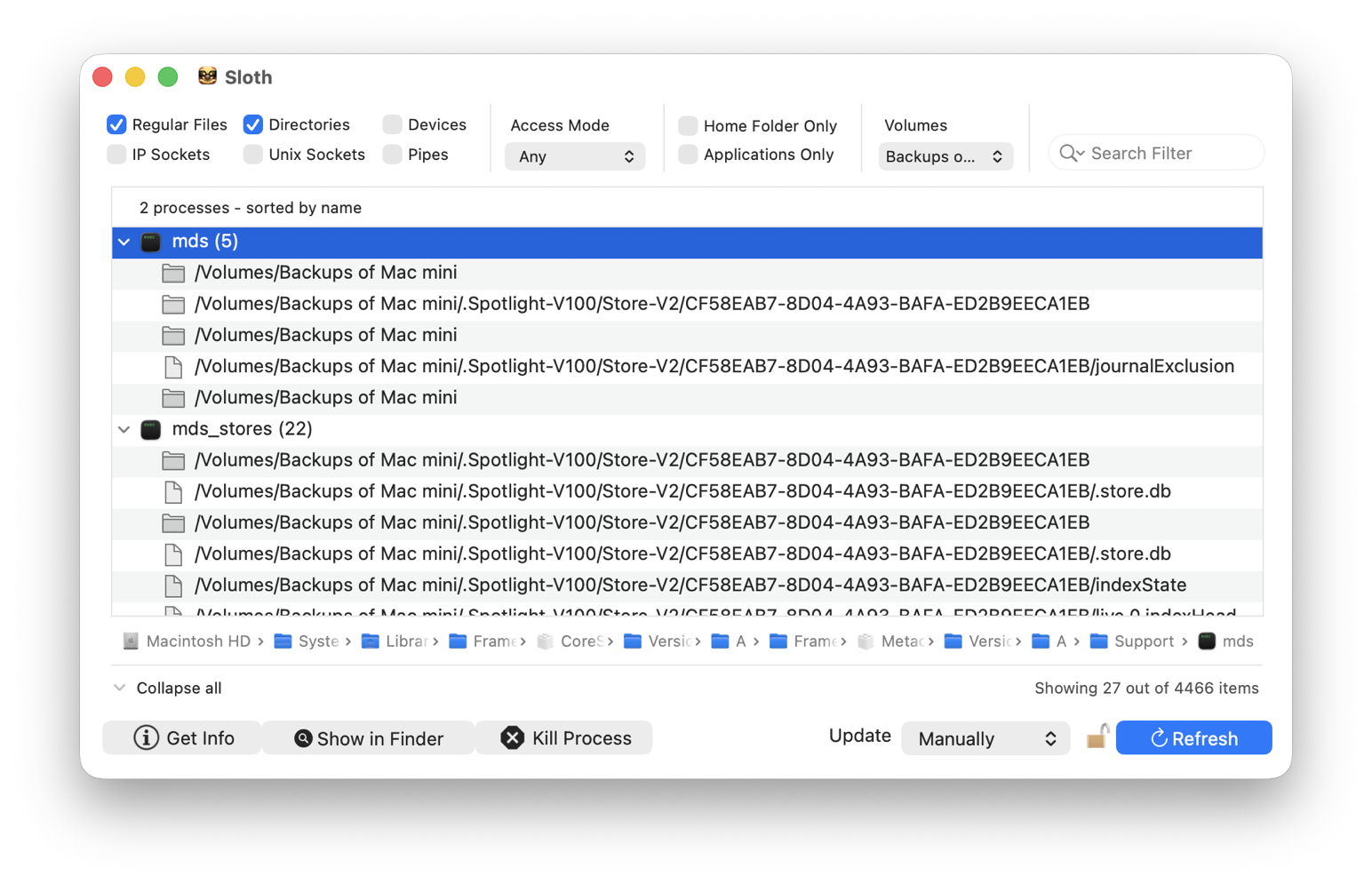
You can then select each process you want to kill in turn, and click on the Kill Process button at the foot of the window. Once that list is clear you should be able to unmount that volume and eject the disk without further complaint.

Sloth does a great deal more, so it’s worth taking some time to explore that with the aid of its Help page. There are alternatives, but Sloth is long-established and its author has now modernised it to include Sparkle update support and more.

lsof

If you’d rather use Terminal, the command you’re looking for is lsof.

To discover which files are open on any volume, use the command
sudo lsof /Volumes/myVol
where myVol is the name of the volume. If you’re unsure how to enter a volume name containing a space, locate it in the Finder’s listing for your Mac, and drag and drop that into Terminal. Once you’ve entered that, type your admin user password at the prompt, and you’ll see a list with entries like
mds 367 root 33r DIR 1,28 192 2 /Volumes/External2
mds 367 root 35u REG 1,28 0 87 /Volumes/External2/.Spotlight-V100/Store-V2/3DD5246F-9AEA-4F0E-9A53-AA63783C3C70/journalExclusion

which are the files and directories open on that volume. This needs to be run using sudo, as otherwise you won’t see any files that are opened by processes running as root, which are most often the culprits. Some recommend using grep, but that shouldn’t be necessary, as lsof is capable of its own filtering.

The information given about each open file contains, from the left:

  • an abbreviated name of the command associated, here mds, the Spotlight metadata server;
  • the open mode, as the single character following two digits, e.g. 33r is opened for read access only, while 35u is opened for read and write access;
  • the type, DIR meaning directory, and REG meaning a regular file;
  • the full path to the file or directory.

Once you know which processes are accessing files on that volume, you can decide whether to open the listing in one of Activity Monitor’s views, such as CPU or Disk, select that process, and click on the Stop tool to kill it.

Summary

  • Never disconnect an external drive without ejecting it first.
  • If you’re pushed for time, a force eject might work.
  • If you do this often, buy Jettison.
  • For a more thorough job, use Sloth or lsof.