








应在不瞒报的前提下使用自动化健康打卡程序。
您应当知晓使用自动化程序可能造成学校处分等后果。
抓包
使用软件 Fiddler 4 进行抓包。
前期具体步骤:
Android 用户可参考:使用fiddler实现手机抓包 – 简书
iOS 用户可参考:fiddler抓苹果手机上app包的方法… – CSDN
值得注意的是,许多浏览器已不支持 TLS1.0/1.1,因此需要手动在 Tools – Options – HTTPS 中修改 Protocols 为
<client>;ssl3;tls1.2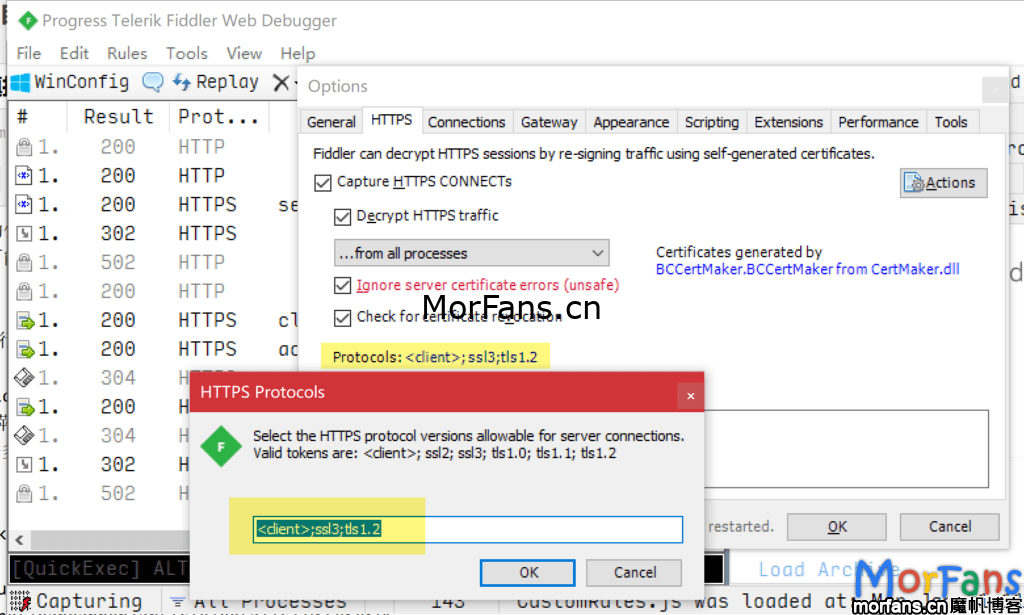
配置好后,试着进行打卡,发现向服务器传送了数据。
POST https: //▇▇▇.▇▇▇.edu.cn/v1/temperatures/ HTTP/1.1
Host: ▇▇▇.▇▇▇.edu.cn
Content-Type: application/json; charset=utf-8
Accept-Language: zh-cn
Accept-Encoding: gzip, deflate, br
Connection: keep-alive
Accept: application/json
User-Agent: ▇▇▇
Authorization: JWT ▇▇▇▇
Referer: https: //servicewechat.com/▇▇▇/▇▇/▇▇▇.html
Content-Length: 234

{
    "value": "36",
    "condition": "A",
    "home_condition": "A",
    "watched": false,
    "watched_location": "",
    "stayed": false,
    "stayed_contacted": false,
    "family_conditions": "",
    "is_contacted": false,
    "contacted_health": "",
    "personid": "",
    "notes": "",
    "location": {}
}
我们可以看到,关键的信息是 Header 中的 Authorization 和 JSON。
JSON 当中是填报的表单,其中 value 是体温值(摄氏度)。
试着退出打卡系统重新登录,发现向服务器传送数据如下。
POST https://▇▇▇.▇▇▇.edu.cn/▇▇▇/▇▇▇/login/ HTTP/1.1
Host: ▇▇▇.▇▇▇.edu.cn
Content-Type: application/json; charset=utf-8
Accept-Encoding: gzip, deflate, br
Connection: keep-alive
Accept: application/json
User-Agent: ▇▇▇
Referer: https://servicewechat.com/▇▇▇/▇▇/▇▇▇.html
Content-Length: 59
Accept-Language: zh-cn

{"username":"▇▇▇▇▇▇","password":"▇▇▇▇▇▇","type":""}
其中 username 和 password 均为明文,不需要做改动。
响应后返回的 JSON 为
{
    "token": "▇▇▇",
    "token_expiration_datetime": "2021-07-09 21:12:38"
}
这里的 token 加上前缀 JWT 即为上文中 header 内的 Authorization 的值。
至此,抓包部分结束。
程序设计
由于之前没有学过 Python ,但是觉得 Python 应该可以简单实现并在服务器上部署,决定用 Python 试一试。
在网上查阅资料后,相关设计步骤如下。
需要引用 requests 和 json 包,用于发送 POST 请求和解析 JSON 数据。
程序如下。
import requests
import json
url = 'https://▇▇▇.▇▇▇.edu.cn/v1/temperatures/'
datas = {
    "value": "36",
    "condition": "A",
    "home_condition": "A",
    "watched": 0,
    "watched_location": "",
    "stayed": 0,
    "stayed_contacted": 0,
    "family_conditions": "",
    "is_contacted": 0,
    "contacted_health": "",
    "personid": "",
    "notes": "",
    "location": {}
}
headers={"Authorization": "JWT ▇▇▇"}
morning =requests.post(url,data=datas,headers=headers)
print(morning)
print(morning.text)
也可以设计成填入账号密码就可以自动获取 token 打卡的形式。
import requests
import json
url_morning = 'https://▇▇▇.▇▇▇.edu.cn/v1/temperatures/'
url_login = 'https://▇▇▇.▇▇▇.edu.cn/▇▇▇/▇▇▇/login/'

#下文中的学号和密码自行修改
datas_login = {"username":"▇▇▇▇▇▇","password":"▇▇▇▇▇▇","type":""}

datas_morning = {
    "value": "36",
    "condition": "A",
    "home_condition": "A",
    "watched": 0,
    "watched_location": "",
    "stayed": 0,
    "stayed_contacted": 0,
    "family_conditions": "",
    "is_contacted": 0,
    "contacted_health": "",
    "personid": "",
    "notes": "",
    "location": {}
}
login = requests.post(url_login,data=datas_login)
print("登录状态",login)
dic = json.loads(login.text)
token = "JWT "+dic['token']
headers={"Authorization": token}
morning = requests.post(url_morning,data=datas_morning,headers=headers)
print("---------------------")
print("晨报状态",morning)
print("晨报返回值",morning.text)
自动运行
对于服务器,可以配置好 Python 后设置定时任务。注意安装对应的包。
个人电脑来讲,每天手动运行或者用其他方法令其自动运行即可。