惯性聚合 高效追踪和阅读你感兴趣的博客、新闻、科技资讯
阅读原文 在惯性聚合中打开

推荐订阅源

GbyAI
GbyAI
N
News and Events Feed by Topic
D
DataBreaches.Net
MongoDB | Blog
MongoDB | Blog
CTFtime.org: upcoming CTF events
freeCodeCamp Programming Tutorials: Python, JavaScript, Git & More
Engineering at Meta
Engineering at Meta
T
Tailwind CSS Blog
博客园_首页
Microsoft Azure Blog
Y
Y Combinator Blog
博客园 - Franky
Hugging Face - Blog
Hugging Face - Blog
月光博客
月光博客
A
About on SuperTechFans
I
InfoQ
S
Securelist
Last Week in AI
Last Week in AI
S
Schneier on Security
C
CXSECURITY Database RSS Feed - CXSecurity.com
Hacker News: Ask HN
Hacker News: Ask HN
Schneier on Security
Know Your Adversary
Know Your Adversary
腾讯CDC
大猫的无限游戏
大猫的无限游戏
S
Security @ Cisco Blogs
博客园 - 三生石上(FineUI控件)
Simon Willison's Weblog
D
Darknet – Hacking Tools, Hacker News & Cyber Security
T
Tor Project blog
美团技术团队
aimingoo的专栏
aimingoo的专栏
G
Google Developers Blog
罗磊的独立博客
Vercel News
Vercel News
Cyber Security Advisories - MS-ISAC
Threat Intelligence Blog | Flashpoint
The Cloudflare Blog
S
Secure Thoughts
www.infosecurity-magazine.com
Latest news
Latest news
Recent Announcements
Exploit-DB.com RSS Feed
cs.CV updates on arXiv.org
奇客Solidot–传递最新科技情报
奇客Solidot–传递最新科技情报
L
LINUX DO - 热门话题
Security Latest
Security Latest
TaoSecurity Blog
TaoSecurity Blog
Cyberwarzone
Cyberwarzone
有赞技术团队
有赞技术团队

蛇年大吉

通过json生成talk-card | 蛇年大吉 通过json生成site-card | 蛇年大吉 通过json生成图片集 | 蛇年大吉 如何更新主题 | 蛇年大吉 netlify部署博客 | 蛇年大吉 增加获取图片标签 | 蛇年大吉 关于我页面写法 | 蛇年大吉 markdown样式优化 | 蛇年大吉 音乐播放器失效问题 | 蛇年大吉 新增酷炫按钮和预加载动画 | 蛇年大吉 首页github日历 | 蛇年大吉 轮播-swiper | 蛇年大吉 首页添加弹幕 | 蛇年大吉 制作简历(关于我)和404页面 | 蛇年大吉 自定义live2d | 蛇年大吉 自定义css之导航和页脚高斯模糊 | 蛇年大吉 自定义css之头部图片透明 | 蛇年大吉 给bamboo添加动态背景 | 蛇年大吉 给bamboo添加右上角梅花 | 蛇年大吉
主题config配置项简介 | 蛇年大吉
作者: YuAng · 2022-07-16 · via 蛇年大吉

主题字体图标使用的是

1
2
<i class="fa-solid fa-person"></i>
取 fa-solid fa-person

Emoji表情不需要,也不推荐安装其他插件,推荐这个网站,直接复制粘贴就能显示在IOSAndroidOSXWindows系统上。

这里推荐一个Emoji网站

图片地址

_config.yml里使用到的图片地址,例如logo参数:

1
logo: http://xxx.png  

我们可以使用线上地址, 也可以使用本地地址
首先在source文件夹(根目录下的source文件夹)下创建img文件夹,然后引入:

1
logo: /img/1.jpg 

注意source是根目录下的,不是主题文件夹下的,主题文件夹不用管
当然,文章里面引用本地地址也行的,例如

1
![图片描述](/img/full.png)

菜单

一开始菜单是注释掉的,我们只需要取消注释就行了,注释是考虑到有些人用npm下载主题.

1
2
3
4
menu:
Home:
url: /
icon: fa fa-home

编辑器里面有取消注释的快捷键,例如vscode使用的是 Ctrl + /
#代表注释

首页轮播图

1
2
swiper:
on: true

设置false则不显示首页轮播图
在文章中设置swiper: true,会将该篇文章放在首页轮播图中:

1
2
3
4
5
6
7
8
---
title: Bamboo主题-主题config配置项简介(二)
date: 2022-07-16 12:21
swiper: true
swiperImg: https://pica.zhimg.com/80/v2-4dc929a46e9fb56c13911592af0be9dc_1440w.jpg?source=1940ef5c
excerpt: '描述'
---
文章内容

当然,如果没有文章设置swiper: true,则首页轮播图显示默认内容:

1
2
3
4
5
6
7
8
swiper:
on: true
defaultImg: 'https://pic3.zhimg.com/80/v2-7e6795a0b7b4fbe87b0a388b8a052f78_1440w.jpg'
defaultVideo: '/video/quanji.mp4'
defaultTile: '竹子'
defaultDesc: ['千磨万击还坚劲', '任尔东西南北风']
defaultLeftBtnText: '阅读文档'
defaultRightBtnText: '下载主题'

defaultImg代表默认图片,defaultVideo代表默认视频,这两个值都设置的话,则在pc端显示视频,手机端显示图片。

轮播图样式

下面的图片是放在图床上的,可能加载有点慢

1
2
3
4
5
6
7
8
swiper:
on: true

imgwidthFull: false

full: true

bothSideTransparent: false

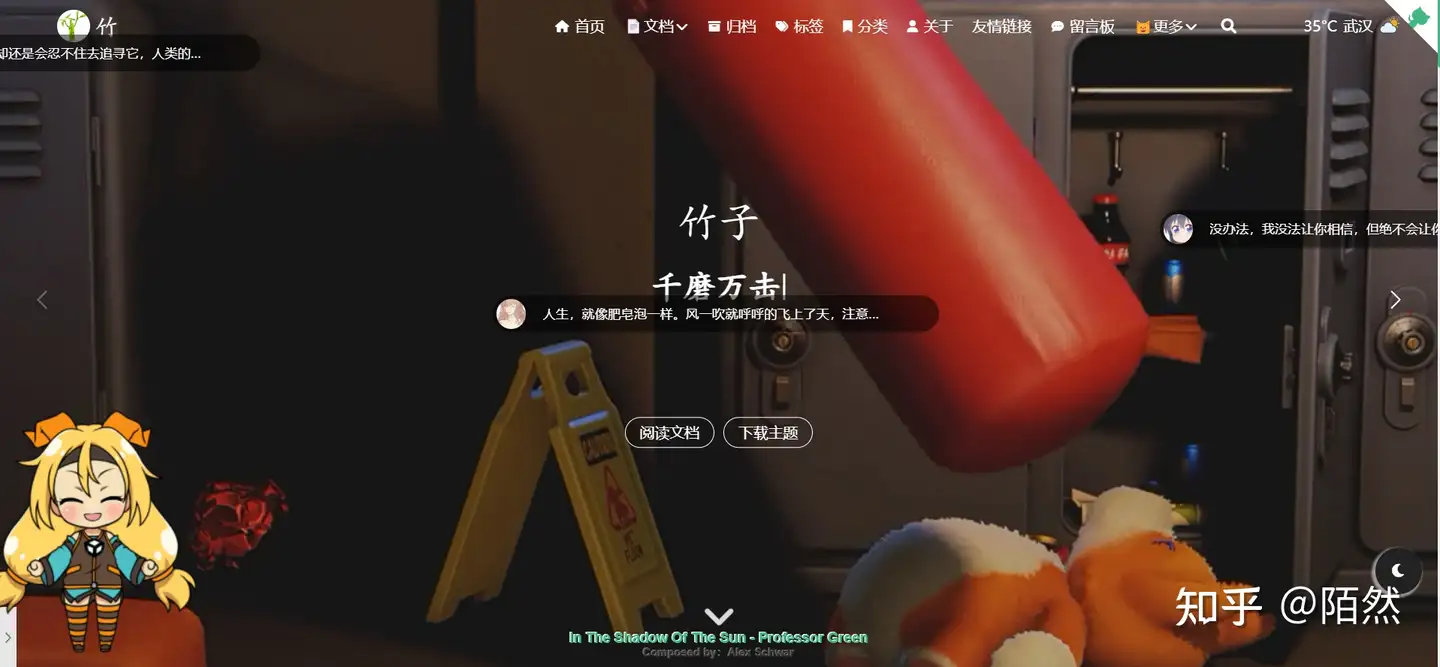
如果这样设置,则轮播图全屏显示:
全屏显示

1
2
3
4
5
6
7
8
swiper:
on: true

imgwidthFull: false

full: false

bothSideTransparent: false

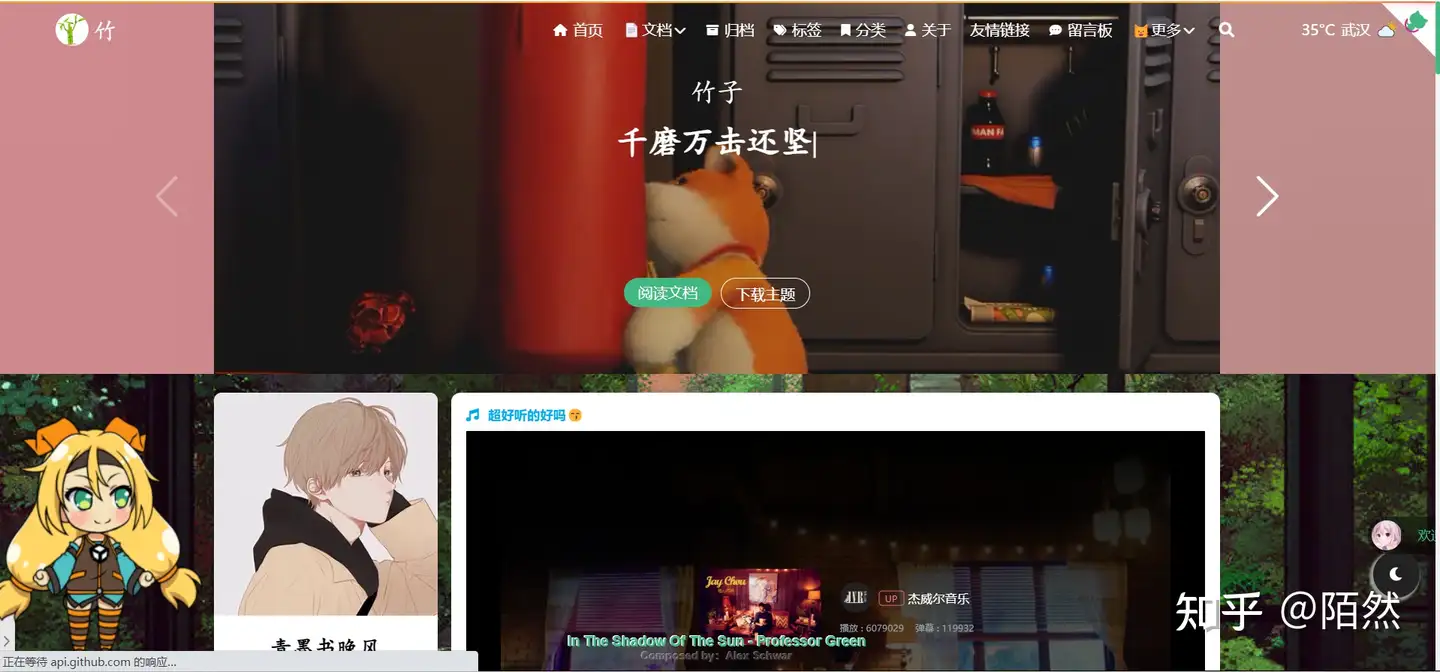
如果这样设置,则这样显示:
轮播图

1
2
3
4
5
6
7
8
swiper:
on: true

imgwidthFull: true

full: false

bothSideTransparent: false

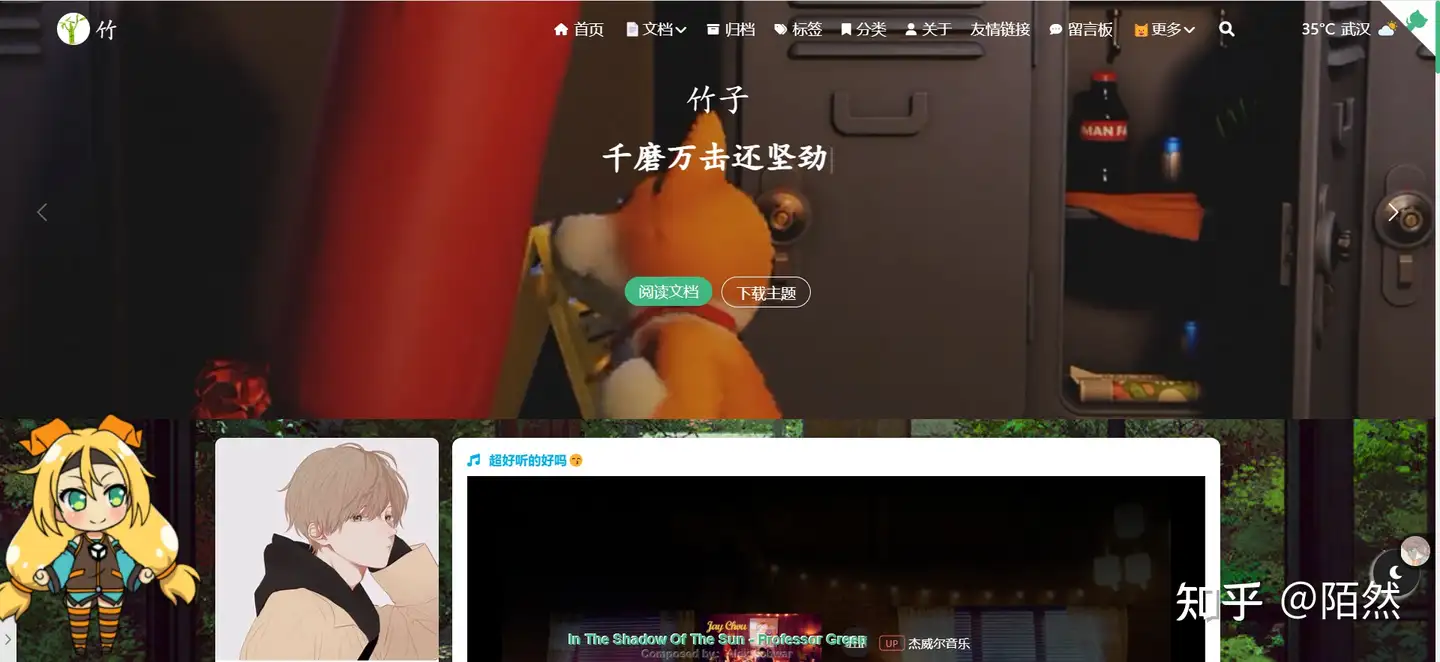
如果这样设置,则这样显示:
轮播图

1
2
3
4
5
6
7
8
swiper:
on: true

imgwidthFull: false

full: false

bothSideTransparent: true

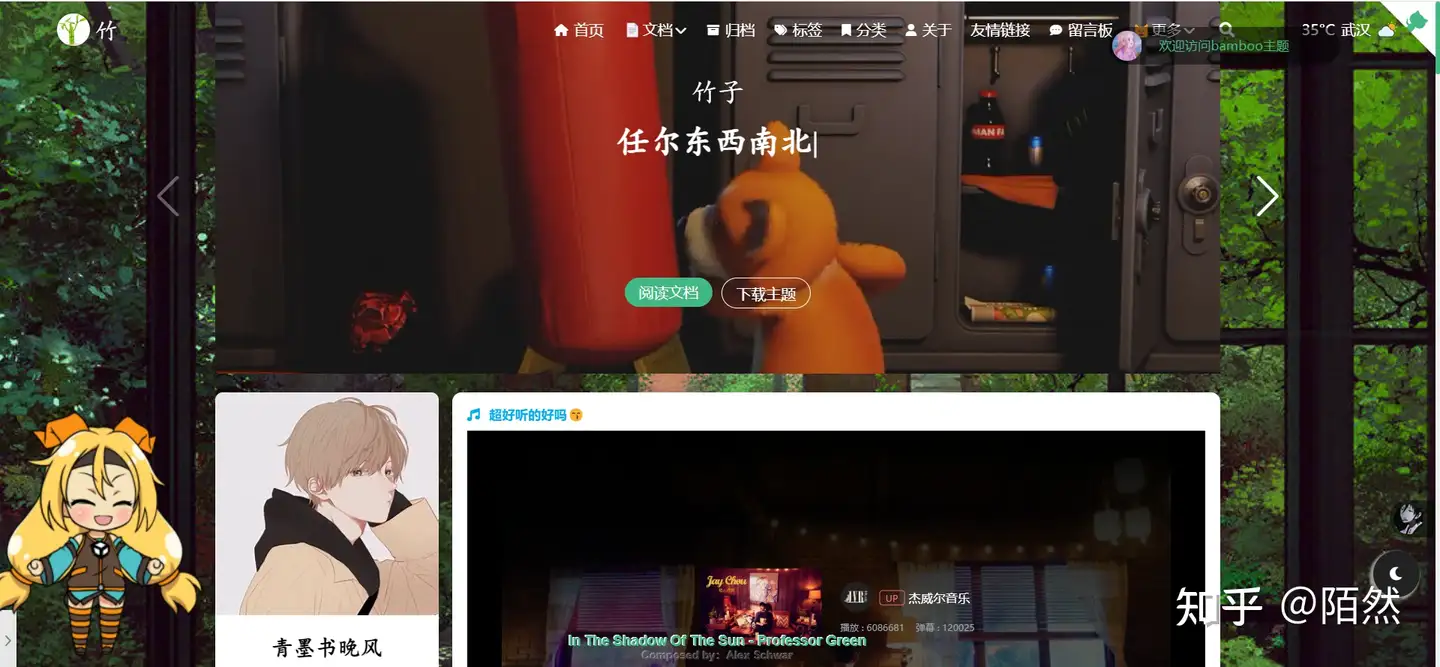
如果这样设置,则这样显示:
轮播图

音乐

1
2
3
4
5
music:
on: true
server: tencent
type: song
id: 0020dKPG3mp0GT

server代表音乐平台,netease代表网易云, tencent代表qq音乐
type代表歌曲类别,song代表单曲, playlist代表歌单
id代表歌曲或者歌单的id,例如网易云的歌单地址https://music.163.com/#/playlist?id=2788431035, 后面的id就是这个。

本主题切换页面,音乐不会间断的哦

评论

博主用的评论是utterance, https://utteranc.es/ github授权一下就行。很简单。

主题集成了utterance, valine, walinelivere, gitalk, giscus ,gitment, beaudar, twikoo, changyan这些评论
需要注意的是changyan我并没有测试哈,因为好像要依赖网站备案…..
gitment的官方都不维护了,不推荐用gitment了,所以changyangitment我都不推荐使用

主题颜色更改

1
2
3
4
5
6
7
8


color_scheme:


common:

theme: '#42b983'

改这个theme就行了

1
bgFloor: 'url("https://pic2.zhimg.com/80/v2-a90e3e9f544549e244355039b96bd606_1440w.jpg")

bgFloor指的是博客首页的背景图片或者背景颜色

1
bgImg: 'https://pica.zhimg.com/80/v2-292e6340491bd97f9d014d6be3371c04_1440w.jpg'

bgImg指的是文章页面的背景图片或者背景颜色,也可以在文章里面单独配置

1
headerMenuBackgroundColor: 'rgba(66, 185, 133, 0.8)'

headerMenuBackgroundColor值得是导航的背景颜色

1
2
3
footer:

background: 'rgba(66, 185, 133, 0.8)'

footer.background值得页脚的背景颜色

页脚

1
2
3
4
site_footer:
custom:


可以通过页脚的custom来向下自定义markdown内容
也可以向中间插入内容:
假如说你想在 social和 copyright中间加一个自定义内容, 可以这样写 layout: [social, aaa ,copyright, busuanzi, custom], 然后在下面写上aaa: ‘markdown格式’, aaa这个名称随便取

1
2
3
4
5
6
7
8
9
10
11
12
layout: [social, aaa, copyright, custom]
social:
- icon: fas fa-rss
url: /atom.xml
- icon: fas fa-envelope
url: mailto:xxxxxxxxx@qq.com
- icon: fab fa-github
url: https://github.com/yuang01/hexo-theme-bamboo
- icon: fab fa-qq
url: tencent://AddContact/?fromId=50&fromSubId=1&subcmd=all&uin=xxxxxxxxx
aaa: '自定义内容'
copyright: 'Copyright © 2019 - 2020 <a href="https://github.com/yuang01">yuang01</a> | Powered by <a href="https://hexo.io/zh-cn/docs/">Hexo</a> | Theme <a href="https://github.com/yuang01/theme">Bamboo</a> '

图片懒加载

1
2
lazyload:
loadingImg: https://pic1.zhimg.com/v2-cd38920285d125be80b3eb504052c550_b.webp

通过lazyload.loadingImg指定loading图片

引入js或者css文件

1
2
3
4
5
import:
link:

script:

通过import参数引入js或者css.

其实配置项搞那么多是想更加自定义一点,配置项你都不用去管他的,只是说你想去改某个东西你就去改它。