






Note that Ethernet connections can still be tracked via switch ports, and WiFi connections can be broadly localized by access point.
Furthermore, MAC address spoofing and randomization depends on firmware support from the interface. Most modern network interface cards support the feature.
There are three different aspects of MAC address randomization in NetworkManager, each with their own configuration flag:
[device]
wifi.scan-rand-mac-address=yes
[connection]
wifi.cloned-mac-address=<mode>
[connection]
ethernet.cloned-mac-address=<mode>
random: Generate a new random MAC address every time a connection is activated
stable: Assign each connection a random MAC address that will be maintained across activations
preserve: Use the MAC address already assigned to the interface (such as from macchanger), or the permanent address if none is assigned
permanent: Use the MAC address permanently baked into the hardware
It’s best to create a dedicated configuration file, such as /etc/NetworkManager/conf.d/99-random-mac.conf, to ensure package updates do not overwrite the configuration. In general, I recommend the following:
[device]
wifi.scan-rand-mac-address=yes

[connection]
wifi.cloned-mac-address=random
ethernet.cloned-mac-address=random
This configuration randomizes all MAC addresses by default. These settings can of course be overridden on a per-connection basis.
After editing the file, run sudo nmcli general reload conf to apply the new configuration.
Connection-specific settings take precedence over configuration file defaults. They can be set through nm-connection-editor (“Network Connections”), a DE-specific network settings GUI, nmtui, or nmcli.
Look for “Cloned MAC address” under the “Wi-Fi” or “Ethernet” section:
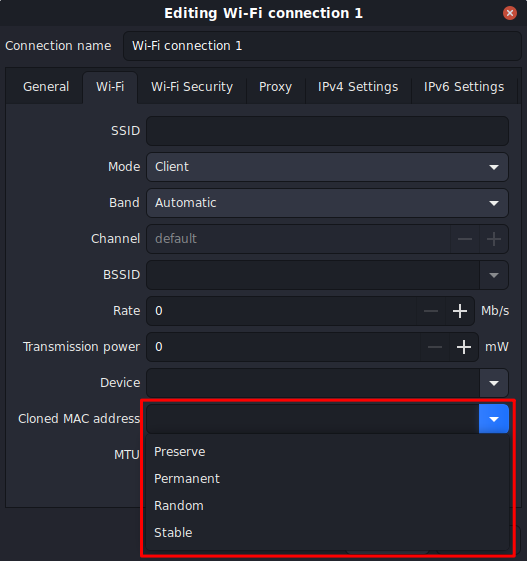
In addition to the four mode keywords, you can input an exact MAC address to be used for that connection.
For a home or another trusted network, it can be helpful to use stable or even permanent, as MAC address stability can help avoid being repeatedly served a new IP address and DHCP lease (though not all DHCP servers work this way).
For public networks with captive portals (webpages that must be accessed to gain network access), the stable setting can help prevent redirection back to the captive portal after a brief disconnection or roaming to a different access point.
Activate the connection in question, and then look for GENERAL.HWADDR in the output of nmcli device show. This represents the MAC address currently in use by the interface, whether randomized or not. It is also visible as “Hardware Address” (or similar) in NetworkManager GUIs under active connection details.
$ nmcli device show
GENERAL.DEVICE:                         enp5s0
GENERAL.TYPE:                           ethernet
GENERAL.HWADDR:                         XX:XX:XX:XX:XX:XX

GENERAL.DEVICE:                         wlp3s0
GENERAL.TYPE:                           wifi
GENERAL.HWADDR:                         XX:XX:XX:XX:XX:XX
sudo hostnamectl hostname "localhost"
An empty (blank) hostname is also an option, but a static hostname of “localhost” is less likely to cause breakage. Both will result in no hostname being broadcasted to the DHCP server.
This configuration will leak your hostname on first connection. Setting a generic or random hostname is strongly recommended if possible.
Due to limitations in NetworkManager, it is not possible to reliably disable sending hostnames by default. This setup is very much a hack.
Due to being leaky, this configuration is virtually useless without also randomizing MAC addresses by default. Your MAC address and hostname will not be correlated starting with the second connection, assuming the first connection used a random MAC address.
Create /etc/NetworkManager/dispatcher.d/no-wait.d/01-no-send-hostname.sh as follows:
#!/bin/sh

if [ "$(nmcli -g 802-11-wireless.cloned-mac-address c show "$CONNECTION_UUID")" = 'permanent' ] \
        || [ "$(nmcli -g 802-3-ethernet.cloned-mac-address c show "$CONNECTION_UUID")" = 'permanent' ]
then
    nmcli connection modify "$CONNECTION_UUID" \
            ipv4.dhcp-send-hostname true \
            ipv6.dhcp-send-hostname true
else
    nmcli connection modify "$CONNECTION_UUID" \
            ipv4.dhcp-send-hostname false \
            ipv6.dhcp-send-hostname false
fi
The script must have specific file permissions and a symlink to take effect:
cd /etc/NetworkManager/dispatcher.d/
sudo chown root:root no-wait.d/01-no-send-hostname.sh
sudo chmod 744 no-wait.d/01-no-send-hostname.sh
sudo ln -s no-wait.d/01-no-send-hostname.sh ./
This script will be automatically triggered on connection events to modify the connection’s dhcp-send-hostname settings. If the connection’s cloned MAC address is explicitly overridden to permanent, the hostname will be sent to the DHCP server on future connections. In all other cases, the hostname will be masked on future connections, so the DHCP server will only see the MAC address.
After initiating first connection with a network:
$ nmcli c show <connection> | grep dhcp-send-hostname
ipv4.dhcp-send-hostname:                no
ipv6.dhcp-send-hostname:                no
<connection> can be the connection name (usually the SSID for WiFi networks) or UUID, obtained from nmcli c show [--active].
Recall that these setting values are set based on the previous connection activation and take effect for the next connection activation.
此内容由惯性聚合(RSS阅读器)自动聚合整理,仅供阅读参考。 原文来自 — 版权归原作者所有。