








In this article, I will show something impressive. As an old Obsidian user, I have been living Obsidian for more than 2 years. When Obsidian became an important part of my life, I have a small trouble with publishing articles. I know I can export my notes to HTML and publish them, but I want a better way to do it. After searching for a while, using Obsidian’s Publish from Vault feature is an available solution, but I would like to share my article on some Blog platform. On one hand, my blog might have higher priority on Google search result. And on the other hand, I enjoy discussing with others by blog comments, so I would not give up using my own blog website.
So, here I would like to share my method of using Obsidian with a blog. With the help of GitHub pages and Hexo, I can easily publish my articles from Obsidian. Since Hexo is a static website generator, it is not hard to understand why it can be integrated with Obsidian. The process is simple:
Sounds good, but it would take a period time to publish one single article. In the first step, you have to replace image references in Obsidian to standard Markdown syntax. Meanwhile, in hexo, you have to edit the meta data like date, tags, categories for each markdown file. In order to solve these problems, I build a python script to solve them automatically.
Chivier/obsidian2hexo (github.com)
H2O2H(Hexo-to-Obsidian & Obsidian-to-Hexo, but currently I only build obsidian to hexo), is the package.
The install method is simple:
1 | |
The usage is also simple,
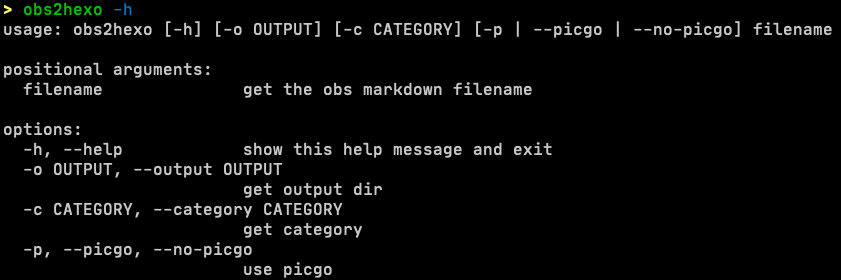
In Hexo, you can set a category for your post by adding the following code to the post’s front-matter:
1 | |
You can also use tags to further classify and organise posts. To assign tags to a post, add the following code to the post’s front-matter:
1 | |
So, I build this CLI tool, it can find all tags in the Obsidian markdown file, and write them to the meta data of Hexo markdown file. The default output dir is /tmp/o2houtput, and you can set this to any other place if you like.
In addition, Github repository’s space is limited, so I provided an optional argument. If -p is added, obs2hexo will auto upload all pictures by using picgo upload1.
Here are some examples:
1 | |
After a CLI tool is built, the next step is to bind it into obsidian for easier use. The best method is to develop a new plugin, but I prefer to use python script for flexible modification. Another reason is that I have not resolved all the links in Obsidian. As is known, obsidian can use Wikilinks to reference other notes. And I will build a database to record all the published notes.

Anyway, my current solution is not so perfect and I would like to keep improving my current solution. After I take all possible situation into consideration, I will build a plugin then.
So, you might ask me, how to improve the user experience without build an obsidian plugin? Ans the key is Obsidian Shell Commands[²].
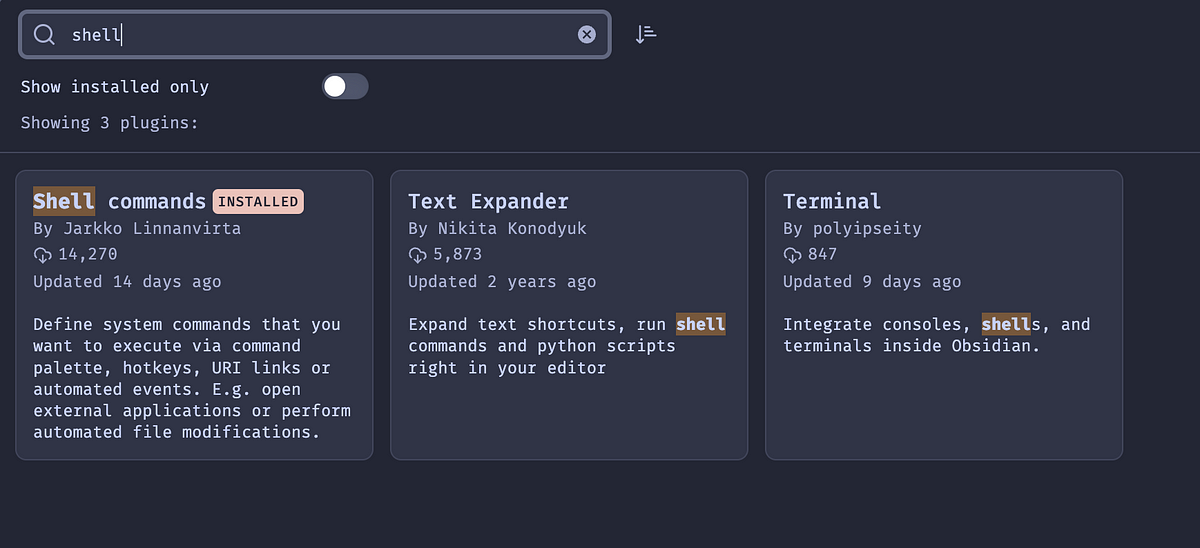
You can find it in Community Plugins. After installing and enabling the plugin, the plugin settings can be edit in the Obsidian setting panel.

Here is my example of how to build a shell script to publish my article:
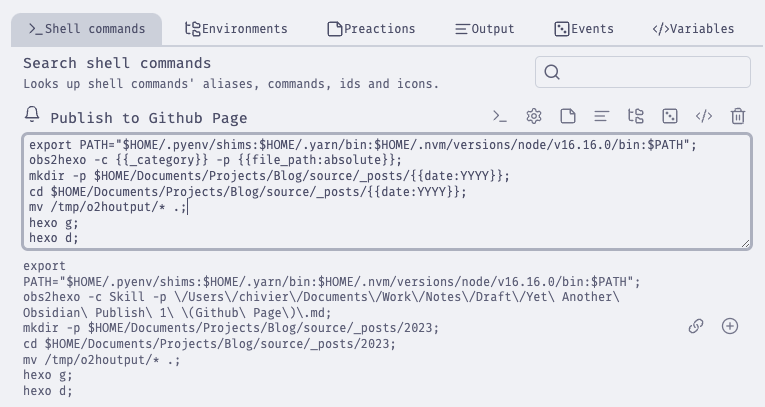
On the script above, I introduce the $HOME/.pyenv/shims and $HOME/.yarn/bin. As I use pyenv to manage my Python virtual environment, and the path should be $HOME/.local/bin if you just use system python. And I use picgo to upload pictures, so I introduced .yarn and .nvm path into the $PATH variable.
And then, there are some other variables in shell commands plugin, like {{date:YYYY}} and {{_category}}. Most variables can be found after you typed in {{`. Shell commands provide something like auto completion,
`{{_category}} is a special variable we set in the command preaction panel.
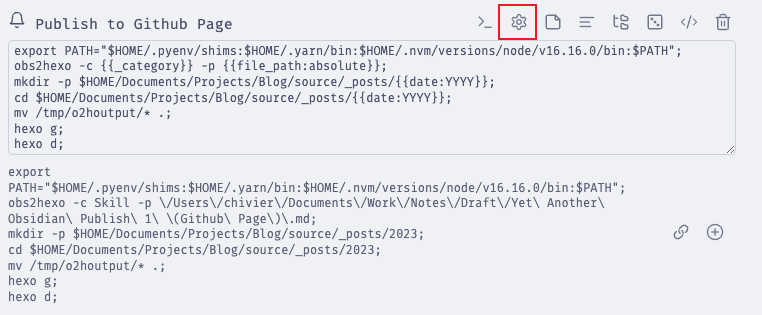
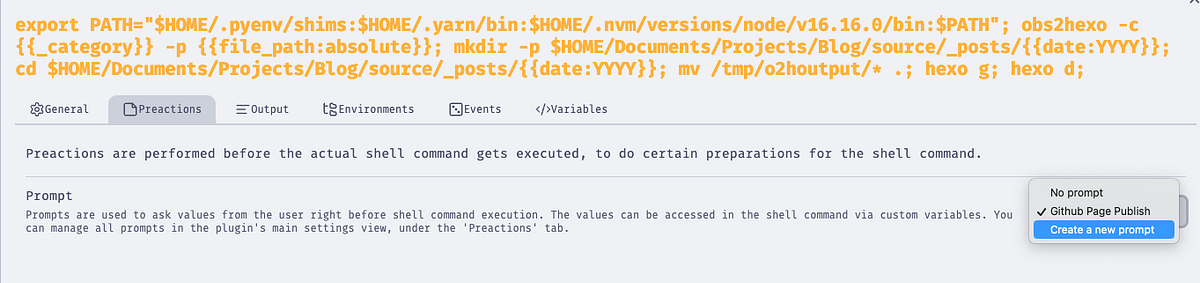
You can also build preactions here:
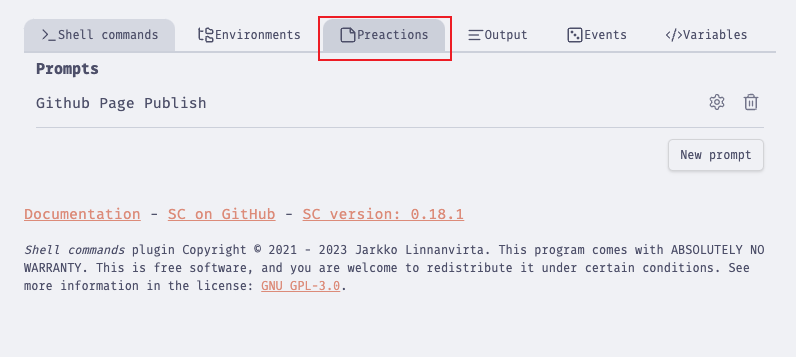
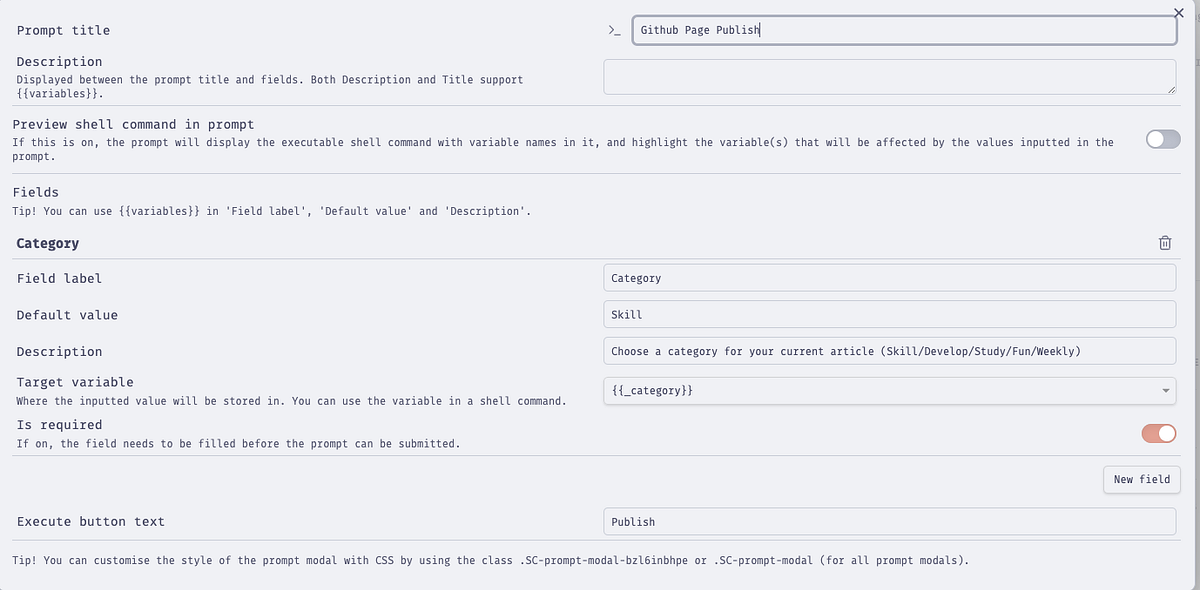
I set up a new field called category, so every time I run the command, it will promptly ask me to give a specific category for my aritcle.
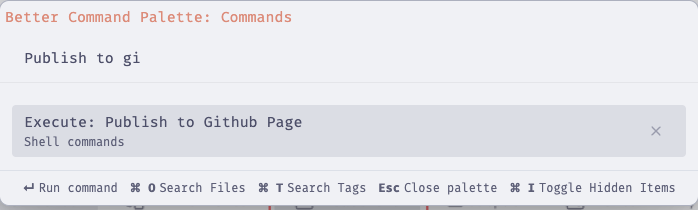
After all configurations are successfully set, we can call the commands in obsidian easily:
[¹]: PicGo/PicGo-Core: A tool for pictures uploading. Both CLI & API supports. (github.com)
此内容由惯性聚合(RSS阅读器)自动聚合整理,仅供阅读参考。 原文来自 — 版权归原作者所有。