How to fix keyboard connection issues on a remote desktop
Brien Posey·2026-04-15·via WhatIs
When a remote desktop keyboard stops working, the problem is not always the keyboard itself. In many cases, the issue stems from client focus, session settings, keyboard layout mismatches or how the remote environment is handling redirected input.
For IT teams supporting hybrid work, this kind of failure can block access to business apps and slow down support quickly. Start with the local device and client, then move to session-level settings inside the remote environment.
1. Make sure the keyboard is functional
The first thing you should do is make sure the local hardware is functioning properly. After all, if the keyboard isn't working properly on the local computer, then it won't function within a remote desktop. To test the keyboard, open an application other than the remote desktop client and see if you can successfully type a few keystrokes.
Also check whether Sticky Keys or Filter Keys were enabled accidentally on the local or remote machine, especially if modifier keys seem stuck or repeated keystrokes are being ignored.
You also need to consider if a keyboard is largely functional, yet still somewhat problematic for UX. A wireless keyboard might not have any hardware problems, but it could be experiencing radio interference. When this happens, there can be a significant lag or missing input as users type keystrokes. This might occur because the receiver was installed in a USB port on the back of the computer case and the large metal case was blocking a lot of the radio signals. Relocating the receiver to a USB hub should fix the problem.
2. Determine if the problem is specific to a certain application
Next, IT should check to see if the issue is specific to a particular application on the remote desktop.
First, log in to the remote desktop and open a basic application such as Notepad. If you find that you can use the keyboard in Notepad, but not in a particular application, then the problem is specific to that application. Otherwise, the problem pertains to the RDP session itself. Similarly, it might be worth testing the keyboard with a different remote desktop.
For IT teams supporting hybrid work, this kind of failure can block access to business apps and slow down support quickly.
3. Check if another window is selected
The next step is to see if the remote desktop client is selected as the active window. This step sounds almost too simple to be the root cause, but it can cause issues for even the most experienced administrators. If you are running a remote desktop session in a window and an application on your local machine is selected, then keystrokes will be directed to the local hardware rather than to the remote computer.
If the remote desktop session and the correct application are selected, try pressing the Windows key a few times. You can resolve some remote desktop keyboard issues by pressing this key several times.
4. Review the remote desktop client settings
If you have been unable to resolve the problem after steps 1-3, review the settings in the client the user is actually using. In many environments, that still means the native Windows Remote Desktop Connection client, but some users now connect through Windows App or a browser-based remote desktop client, and keyboard behavior can vary by client.
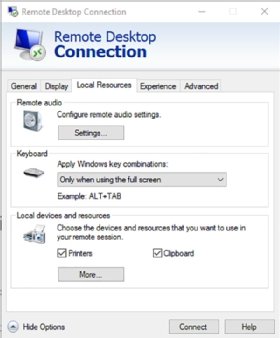
Figure 1. In the Remote Desktop Connection client, the Local Resources tab controls how Windows key combinations are handled in the remote session.
To get started, open the Remote Desktop Connection client, but do not click the Connect button. Instead, click the Show Options link in the lower-left corner. This will expand the Remote Desktop Connection client window and reveal additional options. Select the Local Resources tab.
The Local Resources tab contains a Keyboard section (Figure 1). By default, the client is configured to direct key combinations -- but not all keystrokes -- to the remote machine only when the remote computer is running in full-screen mode. You can change this behavior by selecting the On the remote computer option from the keyboard drop-down menu.
If the user is trying to unlock the remote session or open Windows Security, remind them to use Ctrl+Alt+End, which sends Control+Alt+Delete to the remote session.
If the user is connecting through Windows App or a web client instead of mstsc.exe, also verify the remote keyboard layout or input mode before assuming the keyboard has failed.
5. Check keyboard layout and input mode
Not every keyboard problem is a broken keyboard redirection path. Sometimes the local keyboard layout, the remote session's selected layout or the client's input mode causes keys to map incorrectly or not behave as expected.
This is especially worth checking if letters or symbols are wrong, shortcuts misfire, or the issue appears only in a browser-based session or on a Mac connecting to Windows. In the Remote Desktop web client, admins can select an alternative remote keyboard layout before connecting. In Windows App, Microsoft notes that keyboard language, scancode vs. Unicode mode and some non-English layouts can change how input is interpreted.
If needed, verify the language pack and keyboard layout in Windows on the remote machine, disconnect and reconnect the session, and then retest the affected application.
6. Check the Device Manager on the remote desktop
If you are still having problems with the keyboard in your remote desktop session, check the Device Manager to see if the Windows OS is reporting any problems with the keyboard.
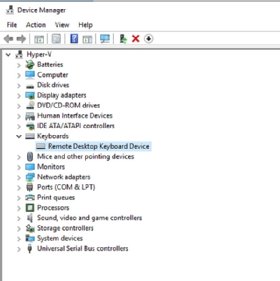
Figure 2. In Device Manager, the remote session should expose a keyboard device entry even though the physical keyboard remains local.
The exact method for this step varies slightly from one version of Windows to the next. For most newer Windows OSes, however, you should be able to right-click on the Start button, then select the Device Manager option from the resulting menu. When the Device Manager opens, expand the Keyboards section. Assuming that you are working within the remote desktop, you should see a keyboard device named Remote Desktop Keyboard Device (Figure 2). However, depending on the version of Windows you are using and where the remote desktop is being hosted, the Device Manager's reference to the remote keyboard might be called something else, such as Microsoft Hyper-V Virtual Keyboard.
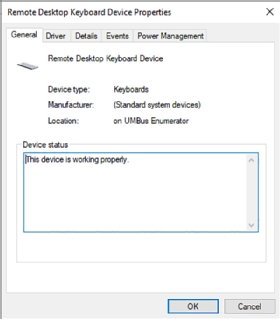
Figure 3. The keyboard device status can confirm whether Windows sees the redirected keyboard as functioning normally.
Normally, if the Remote Desktop Keyboard Device is having any problems, you will see an error or a warning icon superimposed over the keyboard icon. However, there is another way to check for issues with the remote desktop's keyboard. Simply right-click on the Remote Desktop Keyboard Device and select the Properties command from the shortcut menu.
The resulting screen will display a status and will tell you whether the device is working properly (Figure 3). If the issues persist, you can use the Driver tab to make sure the correct keyboard driver is loaded.
What to do if these steps don't work
You can narrow down the problem by testing the same session from another endpoint and testing the same endpoint against another remote desktop. That helps determine whether the failure is tied to the local device, the remote session, a specific client or a specific application.
If the keyboard appears to fail only at a credential prompt, check recent Windows security updates before assuming keyboard redirection is broken. Microsoft documented in January 2026 that some credential dialogs might not respond to virtual keyboard input from remote desktop or screen sharing tools.
If the issue remains unresolved, review Windows event logs and client logs, then standardize the client and keyboard settings that work so support teams can reproduce the issue consistently.
Editor's note:This article was originally published in 2023 and was updated in 2026 to reflect current remote desktop client, keyboard layout and Windows input behavior.
Brien Posey is a former 22-time Microsoft MVP and a commercial astronaut candidate. In his more than 30 years in IT, he has served as a lead network engineer for the U.S. Department of Defense and a network administrator for some of the largest insurance companies in America.