


惯性聚合 高效追踪和阅读你感兴趣的博客、新闻、科技资讯
阅读原文 在惯性聚合中打开

推荐订阅源

WordPress大学
WordPress大学
Spread Privacy
Spread Privacy
T
The Exploit Database - CXSecurity.com
Simon Willison's Weblog
P
Privacy & Cybersecurity Law Blog
L
LINUX DO - 热门话题
T
Threat Research - Cisco Blogs
T
Tenable Blog
TaoSecurity Blog
TaoSecurity Blog
Security Archives - TechRepublic
AI
AI
P
Proofpoint News Feed
A
About on SuperTechFans
P
Privacy International News Feed
月光博客
月光博客
雷峰网
雷峰网
S
Secure Thoughts
博客园 - 叶小钗
博客园 - 聂微东
cs.CL updates on arXiv.org
Project Zero
Project Zero
The Cloudflare Blog
SecWiki News
SecWiki News
The Hacker News
The Hacker News
V
Vulnerabilities – Threatpost
罗磊的独立博客
A
Arctic Wolf
阮一峰的网络日志
阮一峰的网络日志
Know Your Adversary
Know Your Adversary
酷 壳 – CoolShell
酷 壳 – CoolShell
OSCHINA 社区最新新闻
OSCHINA 社区最新新闻
T
Troy Hunt's Blog
The Last Watchdog
The Last Watchdog
Schneier on Security
小众软件
小众软件
有赞技术团队
有赞技术团队
博客园 - 司徒正美
T
Tailwind CSS Blog
量子位
C
Cybersecurity and Infrastructure Security Agency CISA
让小产品的独立变现更简单 - ezindie.com
Hugging Face - Blog
Hugging Face - Blog
人人都是产品经理
人人都是产品经理
奇客Solidot–传递最新科技情报
奇客Solidot–传递最新科技情报
S
Security @ Cisco Blogs
大猫的无限游戏
大猫的无限游戏
S
SegmentFault 最新的问题
Apple Machine Learning Research
宝玉的分享
宝玉的分享
L
Lohrmann on Cybersecurity

WhatIs

Strategic IT outlook: Tech conferences and events calendar | TechTarget 8 AI use cases in manufacturing Enterprises are making an AI native transformation Generative AI ethics: 16 biggest concerns and risks Zero trust in the IT ops stack: Securing hybrid workloads How algorithmic value sets enhance clinical decision-making Top methods for collecting customer feedback Build a data governance team that delivers results How to calculate the total cost of ownership of ERP software Communities call for transparency in AI data center deals Scalable IT infrastructure: Balancing speed with stability How health systems are tackling 'Kill the Clipboard' obstacles Understanding the science behind AI-based hiring assessments Tape's strategic role in modern data protection How to choose an HR software system in 2026: A complete guide The UC stack gets the policy job Top zero-trust use cases in the enterprise 13 top IT infrastructure conferences in 2026 SNMP vs. CMIP: What's the difference? 3 essential network analytics use cases AI Security Risks Force CIOs to Rethink Strategy Red Hat Summit 2026 news and conference guide | TechTarget What is HR technology (human resources tech)? Understand, optimize and track customer journey touchpoints Should IT use Apple Business Manager without MDM? Build and organize an effective machine learning team The storage modernization imperative in a fast-changing IT landscape Procurement automation use cases for CSCOs to consider 3 steps for health system leaders to drive patient safety culture What is DevOps? Meaning, methodology and guide Enterprises Face New Storage Bottlenecks as AI Grows A guide to Intune Suite licensing for endpoint management Epic controls 42% of the US EHR market. Does that help or hurt interoperability? SAP Sapphire 2026 news, trends and analysis | TechTarget How to develop a data governance strategy: 7 key steps 12 generative AI tools for marketing and sales teams Top 9 smart contract platforms to consider in 2026 Top 8 e-signature software providers for 2026 Rise with SAP vs. S/4HANA Cloud: What are the differences? How businesses use KPIs to measure AI's performance 5 clues your network has shadow AI How do digital signatures work? Collaboration security and governance must be proactive Compare SAP greenfield vs. brownfield approach for S/4HANA Merck, Home Depot tap Gemini Enterprise for AI agent development Rural challenges may dampen digital healthcare's potential Build an ethical AI framework: 12 top resources The great workload reshuffle: Choices for AI and analytics How to remove a device from Intune enrollment Cisco unveils quantum network advancements 3 BYOD security risks and how to prevent them 10 of the top carbon accounting software 8 trends powering machine learning's dynamic new roles Network engineers must take the lead to push DDI to the cloud How does Microsoft 365 Copilot pricing and licensing work? ONC highlights behavioral health EHR adoption trends, data exchange barriers LLMs struggle with clinical reasoning, study finds Democratizing AI in business: The good, bad and ugly What can organizations do to address BYOD privacy concerns? Fix the service path before you optimize it with AI How AI reshapes upselling in customer experience platforms When collaboration starts becoming operational drag Balancing health AI management with growing vendor sprawl Career cure for AI phobia: Be a beekeeper, not a worker bee 16 top applicant tracking systems for 2026 How a rural community hospital deploys AI to detect heart disease 8 examples of document version control Guide to 30+ sustainability certifications for professionals AI agents are only as smart as the data that feeds them AI could earn trust in transactional work first How to fix keyboard connection issues on a remote desktop How to add and enroll devices to Microsoft Intune 11 DevSecOps best practices to prioritize in 2026 6 key components of a successful data strategy How to enable Copilot in Microsoft 365: A step-by-step guide What CIOs need to know about Meta's proposed CEO AI agent Top AI recruiting tools and software of 2026 How contact centers detect and prevent fraud 10 essential skills for modern contact center agents Beyond the chatbot: Engineering the agentic enterprise AI in business intelligence: How to manage it effectively Why legacy networks are a growing liability Failure is an option as an IT leadership tool How HR can create a successful change management strategy HR AI is becoming a change management story Digital transformation: Balancing speed and governance RSAC 2026 Conference: Key news and industry analysis | TechTarget 8 best practices for a bulletproof IAM strategy 5 customer journey phases businesses should understand 12 top HR software and tool options to consider in 2025 6 contact center trends shaping the future of customer service Contact center monitoring best practices for CX leaders Cloud vs. local backup: Which is right for your organization? How governance maturity affects M&A integration outcomes Inside the push to turn AI agents into suite functionality How should contact centers use AI today? Accenture global health lead on scaling AI in healthcare with governance and intent 10 best free DevOps certifications and training courses in 2026 What is compensation management? What CIOs must know about bossware strategy
6 steps for when remote desktop credentials are not working
2026-04-08 · via WhatIs

Establishing a Windows remote desktop session is normally a simple and reliable process, but IT professionals still need to be ready for remote desktop issues to pop up.

For example, administrators might find that the remote machine refuses the Remote Desktop Protocol (RDP) connection. Fortunately, troubleshooting the problem is usually a straightforward process. In many cases, the issue is not the RDP session itself, but something tied to saved credentials, account permissions or the machine being targeted.

When everything is working properly, establishing a remote desktop session is a simple process. Admins only need to open the Remote Desktop client -- also known as the RDP Client or the Remote Desktop Connection (RDC) app -- and enter the name or IP address of the endpoint that will host the connection. Then, it's as simple as clicking the Connect button to establish the session. If the RDP client has saved credentials on hand from a previous session, then the new session automatically uses them.

Otherwise, the client prompts you to enter a username and password. If these don't yield a successful RDC connection, then IT administrators should take troubleshooting steps to determine and address the root cause of the issue.

1. Make sure the credentials are correct

The first step is to make sure the credentials are actually correct and entered in the right format. One of the more common mistakes is leaving the domain name out of the credential set.

Consider an IT professional logging in with an administrator account for the example domain PoseyLab. If the IT pro types Administrator instead of PoseyLab\Administrator, then the client would attempt to log in using the endpoint's local administrator account rather than the domain administrator account. Odds are that the local administrator account lacks the permissions to log on to the machine remotely. Even if the required permissions do exist, the local administrator account probably does not have the same password as the domain administrator account, so the logon won't be successful.

2. Update the saved credentials

One common cause of remote desktop credential problems is a set of cached credentials that are no longer valid. This usually happens after a password change, when the RDP client is still trying to authenticate with the old password.
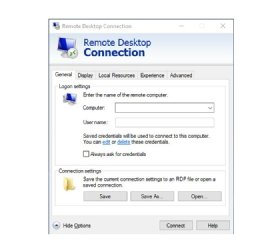
The Remote Desktop Connection menu showing the general settings tab.
Figure 1. Click the 'edit' hyperlink to refresh the saved credentials.

In many cases, the client will prompt for a new password after the old one fails. If that prompt does not appear, the admin might need to update the saved credentials manually.

The easiest way to do this is to open the RDP client, choose the computer to connect to and then click on the Show Options link. This expands the interface to reveal the Logon settings section. The Logon settings section contains an edit link (Figure 1). Clicking this hyperlink opens a prompt that enables an admin to enter and save a new password.

3. Make sure that the account is not locked out

If an admin has completed the first two steps and the remote desktop connection credentials are still not working, the next step is to make sure the account has not been locked out. Most organizations configure their Active Directory environments to automatically lock accounts after too many invalid login attempts as an RDP security measure.

Even if the account was not initially locked out, failed attempts at establishing an RDP session with the remote machine count as logon attempts and might lead to a lockout. It's a good idea to check whether the account is locked and manually override the lockout if it is in place.

4. See if the account has remote access permissions

Another thing to check is whether the account you are using has permission to log on to the remote machine through an RDP session. Even with a successful RDP connection in place from a prior session, it's always possible that the permission was somehow removed accidentally. Unfortunately, checking the remote access permissions means that someone has to log on to the machine locally.
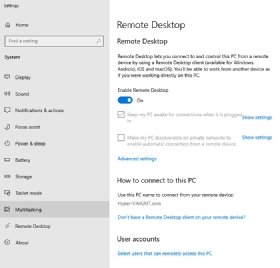
The Remote Desktop settings on a Windows machine within the Multitasking tab.
Figure 2. Make sure that Remote Desktop is turned on, and then click the link to 'Select users that can remotely access the PC.'

The exact steps of this process can vary considerably depending on the version of Windows that the remote machine runs on. With most modern versions of Windows, right-click on the Start button, and then choose the System command from the shortcut menu. Then, select the Remote Desktop tab, and make sure that the Enable Remote Desktop setting is turned on. Next, click on the Select users that can remotely access this PC link found at the bottom of the screen (Figure 2).

Then, verify and, if necessary, add accounts that can establish remote desktop sessions with the machine in question.

5. Check the firewall

Next, administrators should check if RDP traffic is able to flow between the remote machine and the local machine. The protocol that nearly all RDP clients use is TCP Port number 3389. Make sure that Windows Firewall on the remote machine is not blocking access to this port. The same also holds true for any other firewalls that exist between the two machines.

6. Verify that the connection is targeting the correct machine

One more step that IT administrators can take if they are having trouble connecting to the remote machine is to verify they are connecting to the correct machine. Begin the process on the remote machine by right-clicking the Start button and choosing the System command from the shortcut menu. From the About tab within the Settings window, click on the System Info link. This yields some basic information for the remote machine. Verify both the machine name and the name of the domain that the machine is connected to (Figure 3).
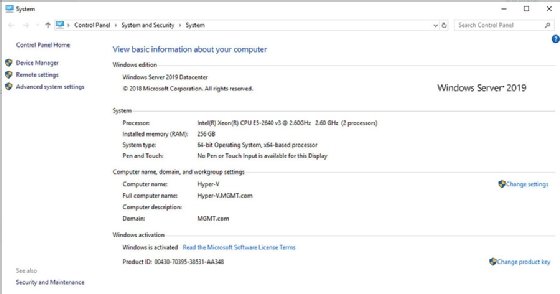
The Control Panel displaying the approved settings for the remote desktop connection.
Figure 3. Verify the remote machine’s computer name and domain name in Settings.

With the computer and domain names confirmed, the admin should verify the computer's IP address. The easiest way to do this is to open a Command Prompt window and enter the following command:

IPCONFIG /All

This lists the remote machine's IP address, as well as the address of the domain name server that it is using. Finally, look at the domain name server to ensure that the DNS record for the machine lists the correct computer name and IP address.

While remote desktop credential failures often look like small support issues, they can also point to bigger problems around access control, credential hygiene and basic configuration management. For IT leaders, reducing these kinds of failures is not just about fixing one connection at a time. It is also about making remote access more reliable and easier to support at scale.

Editor's note: This article was originally published in 2024 and updated in April 2026 to reflect current remote desktop troubleshooting practices and improve clarity.

Brien Posey is a former 22-time Microsoft MVP and a commercial astronaut candidate. In his more than 30 years in IT, he has served as a lead network engineer for the U.S. Department of Defense and a network administrator for some of the largest insurance companies in America.