How to ensure webcam functionality on remote desktops
Jo Harder·2026-05-22·via WhatIs
Remote desktops, especially in the case of remote workers, need sufficient support for peripheral devices to carry out critical functions.
Webcams enable remote collaboration through video conferencing, and they are now a common way for users to collaborate from different locations. However, these peripheral devices can cause problems when Remote Desktop Protocol (RDP) configurations aren't perfectly in place.
IT teams should ensure they have all the right prerequisites for remote desktops to have functioning webcam access and know how to troubleshoot any issues that might arise.
Ensure the webcam is functional on the local device
The first and most critical step is to ensure that the webcam is functioning properly on the local device. If the webcam is built in, does the device recognize it? If the webcam is a plugin peripheral device, does it have the proper configurations, and is it fully operational? If it's possible that multiple webcams are in use, make sure that the desired webcam is selected.
Most laptops have a mediocre internal webcam, so organizations might opt to install a higher-quality webcam. While the newer webcam typically becomes the default, users might need to specifically designate it as such.
If the webcam does not function at all on the local device, the issue might be related to connectivity or drivers. While most webcams are plug-and-play devices -- meaning that they automatically self-configure once plugged in -- some devices might require the installation of certain drivers or third-party software.
The connection type of the device can affect success as well. Webcams typically connect through USB, and some use Bluetooth for audio features. Issues with the USB input or Bluetooth audio components could result in webcam errors. Additionally, certain device‑redirection types might be disabled within an RDP user session, rendering the remote desktop unable to detect the webcam.
Manage the RDP configurations
Optimally, the webcam should be fully set up and configured prior to initiating an RDP session. While the RDP connection should recognize a peripheral after an RDP session has started, this might not work if plug and play is not enabled or an issue occurs. It's better to avoid this possibility altogether.
There are a few settings that can affect webcams within an RDP session. If any of the following settings disables the webcam connection, the peripheral won't function properly:
Group Policy Objects (GPOs), such as RDP workstation, server and domain settings.
Potential additional settings from Citrix, VMware, Parallels or another vendor.
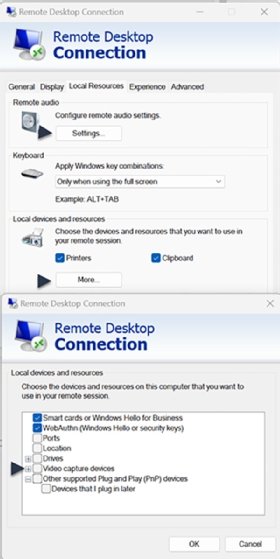
On the user device, IT admins or even users can configure RDP connection settings within the Local Resources tab. There are several settings that can directly affect webcams. One of the most common settings to look into is under Local Resources > Local devices and resources > More…(Figure 1). Once on the proper screen, select the Video capture devices checkbox to enable it. By default, this setting is not enabled, so organizations should either manage this setting directly or inform users how to make this change.
Figure 1. The extended remote desktop settings showing options for video capture devices, which includes webcams.
In addition, IT might need to enable Other Supported Plug and Play devices, including the Devices that I plug in later checkbox. Further, it might be necessary to open the remote audio settings and make adjustments that affect the webcam's microphone feature.
GPO settings are the most common reason that a webcam doesn't function as expected. Keep in mind that there are two places where GPO settings can alter the RDP session: the local remote desktop workstation, and the server and domain-wide settings. Disabling webcam, video or other connection settings within either of these locations hinders webcam functionality.
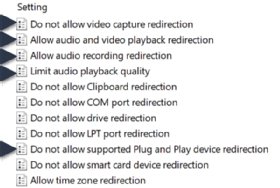
Within Computer Configuration > Policies > Administrative Templates > Windows Components > Remote Desktop Services > Remote Desktop Session Host > Device and Resource Redirection, there are various settings that could cause issues for webcam usage. These settings are available both as Active Directory (AD) GPOs that encompass an organizational unit within the domain, and as local GPOs that only affect that particular remote desktop workstation or server.
For example, if Do not allow video capture redirection is enabled on the remote desktop workstation or server but not configured within a domain GPO, the user would not be able to connect a webcam within that remote desktop resource (Figure 2). However, that user would be able to connect to a webcam within other remote desktop resources that don't have this GPO locally configured.
Figure 2. The various GPOs pertaining to webcam settings on remote desktops.
Administrators should exercise extreme caution when making one-off changes to a remote desktop workstation or server, such as altering settings while troubleshooting an issue. If IT admins make any temporary changes to local GPOs, they should reverse them immediately. In the event that this isn't possible, IT should deploy a newly provisioned remote desktop workstation and then revert the compromised workstation back to its basic state with all the correct local and domain GPOs applied.
Other settings related to video playback, audio and plug-and-play device redirection can affect webcam functionality. Unfortunately, just one of these misapplied settings can wreak havoc for admins, so IT must carefully monitor any webcam-related settings.
If someone has altered video playback settings, the user might mistakenly perceive the change as a webcam issue. When playback does not occur as expected within the RDP session, the user might not realize that the webcam did indeed function properly. For example, if a user records a video but then can't view the recording or hear the audio, it would only be the playback that failed.
If IT admins make any temporary changes to local GPOs, they should reverse them immediately.
If a third-party virtualization product is in use, IT can manage and configure additional settings. These settings can prevent or alter not only webcam functionality, but also audio and connectivity ports, such as USB and Bluetooth.
Initiate a troubleshooting session
When a user files a ticket broadly saying that their webcam isn't working, IT needs to take several steps to respond -- especially if this user needs a webcam for business-critical tasks like video conferencing. If the issue is only reported by a single user, it's likely related to either the physical webcam or its configuration. In this case, it's best to start at the user device and ensure functionality as a first step. To do this, ask the user the following questions:
Does the webcam function properly on the local device? Can the user successfully access the webcam within a local Zoom session?
Is this a new webcam? If not, has the webcam worked as intended previously? When was the last time that the user was able to use the webcam locally and within an RDP session?
What appears within the local RDP connection settings? Has anyone revised these settings recently?
Can the user test this webcam on another user device to rule out a faulty peripheral?
However, if multiple users report that their webcams aren't working, the issue is likely related to policy settings or port configuration. Admins should review GPO settings to determine which specific configuration might be blocking or altering microphone functionality. A tool such as AD Resultant Set of Policy can help review the settings that are ultimately applied to the user and device.
IT should also review the desktop virtualization product's configuration to ensure that other settings are enabling webcam functionality. If IT pushed out an update the day before the issues arose, the details of that update are worth investigating. Changes to policies could be the culprit as well. For example, if admins have blocked all access to USB peripheral devices to disable thumb drive data leakage, then webcams that plug into a USB port won't be redirected within the user session.
Editor's note:This article was updated in May 2026 to improve the reader experience.
Jo Harder has been involved with virtualization for over 19 years. She focuses on Citrix virtualization solutions and has been a Citrix Technology Professional (CTP) for four years.