


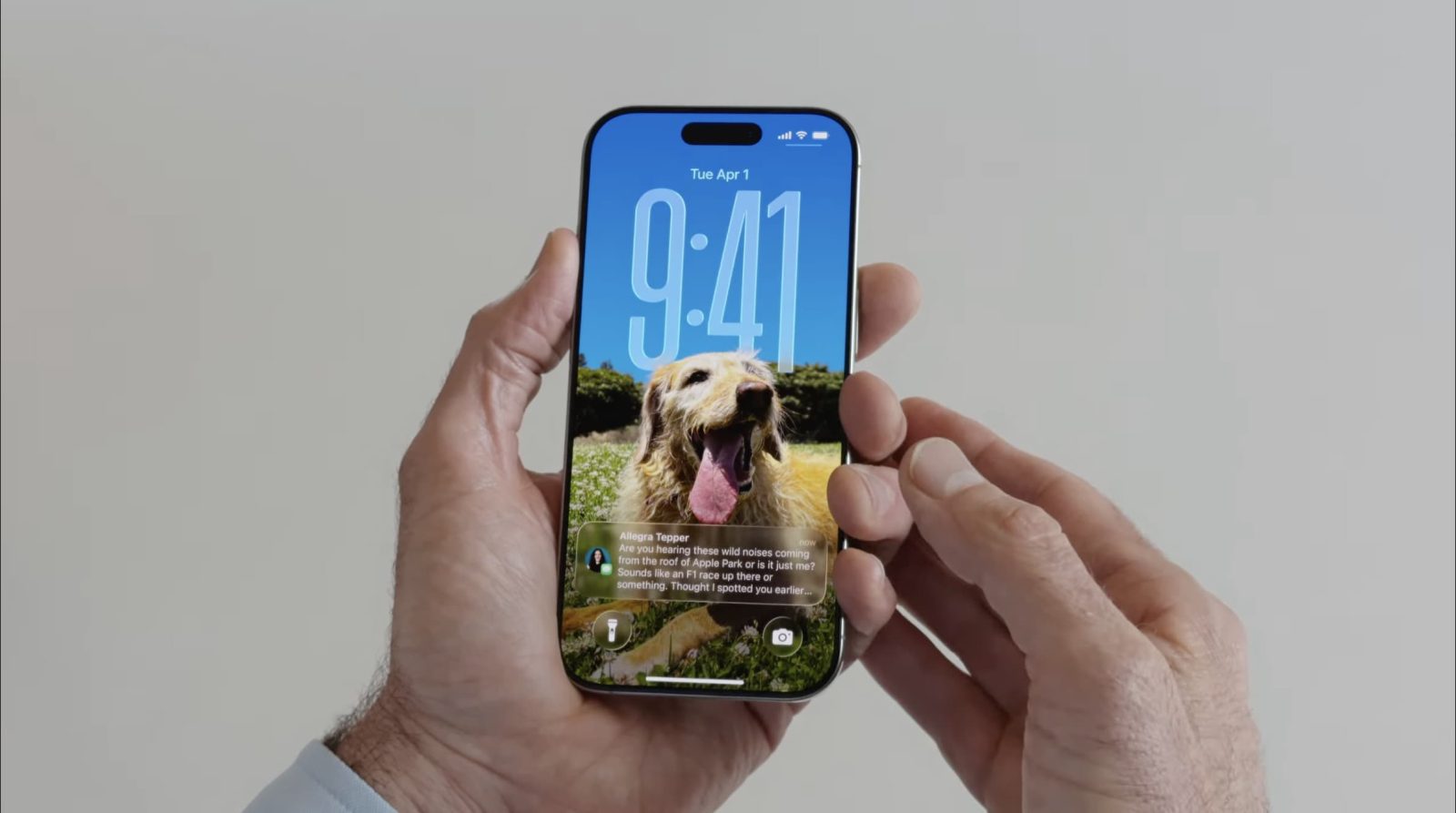
iOS 26 keeps adding a lot of new ways to customize your iPhone, but one of my favorites was there in the first 26.0 release: 3D spatial wallpapers. Here’s how to use the feature.
Your iPhone’s wallpaper is one of the best ways to personalize the device for you. And in iOS 26, Apple introduced a fun new 3D effect for wallpapers.
Per Apple’s official iOS 26 release notes:
Spatial scenes let you add a new 3D effect to your photo wallpapers, bringing them to life when you move your iPhone
Here’s an example of what this looks like in practice:

The same effect is also baked into the Photos app in iOS 26, and in Photos’ popular Home Screen widget.
In my experience though, this 3D spatial effect truly shines when applied to your iPhone’s wallpaper.
When creating a new wallpaper in iOS 26, you’ll see a row of suggested wallpapers under the heading ‘Spatial Scenes.’ If one of these grabs you, you can tap to select it, and the spatial effect will automatically be applied.
But if you’d like, you can also manually select almost any picture in your Apple Photos library to gain a 3D effect when used as your wallpaper.
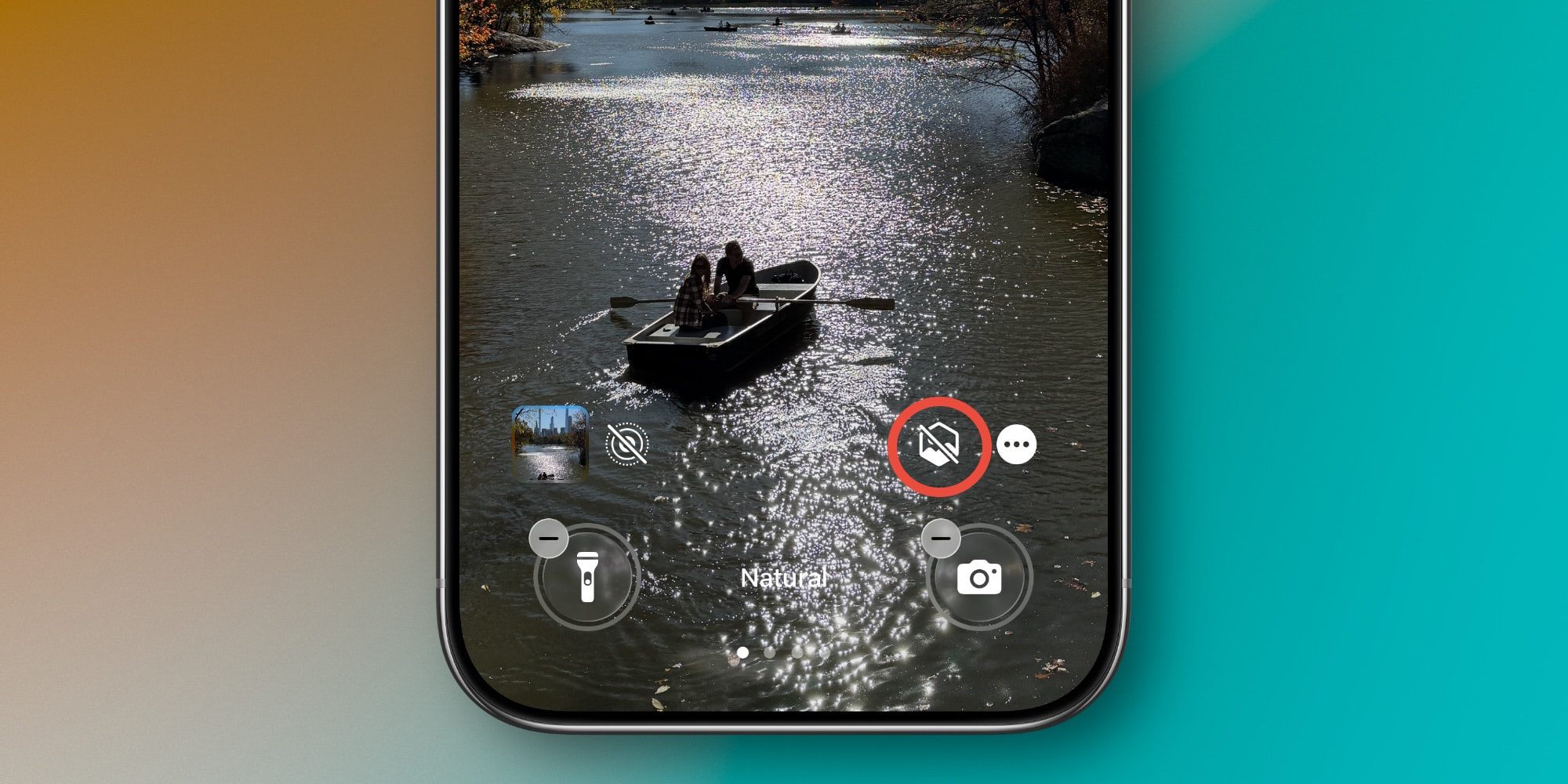
Just follow these steps:
It’s a small touch, but a fun one for bringing your wallpaper to life every time you pick up your iPhone.
Are you currently using the 3D spatial effect for your iPhone’s wallpaper? If not, why not? Let us know in the comments.


FTC: We use income earning auto affiliate links. More.

此内容由惯性聚合(RSS阅读器)自动聚合整理,仅供阅读参考。 原文来自 — 版权归原作者所有。