惯性聚合 高效追踪和阅读你感兴趣的博客、新闻、科技资讯
阅读原文 在惯性聚合中打开

推荐订阅源

WordPress大学
WordPress大学
G
Google Developers Blog
小众软件
小众软件
V
V2EX
月光博客
月光博客
腾讯CDC
aimingoo的专栏
aimingoo的专栏
J
Java Code Geeks
Y
Y Combinator Blog
人人都是产品经理
人人都是产品经理
B
Blog RSS Feed
奇客Solidot–传递最新科技情报
奇客Solidot–传递最新科技情报
Microsoft Azure Blog
博客园 - 【当耐特】
D
Docker
M
MIT News - Artificial intelligence
Google DeepMind News
N
Netflix TechBlog - Medium
Cyber Security Advisories - MS-ISAC
钛媒体:引领未来商业与生活新知
钛媒体:引领未来商业与生活新知
I
InfoQ
MongoDB | Blog
MongoDB | Blog
Apple Machine Learning Research
Jina AI
Jina AI

9to5Mac

Apple permanently closing three US stores, here’s when [Updated] Apple Arcade just added 4 new ad-free games with these titles now available At least for now, Liquid Glass in Pixelmator Pro remains a Creator Studio exclusive Apple @ Work: How to add an existing Mac to Apple Business Manager without wiping it Hands-on: SkyDex turns your daily weather check into a Pokémon adventure App Store fight continues as Apple and Epic clash over court-ordered stay OpenAI says to update Mac apps including ChatGPT and Codex as security precaution Apple TV in-person ‘experience’ coming later this month in LA New iPhone Fold leaks cover ‘Ultra’ name, launch timing, more Report: Apple tops global smartphone market for first time in Q1 as overall shipments drop Car Keys in Apple Wallet coming soon to major new vehicle brand Apple previews AI, accessibility, and AirPods Pro 3 research for CHI 2026 April 10, 2026 – Apple Store closures, more VSCO report explores how photographers perceive, adopt, and actually use AI XChat, X’s standalone messaging app, launching soon with these features Apple TV has three shows with finales this week, here’s what’s ending iOS 26.4 adds setting to let you change new Liquid Glass effect Hands-on: Satechi’s 3-in-1 Qi2 charger brings 25W of power with a clean Apple aesthetic [Video] iOS 27 adding new ‘Siri’ app to Home Screen: Here are the rumored features Deals: All 15-inch M5 MacBook Air models $150 off, Series 11 $99 off, Nomad leather iPhone 17 cases, more Amazon launches ‘Prime Video Ultra’ with new features, higher price How the Mac changed the way I clear mental clutter YouTube Premium is getting a US price hike of up to $4/month Tribit StormBox Micro 3: My favorite travel speaker just got better and cheaper FBI used iPhone notification data to retrieve deleted Signal messages Adobe’s low-processing camera app expands support to select iPads and the iPhone 17e New Apple TV movie starring Keanu Reeves now available to stream Apple collector showcases 50 years of Mac startup sounds [Video] WhatsApp is bringing Status updates to the top of the Chats tab iOS 26’s Messages app got a big upgrade for an essential feature
iOS 26 has new Home Screen setting for app icons, here’s ...
Ryan Christoffel · 2026-04-15 · via 9to5Mac

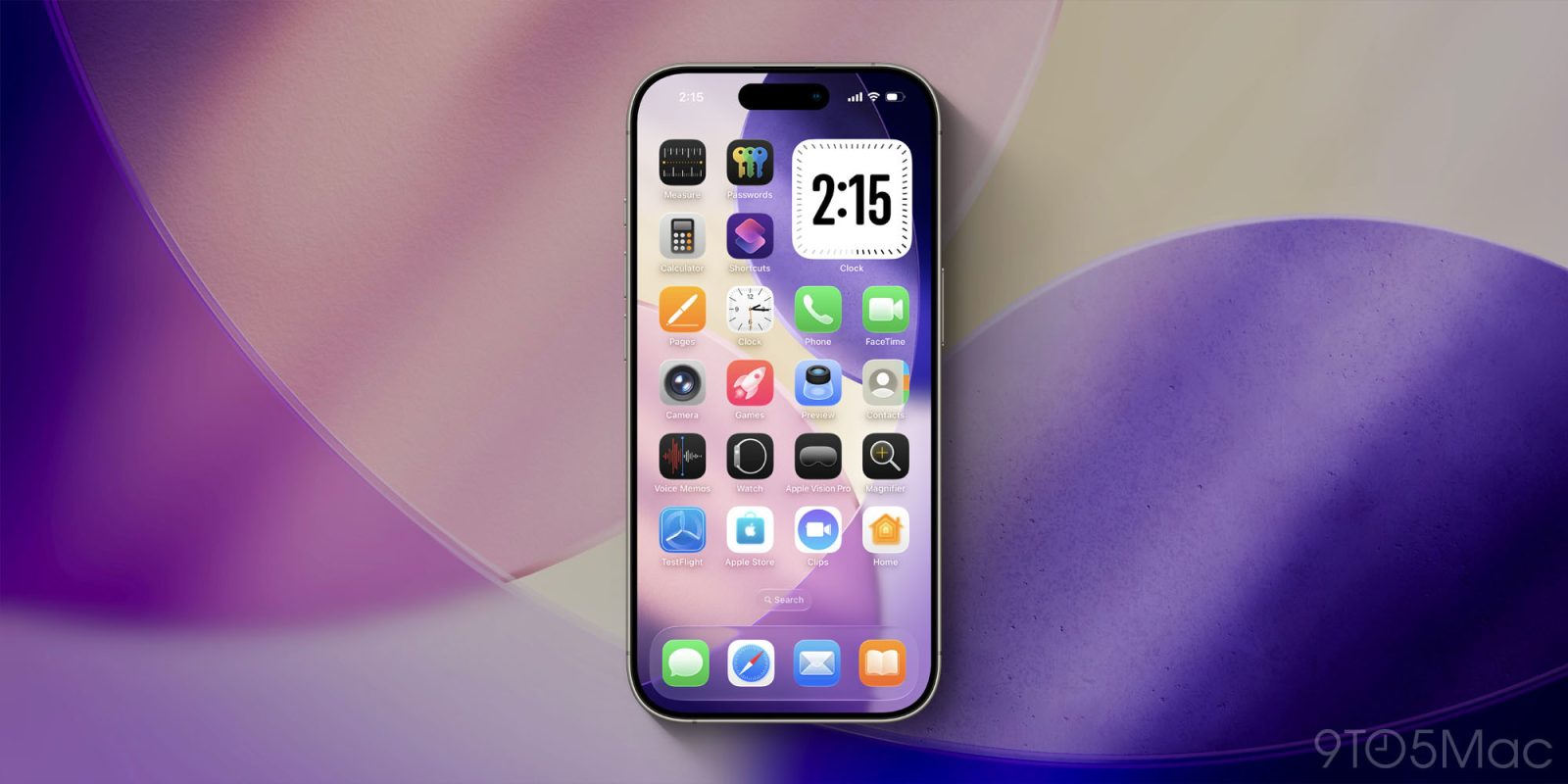
Apple has added a lot of new ways to customize your iPhone in recent years. One of my favorites is a Home Screen setting in iOS 26 for your app icons that tints the icon color to match that of your iPhone or its case. Here’s how to use it.
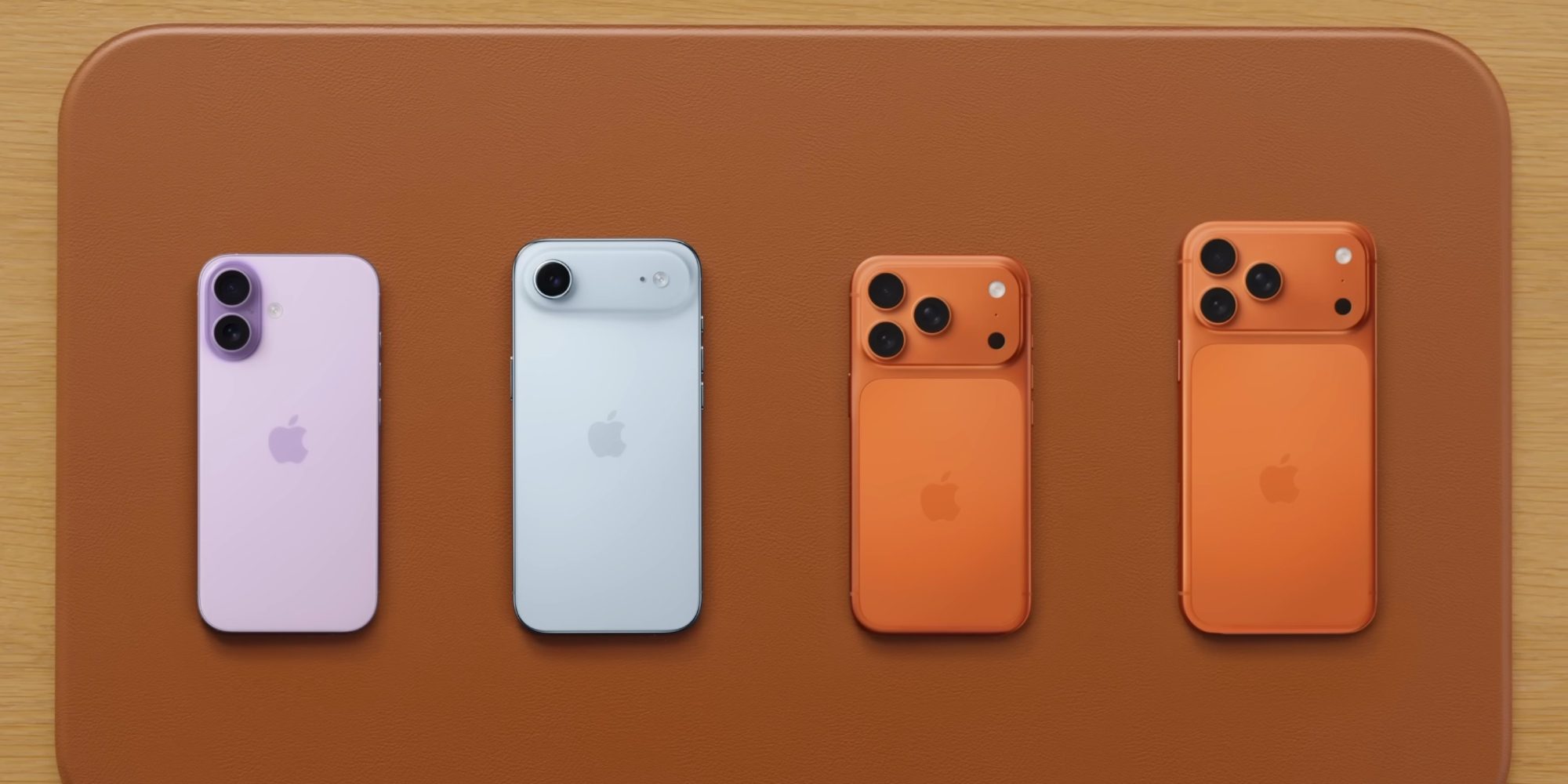
iOS 26 app icons can be automatically color-matched to your iPhone or case color

In the last few years, Apple has really embraced letting iPhone users personalize their device more than ever.

iOS 18 was a prominent example because it enabled custom designs for app icons on the Home Screen, including a Tinted look.

But in iOS 26, Apple enhanced the available Tinted options with two fun new ones:

  1. tint that matches your iPhone’s color
  2. or tint that matches your iPhone’s case color

Essentially, while still providing the ability to custom-tint icons however you want, Apple knows that lots of users simply want a consistent aesthetic for their iPhone, with color theming that carries across hardware and software.

And to get that consistency, it’s now extremely easy to color-match your Home Screen app icons to the color of your iPhone or its case.

Here’s how it works.

How to color-match your Home Screen icons to your iPhone

To tint your app icons with your iPhone or its case’s color, follow these steps:

  1. Long-press on your Home Screen in a blank spot
  2. Tap the ‘Edit’ button that appears in the top-left corner
  3. Hit ‘Customize’
  4. Tap ‘Tinted’

You’ll then see four icons near the bottom, just above where it says ‘Light,’ ‘Dark,’ and ‘Auto.’

The leftmost button will color-match your app icons to your iPhone’s color. Just right of it is the button to color-match to your iPhone’s case color.

This gets especially fun if you like to swap out cases based on what you‘re wearing, as you can quickly get a Home Screen aesthetic that complements your outfit.

The one catch is that the case matching doesn’t work with all cases. It will work with Apple’s official MagSafe cases, and some third-party options work too, but it depends on the case.

Have you used the new Home Screen app tint settings yet in iOS 26? What do you think? Let us know in the comments.


Best iPhone accessories

Add 9to5Mac as a preferred source on Google Add 9to5Mac as a preferred source on Google

FTC: We use income earning auto affiliate links. More.