



Document versioning built into macOS is an unfinished masterpiece that promises much but never seems to have been developed as fully as it deserved. This article looks at how macOS can’t search saved versions, and how you can work around that.
In essence versioning is simple: apps that support it, and a great many do now, save a series of versions to the volume’s hidden and sealed database in the .DocummentRevisions-V100 folder at its top level. To access those versions you’d normally use the Time-Machine-like browser provided by the Browse All Versions command in the Revert To item in the app’s File menu. Whenever the app saves a document, the open document becomes the current version, and its saved state becomes the previous version. This works for manual saves, and for any automatic timed saves the app might make.
Unlike all other versioning systems, this is all handled automatically by macOS, and neither you the user nor the app developer has to make any effort to create or manage those versions. It really does come for free.
Unfortunately, all those saved versions in the version database fall outside the scope of Spotlight indexing, and Spotlight search can’t look inside any of the old versions saved in a volume’s version database. Surprisingly, the version browser doesn’t offer any search facilities either, as that’s presumably another feature intended for a future that never came.
This is a serious omission, as I access old versions not infrequently, and being able to search for them saves me laborious browsing. It might be a few hours or days after I removed a section from a document, that I realise I need it back. By that time it may well have vanished from Time Machine’s hourly backups, or the section may have been too transient to be retained there. But the chances are that the missing content will be safe inside a saved version, if only I can find it.
Pulling tricks with the hidden .DocumentRevisions-V100 folder isn’t a good approach to solve this. It’s clear from its contents that previous versions aren’t saved as discrete files, but it uses a chunking system to store what has changed between versions, for economy in space. Access supported by macOS is strictly limited to looking up saved versions for any given file in that volume, and there’s no way to search their contents like that.
One way around this is to save each document version as a separate file, allow Spotlight to extract their contents and add those to its indexes for that volume, then to search those files. This is quick and simple using my free utility Versatility. To demonstrate this, I picked two documents with a substantial number of versions:
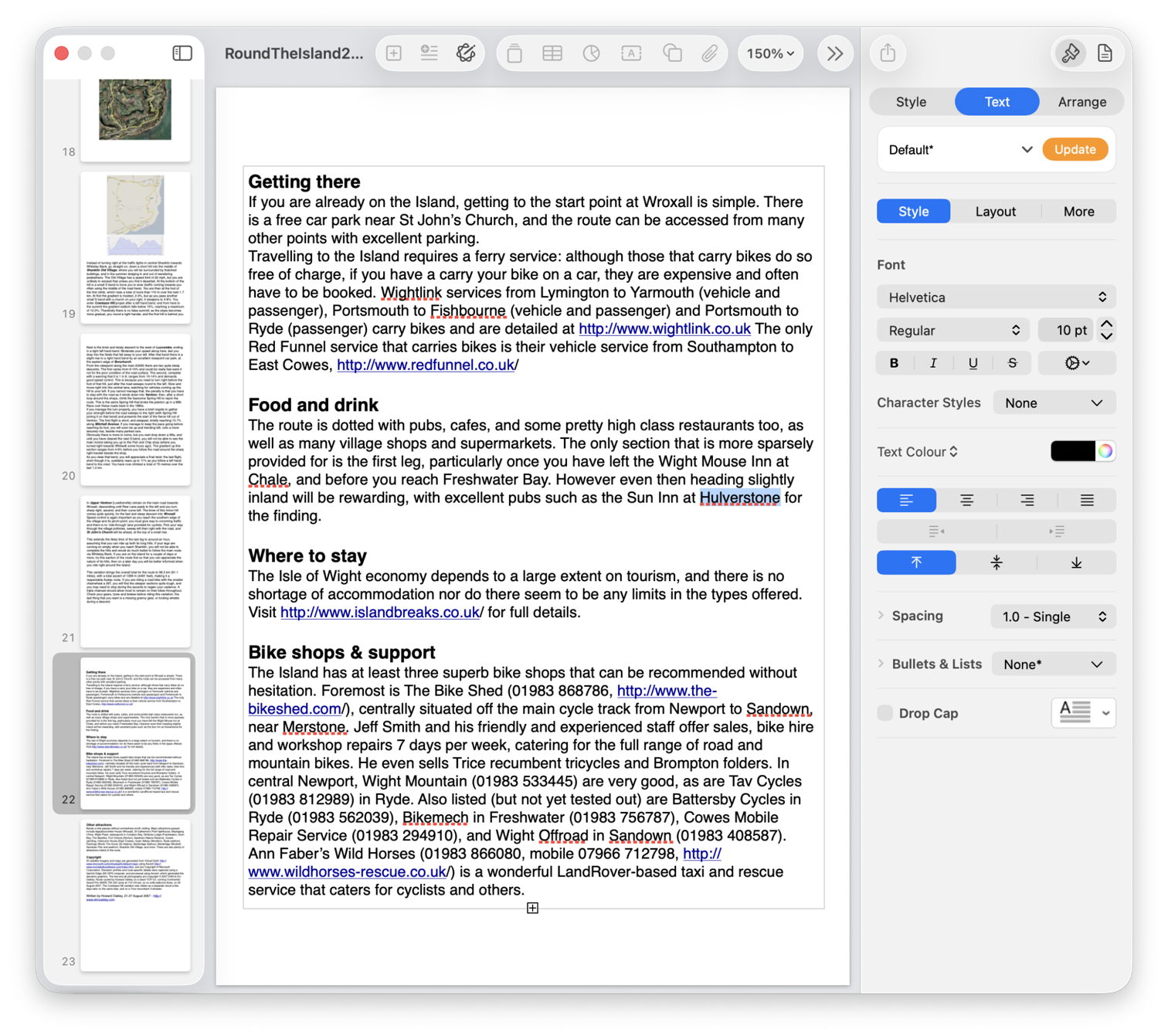
loadAppexIndexer;Hulverstone.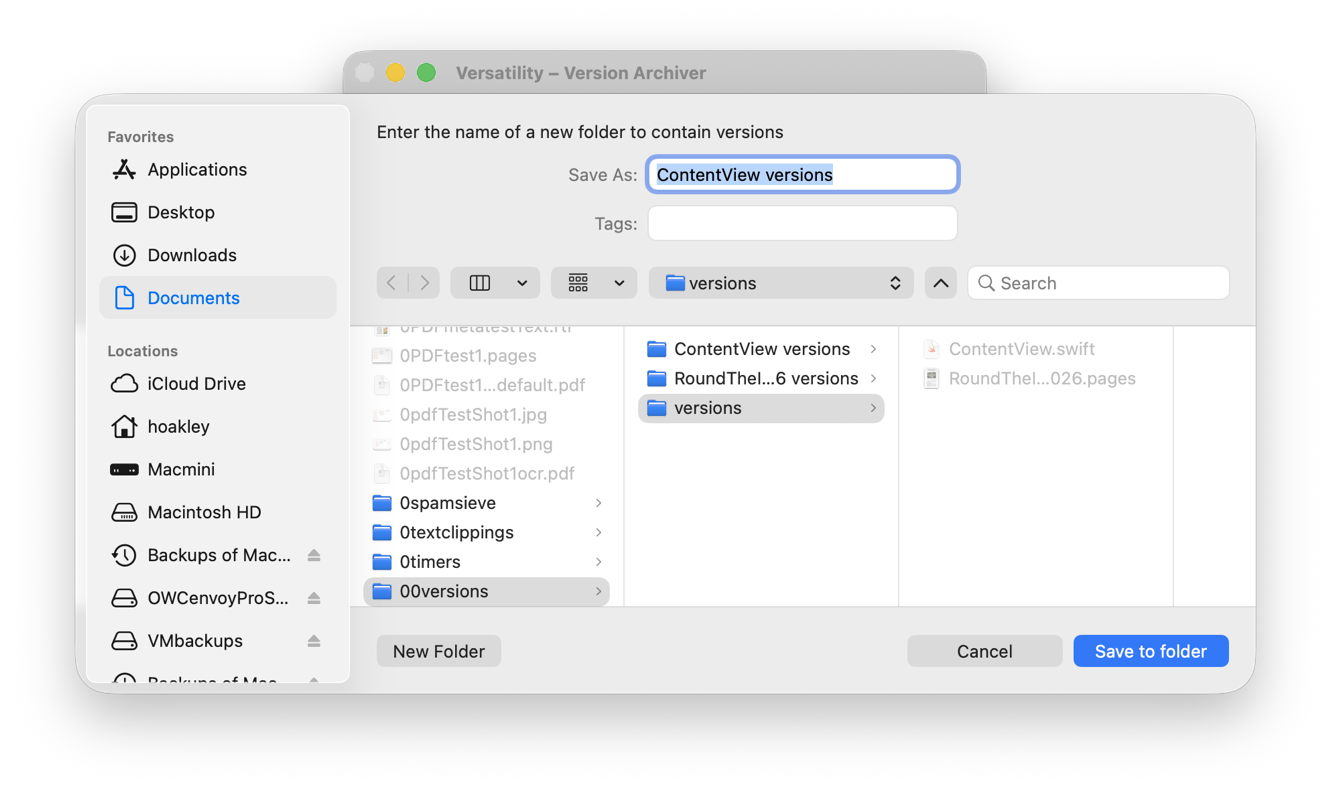
In both cases I started by dropping the current document onto Veratility’s window, and saving individual archived versions to a new folder alongside that original document. I then opened that archive folder in a Finder window, and converted that to a Find window with that command in the Finder’s File menu. I entered my term, loadAppexIndexer or Hulverstone, into the search box, and changed the search scope from This Mac to the open archive folder.
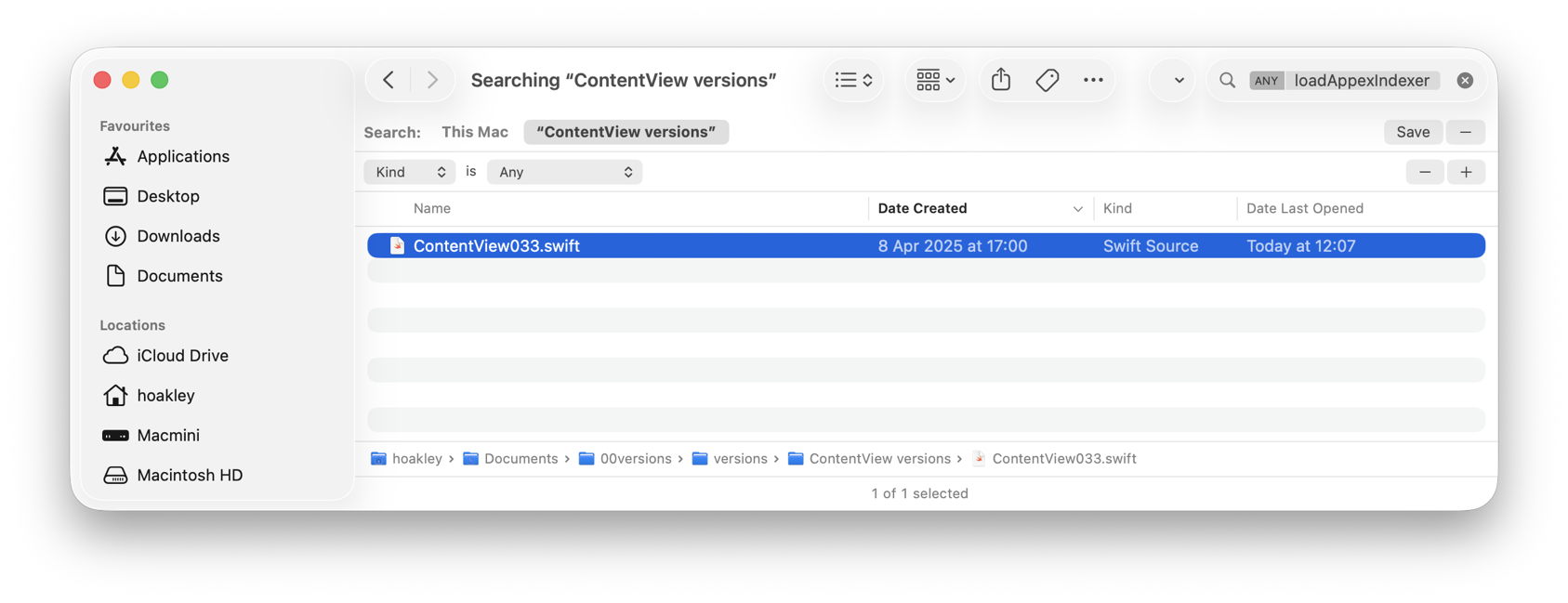
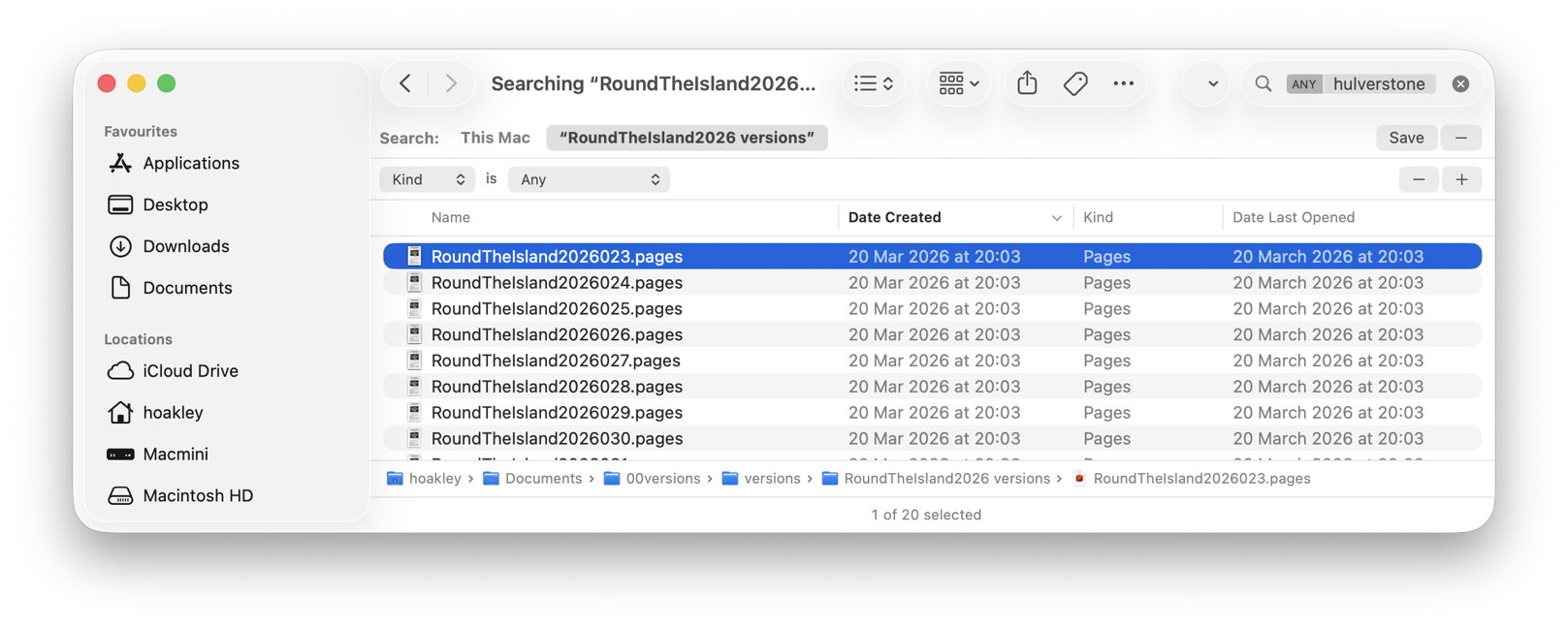
In the Swift code, Spotlight immediately found the term in the file numbered 033 by Versatility, and all versions from the file numbered 023 in the case of the Pages document.
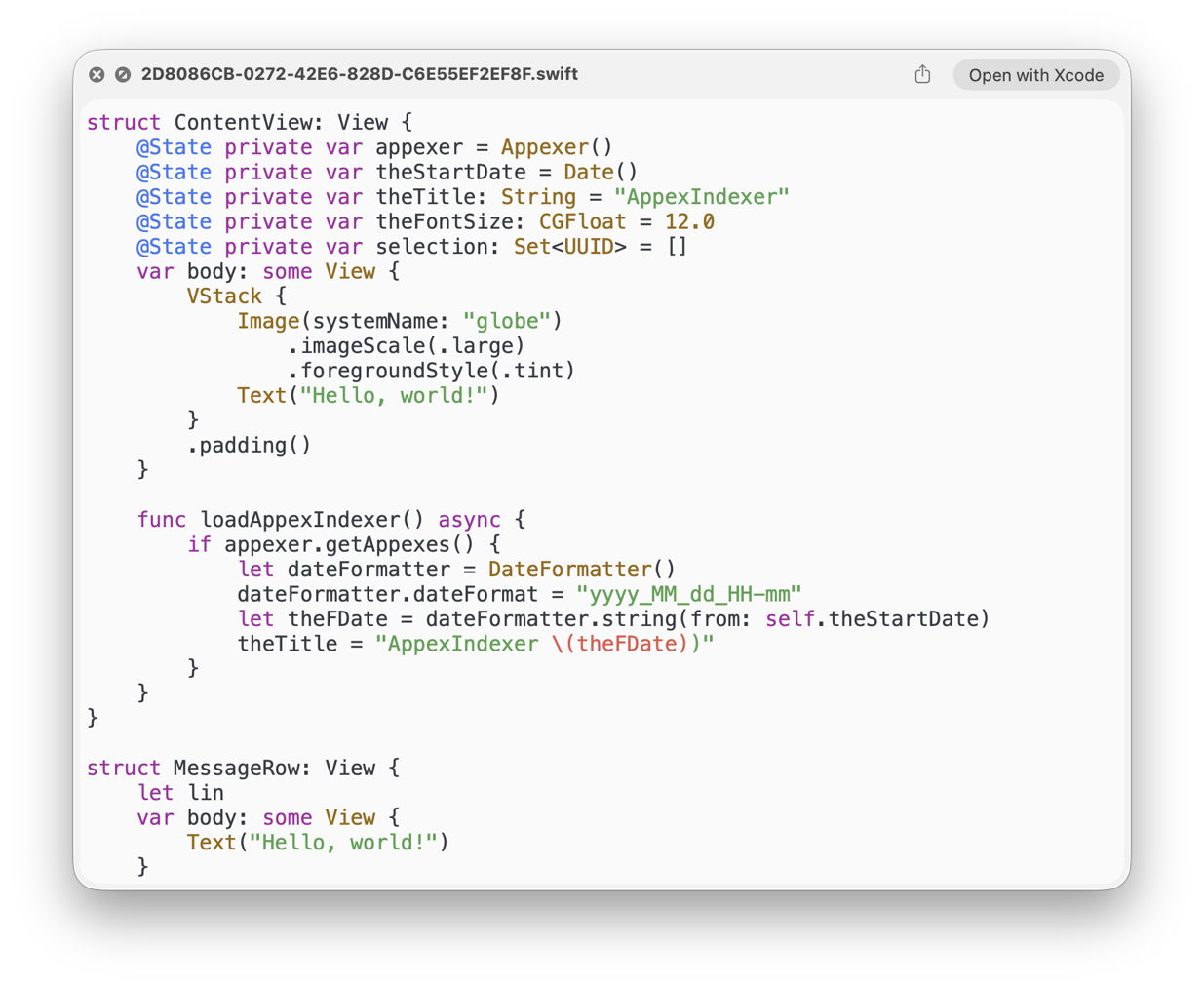
With that Finder window still open I was then able to locate those versions in the original documents:
Once happy I had done what I wanted with that old version, I then trashed the archive folder created by Versatility.
To summarise the sequence:
Happy finding!
此内容由惯性聚合(RSS阅读器)自动聚合整理,仅供阅读参考。 原文来自 — 版权归原作者所有。