



惯性聚合 高效追踪和阅读你感兴趣的博客、新闻、科技资讯
阅读原文 在惯性聚合中打开

推荐订阅源

Threat Intelligence Blog | Flashpoint
WordPress大学
WordPress大学
N
Netflix TechBlog - Medium
宝玉的分享
宝玉的分享
V
Visual Studio Blog
S
Securelist
P
Palo Alto Networks Blog
A
Arctic Wolf
T
Tor Project blog
P
Proofpoint News Feed
I
InfoQ
博客园 - 三生石上(FineUI控件)
T
Threat Research - Cisco Blogs
G
GRAHAM CLULEY
M
MIT News - Artificial intelligence
Cyber Security Advisories - MS-ISAC
Microsoft Security Blog
MongoDB | Blog
MongoDB | Blog
C
CXSECURITY Database RSS Feed - CXSecurity.com
Apple Machine Learning Research
S
Secure Thoughts
Cyberwarzone
Cyberwarzone
Blog — PlanetScale
Blog — PlanetScale
Simon Willison's Weblog
博客园 - 【当耐特】
大猫的无限游戏
大猫的无限游戏
腾讯CDC
Latest news
Latest news
Project Zero
Project Zero
V
Vulnerabilities – Threatpost
Y
Y Combinator Blog
S
SegmentFault 最新的问题
Schneier on Security
C
CERT Recently Published Vulnerability Notes
W
WeLiveSecurity
罗磊的独立博客
Stack Overflow Blog
Stack Overflow Blog
酷 壳 – CoolShell
酷 壳 – CoolShell
L
LINUX DO - 热门话题
N
News and Events Feed by Topic
PCI Perspectives
PCI Perspectives
C
Cisco Blogs
Application and Cybersecurity Blog
爱范儿
爱范儿
T
The Exploit Database - CXSecurity.com
The Last Watchdog
The Last Watchdog
人人都是产品经理
人人都是产品经理
GbyAI
GbyAI
Know Your Adversary
Know Your Adversary
U
Unit 42

The Eclectic Light Company

Apple has released an update to XProtect for all macOS Hero or hooligan: Theseus’ later years BSD flags are incompatible with iCloud Drive Apple has released macOS Tahoe 26.5.1 In memoriam Mary Cassatt: 1, 1868-1880 Solutions to Saturday Mac riddles 362 What Location Services do in macOS Eclectic paintings of Joseph Stella: 2 European myths Last Week on My Mac: Razzle and dazzle Eclectic paintings of Joseph Stella: 1 American landscapes Saturday Mac riddles 362 Protect files with the Locked or Immutable flag Reading Visual Art: 252 Dragonfly What happens in the log when an app crashes as it starts up? Portraits of trees: Introduction On Reflection: Conclusions and contents Which tasks require mains power? Medium and message: Vast canvases Online reference to external displays for Apple silicon Macs What’s in that phishing email? Hero or hooligan: Theseus and Ariadne Solutions to Saturday Mac riddles 361 How to search document versions Rubens’ Consequences of War Rubens’ Peace and War Saturday Mac riddles 361 How to search Time Machine backups? Naturalists: Contents and artists On Reflection: Extending the image Tackle QuickLook problems Medium and message: Pottery Hero or hooligan: Theseus and the sandals How QuickLook provides thumbnails and previews Last Week on My Mac: Syncing metadata in iCloud Drive Paintings of visits to India 1778-1877 Saturday Mac riddles 360 Naturalists: Sorolla and Zorn On Reflection: Pierre Bonnard 1909-1946 SpotTest 1.2 can display Spotlight metadata directly On Reflection: Pierre Bonnard 1899-1908 How to preserve versions, and how to create versioned PDFs Medium and message: Sculpture What gets synced in iCloud Drive? Hero or hooligan: Perseus 2 Solutions to Saturday Mac riddles 359 Last Week on My Mac: snapshots, the elephant in APFS Paintings of Beatrice Portinari: to 1862 Saturday Mac riddles 359 Naturalists: Into the 20th century How to check whether Spotlight is getting the right metadata On Reflection: Mirror play Hero or hooligan: Perseus 1 The bicentenary of Frederic Edwin Church: 1857-77 Solutions to Saturday Mac riddles 358 macOS virtual machines and audio-video syncing A walk in the parks of Rome, Vienna, Manhattan and Brooklyn Saturday Mac riddles 358 Naturalists: Photography Use Finder tags for categories Control what gets written to the log Medium and message: Tapestry Virtualisation on Apple silicon Macs is different Jerusalem Delivered: Overview and contents The bicentenary of Frederic Edwin Church: 1849-57 Solutions to Saturday Mac riddles 357 Painting Pandora and her box: 1883-1919 Painting Pandora and her box: 1550-1882 Saturday Mac riddles 357 Reading Visual Art: 250 Winged sandals The secret life of the xattr The macOS Natural Language framework and Nalaprop Medium and Message: Stained glass The MACL extended attribute Jerusalem Delivered: 13 Leading characters Solutions to Saturday Mac riddles 356 Privacy: How locations are protected Painting Spring blossom 2 Last Week on My Mac: Don’t be a victim of fraud Painting Spring blossom 1 Saturday Mac riddles 356 Explainer: Recovery Reading Visual Art: 249 Mask Naturalists: Urban poverty On Reflection: Cézanne Privacy: Which folders are protected in Tahoe? Medium and Message: Mosaic Jerusalem Delivered: 12 Delivery Solutions to Saturday Mac riddles 355 Centaurs 2: Revenge Centaurs 1: Fights Saturday Mac riddles 355 Explainer: sandboxes Naturalists: The modern meal Apple has just released an update to macOS Tahoe, to version 26.4.1 On Reflection: Divisionism Please help update CPU frequencies for Apple silicon Macs Commemorating the centenary of the death of John Ferguson Weir Privacy: Files & Folders or Full Disk Access? Jerusalem Delivered: 11 Into Jerusalem Privacy: protected folders
Why you can’t trust Privacy & Security
2026-04-10 · via The Eclectic Light Company

In this Friday’s magic demonstration, I’m going to show how what you see in Privacy & Security settings can be misleading, when it tells you that an app doesn’t have access to a protected folder, but it really does.

Although it appears you can achieve this using several ordinary apps, to make things simpler and clearer I’ve written a little app for this purpose, Insent, available from here: insent11

I’m working in macOS Tahoe 26.4, but I suspect you should see much the same in any version from macOS 13.5 onwards, as supported by Insent.
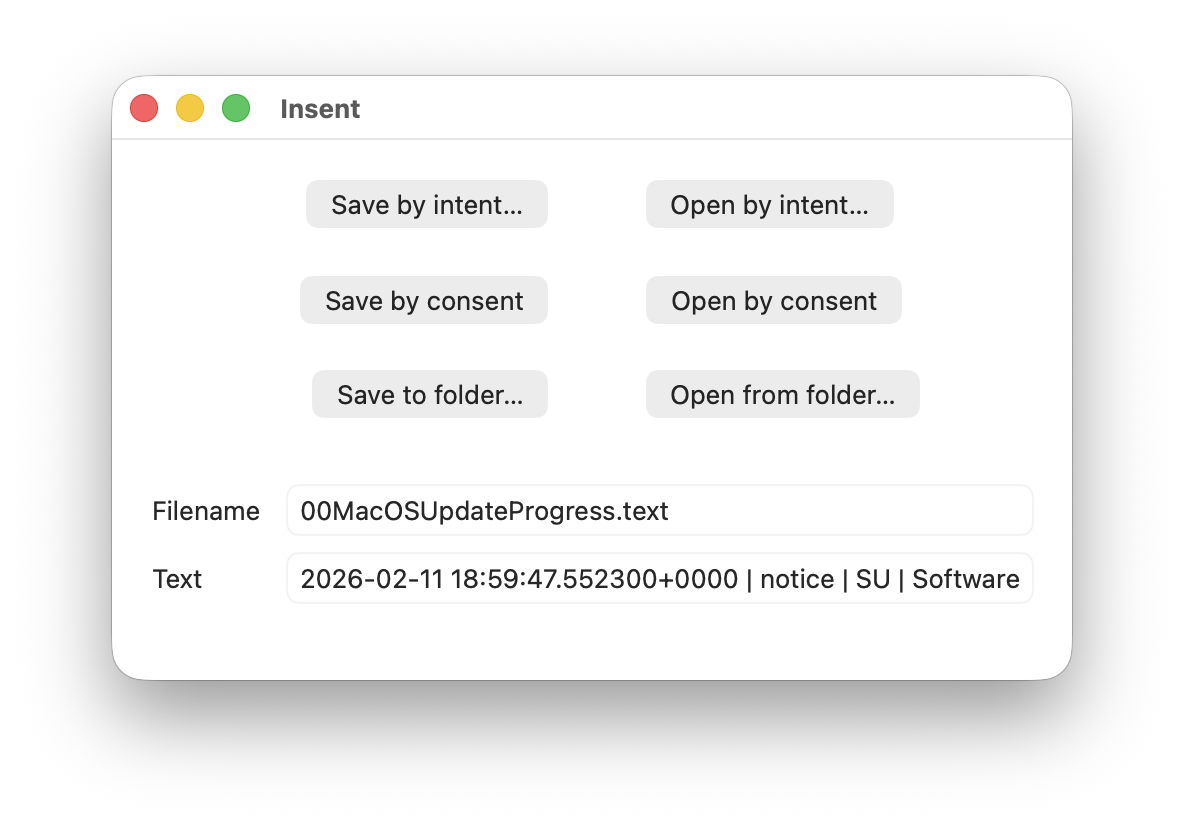
For this magic demo, I’m only going to use two of Insent’s six buttons:

  • Open by consent, which results in Insent choosing a random text file from the top level of your Documents folder, and displaying its name and the start of its contents below. As it does this without involving the user in the process, the macOS privacy system TCC requires it to obtain the user’s consent to list and access the contents of that protected folder.
  • Open from folder, which opens an Open and Save Panel where you select a folder. Insent then picks a random text file from the top level of that folder, and displays its name and the start of its contents below. Because you expressed your intent to access that protected folder, TCC considers that is good enough to give access without requiring any consent.

Demonstration

Once you have downloaded Insent, extracted it from its archive, and dragged the app from that folder into one of your Applications folders, follow this sequence of actions:
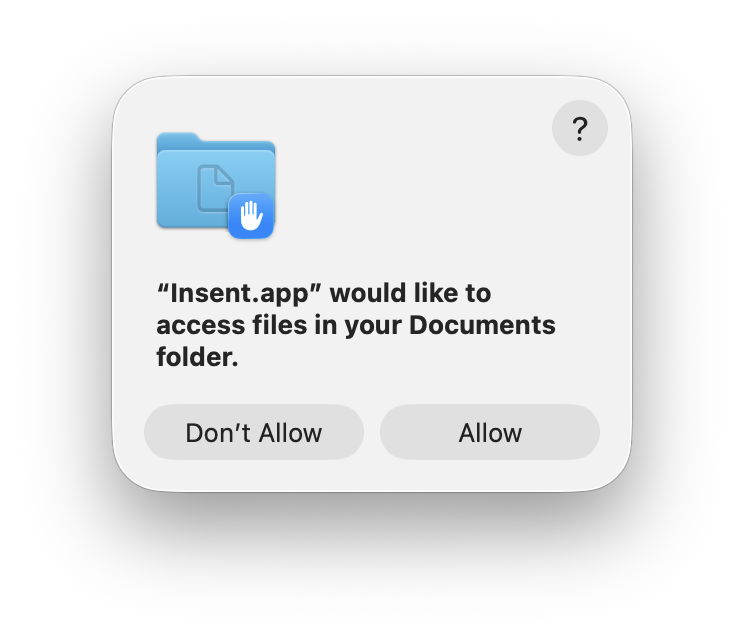
  1. Open Insent, click on Open by consent, and consent to the prompt to allow it to access your Documents folder. Shortly afterwards, Insent will display the opening of one of the text files in Documents. Quit Insent.
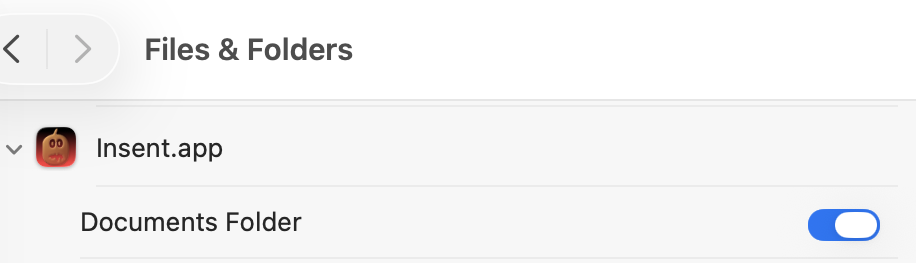
  2. Open Privacy & Security settings, select Files & Folders, and confirm that Insent has been given access to Documents.
  3. Open Insent, click on Open by consent, and confirm it now gains access to a text file without asking for consent. Quit Insent.
  4. Open Privacy & Security settings, select Files & Folders, and disable Documents access in Insent’s entry there using the toggle.
  5. Open Insent, click on Open by consent, and confirm that it can no longer open a text file, but displays [Couldn't get contents of Documents folder].
  6. Click on Open from folder and select your Documents folder there. Confirm that works as expected and displays the name and contents of one of the text files in Documents.
  7. Click on Open by consent, and confirm that now works again.
  8. Confirm that Documents access for Insent is still disabled in Files & Folders.
  9. Whatever you do now, the app retains full access to Documents, no matter what is shown or set in Files & Folders.

Indeed, the only way you can protect your Documents folder from access by Insent is to run the following command in Terminal:
tccutil reset All co.eclecticlight.Insent
then restart your Mac. That should set Insent’s privacy settings back to their default.

You can also demonstrate that this behaviour is specific to one protected folder at a time. If you select a different protected folder like Desktop or Downloads using the Open from folder button, then Insent still won’t be able to list the contents of the Documents folder, as its TCC settings will function as expected.

How does this work?

Insent is an ordinary notarised app, and doesn’t run in a sandbox or pull any clever tricks. When System Integrity Protection (SIP) is enabled some of its operations are sandboxed, though, including attempts to list or access the contents of locations that are protected by TCC.

When you click on its Open by consent button, sandboxd intercepts the File Manager call to list the contents of Documents, as a protected folder. It then requests approval for that from TCC, as seen in the following log entries:
1.204592 Insent sendAction:
1.205160 Insent: trying to list files in ~/Documents
1.205828 sandboxd request approval
1.205919 sandboxd tcc_send_request_authorization() IPC

TCC doesn’t have authorisation for that access by Insent, either by Full Disk Access or specific access to Documents, so it prompts the user for their consent. If that’s given, the following log entries show that being passed back to the sandbox, and the change being notified to com.apple.chrono, followed by Insent actioning the original request:
3.798770 com.apple.sandbox kTCCServiceSystemPolicyDocumentsFolder granted by TCC for Insent
3.802225 com.apple.chrono appAuth:co.eclecticlight.Insent] tcc authorization(s) changed
3.809558 Insent: trying to look in ~/Documents for text files
3.809691 Insent: trying to read from: /Users/hoakley/Documents/asHelp.text
3.842101 Insent: read from: /Users/hoakley/Documents/asHelp.text

If you then disable Insent’s access to Documents in Privacy & Security settings, TCC denies access to Documents, and Insent can’t get the list of its contents:
1.093533 com.apple.TCC AUTHREQ_RESULT: msgID=440.109, authValue=0, authReason=4, authVersion=1, desired_auth=0, error=(null),
1.093669 com.apple.sandbox kTCCServiceSystemPolicyDocumentsFolder denied by TCC for Insent
1.094007 Insent: couldn't get contents of ~/Documents

If you then access Documents by intent through the Open and Save Panel, sandboxd no longer intercepts the request, and TCC therefore doesn’t grant or deny access:
0.897244 Insent sendAction:
0.897318 Insent: trying to list files in ~/Documents
0.900828 Insent: trying to look in ~/Documents for text files
0.901112 Insent: trying to read from: /Users/hoakley/Documents/T2M2_2026-01-06_13_03_00.text
0.904101 Insent: read from: /Users/hoakley/Documents/T2M2_2026-01-06_13_03_00.text

Thus, access to a protected folder by user intent, such as through the Open and Save Panel, changes the sandboxing applied to the caller by removing its constraint to that specific protected folder. As the sandboxing isn’t controlled by or reflected in Privacy & Security settings, that allows TCC, in Files & Folders, to continue showing access restrictions that aren’t applied because the sandbox isn’t applied.

Conclusion

Access restrictions shown in Privacy & Security settings, specifically those to protected locations in Files & Folders, aren’t an accurate or trustworthy reflection of those that are actually applied. It’s possible for an app to have unrestricted access to one or more protected folders while its listing in Files & Folders shows it being blocked from access, or for it to have no entry at all in that list.

Is this likely to occur?

Most apps that want access to protected folders like Documents appear to seek that during their initialisation, and before any user interaction that could result in intent overriding the need for consent. However, many users report that apps appear to have access to Documents but aren’t listed in Files & Folders, suggesting that at some time that sequence of events does occur.

To be effectively exploited this would need careful sequencing, and for the user to select the protected folder in an Open and Save Panel, so drawing attention to the manoeuvre.

Most concerning is the apparent permanence of the access granted, requiring an arcane command in Terminal and a restart in order to reset the app’s privacy settings. It’s hard to believe that this was intended to trap the user into surrendering control over access to protected locations. But it can do.

I’m very grateful to Richard for drawing my attention to this.