











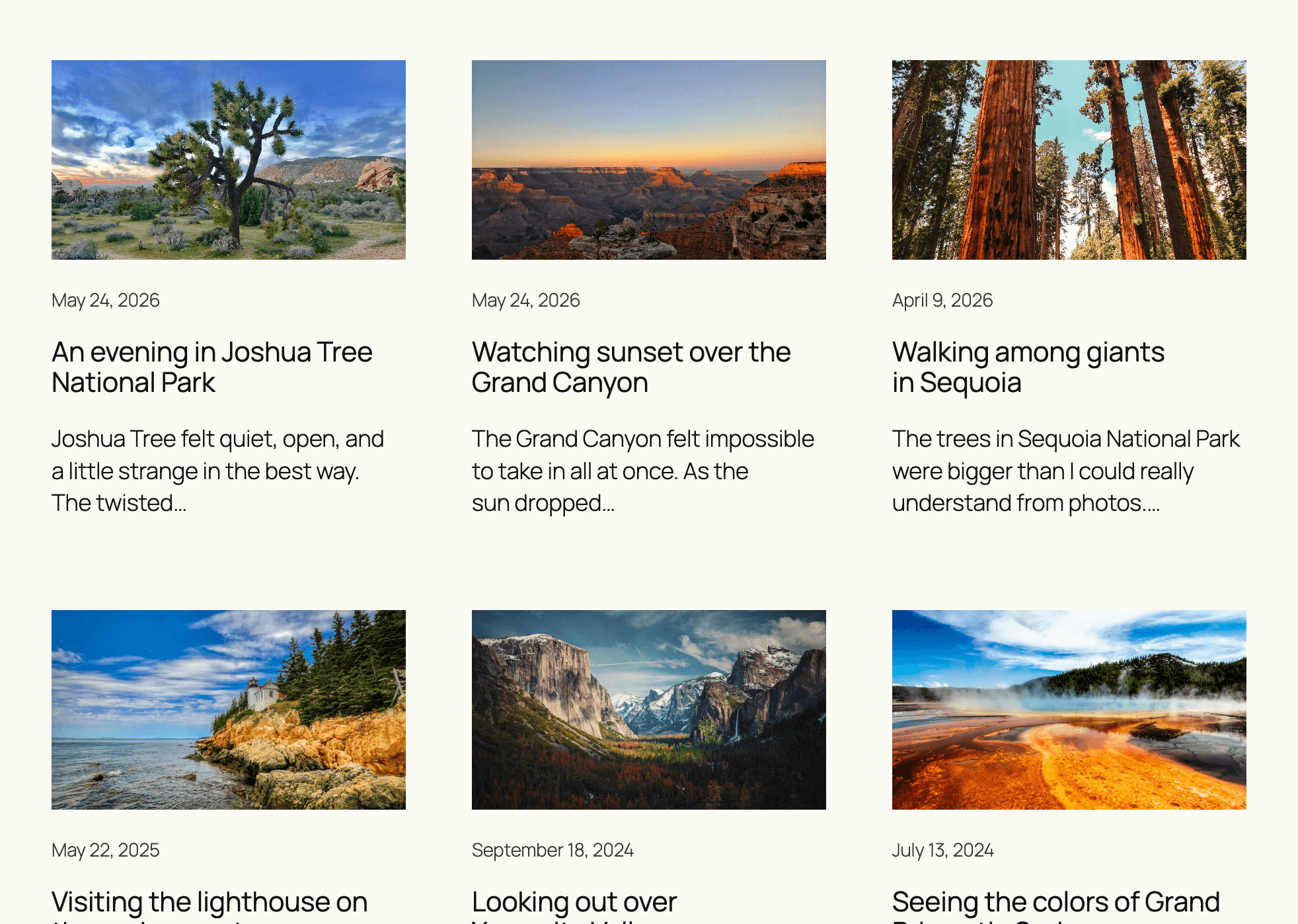
The Query Loop block is an advanced block that allows you to display posts based on specified parameters, like a PHP loop without the code. You can think of it as a more complex and powerful Latest Posts Block. With various block patterns integrated into the block setup, you can do things like create a portfolio or a page full of your favorite recipes.
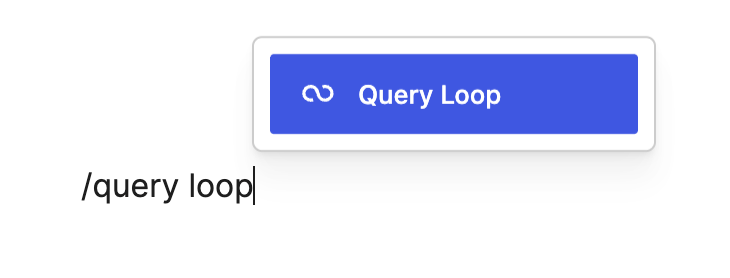
To add the Query Loop block to the page, click (+) icon to open the block inserter pop-up window. Look for the Query Loop using the search bar and click the block icon to add it to the editor.
Alternatively, you can quickly add the Query Loop block by typing /query loop and pressing Enter.
After adding the Query Loop block you will see two options:
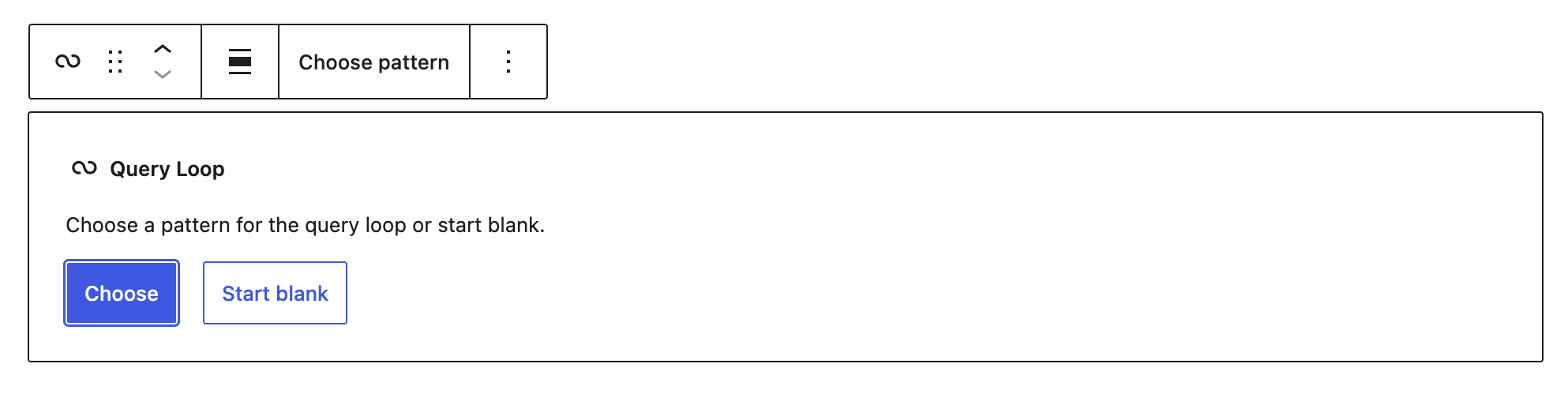
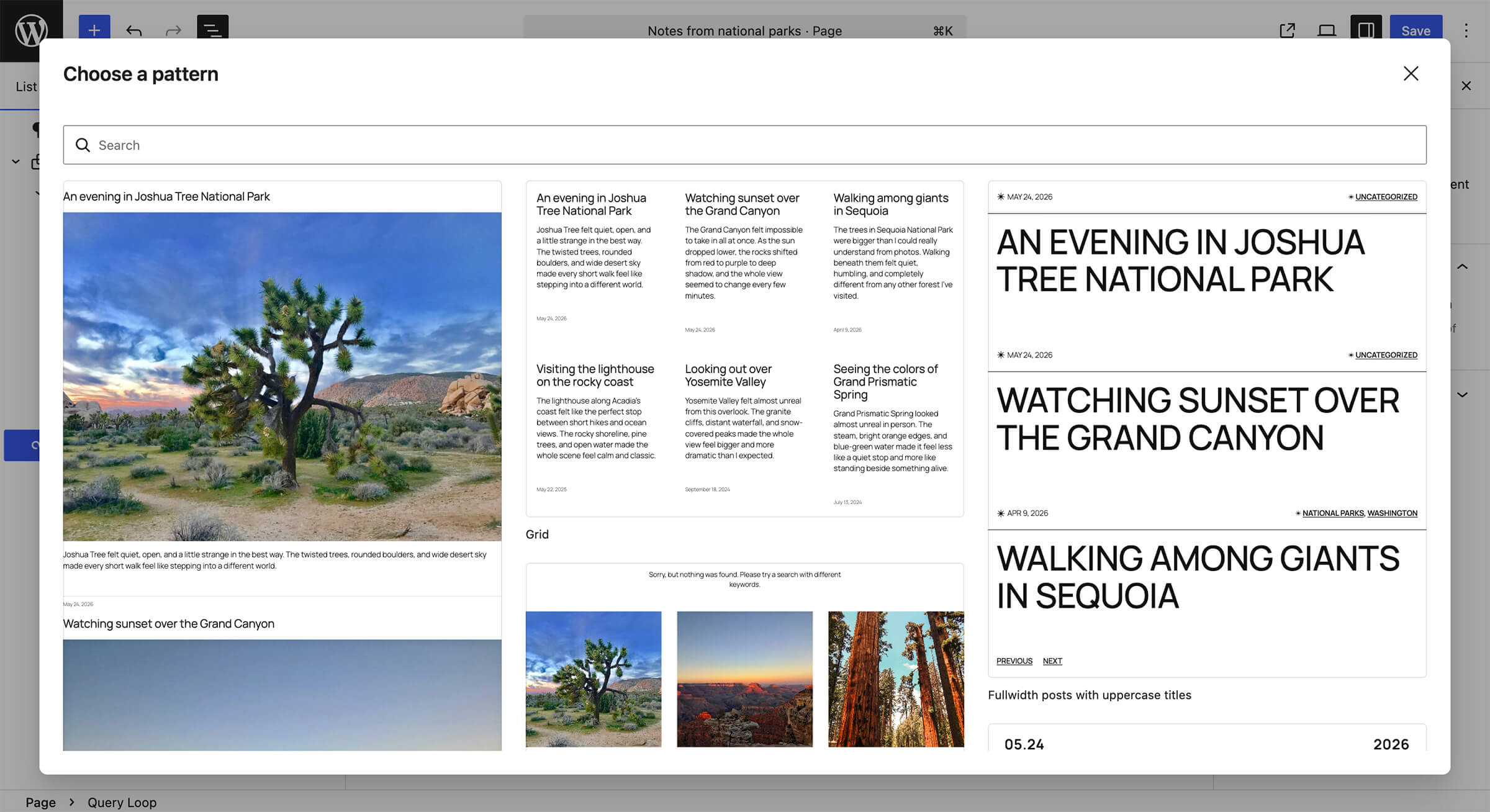
The Choose option allows you to select from patterns in your theme that use the Query Loop. Each Query Loop block is made up of various nested post blocks, like the Featured Image, Excerpt, and Pagination blocks. So depending on which pattern you choose, the blocks your Query Loop starts with may vary.
If you select the Start blank option, you can select different variations of the Query Loop to start with. Each variation starts with a different combination of nested post blocks. You can remove these nested blocks or add additional ones after adding the block to the page.

Detailed instructions on adding blocks
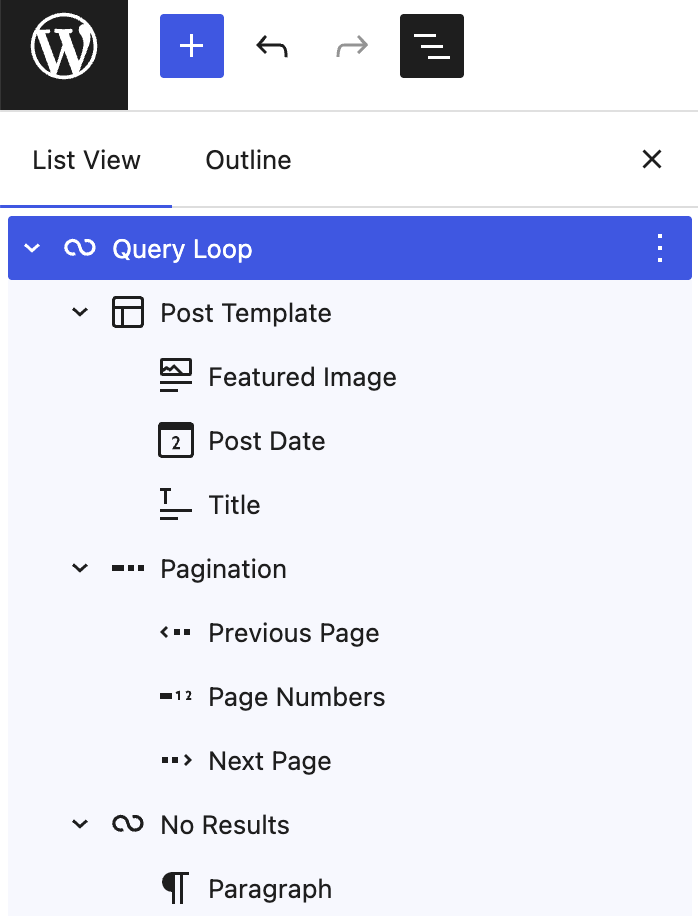
Once added to the page, open List View to see how the Query Loop is structured. The Query Loop is made up of several nested parts, and each one controls a different part of the display.
Use the Query Loop block settings to control which posts appear. This includes options such as post type, filters, order, and the number of items shown.
Post Template is a container block inside the Query Loop that controls the layout that repeats for each post in the Query Loop. For example, you can display posts in a list or grid.
The Post Template accepts inner blocks. You can add post blocks, such as the post Title, Featured Image, Excerpt, Date, and other blocks like Group, Columns, or Row to create more custom layouts. Common blocks you may use inside the Post Template include:
Learn more about the Post Template block.
The Pagination block lets visitors move through multiple pages of results. You can choose which navigation elements to include, such as previous and next links or page numbers. Remove this block if it’s not needed — you can add it back at any time if desired.
Learn more about the Pagination block.
Use No Results to add a message that appears when the query does not find any posts. This message only displays on the published page when there are no matching results. You can delete the No Results section, but it’s recommended so that this area does not appear blank for visitors if no posts are able to display.
The Query Loop block is made up of nested blocks. To customize how posts appear, select the part of the Query Loop you want to change, such as the Query Loop, Post Template, Title, Featured Image, or Pagination block.
Use List View to see the nested block structure and select the correct block. Changes made inside the Post Template repeat for each post in the Query Loop. For example, if you move the Featured Image above the Post Title, that change applies to every post in the list.
Common ways to customize the Query Loop include:
Note: If you do not see options for choosing a post type, filter settings, or other query settings, select the Query Loop block and change Query Type from Default to Custom in the block settings sidebar.
Post titles and featured images inside the Query Loop do not automatically link to the post or page in every layout. To make them clickable, select each nested block and enable its link setting.
These settings apply to each item shown by the Query Loop because they are inside the Post Template.
The Query Loop block itself does not include style settings like color and spacing. Select a nested block inside the Query Loop, such as the Post Template, Title, or Excerpt, and use that block’s settings to change styles.
To switch between list and grid layouts, select the Post Template block. In the block’s toolbar, you can select List View or Grid View to stack your posts in a list or display them in multiple columns within a grid.
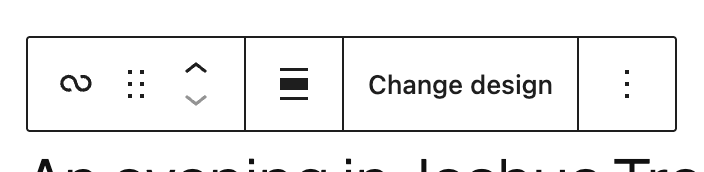
Each block has a block toolbar, which lets you customize or modify the block’s options in the editor. To view the block toolbar, select the Query Loop block. The toolbar gives you quick access to common block actions, such as moving the block, changing its alignment, replacing the design, or opening more options.
The Query Loop block toolbar includes:
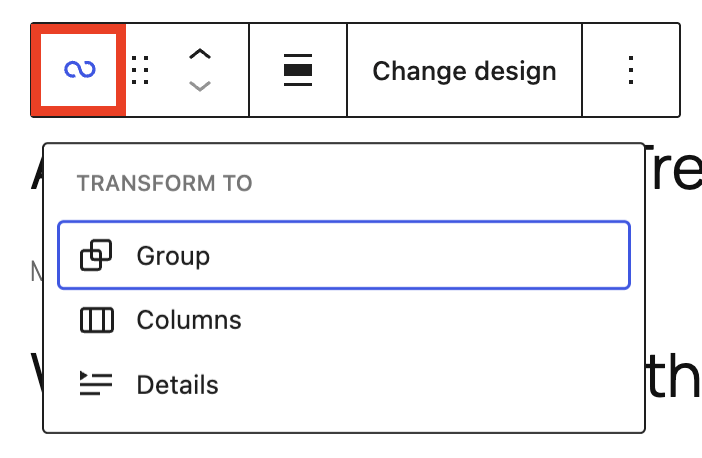
The Transform to tool allows you to convert the Query Loop block into the Group, Columns, or Details blocks.

Click the the drag/drop button (six dots) to move the block to a new location on the page. A blue separator line appears to indicate where the block will be placed.
The up and down arrow icons can be used to move the block up and down on the page.
Get more information about moving a block within the editor.
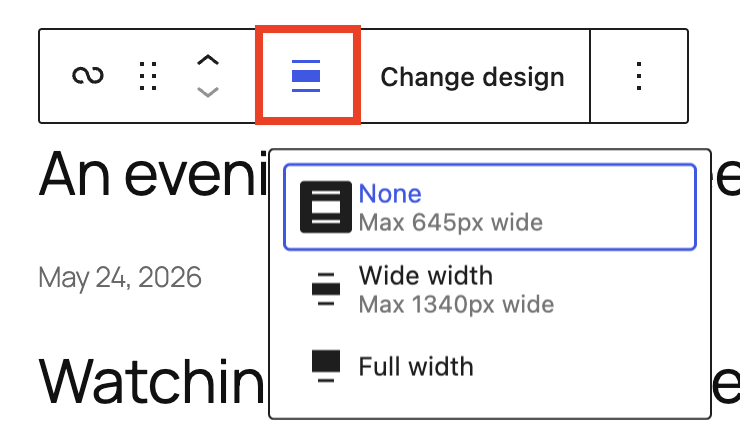
Use the change alignment tool to align the Query Loop block. Choose one of the following options:
The Wide width and Full width alignment settings must be enabled by your WordPress theme.
Use Change design to choose a different Query Loop design or pattern. This replaces the current Query Loop layout with the selected design.

Use More options to access additional block actions, such as duplicate, copy, group, lock, or delete. Available options may vary depending on your theme and permissions.
Read about these and other settings.

Use the Settings section to customize and control which content appears in the Query Loop. To open it, select the block and click the settings icon next to the Publish/Update button.

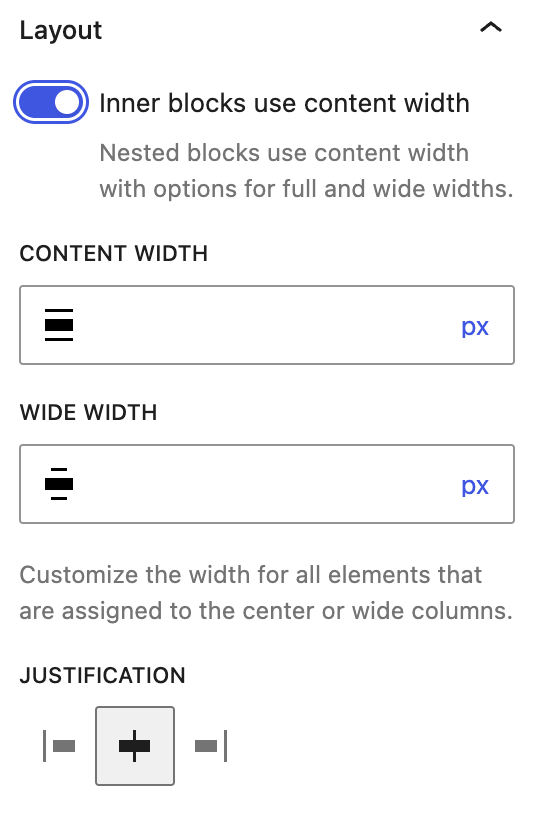
Use the Layout settings to control how nested blocks inside the Query Loop use the available width and additional alignment options for content. The Query Loop block includes the Inner blocks use content width setting. When this setting is turned off, nested blocks fill the width of the Query Loop container.
Visit the Layout Settings Overview guide for more information about these settings.
The Query type is set to Default automatically which means WordPress will otherwise rely on the template being used to determine what posts appear.
To view a list of posts on a page, change this query type to Custom. When you choose Custom, the following options appear:

WordPress contains different types of content, and they are divided into collections called Post types. By default, there are a few different ones, such as blog posts and pages, but plugins could add more. Other content types may be displayed here if your site includes plugins or custom post types.
This option allows you to choose between three options:

Display options allow you to customize how many posts you want to show in various ways. Some display controls may be hidden by default. To show them, open the Display options menu (three dots) next to the Display label. Select from the following options:
If you don’t see this section, you must change the Query type to Custom.
Use Filters to control which posts appear in the Query Loop.
If you do not see this section, change Query type from Default to Custom.
Filter settings are hidden until you add them. Select the Filter options button (+), then choose the filter you want to use. The filters available may change depending on the selected post type, theme, and plugins used on your site.


Depending on your site, you may also see filters for custom taxonomies added by a theme or plugin, such as WooCommerce product categories. These filters work like categories or tags and let you show content assigned to specific taxonomy terms.
If Post type is set to Page, you may see different filter options, such as:

The Query Loop provides the following Advanced Settings options: HTML Anchor, Additional CSS Class(es), Additional CSS, HTML Element, and Reload Full Page.
The Reload Full Page setting is enabled by default. This setting reloads the entire page when visitors move between pages of Query Loop results. This setting is enabled by default and is generally the safest option for predictable navigation and accessibility. When turned off, only the posts inside the Query Loop update instead of reloading the full page.
Learn more about advanced settings
This video shows how to add a Columns block inside the Post Template to create a repeated layout with the featured post image on the left and post title, date, and excerpt on the right.
bradhogan @liviopv @tehjaymo @cuemarie)
此内容由惯性聚合(RSS阅读器)自动聚合整理,仅供阅读参考。 原文来自 — 版权归原作者所有。