







Table of contents
In this tutorial, you’ll learn how to convert PDFs to PDF/A format using the Nutrient Document Web Services API on Zapier. PDF/A is the ISO-standardized version of PDF designed for long-term digital archiving.
What is Zapier?
Zapier(opens in a new tab) is an automation platform that connects your favorite apps and services with no code required. You can build “Zaps” to automate repetitive tasks by setting up triggers and actions between apps like Google Drive, Slack, Gmail, and more.
In this tutorial, you’ll use Zapier to automatically convert PDF files to PDF/A format with Nutrient DWS Processor API.
What is Nutrient DWS Processor API?
Nutrient Document Web Services API is a powerful platform for document automation. With your free account(opens in a new tab), you get 50 credits, which you can use to perform various document operations. Each tool (e.g. conversion, signing, flattening) consumes a different amount of credits depending on complexity.
Nutrient offers more than 30 tools with the ability to:
- Convert images and documents to PDF
- Merge, split, or reorder pages
- Add digital signatures, watermarks, or annotations
- Run OCR, redact, flatten, and more
Why PDF/A?
PDF/A is an ISO-standardized version of PDF designed for long-term preservation and archiving. It ensures documents can be reliably rendered in the future. Supported conformance levels include:
- pdfa-1a, pdfa-1b
- pdfa-2a, pdfa-2b, pdfa-2u
- pdfa-3a, pdfa-3b, pdfa-3u
What you’ll need
- A Zapier(opens in a new tab) account (Pro plan required for multistep Zaps)
- A Google Drive account
- A PDF file uploaded to a Google Drive folder
- A Nutrient Document Web Services API key — sign up here(opens in a new tab)
Step 1 — Trigger a new file in Google Drive
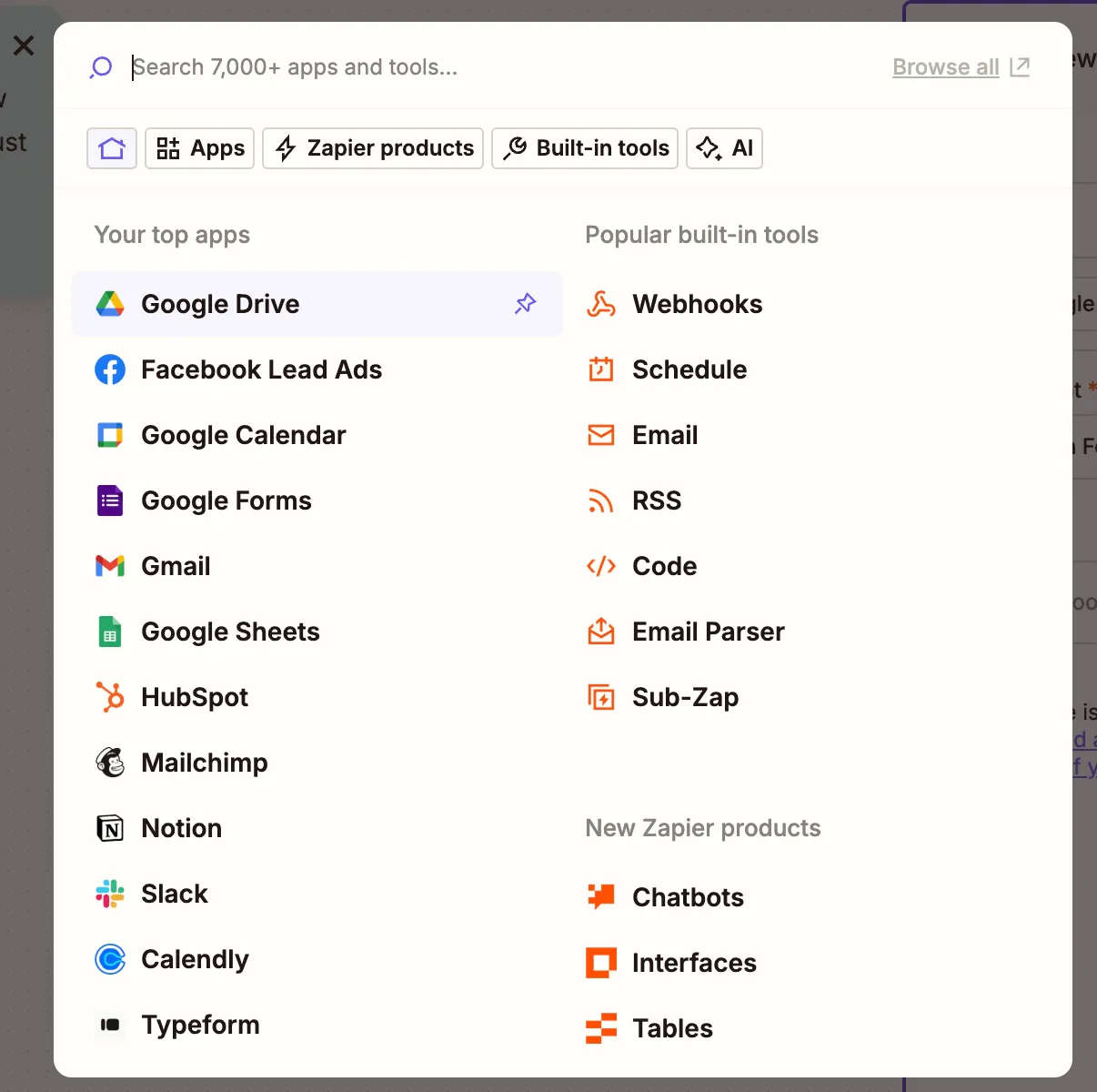
- Choose Google Drive as the trigger app.
- Select the New File in Folder trigger event.
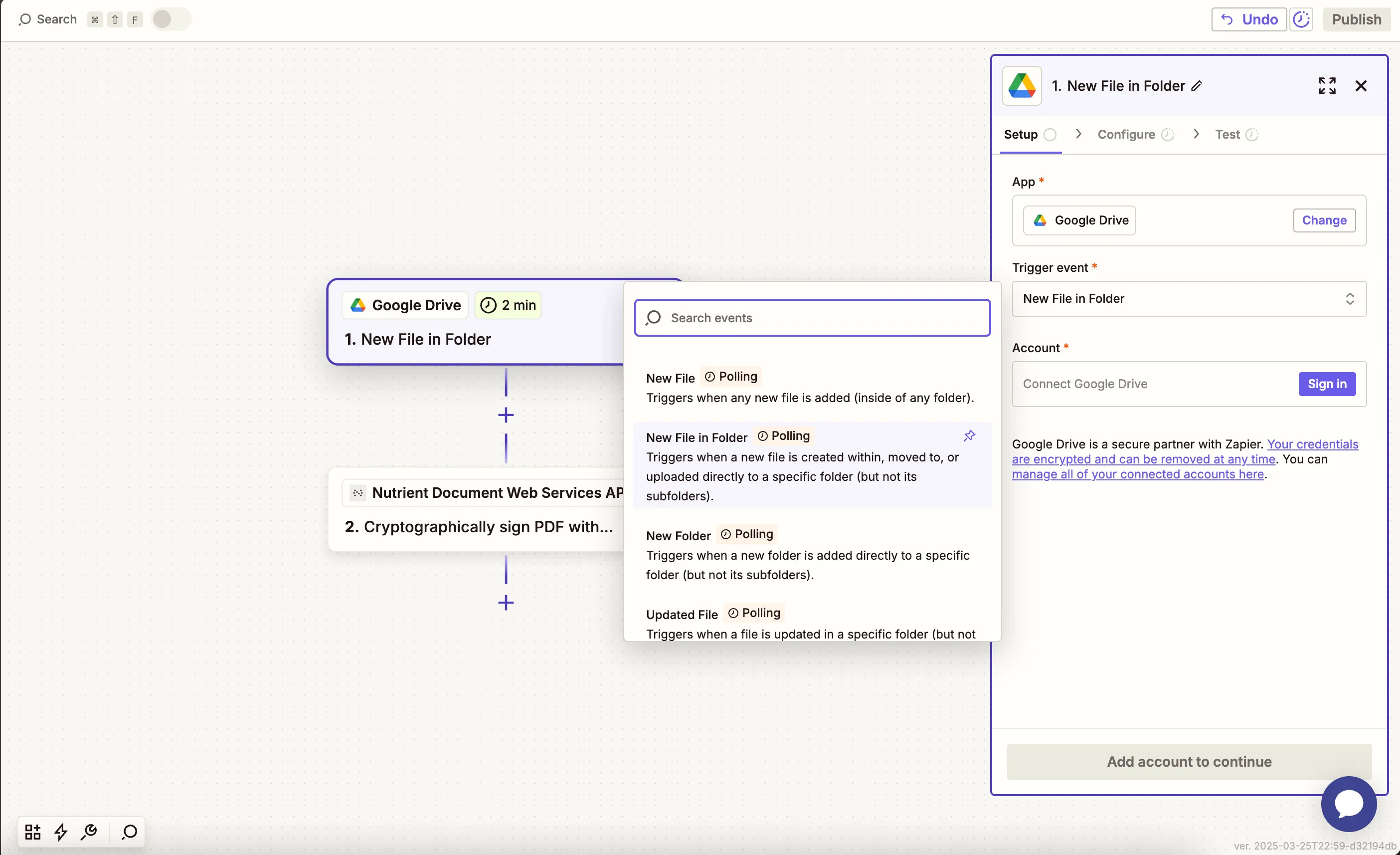
- Connect your Google Drive account.
- Configure the trigger:
- Choose your drive and the folder to monitor (e.g.
pdf-to-pdfa).
- Choose your drive and the folder to monitor (e.g.
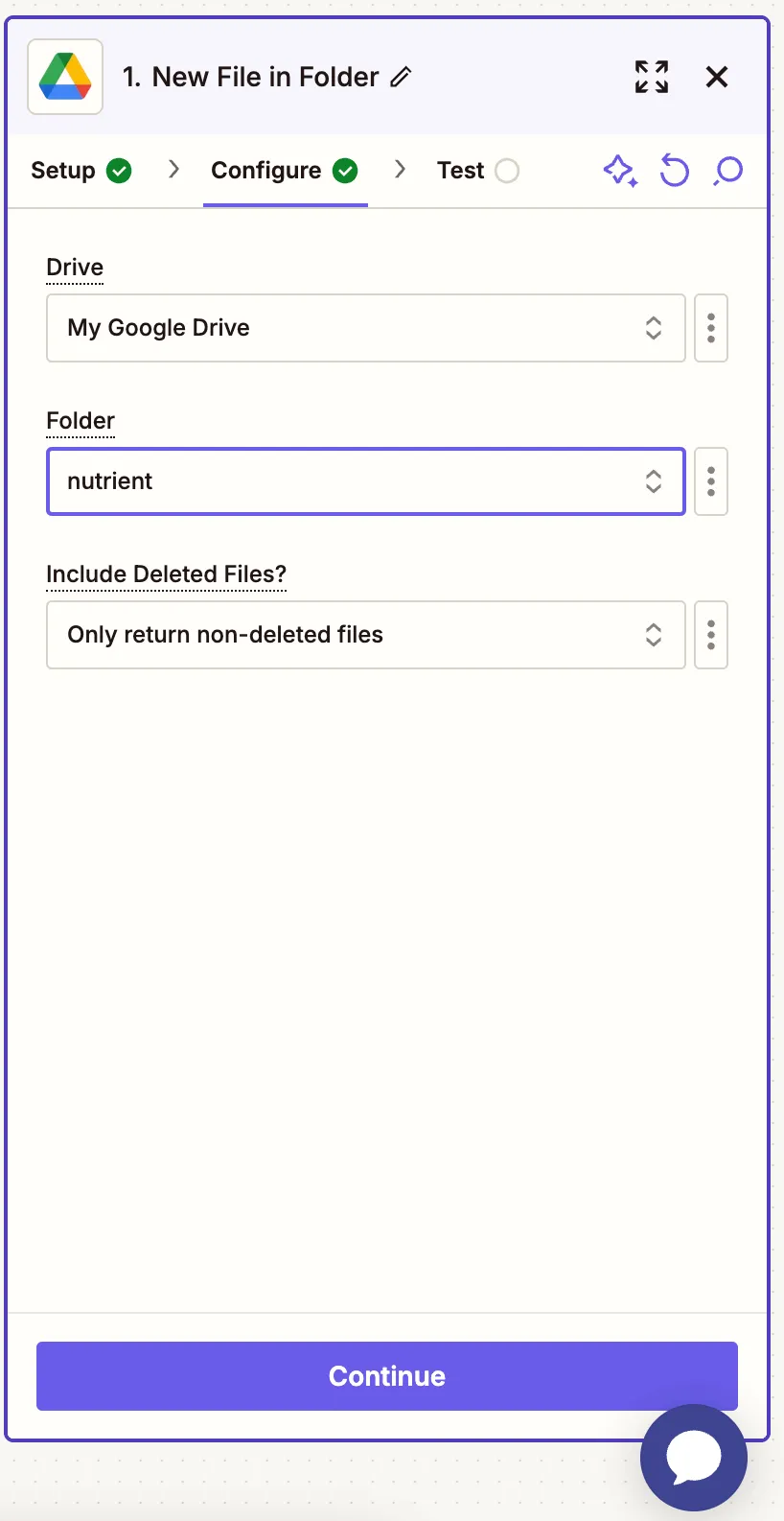
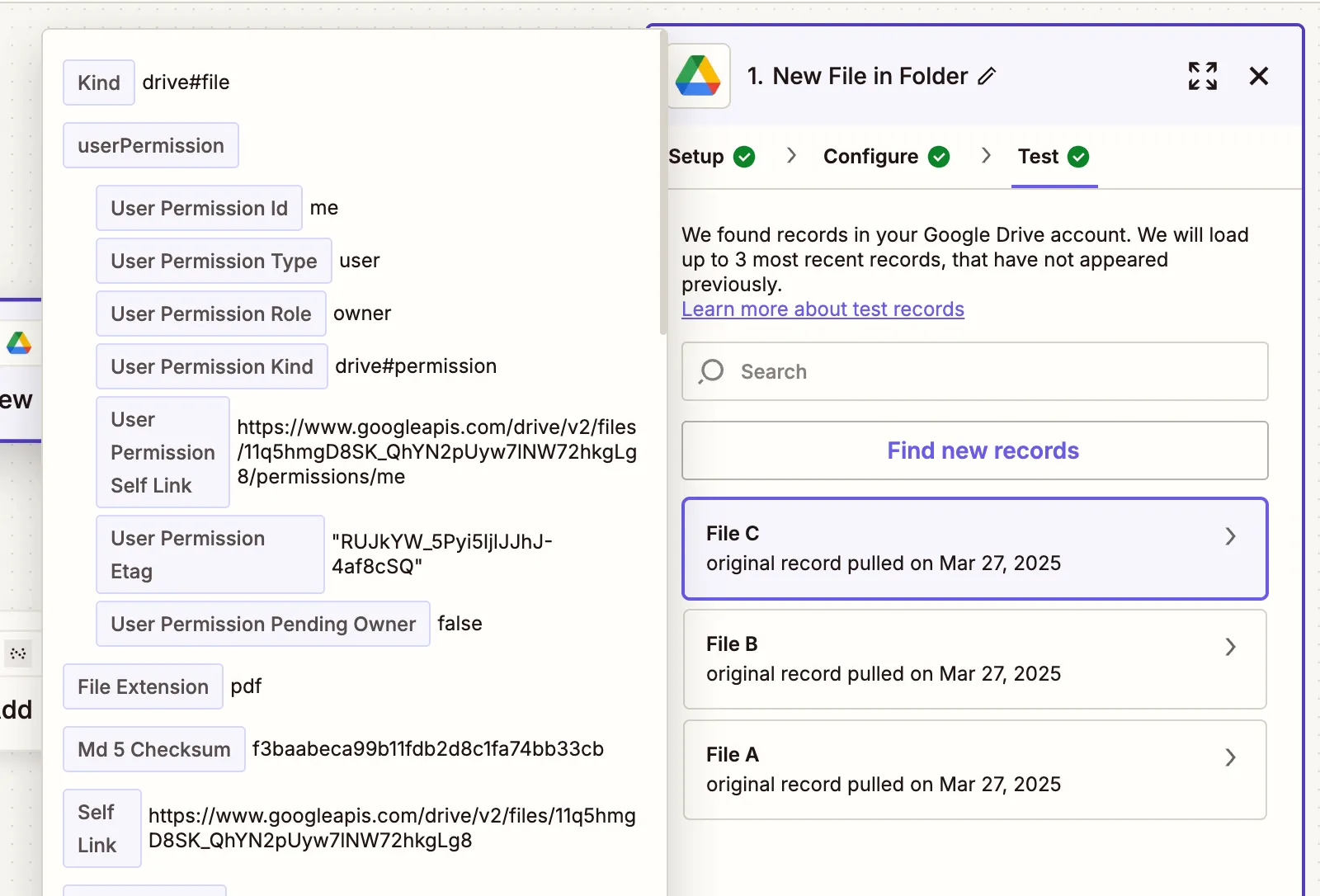
- Make sure Include Deleted Files is set to Only return non-deleted files
- Test the trigger to confirm Zapier detects your sample PDF file.
Step 2 — Convert to PDF/A (Nutrient DWS Processor API)
- Select Nutrient Document Web Services API as the action app.
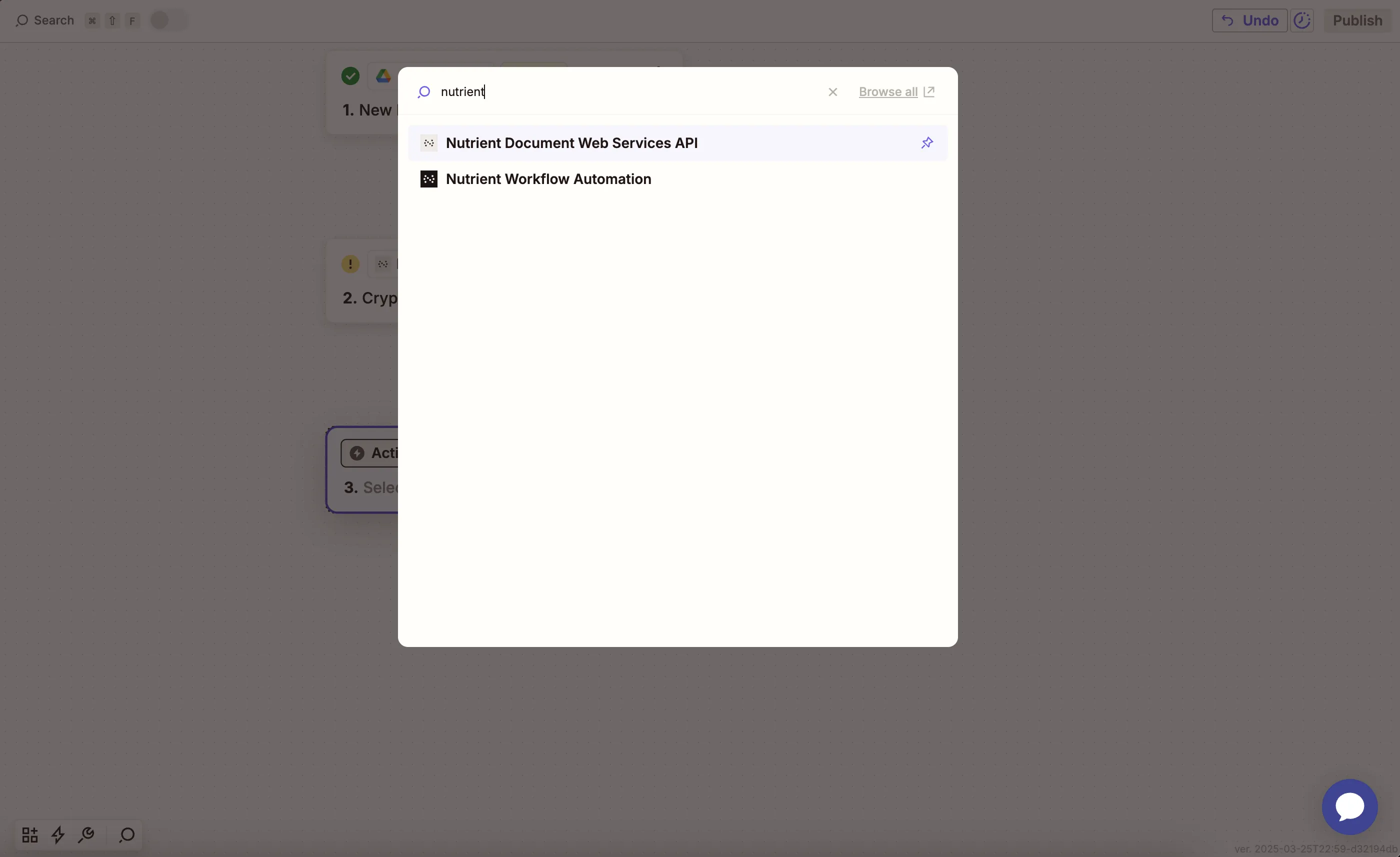
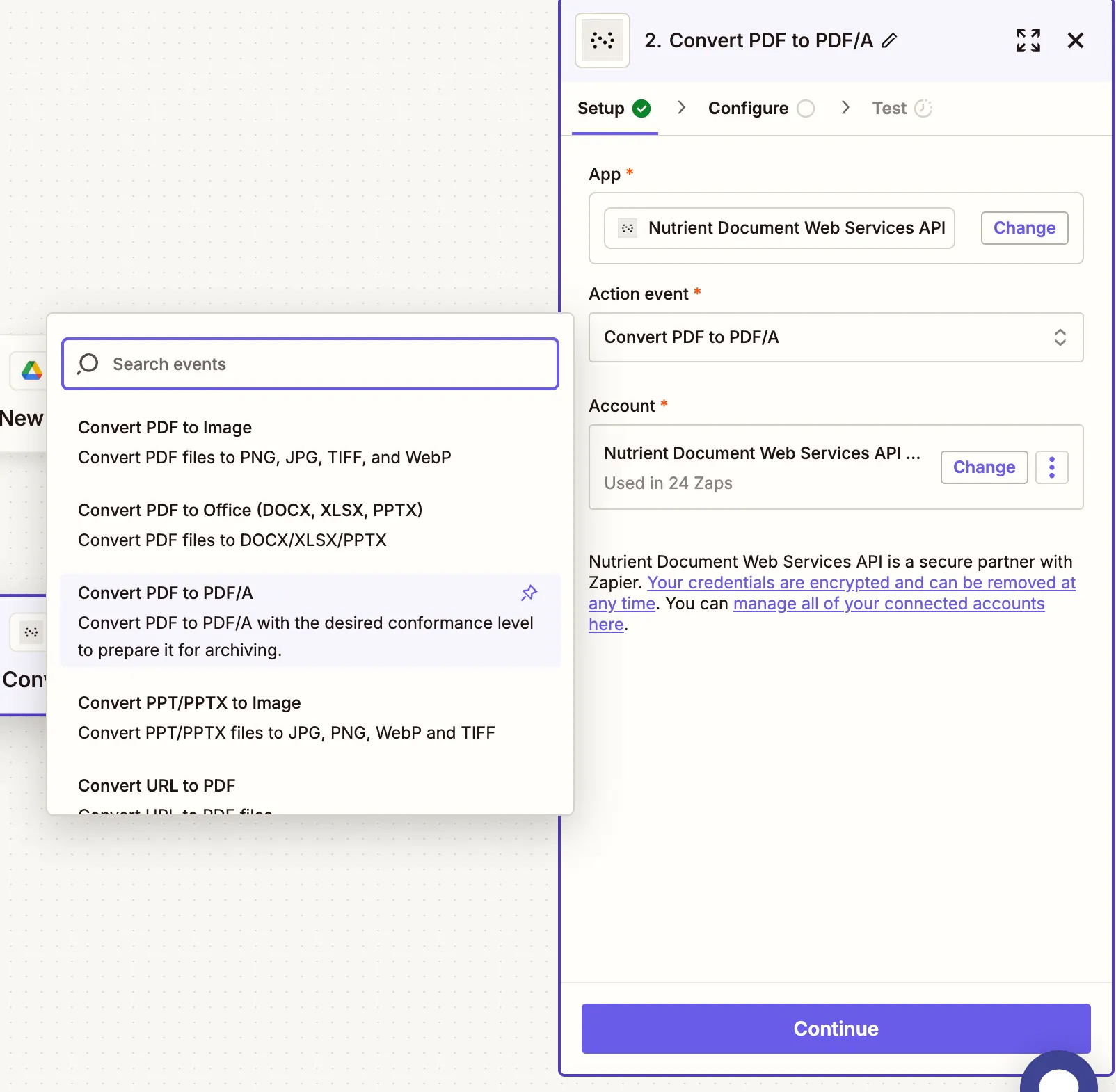
- Choose the Convert PDF to PDF/A action.
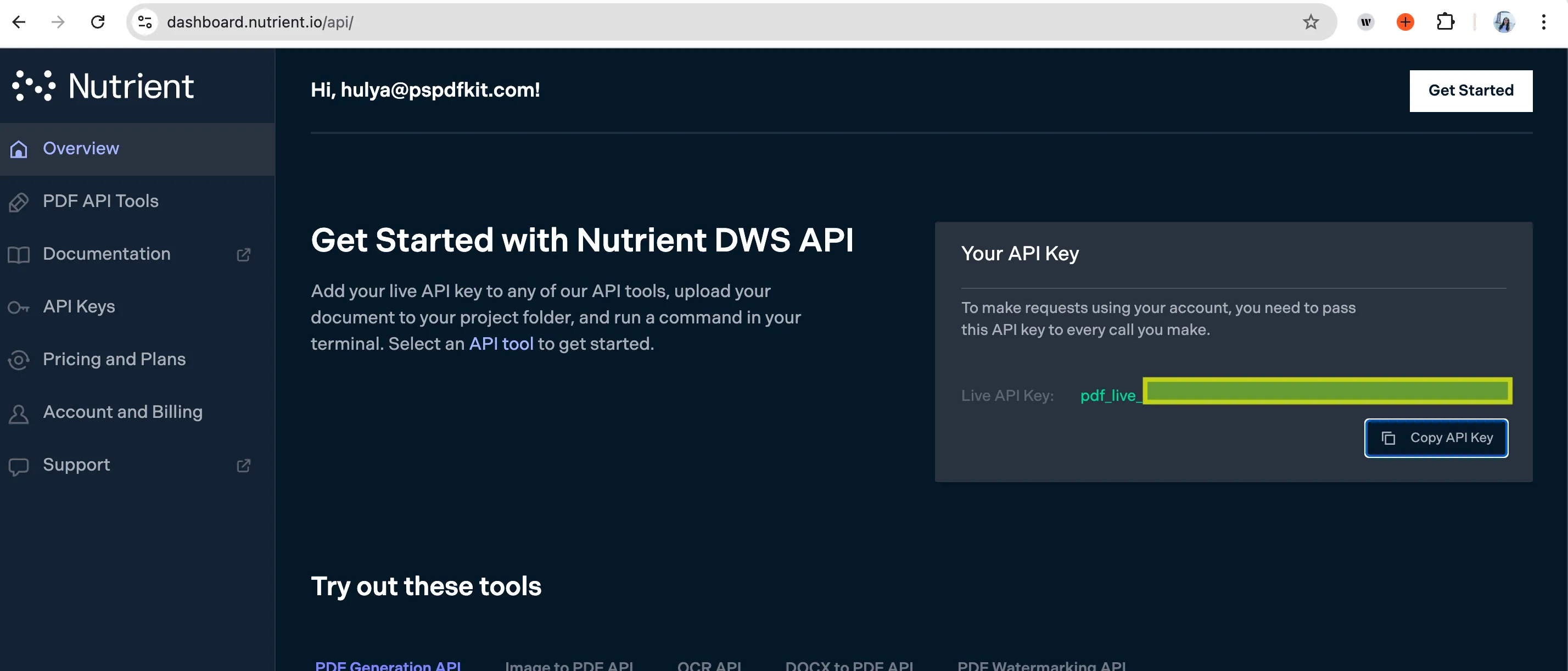
- Connect your Nutrient DWS Processor API account using your API key.
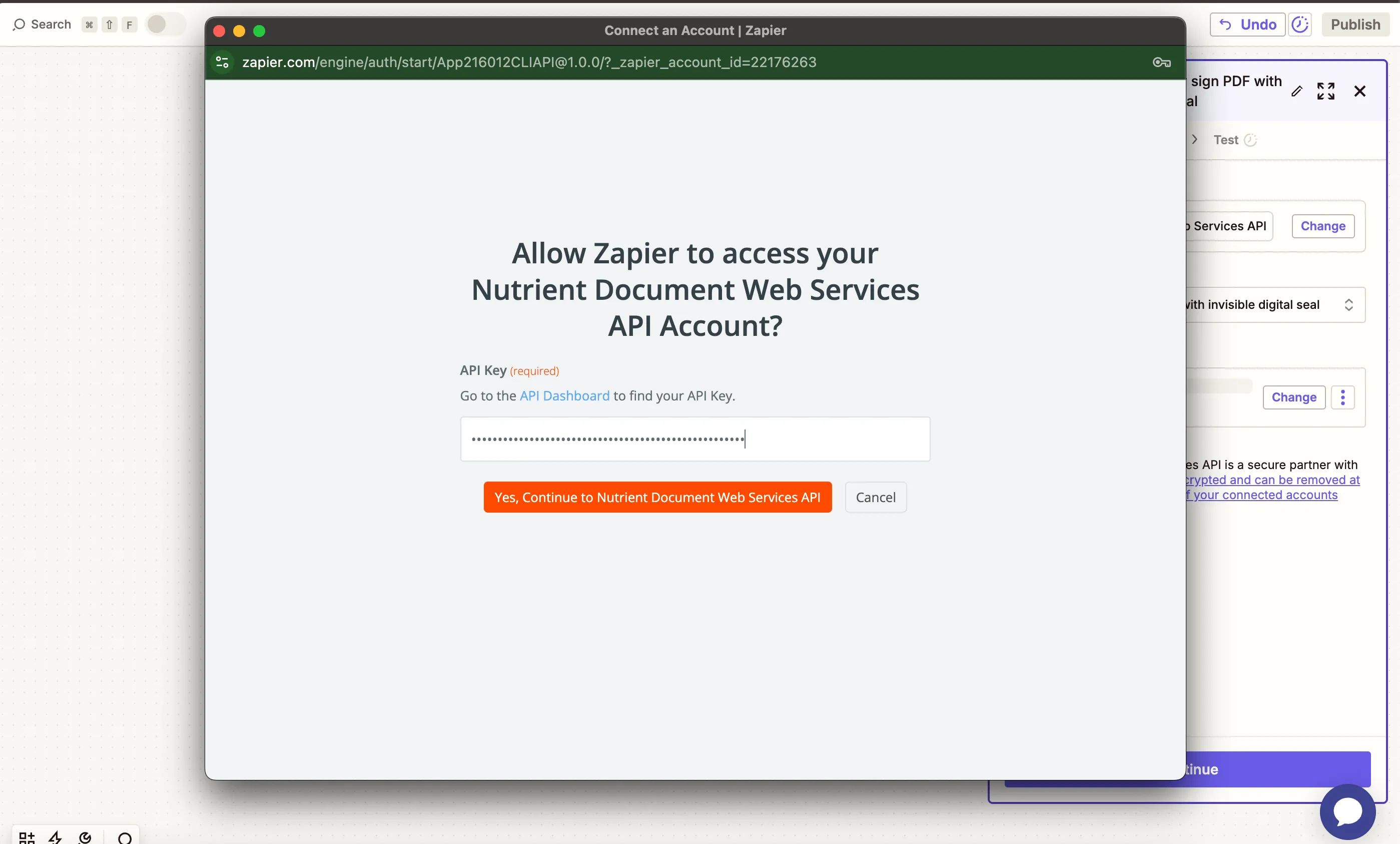
You can find your API key in the Nutrient dashboard(opens in a new tab).
- Fill in the fields:
- PDF File URL — Use the file from step 1.
- Conformance Level — Choose a value like
pdfa-1b,pdfa-2a, orpdfa-3u. - Output File Name — Optional (e.g.
archived_file.pdf).
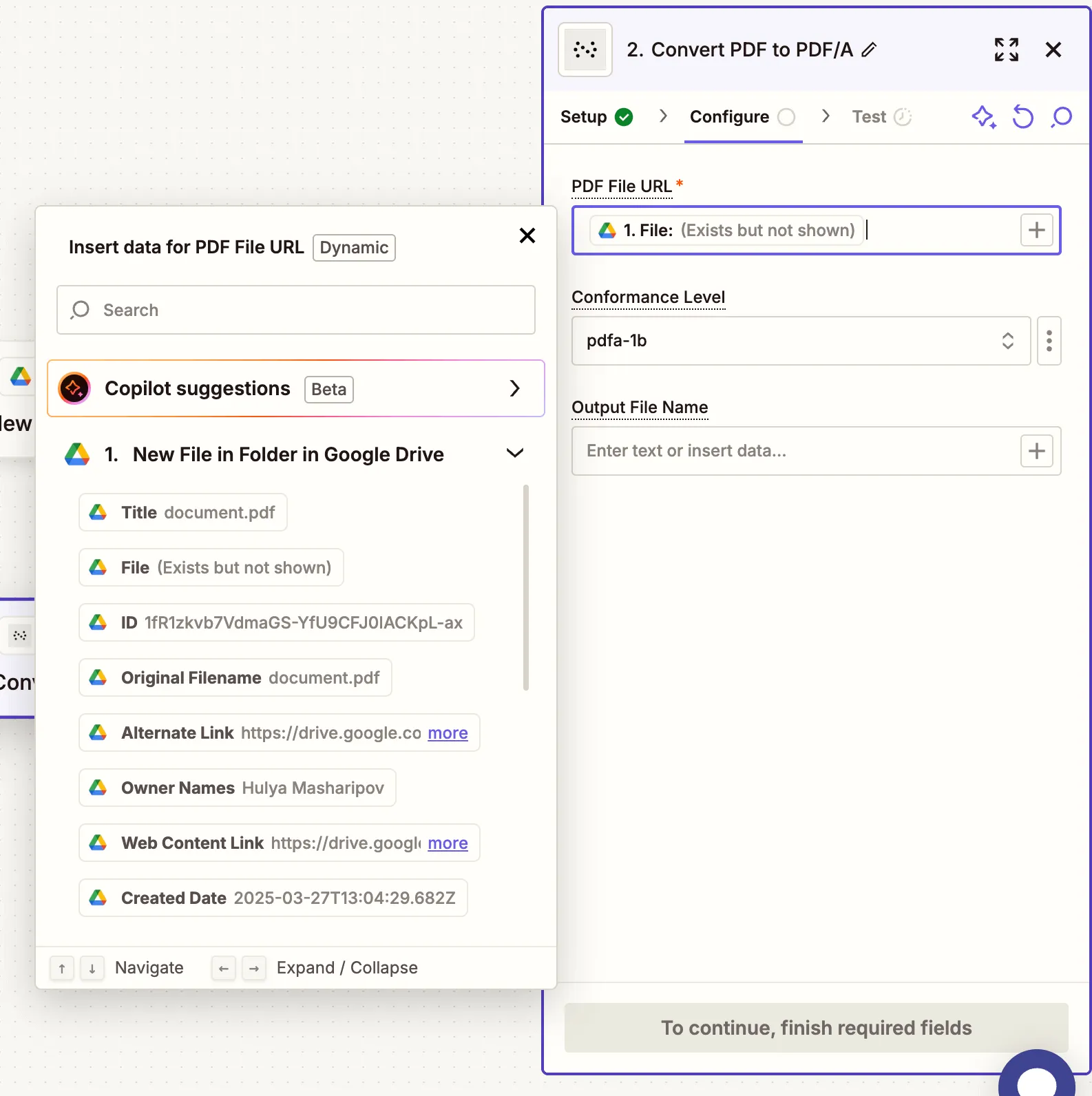
The file must be publicly accessible or directly downloadable from Google Drive.
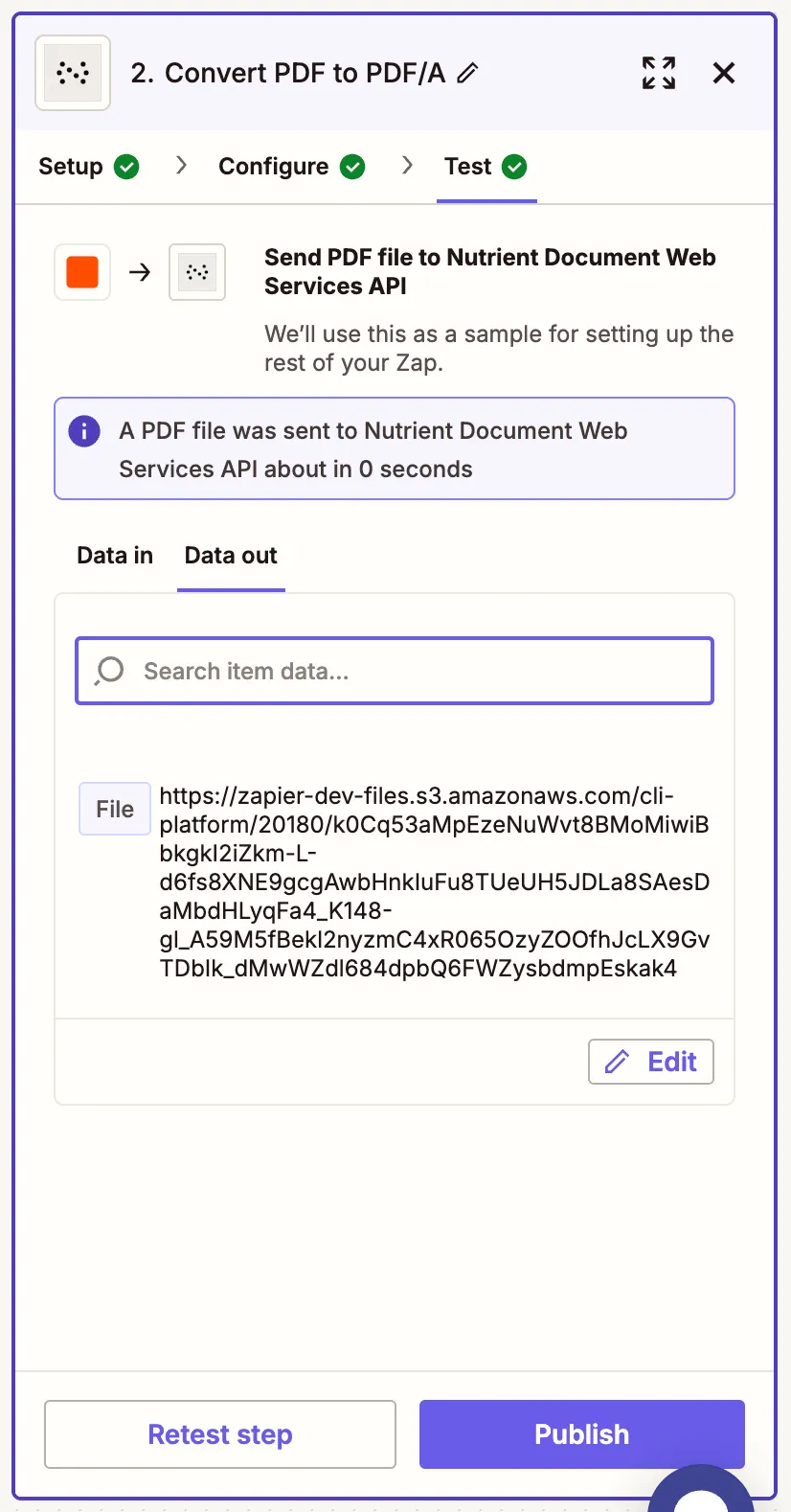
- Test the step to verify the file is successfully converted.
Step 3 — Upload PDF/A to Google Drive
- Add Google Drive as the app.
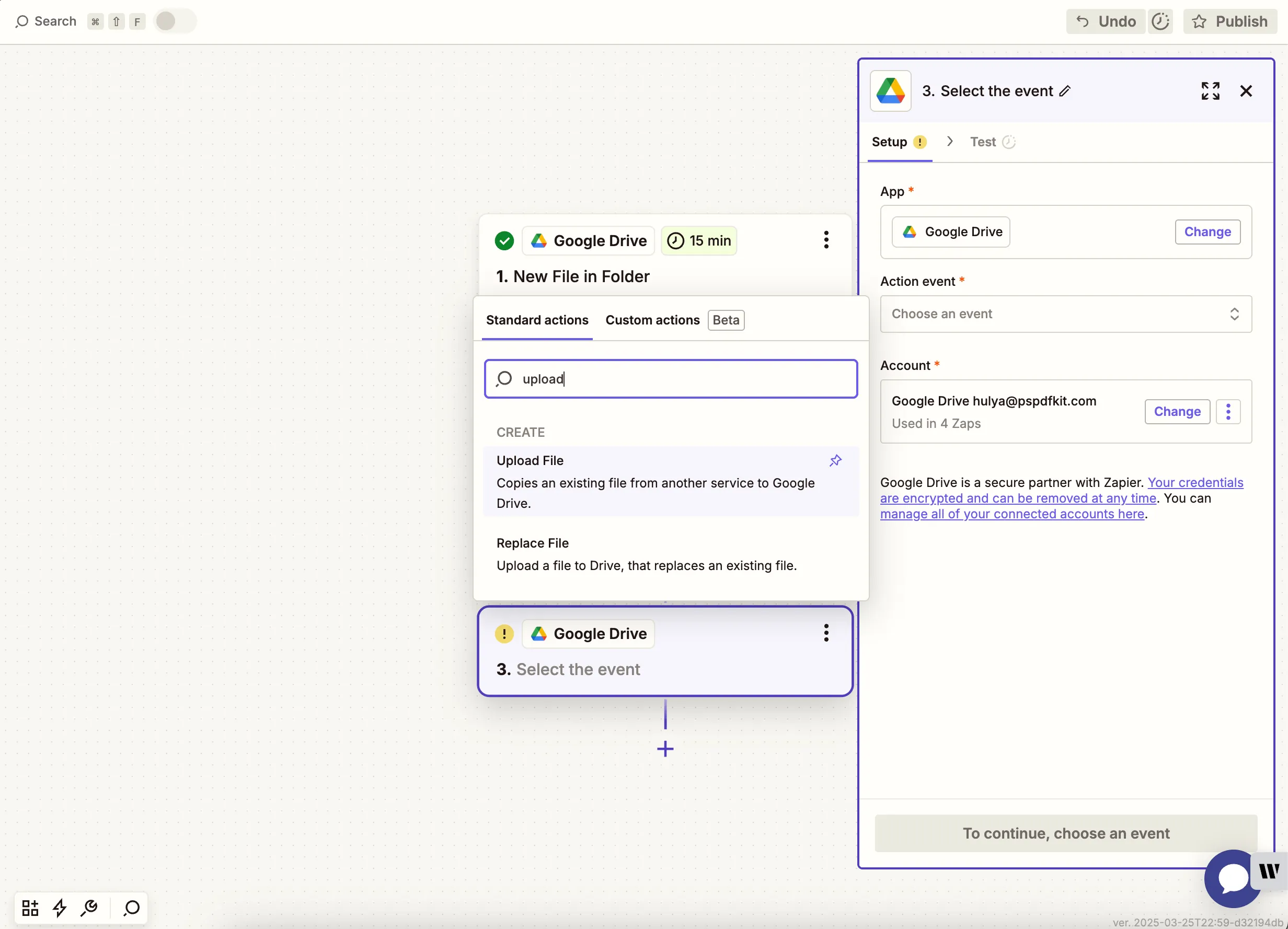
- Select the Upload File action.
- Choose the drive and folder where the new PDF/A should be saved.
- In the File field, use the output from the Nutrient DWS Processor API step.
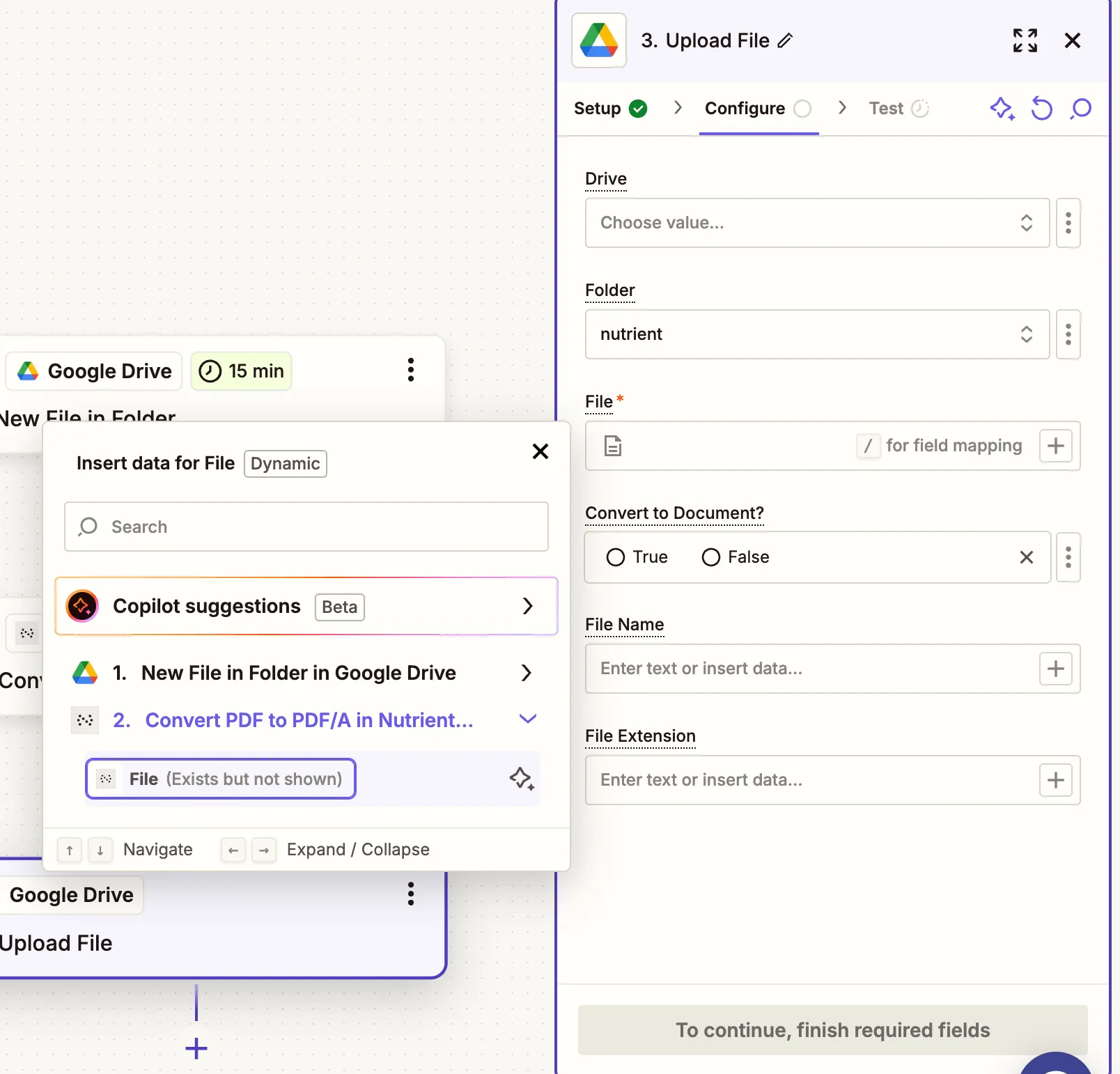
Zapier may warn you about a potential Zap loop if you use the same folder for input and output. Use a different folder for output to avoid this.
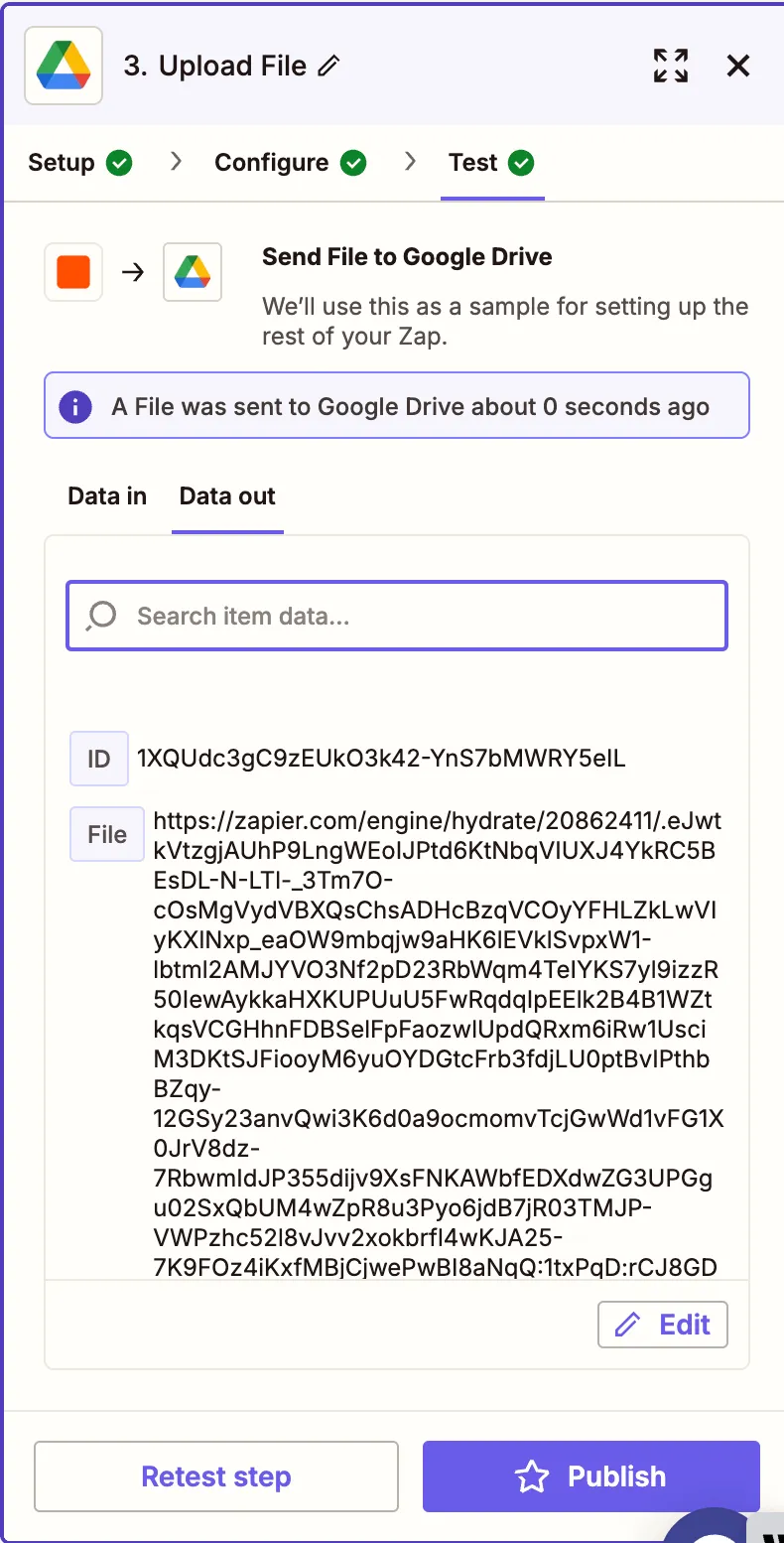
- Run a test to make sure the PDF/A file is saved correctly.
Conclusion
With this Zap, you’ve automated the conversion of PDF files to PDF/A for reliable archiving using Nutrient DWS Processor API(opens in a new tab). You can extend this workflow to include additional steps for OCR, signing, or metadata extraction.