






Table of contents
Microsoft announced the retirement of InfoPath back in late 2016, leaving organizations scrambling to find alternatives for InfoPath forms. While many have been busy exploring replacements and transitioning to modern solutions, my focus has been different: finding an efficient way to archive InfoPath forms.
This post will explore how you can leverage Nintex Automation Cloud workflows to streamline your processes. By the end, you’ll have a clear understanding of how to set up and deploy workflows tailored to your needs.
Workflow overview
The workflow is set to start from a Nintex form. This form will trigger the workflow manually.
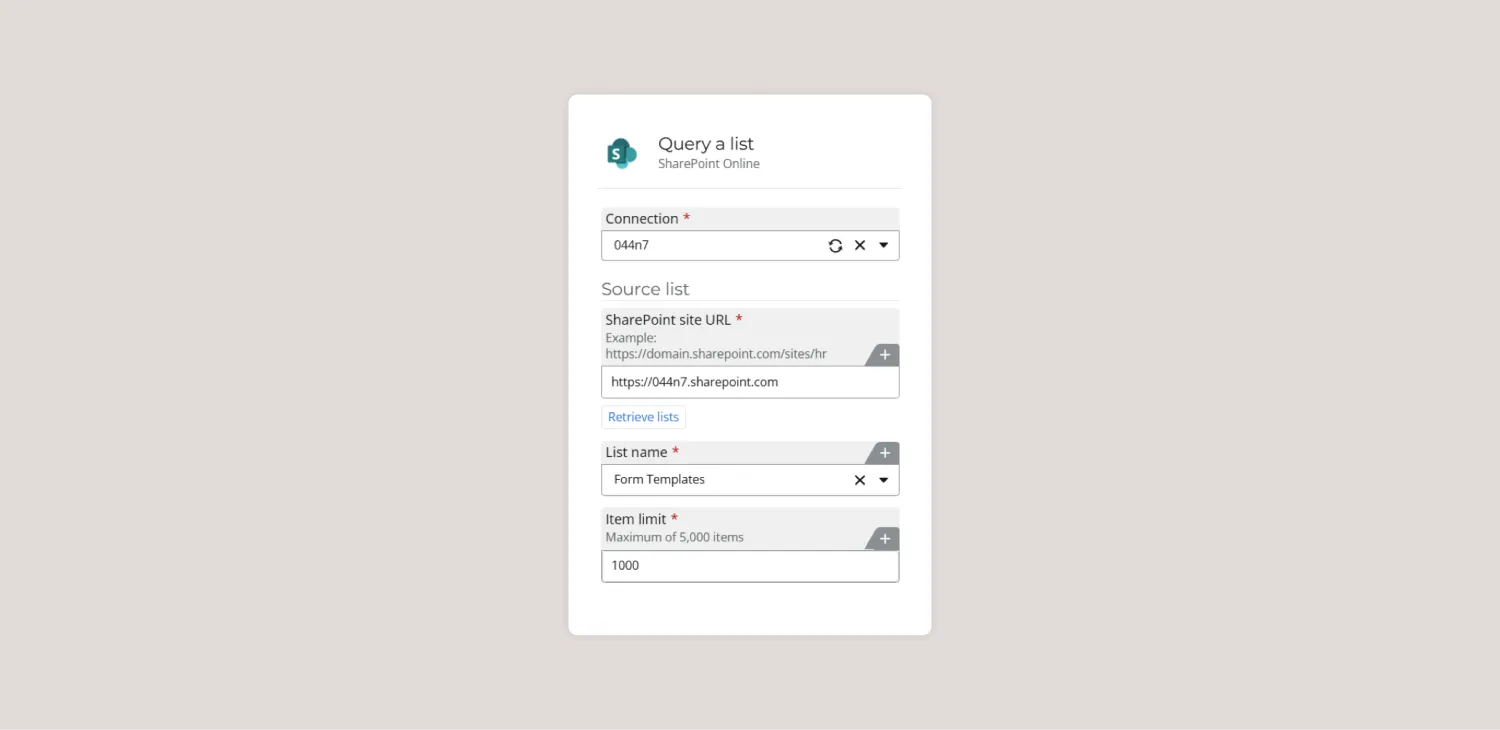
Query a list
Add the SharePoint Query a list action.
- Connection: Uses a preconfigured SharePoint Online account (e.g.
xxxxx). - Source list details:
- SharePoint site URL:
https://xxxxx.sharepoint.com - List name: Form Templates
- Item limit: Retrieves up to 1,000 items (pagination may be required for larger lists).
- SharePoint site URL:
Loop for each
Add the Loop for each action.
- Target collection: Processes the item collection output from the Query a list action.
- Maximum limit: Supports up to 1,000 items.
- Stop processing: No termination condition is set, so all items are processed.

Get a file
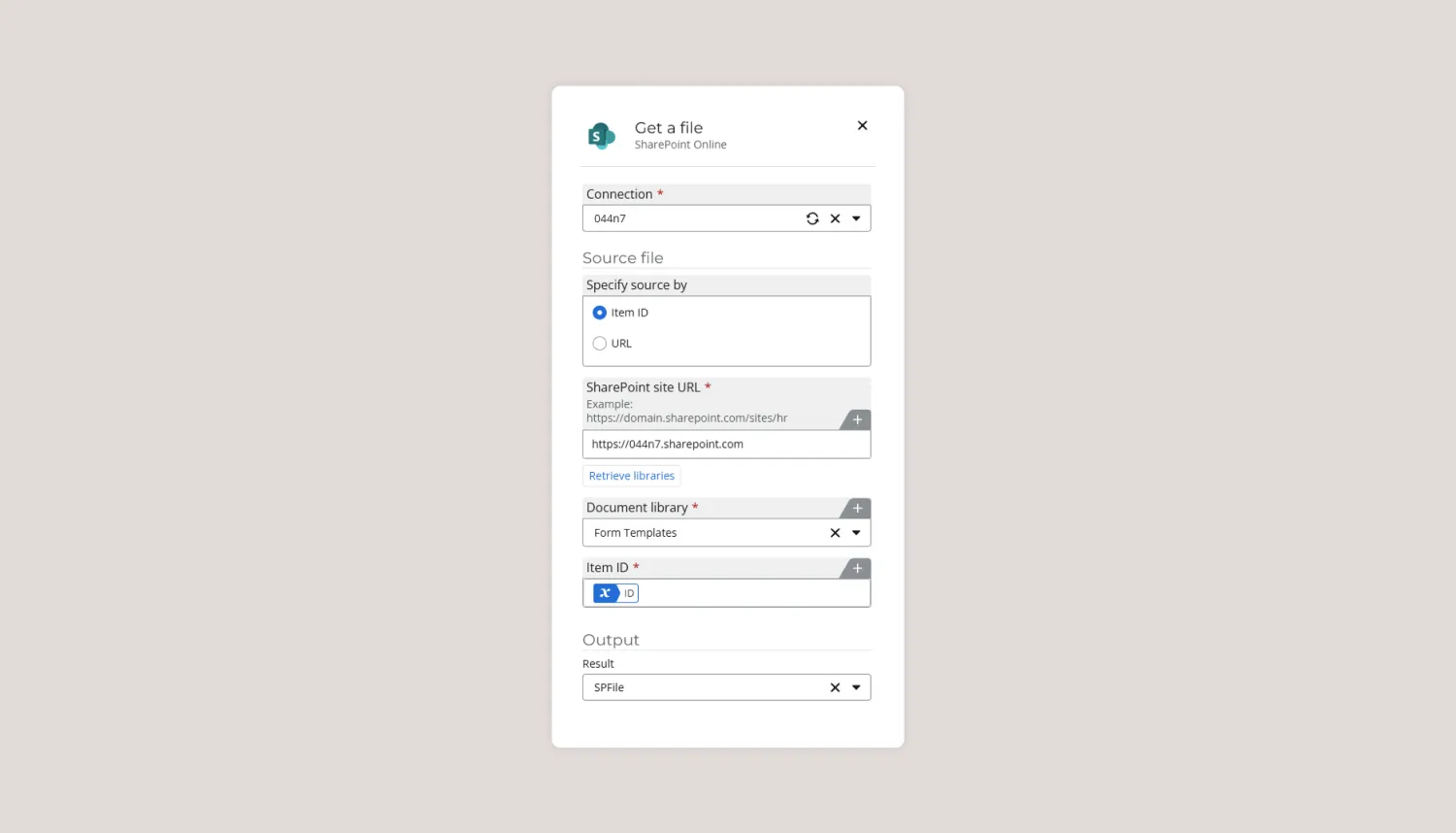
Add the SharePoint Get a file action.
- Connection: Interacts with SharePoint Online using the
xxxxxconnection. - File details:
- Specify source by Item ID: Dynamically references the current item ID.
- Document library: Form Templates
- Item ID: ID
- Output: Stores the retrieved file in the
SPFilevariable.
Get a file (XSN)
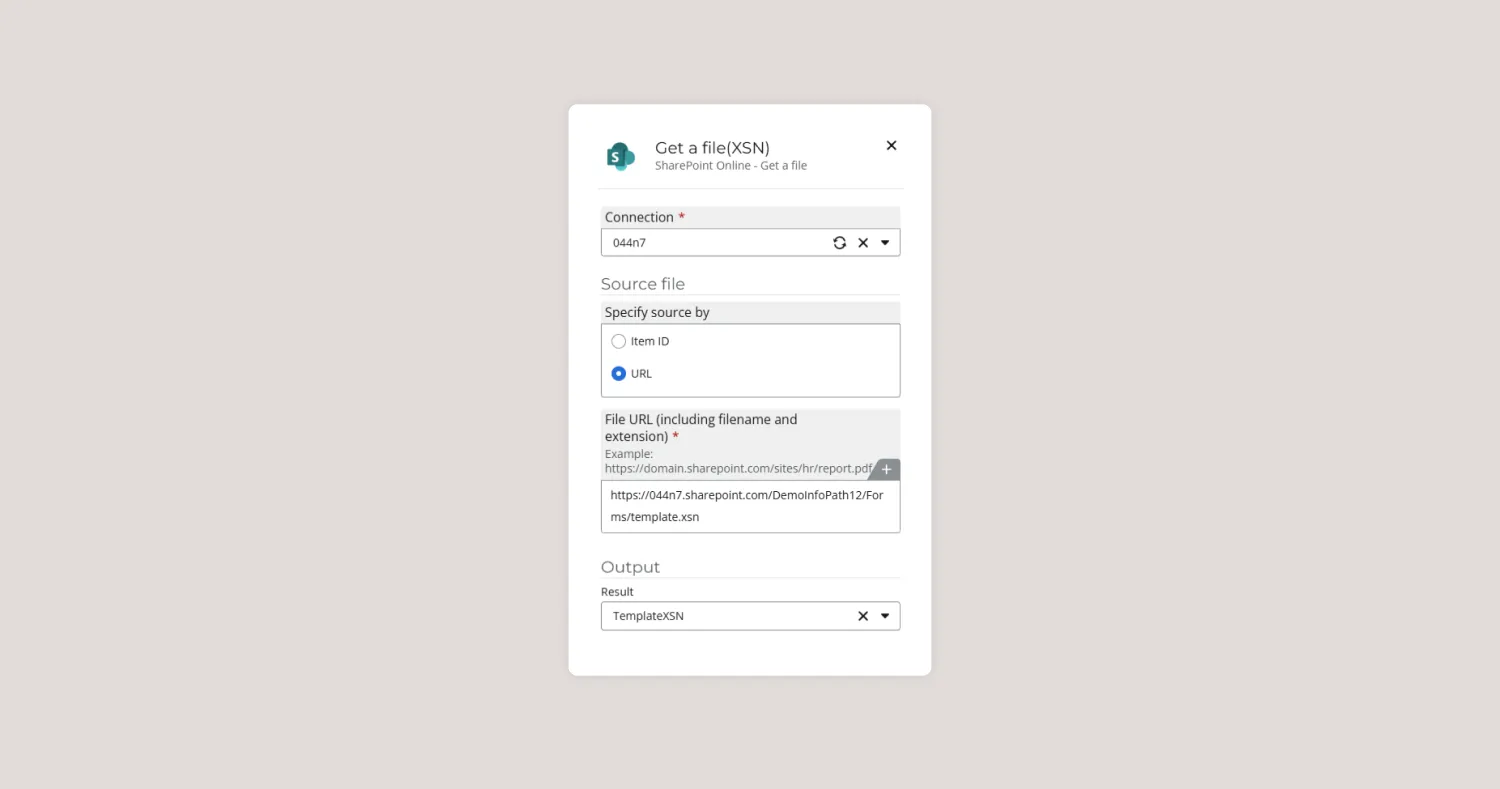
Add the SharePoint Get a file action. It will retrieve the InfoPath form template for processing.
- Connection: Uses the same SharePoint connection.
- File details:
- Specify source by URL: Points to
https://xxxxx.sharepoint.com/DemoInfoPath12/Forms/template.xsn.
- Specify source by URL: Points to
- Output: Stores the retrieved file in the
TemplateXSNvariable.
Convert InfoPath document
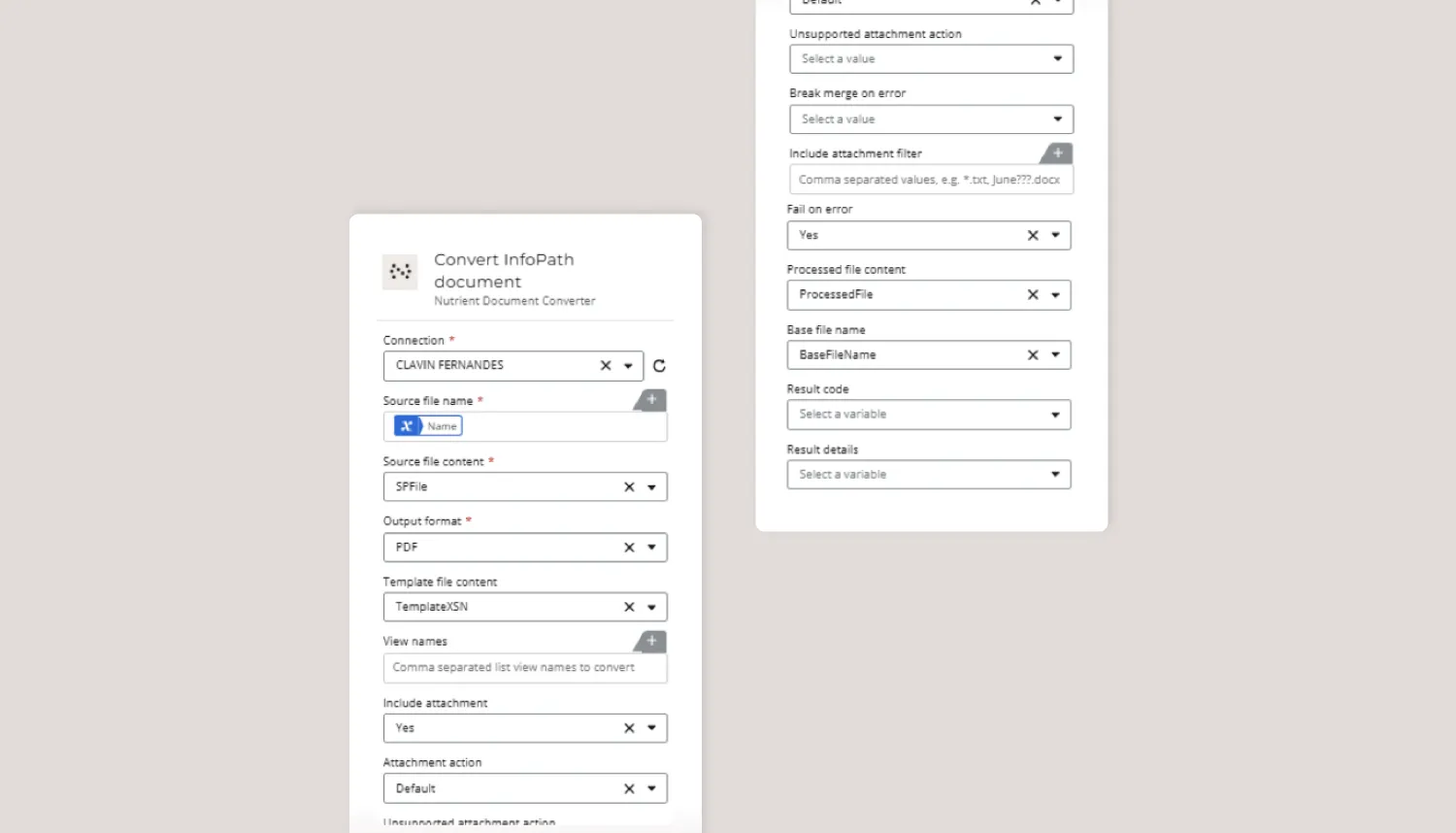
Add the Nutrient Convert InfoPath document action to the designed canvas.
- Connection: Uses the NUTRIENT CONNECTION.
- Configuration:
- Source file name: References the InfoPath file name.
- Source file content: Uses
SPFileas input. - Output format: PDF.
- Template file content: Points to
TemplateXSN. - Processed file content: Stores the converted file.
- Base file name: Saves the base name of the PDF file.
- Optional outputs: Result code and details for additional processing information.
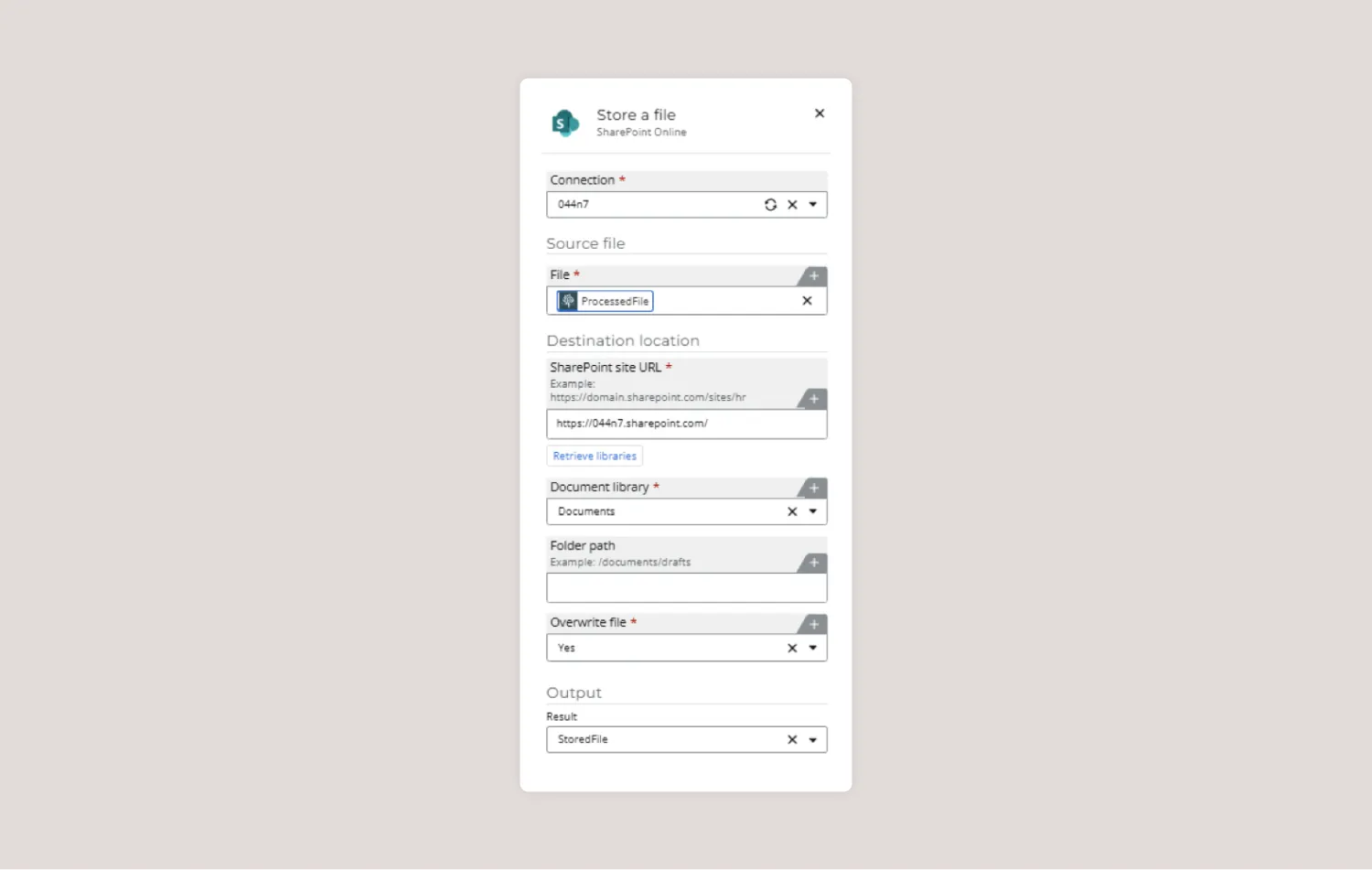
Store a file
- Connection: Saves the file using the
xxxxxSharePoint connection. - Destination details:
- SharePoint site URL:
https://xxxxx.sharepoint.com - Document library: Documents
- Overwrite file: Enabled (overwrites files with the same name).
- SharePoint site URL:
- Output: Stores the file details in the
StoredFilevariable.
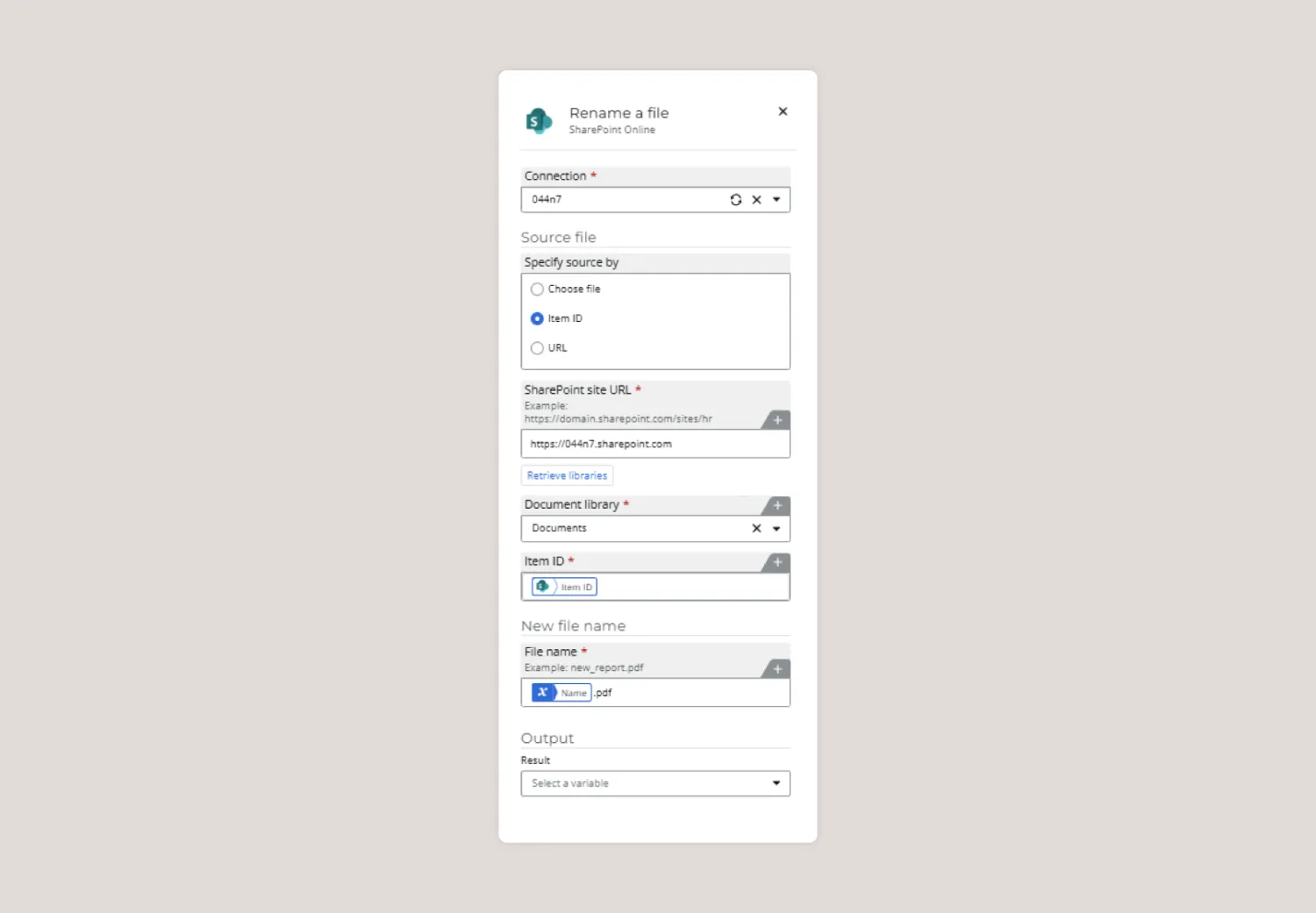
Rename a file
- Connection: Shares the same configuration as previous actions.
- Setup details:
- Specify source by Item ID: Identifies the file by its item ID.
- New file name: Dynamically defined as
Name.pdf(where the name is derived from a variable).
Final steps
- Save and publish the Nintex workflow.
- Execute the workflow manually.
- Check the destination folder in SharePoint. After a few moments, a PDF file will appear, representing the archived InfoPath form.