









In an era where agility and efficiency define success, teams need dynamic ways to collaborate on documents without friction. Traditional workflows that require downloading, editing, and reuploading files not only slow productivity, but they also introduce versioning conflicts. By embedding real-time PDF editing into your app, you can transform document collaboration into a seamless, interactive experience that keeps teams aligned and enhances productivity.
Microsoft has enhanced Microsoft Lists forms(opens in a new tab) to improve data collection and management. Users can now create forms directly from the Lists home, SharePoint, or the Lists app in Teams, with the underlying list automatically generated. Conditional branching enables dynamic question display based on prior answers, ensuring relevance. Additional field types — including location data, image uploads (with mobile camera integration), lookup columns, and file attachments — enrich data collection. Form creators can receive notifications upon new submissions, limit responses per user, and schedule form availability with specific start and end dates.
However, printing Microsoft Lists forms to PDF has historically presented challenges, and Microsoft has yet to offer a seamless solution for this requirement. So, this article will cover how to convert SharePoint form responses into PDFs and merge attachments into a single file. By leveraging Power Automate, users can extract form responses, format them into a structured document, and generate a downloadable PDF. Additionally, attachments submitted with the form can be merged into the same file, ensuring all relevant data is consolidated efficiently.
The first step in this process is to build and customize the SharePoint list in Microsoft Forms. This demo will use the Job application tracker template and add an attachment control.

Go to Forms and select New form. This will allow you to design a structured input form that captures the required details. Customize the form fields to match the columns in your SharePoint list and ensure that the attachment control is enabled for users to upload documents.
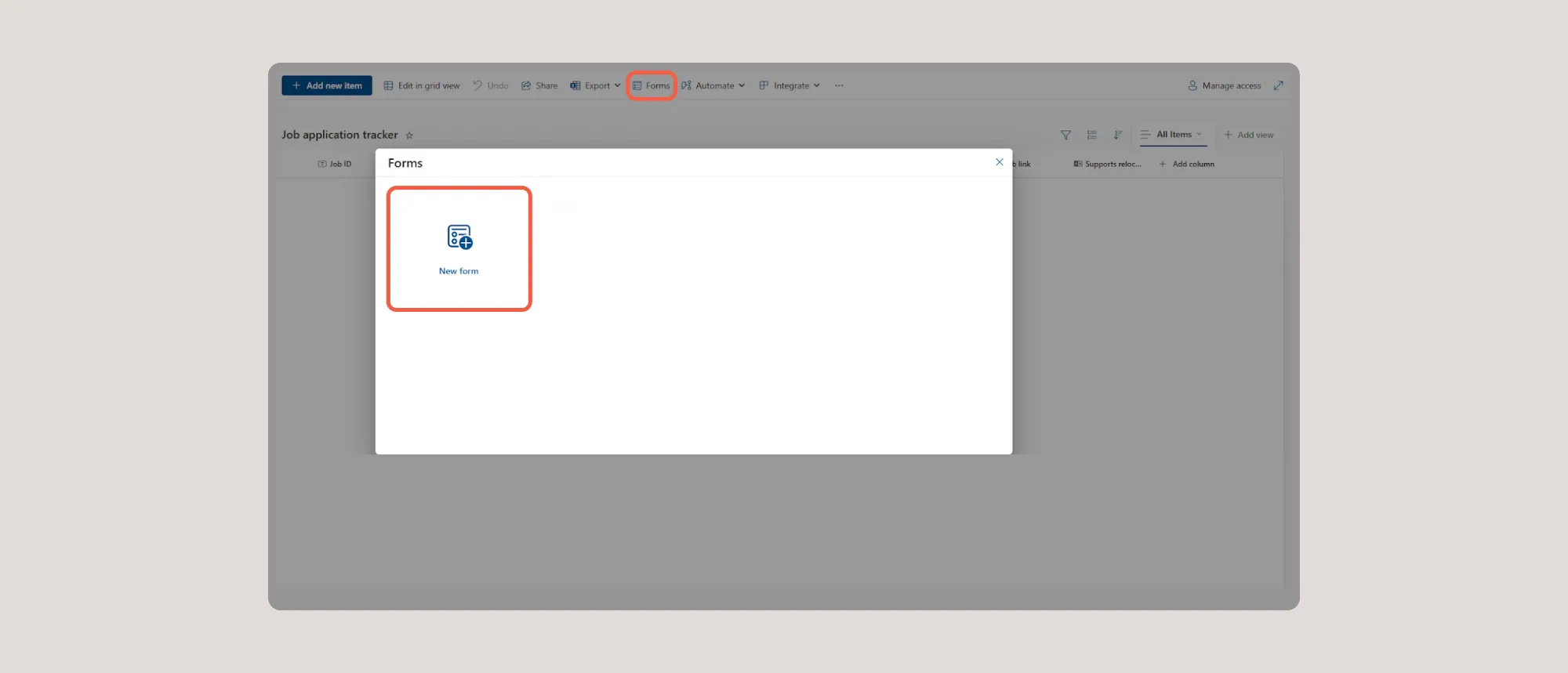
The form will look like what’s shown in the following screenshot.

Next, you need to build the fillable PDF form. You can use Nutrient’s Document Editor for SharePoint or any PDF editor of your choice.
The next step in the process is to create a Power Automate flow that exports the PDF form data as an XML file. Below is a screenshot illustrating the expected output.

Export PDF Forms Datadocument (Filled).pdf (file name to process)Body (output from Get file content using path)XML<?xml version="1.0" encoding="utf-8"?>
<fields xmlns:xfdf="http://ns.adobe.com/xfdf-transition/">
<JOBID>1235</JOBID>
<COMPANY>Nutrient</COMPANY>
<ROLE>Jr UX Designer</ROLE>
<CITY>Seattle</CITY>
<Deadline>04/03/2025</Deadline>
<Remote>Fully remote</Remote>
<URL>https://www.nutrient.io/demo/pdf-form-creator</URL>
<CHECKBOX>Value 8</CHECKBOX>
</fields>
Now that you have the template as XML, you can create another Power Automate flow to import the SharePoint list item into a PDF template.
The image below shows a high-level flow overview.
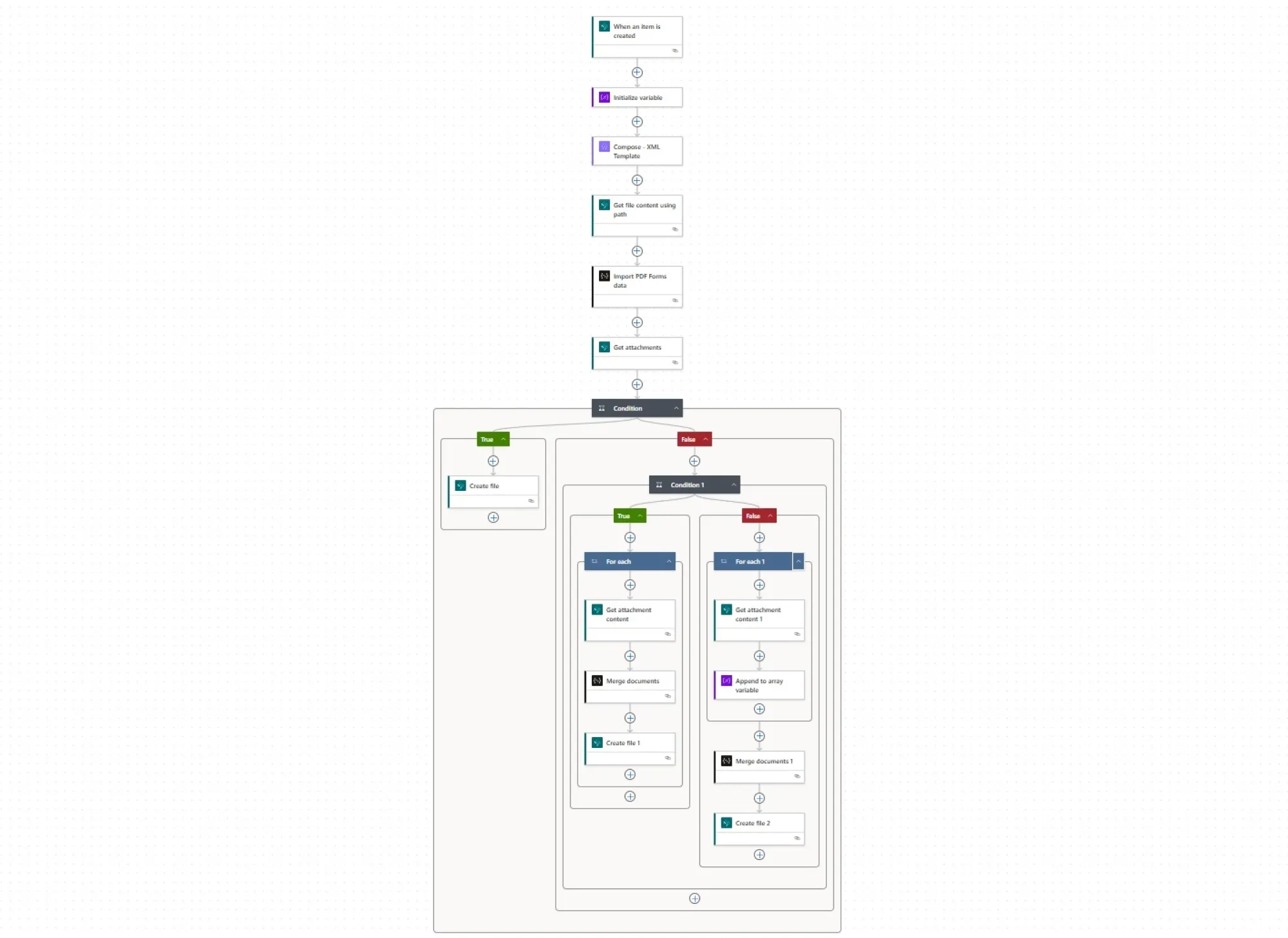

attachArr) to store attachments.

For the checkbox, you need to first check the box and log the results in Compose. If the result is Value 8, set the logic to check if it’s true. Otherwise return an empty string.

Import PDF Forms data — This step processes the structured XML data and maps it to the corresponding fields in the PDF form.
utcNow function) to ensure uniqueness.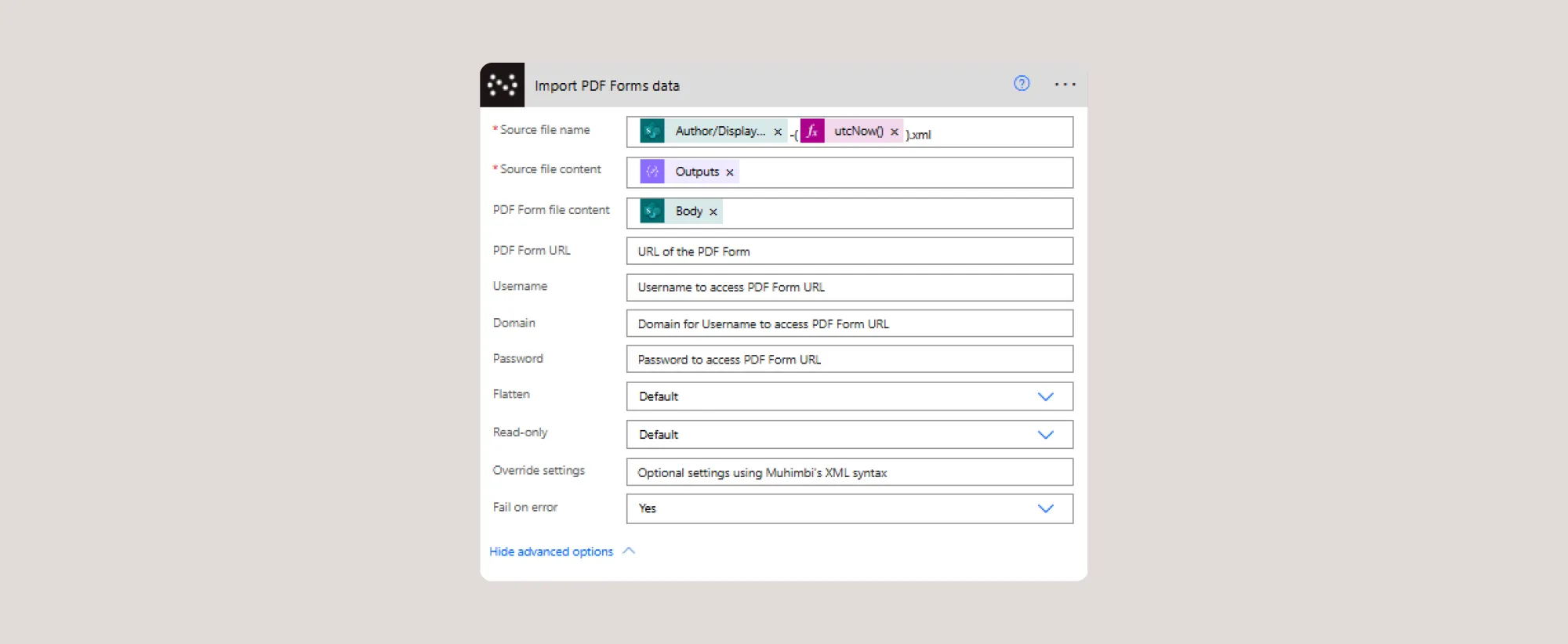
Conditional logic: Checking for attachments
To handle attachments, use a Condition action in Power Automate. This step checks whether attachments exist by evaluating their count:
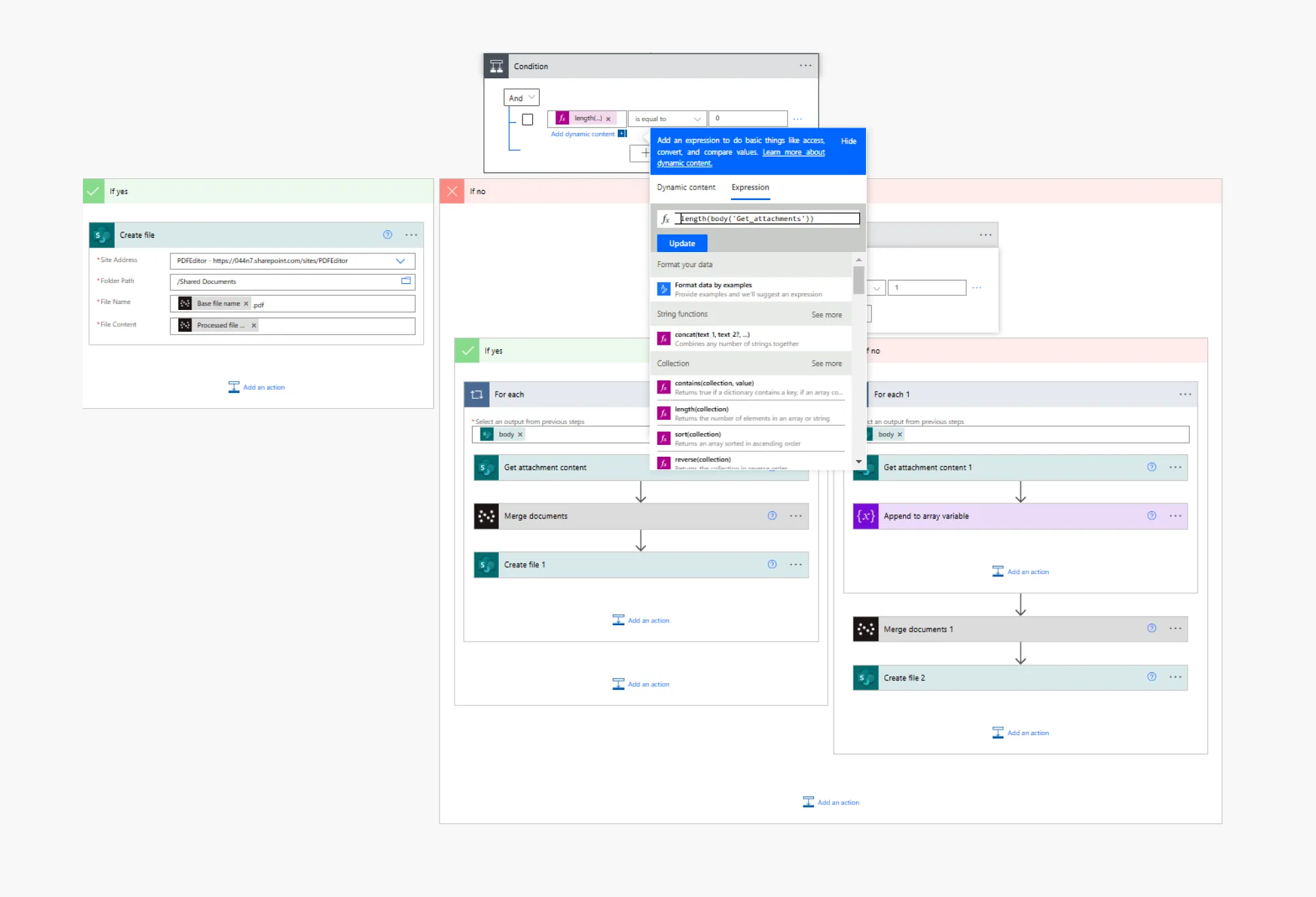
If the length of the attachments array is 0, no attachments exist, and the flow proceeds with just the form data and creates the file in SharePoint.
If attachments are found, they’re processed using conditional branches to merge them before creating the final PDF.
Once the attachment check is complete, the flow proceeds.
If only one attachment exists:
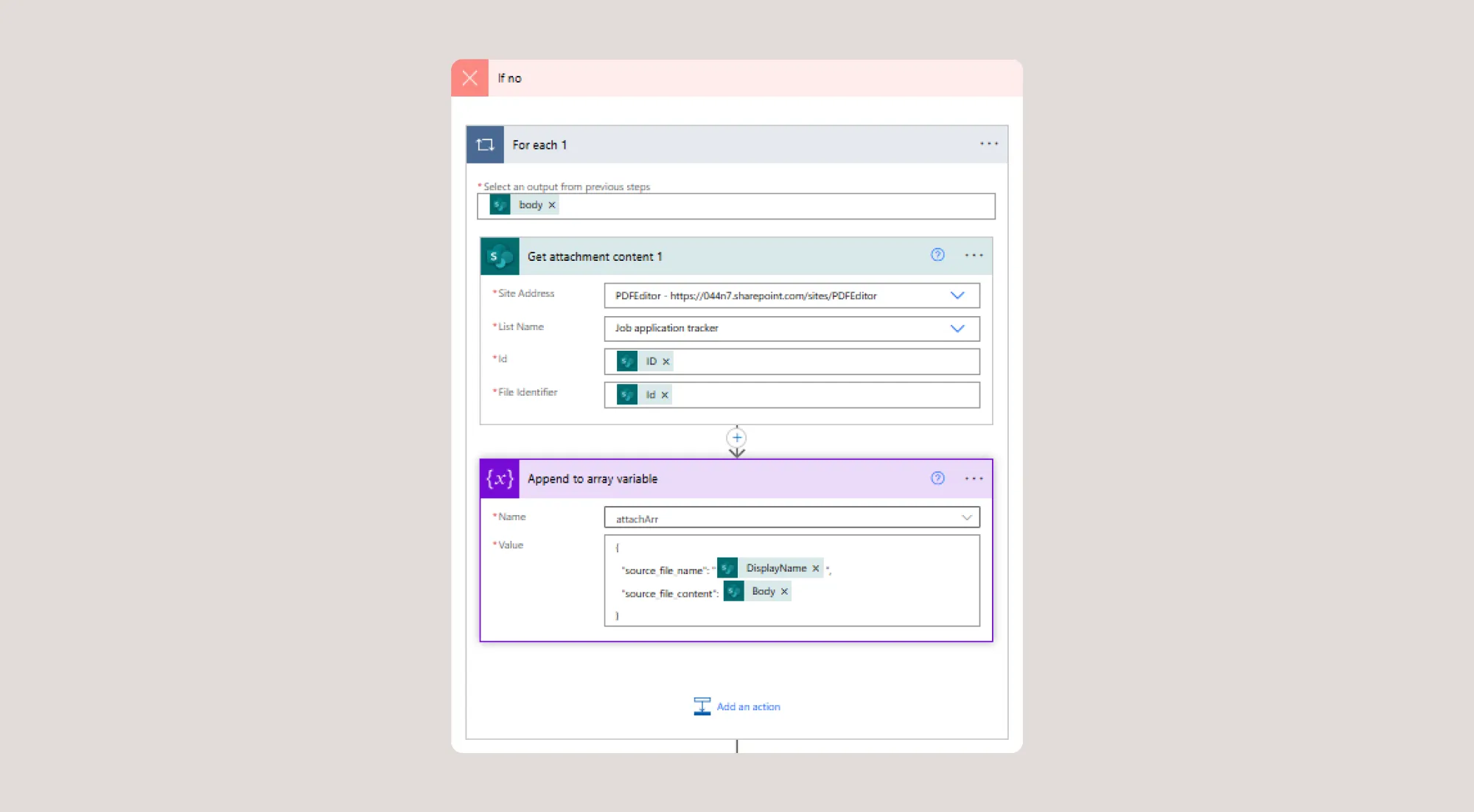
If there are multiple attachments, for each attachment:

Merge documents:
This action merges multiple document files into a single PDF file using Nutrient’s PDF processing capabilities.
Source files:
Base file name.pdf — The output of the Import PDF Forms data action.Processed file content — The output of the Import PDF Forms data content.DisplayName — The output of the Get attachments action.Body (file content) — The output of the Get attachment content.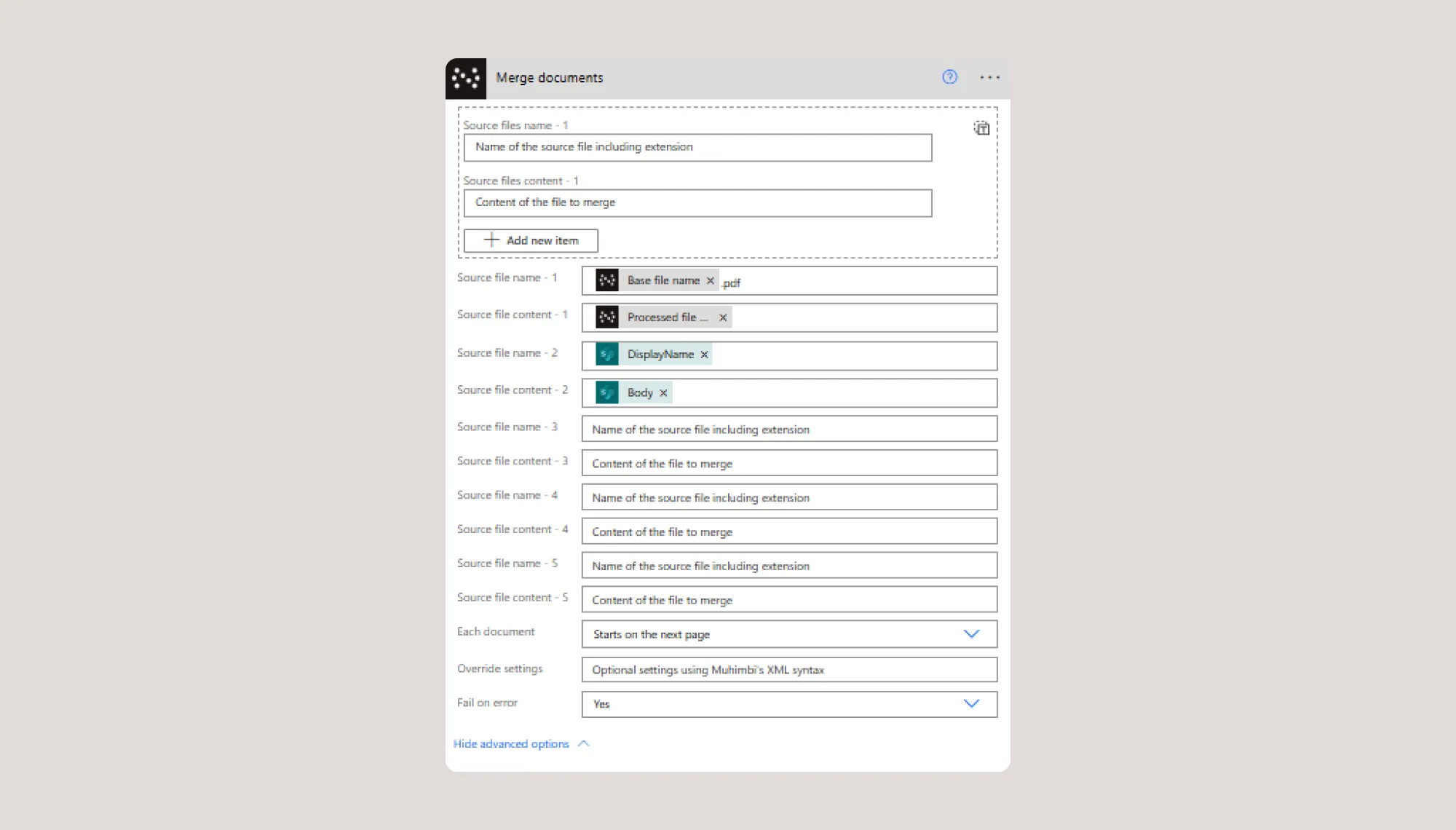
Processed file_name.pdf — Uses dynamic content and the output of the Nutrient merge action.Processed file content — Contains the final merged PDF document output of the Nutrient merge action.
To handle multiple attachments dynamically, use the Append to array variable action. This step stores each attachment’s name and content in a structured format before merging.
Configuration details:
attachArr{
"source_file_name": "@{items('For_each_1')?['DisplayName']}",
"source_file_content": "@{body('Get_attachment_content_1')}"
}
Outside the Apply to Each loop, add the Merge documents 1 action:
attachArr array variable that holds all fetched attachments.Base file name.pdf, which is the output of the Import PDF Forms data action.Processed file content, which is the output of the Import PDF Forms data action.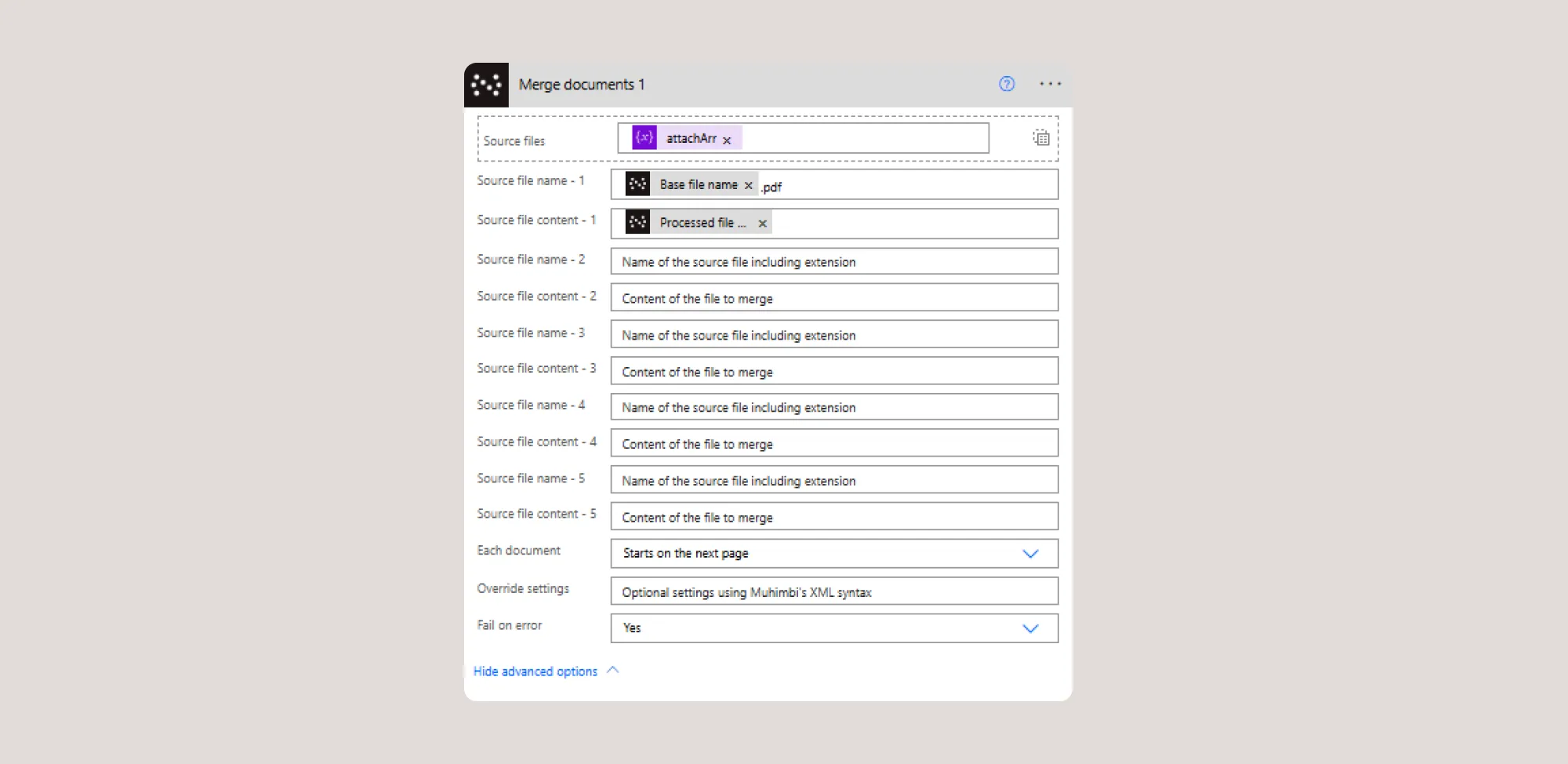
Processed file_name.pdf — Uses dynamic content and the output of the Nutrient merge action.Processed file content — Contains the final merged PDF document output of the Nutrient merge action.
Now that the process is set up, you can submit the form, including any necessary attachments. Power Automate will automatically import the form data, merge any attached files, and generate a final PDF. This document will then be stored in the designated destination document library, making it easily accessible for further use.
By implementing this workflow, organizations can streamline form submissions, ensure consistency in document formatting, and improve overall document management in SharePoint.
This solution not only simplifies data handling but also enhances productivity by automating repetitive tasks. Give it a try, and see how Power Automate transforms your document workflows!
此内容由惯性聚合(RSS阅读器)自动聚合整理,仅供阅读参考。 原文来自 — 版权归原作者所有。