








You have a stack of scanned documents. Maybe they’re invoices, research papers, or hospital intake forms. You need to extract structured data from them, not as a blob of text, but as something your application can actually work with: tables with rows and columns, equations your search engine can index, and a reading order that makes sense.
If you’ve tried solving this with traditional OCR, you know the result. You get text. Lots of it. But the table structure is gone, the two-column layout is merged into nonsense, and the handwritten notes at the bottom are either garbled or missing entirely. For scanned PDFs with complex layouts, plain OCR isn’t enough.
Nutrient Vision API is a local-first alternative to cloud OCR services. Instead of just recognizing characters, it analyzes document structure using on-device AI models. It’s available in the Nutrient Python SDK and Nutrient Java SDK, and this post walks through how to build a document data extraction pipeline with it.
Before getting into the code, it helps to understand what this document extraction SDK offers. Vision API ships three extraction engines, all accessible through the same API.
Optical character recognition (OCR)
This is the fast path, offering character recognition, word-level bounding boxes, and language detection. Use it when you need raw text at high throughput and don’t care about layout — think search indexing or receipt scanning.
Intelligent content recognition (ICR)
This is the default engine and the core of the structured data extraction pipeline. It runs local AI models that detect document layout, perform table extraction with cell-level coordinates, recognize equations (output as LaTeX), parse hierarchical content like nested lists and captions, and determine reading order. Everything stays on your machine.
VLM-enhanced ICR
This adds a cloud AI layer on top of ICR. It sends layout data to Claude or OpenAI for improved accuracy on tricky table boundaries and complex multicolumn documents. You control when this kicks in.
All three engines return JSON with bounding boxes for every extracted element. That means you can trace any value back to the exact pixel region in the source image.
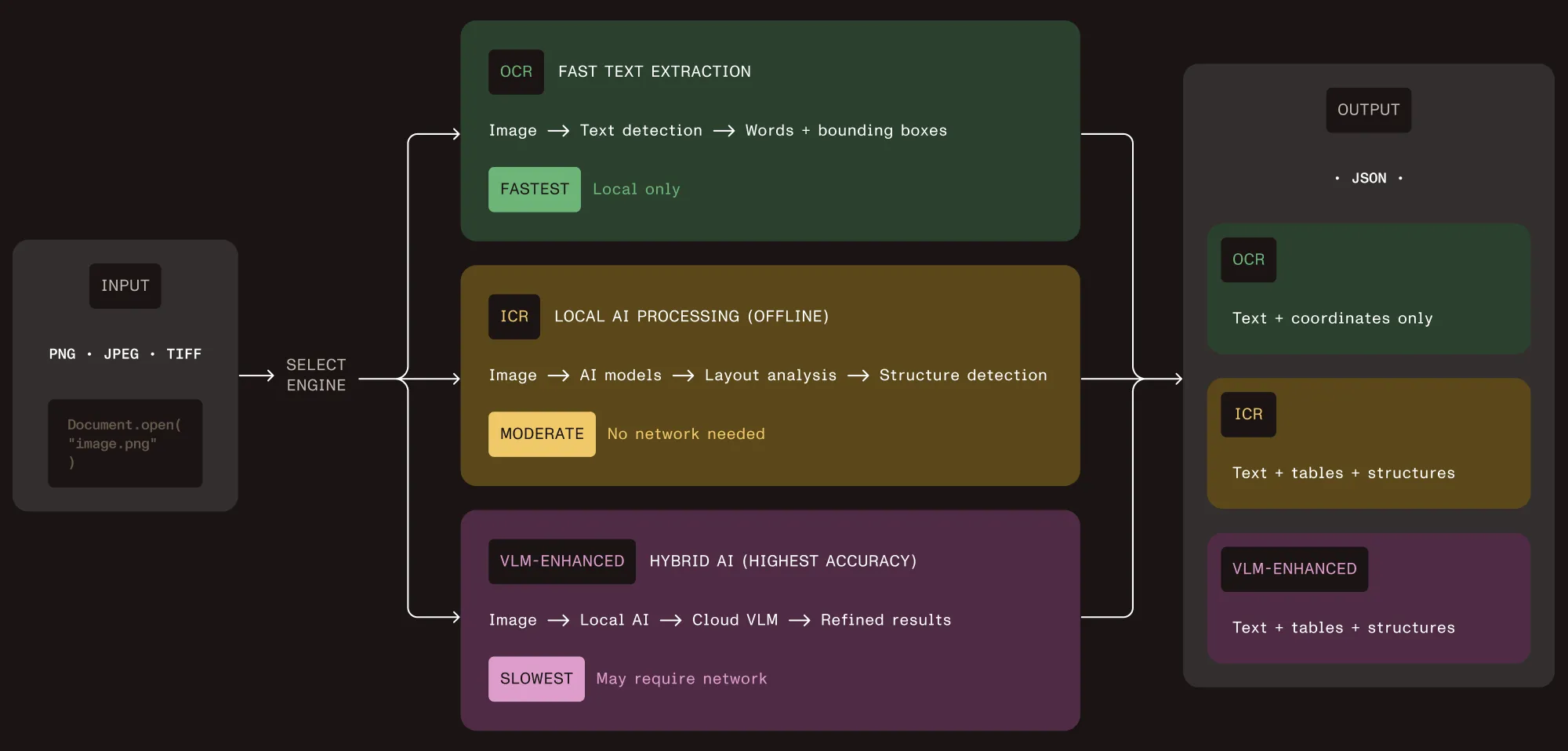
The most common scenario is extracting structured data from a scanned document using ICR. Here’s the minimal code.
Python:
from nutrient_sdk import Document, Vision, VisionEngine
with Document.open("scanned_invoice.png") as document:
document.settings.vision_settings.engine = VisionEngine.ICR
vision = Vision.set(document)
content_json = vision.extract_content()
with open("output.json", "w") as f:
f.write(content_json)
Java:
import io.nutrient.sdk.Document;
import io.nutrient.sdk.Vision;
import io.nutrient.sdk.enums.VisionEngine;
import io.nutrient.sdk.exceptions.NutrientException;
import java.io.FileWriter;
import java.io.IOException;
public class ExtractDocument {
public static void main(String[] args)
throws NutrientException, IOException {
try (Document document =
Document.open("scanned_invoice.png")) {
document.getSettings()
.getVisionSettings()
.setEngine(VisionEngine.Icr);
Vision vision = Vision.set(document);
String contentJson = vision.extractContent();
try (FileWriter writer =
new FileWriter("output.json")) {
writer.write(contentJson);
}
}
}
}
That’s it. Open the image, set the engine, extract. The JSON output contains every detected element with its type, text content, bounding box coordinates, and position in the reading order.
The JSON from ICR is structured, not flat. Here’s a simplified example of what you get back for a document containing a paragraph and a table:
{
"elements": [
{
"type": "paragraph",
"text": "Invoice #2024-0892",
"boundingBox": {
"x": 45,
"y": 120,
"width": 310,
"height": 28
},
"readingOrder": 0
},
{
"type": "table",
"boundingBox": {
"x": 45,
"y": 200,
"width": 680,
"height": 340
},
"readingOrder": 1,
"children": [
{
"type": "tableCell",
"text": "Item",
"row": 0,
"column": 0
},
{
"type": "tableCell",
"text": "Amount",
"row": 0,
"column": 1
}
]
}
]
}
Compare that with plain OCR output, which would give you something like "Invoice #2024-0892\nItem Amount\nWidget A $45.00" with no way to tell which value belongs to which column.
The bounding boxes are in pixel coordinates, so you can overlay them on the source image to build review user interfaces, highlight extracted regions, or let users click through to verify a specific value.
In practice, picking the right engine depends on your use case. The table below offers a quick comparison of what each one returns for the same input.
| Capability | OCR | ICR | VLM-enhanced ICR |
|---|---|---|---|
| Text extraction | Yes | Yes | Yes |
| Table structure | No | Yes, with cell coordinates | Yes, with confidence scores |
| Equations | No | Yes, as LaTeX | Yes, as LaTeX |
| Reading order | Basic left-to-right | Layout-aware | Layout-aware, improved |
| Handwriting | Limited | Yes | Yes |
| Bounding boxes | Word-level | Element-level | Element-level |
| Runs locally | Yes | Yes | Local + cloud API call |
| Relative speed | Fastest | Moderate | Slowest |
Switching between engines is a one-line change. The rest of your code stays the same.
Vision API also supports generating natural language descriptions of images. This is useful for accessibility compliance (WCAG alt text), content cataloging, or feeding context into downstream AI systems.
You can use cloud providers like OpenAI or Claude, or run a local VLM server for complete privacy.
Python with Claude:
from nutrient_sdk import Document, Vision
from nutrient_sdk.settings import VlmProvider
with Document.open("diagram.png") as document:
document.settings.vision_settings.provider = (
VlmProvider.Claude
)
document.settings.claude_api_settings.api_key = (
"CLAUDE_API_KEY"
)
vision = Vision.set(document)
description = vision.describe()
print(description)
Java with OpenAI:
import io.nutrient.sdk.Document;
import io.nutrient.sdk.Vision;
import io.nutrient.sdk.enums.VlmProvider;
import io.nutrient.sdk.exceptions.NutrientException;
import io.nutrient.sdk.settings.OpenAIApiEndpointSettings;
import io.nutrient.sdk.settings.VisionSettings;
import java.io.FileWriter;
import java.io.IOException;
public class DescribeImage {
public static void main(String[] args)
throws NutrientException, IOException {
try (Document document =
Document.open("diagram.png")) {
VisionSettings visionSettings = document
.getSettings().getVisionSettings();
visionSettings.setProvider(VlmProvider.OpenAI);
OpenAIApiEndpointSettings openaiSettings =
document.getSettings()
.getOpenAIApiEndpointSettings();
openaiSettings.setApiKey("OPENAI_API_KEY");
Vision vision = Vision.set(document);
String description = vision.describe();
try (FileWriter writer =
new FileWriter("description.txt")) {
writer.write(description);
}
}
}
}
If you want to keep everything local, point the API at a local VLM server like LM Studio or Ollama. The default configuration expects an OpenAI-compatible endpoint at http://localhost:1234/v1 with the qwen/qwen3-vl-4b model:
with Document.open("diagram.png") as document:
vlm_settings = (
document.settings.custom_vlm_api_settings
)
vlm_settings.api_endpoint = (
"http://localhost:1234/v1"
)
vlm_settings.model = "qwen/qwen3-vl-4b"
vision = Vision.set(document)
description = vision.describe()
Two things matter when you move from a prototype to a production deployment: startup time and engine selection.
The first time you call extract_content() with ICR, the SDK downloads several gigabytes of AI models. In production, you don’t want that happening on the first user request. Use warmup() during application startup to predownload everything.
Python:
from nutrient_sdk import Document, Vision
from nutrient_sdk.settings import VisionEngine
with Document.open("any_image.png") as document:
document.settings.vision_settings.engine = (
VisionEngine.Icr
)
vision = Vision.set(document)
# Call this during app startup.
vision.warmup()
print("Models downloaded and ready.")
Java:
try (Document document = Document.open("any_image.png")) {
document.getSettings()
.getVisionSettings()
.setEngine(VisionEngine.Icr);
Vision vision = Vision.set(document);
// Call this during app startup.
System.out.println("Downloading models...");
vision.warmup();
System.out.println("Models ready.");
}
Models are cached locally after the first download and persist across application restarts. For containerized deployments, mount a persistent volume to the model directory so you don’t redownload on every pod restart.
Here’s a quick decision tree:
You can also mix engines in the same pipeline. Run ICR as the default and selectively route documents with low-confidence table extractions to VLM-enhanced mode.
Vision API works with common image formats: PNG, JPEG, GIF, BMP, and TIFF (including multipage). If your source documents are scanned PDFs, convert them to images first using the rendering capabilities of Nutrient Python SDK or Nutrient Java SDK, and then run extraction on each page.
If you’ve been looking for an OCR alternative that extracts document structure locally without sending data to cloud APIs, Vision API is worth trying. The best way to get started is to grab one of the sample projects and run it against your own documents:
If you hit an edge case or want to talk through your extraction pipeline architecture, reach out to our team.
此内容由惯性聚合(RSS阅读器)自动聚合整理,仅供阅读参考。 原文来自 — 版权归原作者所有。