


惯性聚合 高效追踪和阅读你感兴趣的博客、新闻、科技资讯
阅读原文 在惯性聚合中打开

推荐订阅源

WordPress大学
WordPress大学
The GitHub Blog
The GitHub Blog
T
Threatpost
人人都是产品经理
人人都是产品经理
大猫的无限游戏
大猫的无限游戏
Exploit-DB.com RSS Feed
博客园 - Franky
Recent Commits to openclaw:main
Apple Machine Learning Research
酷 壳 – CoolShell
酷 壳 – CoolShell
M
MIT News - Artificial intelligence
小众软件
小众软件
Hugging Face - Blog
Hugging Face - Blog
云风的 BLOG
云风的 BLOG
S
Security Affairs
P
Proofpoint News Feed
L
LINUX DO - 最新话题
宝玉的分享
宝玉的分享
S
Security @ Cisco Blogs
H
Hacker News: Front Page
Security Archives - TechRepublic
Vercel News
Vercel News
Engineering at Meta
Engineering at Meta
Know Your Adversary
Know Your Adversary
Y
Y Combinator Blog
美团技术团队
CTFtime.org: upcoming CTF events
月光博客
月光博客
量子位
博客园_首页
The Last Watchdog
The Last Watchdog
D
DataBreaches.Net
www.infosecurity-magazine.com
P
Privacy International News Feed
The Register - Security
Schneier on Security
H
Help Net Security
K
KPMG report finds enterprise disconnect between AI and its ROI | CIO
V
Visual Studio Blog
Google DeepMind News
F
Full Disclosure
C
Cyber Attacks, Cyber Crime and Cyber Security
MyScale Blog
MyScale Blog
aimingoo的专栏
aimingoo的专栏
S
Schneier on Security
L
Lohrmann on Cybersecurity
S
Secure Thoughts
Stack Overflow Blog
Stack Overflow Blog
Cloudbric
Cloudbric
Microsoft Security Blog

Inside Nutrient

A guide to the invisible work behind documents Introducing Nutrient Documents for Salesforce: Native document generation and signing Document AI vs. traditional OCR: Choosing between OCR, AI, and hybrid pipelines PDF SDK compliance and security evaluation checklist for enterprise teams (2026) Invariant Corp replaces paper processes with Nutrient Workflow and scales without limits What is process mapping? A complete guide Nutrient vs. Conga Composer for Salesforce document generation (2026) Document routing: How to automate document distribution The CTO’s AI playbook: Why accountability architecture beats orchestration Compliance workflow automation: Why built-in compliance is table stakes Workflow diagrams: Examples, symbols, and how to build one that actually runs Digital forms: Replace paper forms with automated workflows Approval workflow software: How to automate approvals Why document-centric automation is different The CEO’s AI playbook: Why decision architecture beats model selection Nutrient SDK product updates for Q1 2026 PDF redaction verification: How to prove sensitive data is permanently removed What is a VPAT? The complete guide to accessibility conformance reports What is PDF/UA? The accessible PDF standard explained Salesforce eSignatures: Generate, sign, and track documents in one flow Online document viewer: Options, tradeoffs, and how to embed one Document viewer for web apps: React, Vue, Angular (2026) Best document viewers in 2026: A buyer’s guide How to edit a PDF in Python: Add text, images, and annotations Nutrient advances Workflow platform with agentic AI for enterprise-grade speed and consistency in document-heavy operations How to create a Salesforce quote template from opportunity data The business case for accessibility: Five ways it drives enterprise value Python PDF library comparison (2026): 7 libraries for developers Why your AI agent hallucinates PDF table data PDF.js limitations: When to upgrade to a commercial PDF SDK How Subject scaled 5× with Nutrient’s PDF SDK without rebuilding its document layer I replaced our sales training with an AI coach that runs in Slack — here’s what broke Redirecting to: https://securitybuzz.com/cybersecurity-news/why-enterprise-permissions-are-ais-most-dangerous-inheritance/ Nutrient .NET SDK vs. iText Core: Complete comparison for .NET developers DocuVieware: Support’s most frequently asked setup questions Introducing Nutrient Workflow How to convert PDF to Word in C# (.NET) When email and spreadsheets stop working: Work order approval workflows for field teams on the move Compliance with confidence: Why document-centric automation is the foundation of your mission Nutrient expands AI Assistant, automating multistep document workflows inside any application What is document generation? A developer’s guide to PDF generation Document Converter data flow and how real-time watermarks skip the queue PDF/UA compliance guide: Requirements, standards, and best practices Computers still can’t understand you How Athena Intelligence built AI agents for regulated enterprises with Nutrient’s document infrastructure How to convert HTML to PDF (2026): 4 methods from browser print to SDK How to build a document extraction pipeline with Nutrient Vision API OCR vs. intelligent document processing: Choosing the right document extraction engine Beyond OCR: How document intelligence eliminates manual processing in regulated industries Nutrient vs. IronPDF: Complete comparison for .NET developers Nutrient vs. Aspose.PDF: Complete comparison for .NET developers Redirecting to: https://fortune.com/2026/02/19/openclaw-who-is-peter-steinberger-openai-sam-altman-anthropic-moltbook/ Lufthansa Systems uses Nutrient to deliver reliable, scalable PDF rendering for pilots worldwide Nutrient vs. Syncfusion: Complete comparison for .NET developers React’s useTransition: The hook you’re probably using wrong First City Monument Bank streamlines banking processes with Nutrient Workflow Redirecting to: https://www.sdcexec.com/warehousing/automation/article/22957364/nutrient-workflow-automation-the-missing-link-in-supply-chain-efficiency The complete guide to digital signatures: PAdES, CAdES, and XAdES explained Nutrient Python SDK: Production-grade document processing for Python Introducing agentic document editing for web applications with AI Assistant Nutrient vs. QuestPDF: Complete comparison for .NET developers How we fixed the GdPicture license expiration (and what to do if you’re affected) Red team security testing with agentic AI The future of healthcare document automation Best healthcare workflow software compared Nutrient SDK product updates for Q4 2025 How Harvey scaled legal document workflows 50 percent MoM without rebuilding infrastructure HIPAA-compliant document management in hospitals How we optimized rendering performance while handling thousands of annotations in React — Part 2 Automated PII removal with Nutrient API Redirecting to: https://www.devopsdigest.com/2026-low-code-no-code-predictions Redirecting to: https://www.kmworld.com/Articles/Editorial/ViewPoints/Leaders-predict-AI-to-continue-permeating-all-aspects-of-KM-in-2026-172594.aspx What are deep agents and how do they solve complex problems? Whipping up document magic: Your easy-bake recipe for Vue and Nutrient Web SDK 🧁 What I’ve learned about product iteration planning while building SDKs Passwordless document signing: Three-layer security guide New zip folder functionality streamlines file management in Document Automation Server The keyboard shortcuts playbook: Taking control of keyboard events in Nutrient Web SDK From experienced engineer to AI beginner: My unexpected journey AI-assisted manual testing: Handling Safari’s PDF rendering and UI quirks How to keep a 20-year-old SDK up to date How we optimized rendering performance while handling thousands of annotations in React — Part 1 Nutrient announces new executive hires to accelerate next phase of growth High performance UI using web workers Automate document conversion at scale with Python and Nutrient DCS From curiosity to PLG (and AI): My journey to understanding product-led growth Prost to progress: One year as Nutrient Pigeon usage at Nutrient: Bridging native SDKs to Flutter Modernizing CI build servers: How to migrate from Chef to Ansible Unix man pages: AI-friendly documentation since 1971 Consistent hashing for even load distribution Best AI redaction APIs: Complete comparison guide for 2025 Why AI document redaction matters for modern security From coding to coordinating: How AI transformed my workflow What is intelligent document processing (IDP)? A complete guide Enterprise PDF SDKs: Best PSPDFKit (now Nutrient) alternatives Nutrient SDK product updates for Q3 2025 GdPicture support best practices Redacting sensitive data with Nutrient AI redaction API How AI is transforming the customer experience at Nutrient: From instant answers to intelligent support
Working with PDF page labels: Pitfalls, FAQs, and when you actually need them
Natalye Childress · 2026-06-03 · via Inside Nutrient

If you’ve ever opened a PDF and seen page labels like ‘i, ii, iii’ before the first numbered page, or a section using ‘A-1, A-2’ for an appendix, you’ve already seen page labels in action.

A PDF page label is the human-readable identifier a viewer displays in its toolbar, table of contents, and thumbnail strip — independent of the page’s position in the file. Most of us never think twice about them. They’re one of those quiet little features that work so well, you only notice them when something goes wrong: the page number in the toolbar doesn’t match what’s printed on the page, or a “go to page” jump lands somewhere unexpected. But if you’re building anything that reads, displays, or edits PDFs, page labels are something you’ll eventually run into.

This post will walk through what page labels actually are, how the PDF specification models them, the gotchas to watch out for, and which Nutrient product to reach for depending on what you’re trying to do.

What page labels actually are

Think of a page label as a page’s display name — what shows up in the viewer’s toolbar, table of contents, and thumbnails. It rides alongside the page but isn’t tied to its physical position in the file, which is what your code actually touches.

Internally, the PDF stores labels as a series of ranges. Each range carries its own numbering style (Arabic, Roman, or letters), an optional prefix, and an optional starting number. For a complete breakdown of each component and the five numbering styles the PDF specification supports, see our PDF page labels guide.

If a file ships without any label data, the viewer just counts 1, 2, 3, and so on. As soon as ranges are defined, the viewer follows them. A textbook with four pages of front matter, six pages of body content, and a two-page appendix could end up displaying i, ii, iii, iv, 1, 2, 3, 4, 5, 6, A-1, A-2.
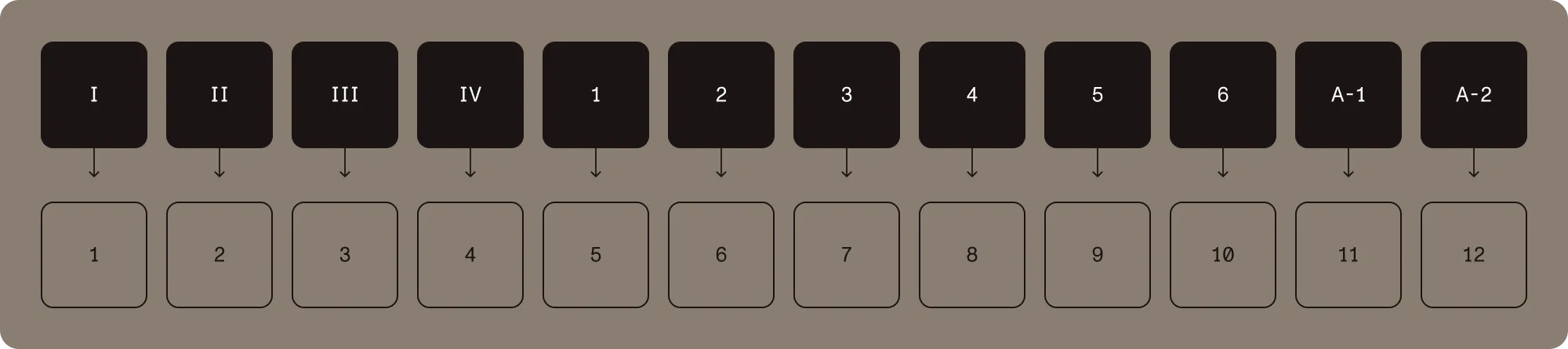
Twelve PDF page labels — uppercase Roman numerals I–IV, Arabic numerals 1–6, and a prefixed appendix (A-1 and A-2) — mapped to physical page positions 1 through 12

The user sees the labels. Your code, in most cases, still uses page indices. It’s a useful split: page labels are presentation, page indices are addressing.

What page labels aren’t

Page labels are easy to confuse with a few other things, so it’s worth being explicit. They’re not the page index, the page number drawn on the page, or the bookmark hierarchy:

  • The page index is what your library hands you — a zero- or one-based number that identifies where the page sits in the file. Every PDF API addresses pages this way under the hood.
  • Printed page numbers are part of the page content, drawn as text at render time. A PDF can show 42 on the page without having any page labels set, and vice versa.
  • Bookmarks (the outline tree) are a separate navigation structure. They can target pages, but they don’t define what a page is called.

In real-world PDFs, the page label, the page index, and the printed page number often disagree. A scanned book might have a page label of 1 for what is actually the seventh page in the file, with the printed number 1 baked into the scanned image. All three can drift apart, and accessibility checkers sometimes flag the inconsistency.

Why page labels matter

Most documents are fine with the default numbering, and you don’t need to think about page labels at all. But there are a handful of cases where they really earn their keep:

  • When front matter shouldn’t consume the page count. Books, reports, and academic papers often use Roman numerals for the table of contents, preface, and acknowledgments so that “page 1” is actually the first page of body content.
  • When sections need their own numbering. Reference manuals and technical specs commonly use prefixed labels like A-1, B-1, B-2 for chapters or appendices, so a cross-reference like “see page B-12” stays stable even when other sections grow.
  • When print and digital page numbering have to match. When users read both a printed copy and a PDF in parallel, page labels let the digital viewer mirror what’s on paper, including any unnumbered front matter.
  • When legal or regulated documents need traceable references. Filings, contracts, and discovery materials often use Bates numbering or fixed labels so that page citations remain valid across edits and reissues.
  • When merging documents needs predictable navigation. When several files are merged into one PDF, the resulting document usually needs reset or sectioned numbering rather than one continuous count.

Without page labels, none of this is impossible — you can always burn numbers into the page content — but it ties the numbering to the rendered text, makes editing harder, and breaks “go to page” navigation in your viewer.

Common pitfalls

Page labels look simple until they don’t. Here are the patterns that tend to trip teams up.

Duplicate labels

There’s nothing in the PDF specification that prevents two pages from having the same label. A document with two ranges, both starting at 1 with style D, will produce two pages labeled 1, two labeled 2, and so on. Viewers handle it, but “go to page” features may jump to the first match, and search results can be ambiguous.

Confusing labels with indices in code

Most APIs accept page indices, not labels. Calling goToPage("iii") on a library that expects an integer is a common mistake. The same applies to structural operations like deleting or duplicating pages — those work on page indices as defined by the API, never on labels. Some libraries provide a separate label-aware lookup, and others don’t. When you do need to resolve a label to an index, walk the label ranges yourself, or use the SDK helper if one exists.

Forgetting to clear previous ranges

A lot of APIs append a new range rather than replacing the existing ones. If a document already has a range starting at index 0, adding another range at index 0 can leave you with two ranges that disagree about the same pages. Most libraries provide a delete-all or replace operation — make use of it before bulk edits.

Some PDF viewers display page labels but only accept page indices in the “go to page” input. Others accept both. If your application exposes navigation, decide upfront which behavior you want, and make sure the input field’s placeholder reflects it.

OCR and scanned documents

A scanned PDF rarely has meaningful page labels — the original print numbering is part of the image, not the structure. If your pipeline runs OCR, page labels won’t be created automatically. They’re a separate metadata edit.

Sharing and printing

Whether a page label is visible after a PDF is exported, printed, or shared depends entirely on the consuming software. Most desktop viewers respect labels, but some web viewers, mobile apps, and print drivers don’t. If labels are critical to the reader’s experience, it’s worth also showing the number in the page content itself.

How Nutrient handles page labels

Each Nutrient product handles page labels a little differently, depending on whether the focus is viewing, editing, or server-side processing — a viewer reads the label dictionary and renders it, while a server-side API mutates it. For the full reference, including the numbering systems the PDF specification supports and per-product code samples for Web, Document Engine, iOS, Android, .NET, and MAUI, see our PDF page labels guide.

FAQ: PDF page labels

Most viewers display the label alongside the physical page number in the file when a label is set, so users can disambiguate. The format varies by viewer, but the parenthetical is almost always that physical page number — typically one-based and counted from the start of the file — not a second label or an API-level index.

It depends on the API. If a label is part of a range covering several pages, deleting it usually means splitting the range or shrinking it. Nutrient .NET SDK exposes range-level operations directly. Nutrient Web SDK operates per page and lets the underlying engine reconcile ranges for you.

Only barely. Page labels are stored as a small block of metadata inside the PDF. Even a document with hundreds of ranges adds only a few kilobytes.

Page labels are metadata for navigation. They don’t change the page text, the tag tree, or how a screen reader reads content. They do affect what assistive technology announces when a user navigates to a page, so meaningful labels improve the experience for everyone. See accessibility support for the JavaScript PDF viewer for how Nutrient Web SDK handles related accessibility concerns.

Yes, in well-behaved converters. PDF/A and PDF/UA don’t restrict page label dictionaries, and standard conversion tools carry them through. Nutrient preserves the page label dictionary through PDF/A conversion. If you’re seeing labels disappear after conversion, the converter — not the specification — is the culprit.

Get started with PDF page labels

Page labels are one of those features that sit somewhere between “nice to have” and “absolutely essential,” depending on what you’re building. For a single-section document, the default numbering is plenty. But for anything with front matter, appendices, or merged sections — or any kind of document that needs print and digital numbering to line up — they’re the right tool for the job.

Building a web viewer or generating PDFs on the server? Start with Nutrient Web SDK or Document Engine. Working in a mobile or .NET app? Jump straight to the iOS, Android, .NET, or MAUI guide for your platform. And if you have a more specific question, reach out to our team.