





Table of contents
Extracting content from PDF files might seem like a small task, but it’s a powerful part of automating real-world document workflows in Python. Whether you’re analyzing invoices, converting academic papers, or processing reports at scale, this guide shows you how to handle PDFs with confidence.

TL;DR
Parsing PDFs in Python is easy with the right tools. This tutorial walks you through extracting text from PDFs using PyPDF(opens in a new tab) for basic, selectable text, and the Nutrient Processor API for more advanced use cases like OCR, encrypted documents, and structured JSON output.
In this tutorial, you’ll learn how to parse PDF files in Python using:
- The open source PyPDF(opens in a new tab) library for quick and simple tasks.
- The Nutrient Processor API for advanced, reliable, and structured text extraction — including OCR and support for encrypted or scanned documents.
Before you begin, it’s crucial to know what type of text you’re trying to extract:
- Selectable (digital) text — Text you can highlight in a PDF viewer. This is straightforward to parse.
- Scanned (image-based) text — Text stored as images, requiring optical character recognition (OCR).
This tutorial covers both — but it’ll start with digital PDFs and then show how to handle OCR using the Nutrient API. It will focus on extracting text that’s already selectable.
Why Python is perfect for parsing PDFs
Python is beloved in the data world for a reason. When it comes to PDF parsing, Python offers:
- A mature ecosystem — Libraries like PyPDF make simple jobs easy, while APIs like Nutrient handle complex cases.
- Great integration — Python scripts fit smoothly into broader automation and ETL pipelines.
- Vibrant community — Endless tutorials, packages, and support channels are at your fingertips.
Read on to get started with your first extraction.
Requirements
This tutorial will make use of Python version 3.12.3, but it should work with most 3.x Python versions. Create a new folder and a Python file to store all the code from this tutorial:
mkdir text_extract_pdf
cd text_extract_pdf
touch app.py
You’ll also need to install PyPDF(opens in a new tab). You’ll rely on this library to read a PDF file and extract data from it. It can be installed using PIP:
Use these two test PDFs:
Just make sure to save the PDF file next to the app.py file and replace the file names in the rest of this tutorial appropriately.
PyPDF is a pure Python library to read PDFs. Here’s how to extract text from each page:
from pypdf import PdfReader
reader = PdfReader("compressed.tracemonkey-pldi-09.pdf")
for page in reader.pages:
print(page.extract_text())
When you save and run the code, it’ll print all the text from the PDF file in the terminal. The code creates a PdfReader(opens in a new tab) object. Then it loops over all the pages in the PDF using the .pages(opens in a new tab) property and prints the text from each page using the .extract_text(opens in a new tab) method.
Skipping headers and footers with PyPDF
PyPDF allows you to use visitor functions that get called with each operator or text fragment. The visitor function receives five arguments: the text, the current transformation matrix, the text matrix, the font dictionary, and the font size. You can make use of the text matrix to figure out the x/y coordinates of the text fragment and decide if you want to skip it or extract it.
In the following example, PyPDF will skip the header and footer of this PDF document(opens in a new tab), as they fall outside of the acceptable y-coordinate range:
from pypdf import PdfReader
reader = PdfReader("GeoBase_NHNC1_Data_Model_UML_EN.pdf")
page = reader.pages[3]
parts = []
def visitor_body(text, cm, tm, fontDict, fontSize):
y = tm[5]
if y > 50 and y < 720:
parts.append(text)
page.extract_text(visitor_text=visitor_body)
print("".join(parts))
Decrypting and extracting text from encrypted PDFs in Python
The PDF files you’re working with may be encrypted. Luckily, you don’t have to look anywhere else for a solution, as PyPDF supports encryption and decryption of PDF files as well.
To work with encrypted documents, you’ll need to install the cryptography package:
Use the .decrypt method to decrypt a PDF file before extracting text from it:
from pypdf import PdfReader
reader = PdfReader("encrypted-pdf.pdf")
if reader.is_encrypted:
reader.decrypt("password")
# extract text from all pages
for page in reader.pages:
print(page.extract_text())
Method 2: Parse text with Nutrient Processor API (with OCR)
For more advanced use cases — like OCR, table detection, or layout-preserving JSON — use the Nutrient Processor API.
Step 1: Sign up and get your API key
Create a free account(opens in a new tab) at Nutrient Processor API. After verifying your email, copy your API key from the dashboard.
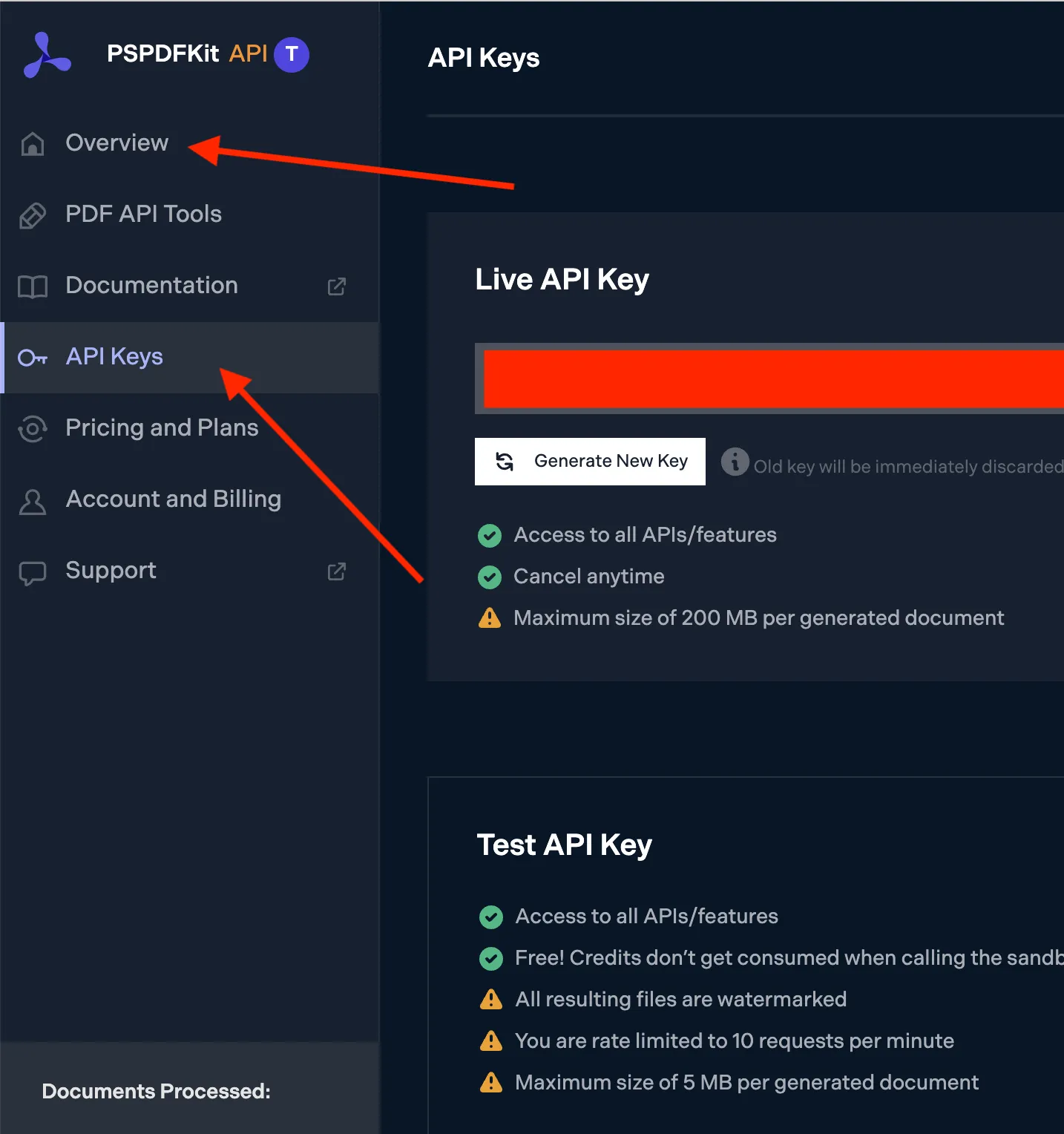
After you’ve verified your email, you’ll have access to your API key. Navigate to the Overview page to get started, or go to API keys to retrieve your key.
Step 2: Upload and extract text
To work with Nutrient Processor API, you’ll need to install the requests package:
After installing the package, you can create a Python script to perform text extraction using the API’s /build endpoint:
import json
import requests
file = "./example.pdf"
url = "https://api.nutrient.io/build"
payload= {
"instructions": json.dumps({
"parts": [
{
"file": "file"
}
],
"output": {
"type": "json-content",
"plainText": True,
"structuredText": True,
}
})}
files=[
('file',('file.pdf',open(file,'rb'),'application/pdf')),
]
headers = {
'Authorization': 'Bearer <API-KEY>'
}
response = requests.post(url, headers = headers, data = payload, files = files)
if response.status_code == 200:
print(response.content)
else:
print(
f"Request to Nutrient API failed with status code {response.status_code}: '{response.text}'."
)
Be sure to replace <API-KEY> in the code above with your key from the Nutrient API dashboard. Also ensure that an actual PDF file is present at the path specified by the file variable on line 4.
The JSON response includes both plainText and structuredText. The API will automatically:
- OCR scanned PDFs
- Preserve reading order and layout
- Normalize encoding issues
- Return structured JSON for downstream parsing
You can perform many operations using Nutrient Processor API, including text extraction, Office conversion, and OCR. Learn more by reading our documentation.
Comparing PyPDF and Nutrient API for text extraction
When it comes to extracting text from PDF files, both PyPDF and Nutrient Processor API are powerful tools, but they serve different needs.
PyPDF
- Open source — PyPDF is an open source library, making it a cost-effective choice for developers working on projects with budget constraints.
- Lightweight and easy to use — PyPDF is simple to integrate into Python projects and works well for basic text extraction tasks.
- Community-driven — As an open source project, PyPDF benefits from community contributions and updates, but it might lack the advanced features of commercial tools.
Nutrient Processor API
- Advanced features — Nutrient is a commercial API that offers advanced features like high-fidelity text extraction, handling of complex PDFs, and support for encrypted documents.
- Security and compliance — Nutrient provides SOC 2-compliant security, making it a suitable choice for enterprise applications where data security is a priority.
- Comprehensive support — With Nutrient, users benefit from professional support and regular updates, ensuring reliability and performance in production environments.
In summary, PyPDF is ideal for simpler, budget-conscious projects, while Nutrient is the go-to solution for enterprise-level applications requiring advanced capabilities and security.
Conclusion
This tutorial covered the basics of extracting text from a PDF file using Python and PyPDF. It also showed how to extract text from an encrypted PDF file.
The second part of the tutorial introduced Nutrient Processor API as an alternative solution for extracting text from a PDF. Leveraging the power of Nutrient API, you can efficiently extract meaningful text from PDF files while ensuring high extraction speed and quality.
FAQ
Yes! If your PDF contains digital (selectable) text, you can extract it using PyPDF without OCR. This works best for PDFs exported from Word, LaTeX, or similar tools.
You’ll need OCR to extract text from image-based PDFs. PyPDF doesn’t support this, but the Nutrient Processor API automatically applies OCR during processing.
Absolutely. The Nutrient Processor API returns both plain text and structured JSON with text order and hierarchy, making it ideal for NLP or analysis pipelines.
Not always. PyPDF is great for simple tasks, but for large-scale, secure, or OCR-heavy workflows, a robust API like Nutrient’s is better suited.
Yes. There’s a generous free tier for developers to test text extraction, OCR, and more — no credit card required.