


In today’s business landscape, the efficient processing of invoices is crucial for maintaining financial accuracy and ensuring timely payments. However, dealing with large PDF files containing multiple invoices can be a time-consuming and error-prone task. This user guide demonstrates how to leverage the Aquaforest PDF Connector for Power Automate — specifically the Split PDF by barcode action — to automate the separation of invoices based on barcode values.
Manual processing of invoices within large PDF files poses several challenges:
The Aquaforest PDF Connector for Power Automate introduces a powerful action that enables splitting PDFs by barcode, and it’s designed to address the challenges associated with invoice processing. This action utilizes barcode values embedded in PDF files to automate the splitting of the PDF into individual invoices. Moreover, it allows the generation of customized file names for the split files based on the extracted barcode values.
Follow the step-by-step instructions below to implement the Split PDF by barcode action.
Add the Aquaforest PDF Connector to your Power Automate workflow. First, choose the type of the flow and the trigger.
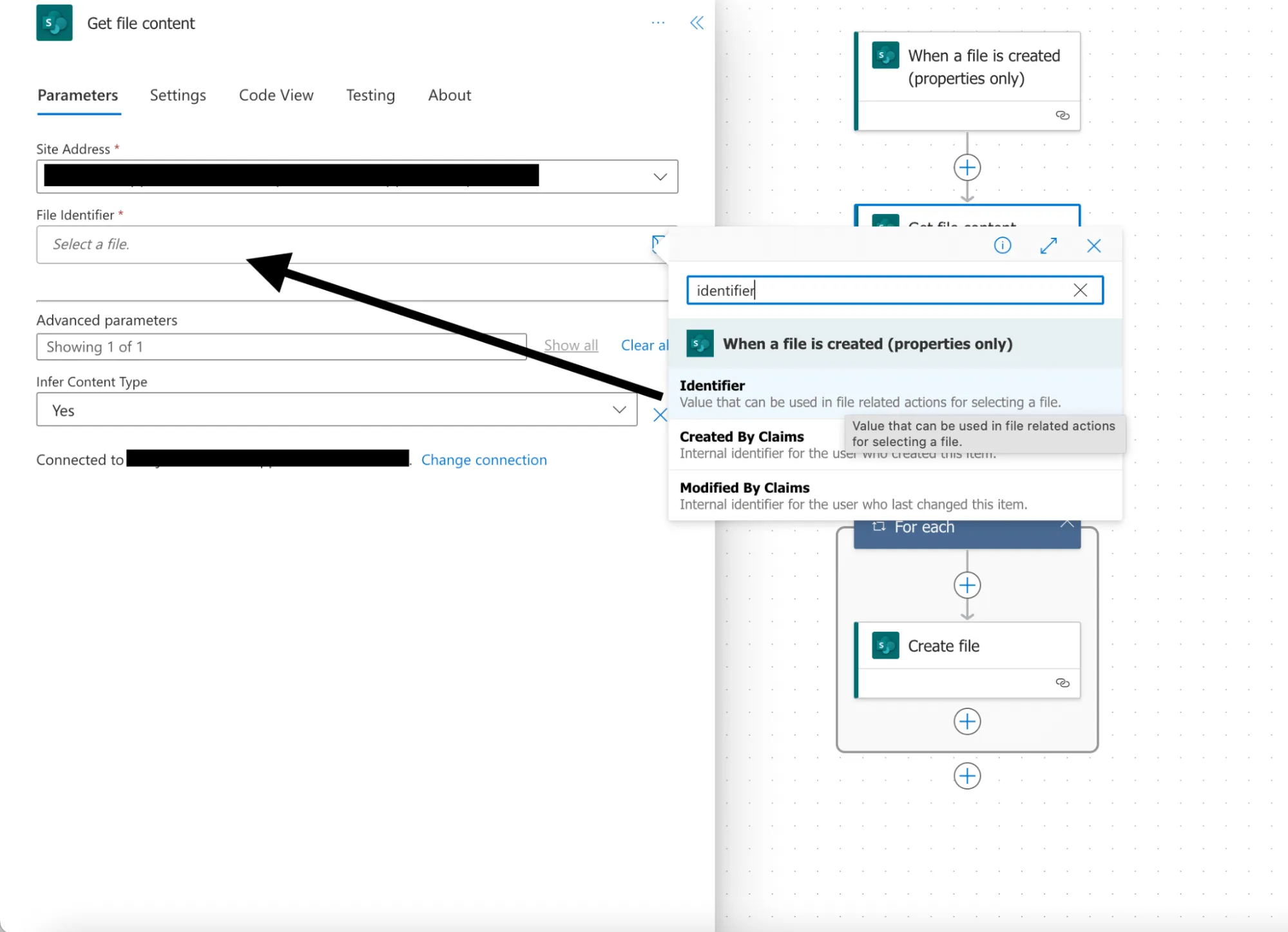
For this example, choose the Automated cloud flow and set the When a file is created (properties only) trigger. This trigger is activated when an item is created or modified in a library. As it returns only the properties stored in the library columns, you need to add a Get file content step and use the Identifier property returned by this action to get to the contents of the file.
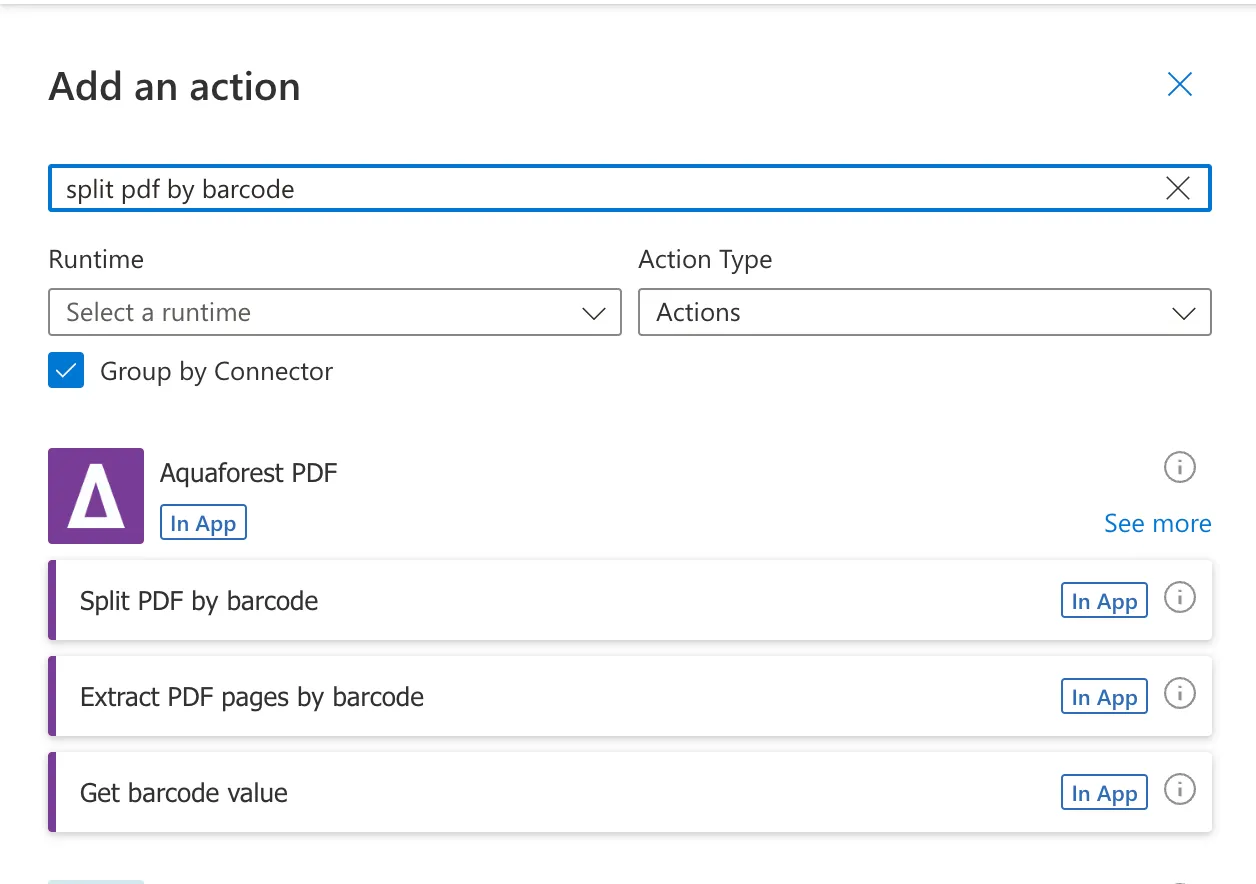
Click the + button to add a new action, and in the search bar, type split pdf by barcode.
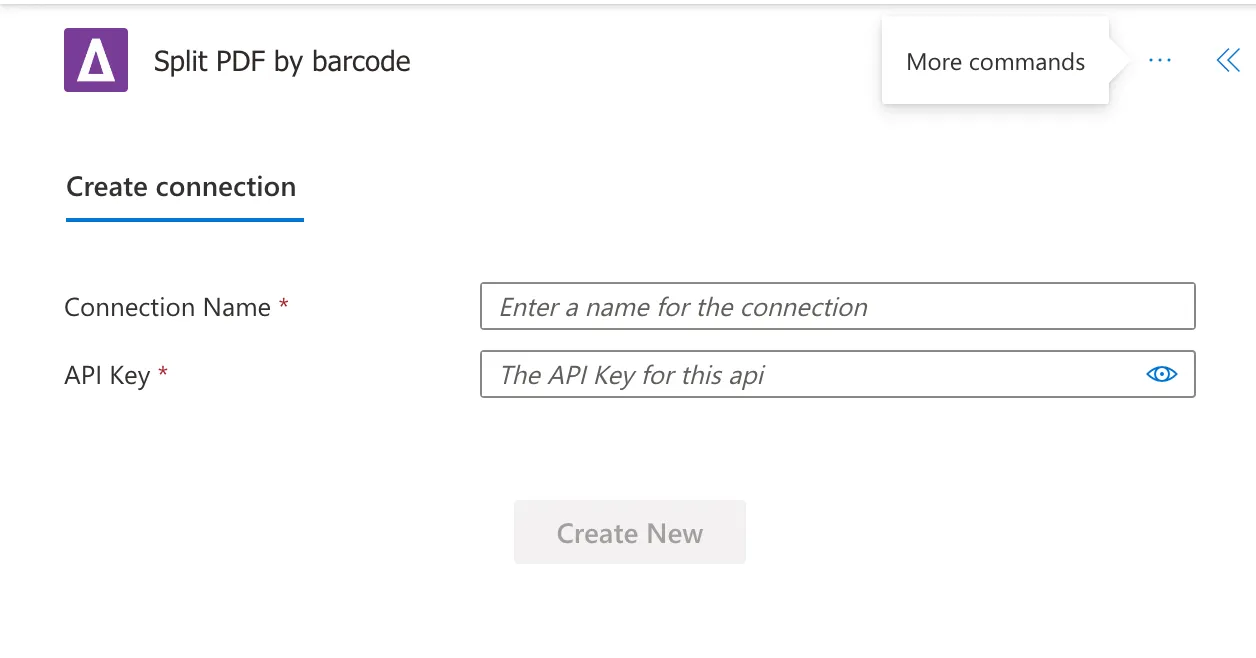
In the next step, fill in the Connection Name and API Key fields. Give your connection a name, and use the primary key that was generated when you signed up for PDF Connector.
When you activate the connector and add an action, the next step is to fill in the required fields. Enter the source file name, file content (Base64 string), and file name template.
%VALUE1% will be replaced by the barcode values found dynamically.Fill in the following fields, if they’re relevant:
Add the create file action and configure following the details below:
.pdf. The output file name contains the barcode file in it.Split Output Files is the array of split files with their corresponding file names.
You can also check other output parameters:
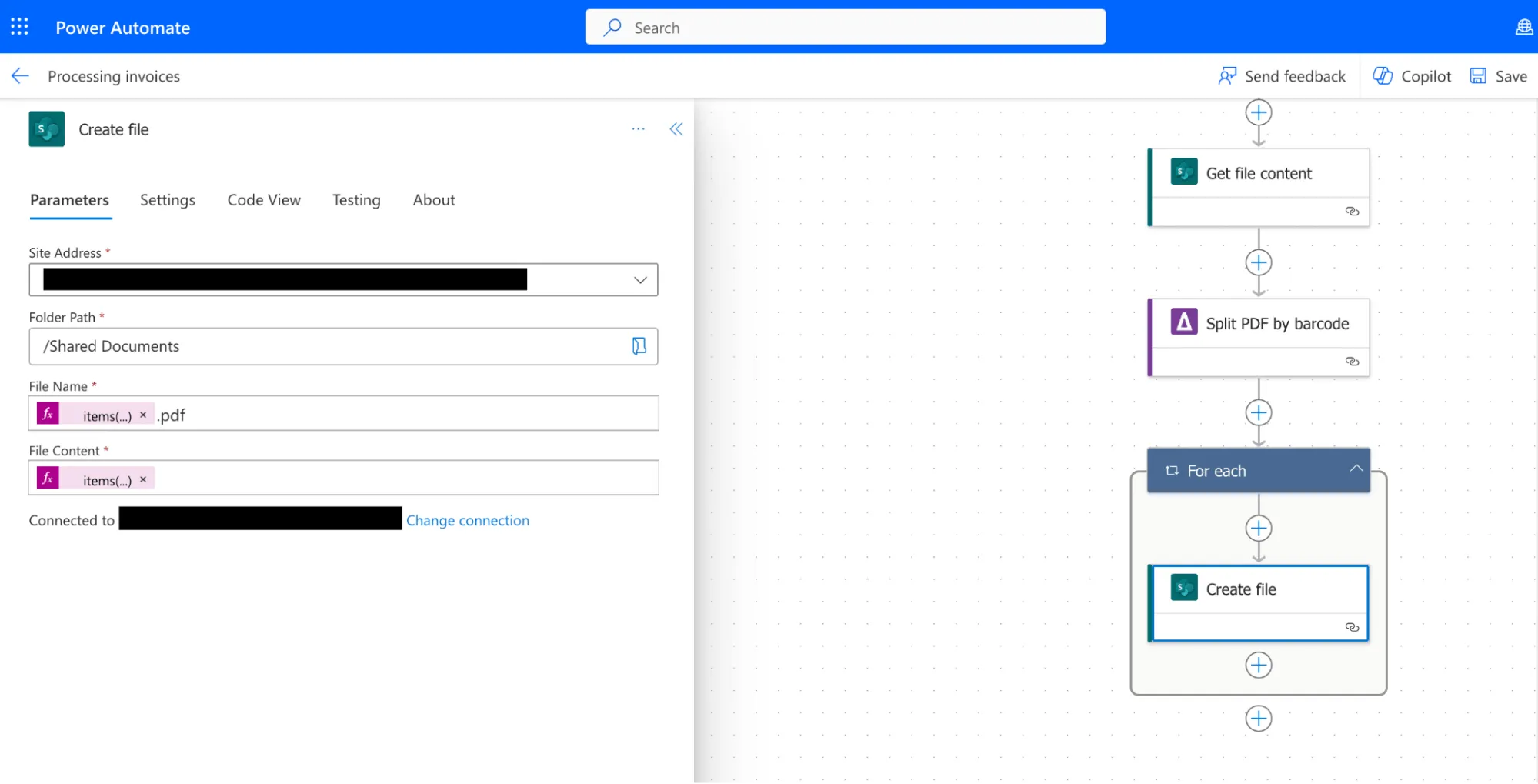
Click Save and run the Power Automate workflow to execute the Split PDF by barcode action.
Check the output for accurately separated invoices with customized file names based on barcode values.
By incorporating the Split PDF by barcode action into your Power Automate workflows, you can significantly enhance the efficiency and accuracy of invoice processing. This post provides a comprehensive walkthrough of the action, empowering users to streamline accounts payable processes and reduce manual effort.
此内容由惯性聚合(RSS阅读器)自动聚合整理,仅供阅读参考。 原文来自 — 版权归原作者所有。